FuseBase Work
Integration of agents/adapters with other services via MCP
What is MCP? MCP (Model Context Protocol) is a technology that lets our agents connect and work with your favorite apps and services.Think of it as a universal remote: instead of...
Guide details
- Published
- June 21, 2026
- Read time
- 3 min read
- Category
- FuseBase Work
What is MCP?
MCP (Model Context Protocol) is a technology that lets our agents connect and work with your favorite apps and services.
Think of it as a universal remote: instead of switching between different tools, you can manage everything right from your agent – quickly and easily.
MCP isn’t just about connecting to other services. It actually expands what your agent can do!
With MCP, your agent can:
- Generate diagrams for reports or presentations
- Create videos and images automatically
- Analyze data and build visual dashboards
- etc
So, MCP turns your agent into a powerful assistant that not only connects your apps, but also brings new creative and productive features – helping you get more done, in less time.
Adapters already work with MCP – why do I need additional configuration?
Yes, our adapters such as Cursor, Codex, and Hermes already have built-in MCP functionality. However, our implementation offers several advantages:
- A single management point for all integrations at the organizational level. If you use both Codex and Claude, you don’t need to configure integrations for each adapter individually—everything can be set up in one place for all adapters at once.
- You can configure integration access permissions. For example, you can make certain integrations available to all agents in the organization, while others can be restricted to specific agents only.
FuseBase MCP
By default, we automatically set up MCP for Fusebase, which allows you to manage your organization through FuseBase Work. Specifically, you can:
- create workspaces, folders, and pages;
- edit pages;
- create and edit portals;
- create and edit databases;
- etc.
MCP is enabled by default for the default CEO agent with full access to your organization. For new agents, you’ll need to activate FuseBase manually with the permissions you require.
Adding an MCP/HTTP integration
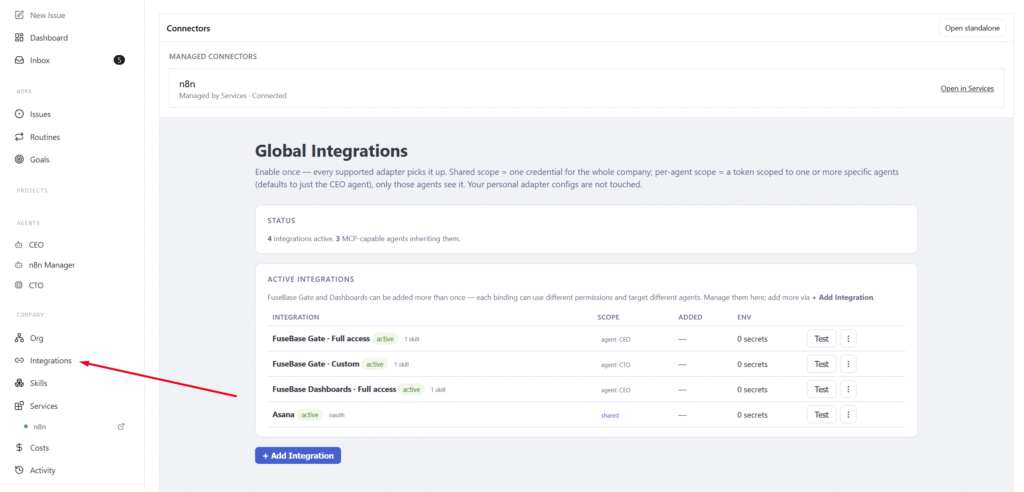
1) Go to the Integrations section.
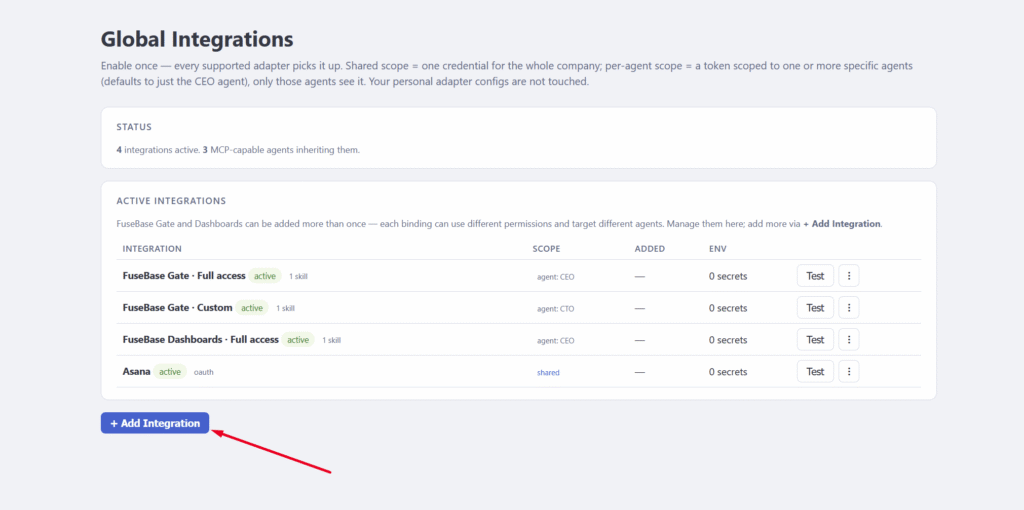
2) Click on Add Integration.
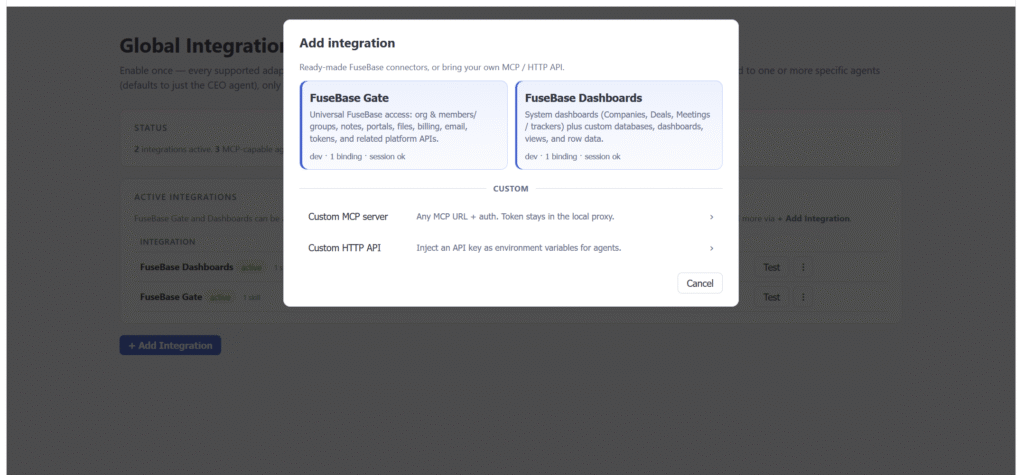
3) You have several integration options:
- Custom integrations with FuseBase. As mentioned above, the default agent already has the FuseBase integration enabled by default. However, you can add a custom integration—for example, grant an agent access only to portals or only to databases. You can read more about configuring the FuseBase Gate MCP here, and about the setup for FuseBase Dashboards here.
- You can also add custom MCPs or HTTP connections to other services (Airtable, Asana, Linear, etc.).
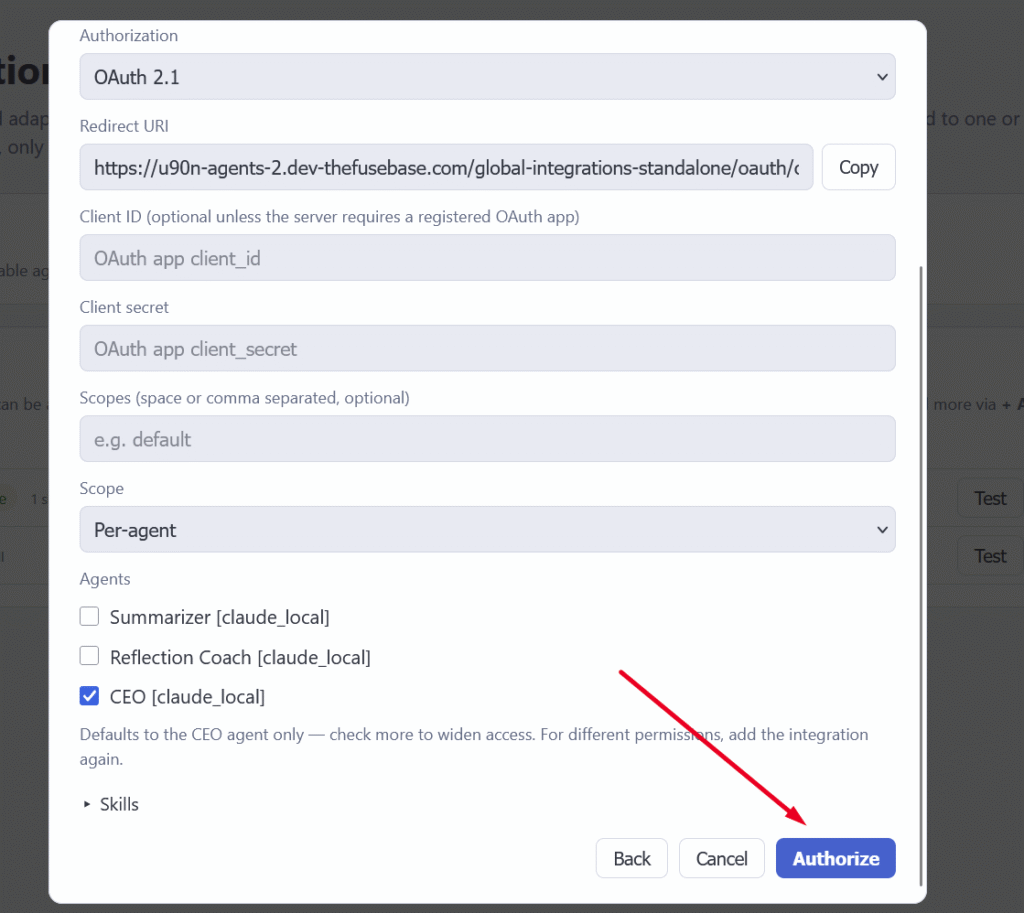
4) If you choose a custom MCP, please specify the authentication type. Different services may offer different options (most commonly a Bearer token or OAuth).
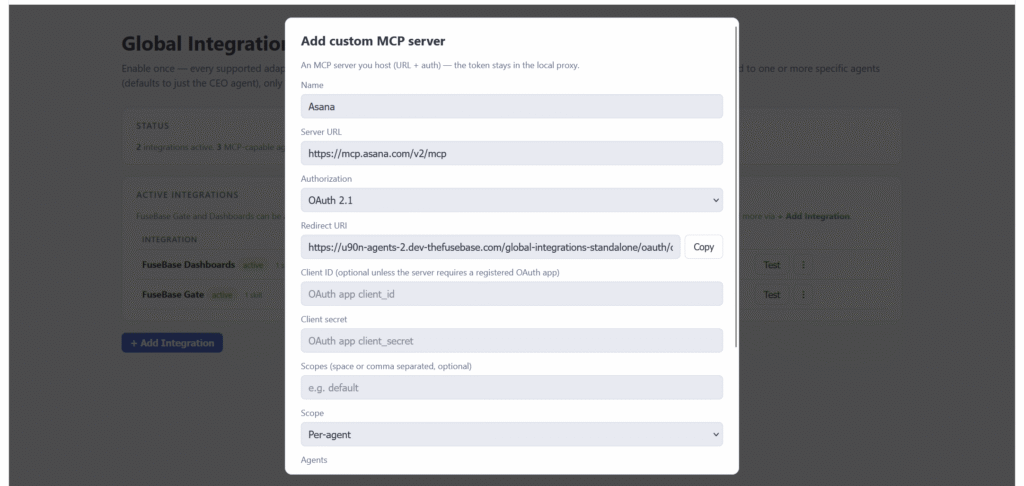
If you selected an HTTP integration, please also specify the URL and token. You can test the MCP connection immediately. To do this, click on Test connection.
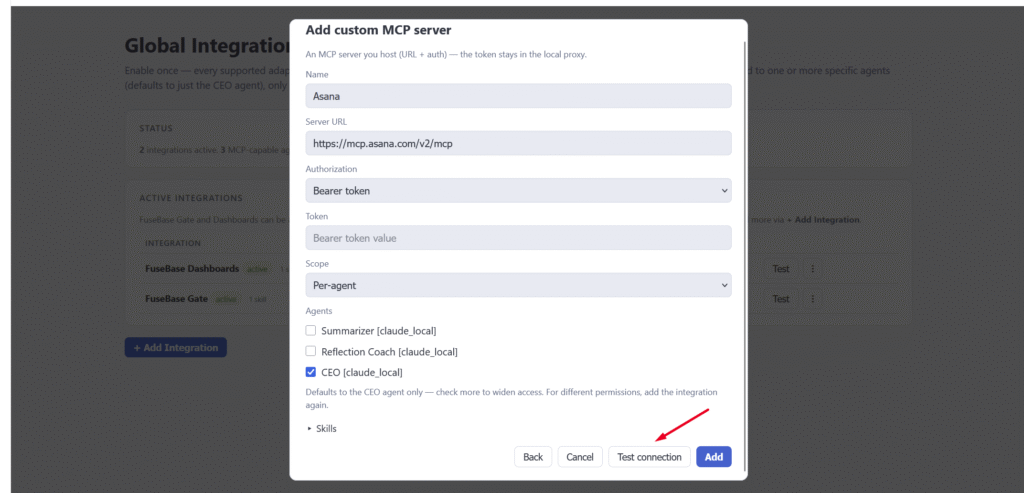
5) Next, specify the level at which the integration will operate: for all agents or for a specific agent.
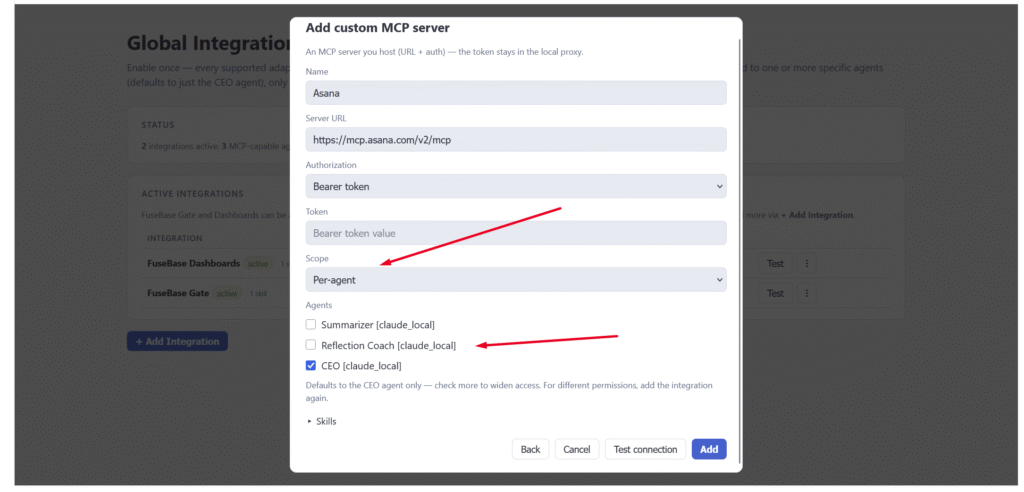
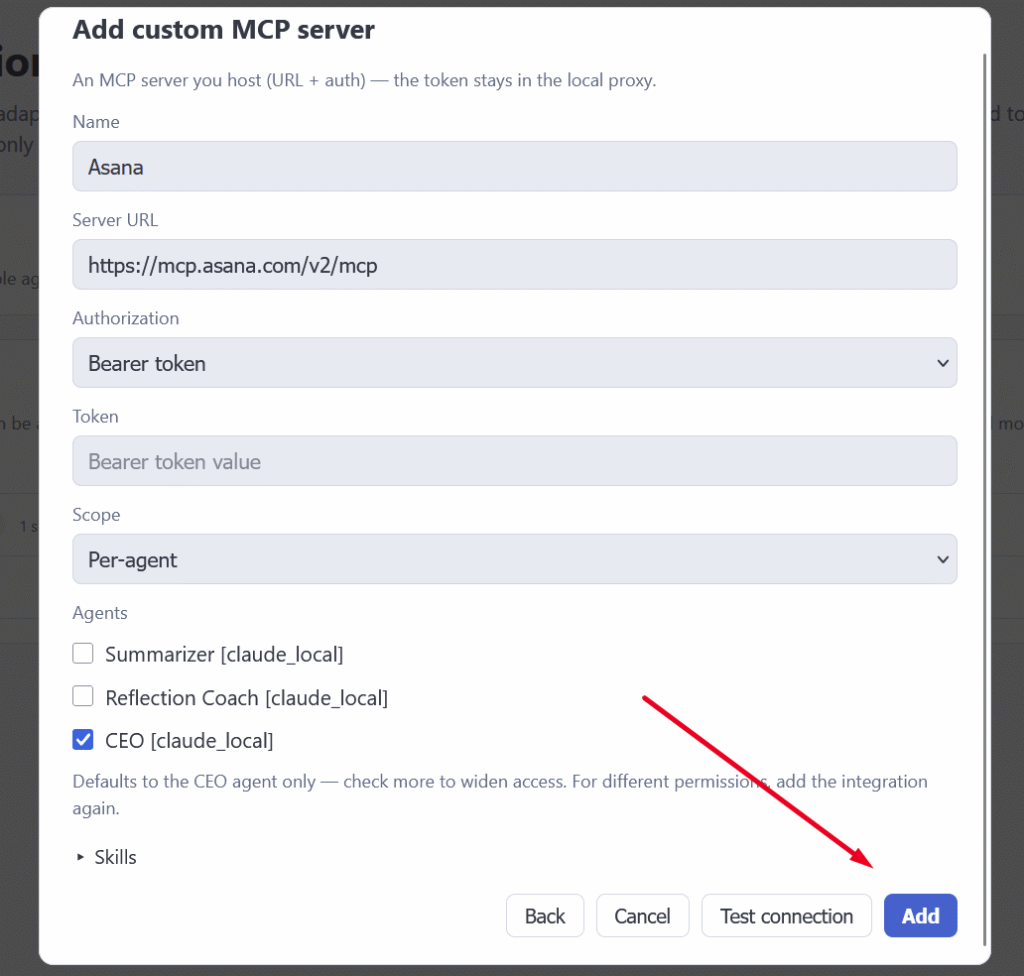
After making your selection, click Add to activate the integration.
If the authentication type is OAuth, click Authorize to connect the MCP.
Next, the integration will appear in the list. If needed, you can change its permissions – for example, make it Shared across the entire organization or restrict it.
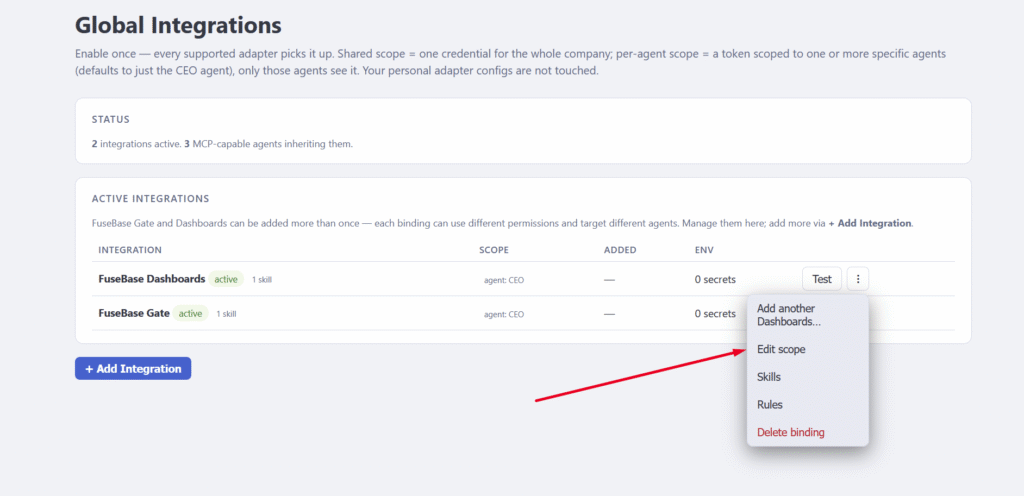
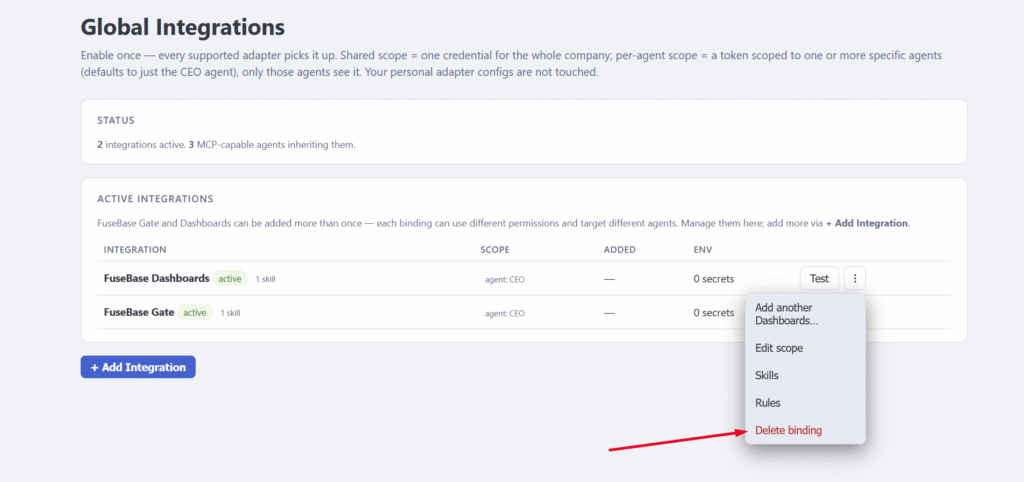
Unnecessary integrations can be removed by clicking Delete.
Using MCP Integrations in Agents
Once you add an MCP integration, it is automatically activated in the adapters and you can use it when creating tasks in agents.
You can simply mention the service you integrated, and the agent will automatically identify the correct MCP. For example, if you connected the FuseBase MCP, you can specify: “Create a database in FuseBase” or “Create a page in FuseBase in the Test workspace with the research results,” and so on.