Embedding & Sharing
Embed Miro
Adding Miro embed to FuseBase
Guide details
- Published
- September 1, 2022
- Read time
- 1 min read
- Category
- Embedding & Sharing
How do I copy an embed link from Miro?
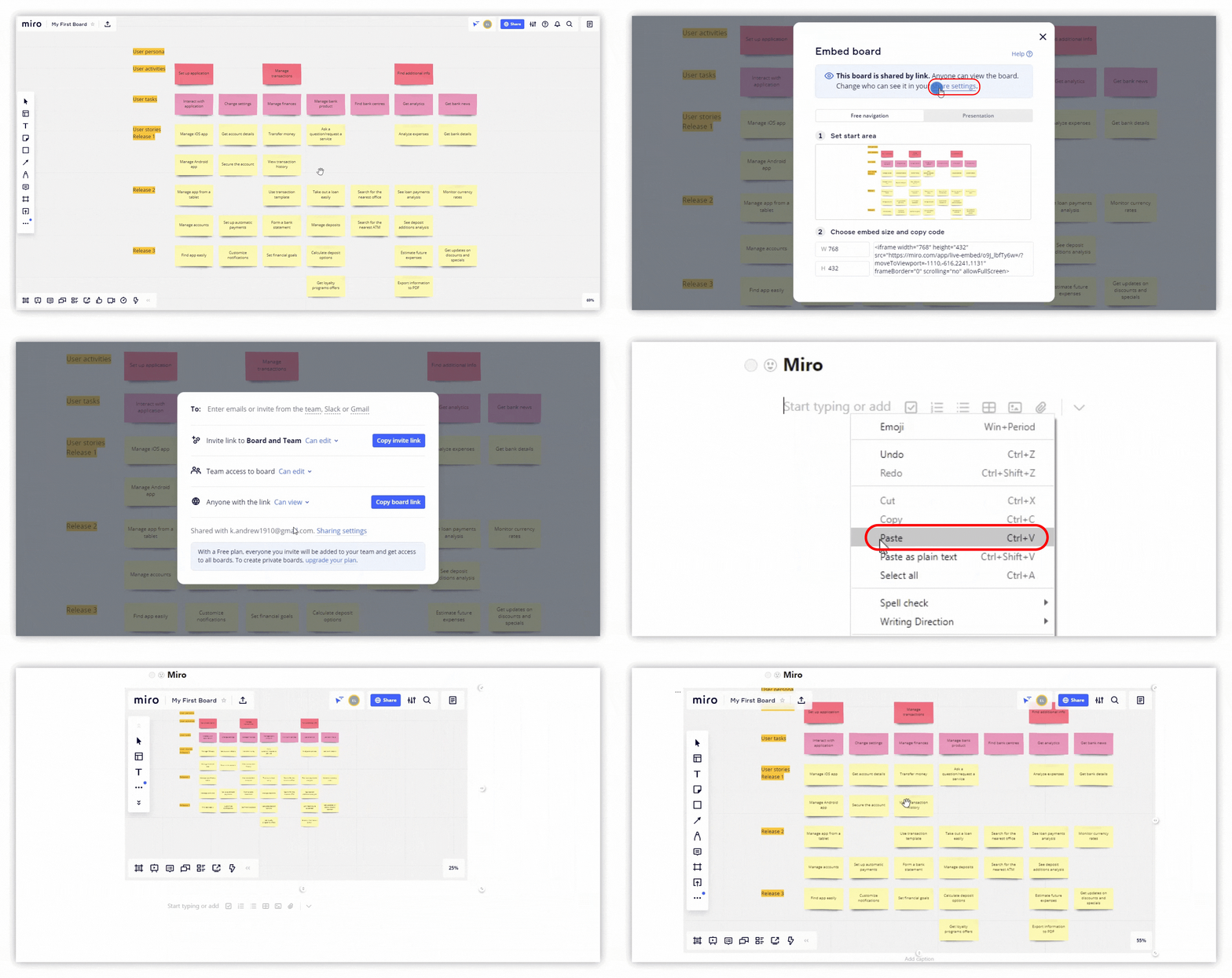
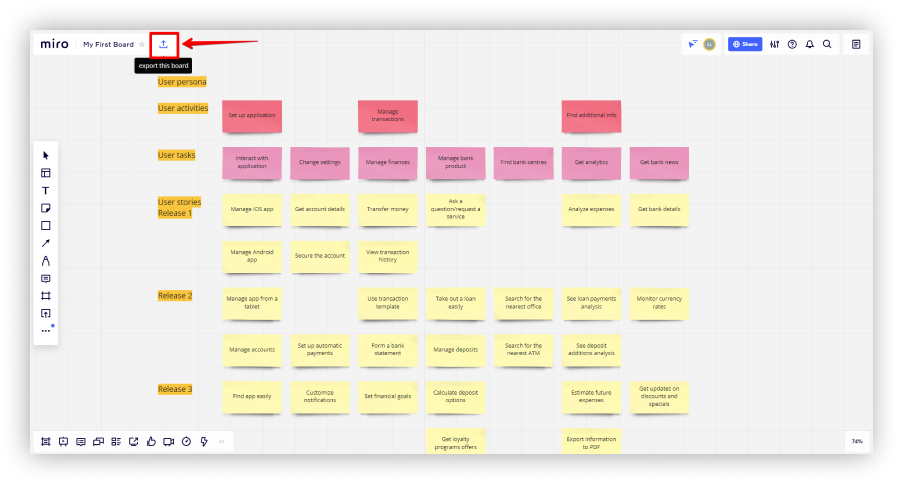
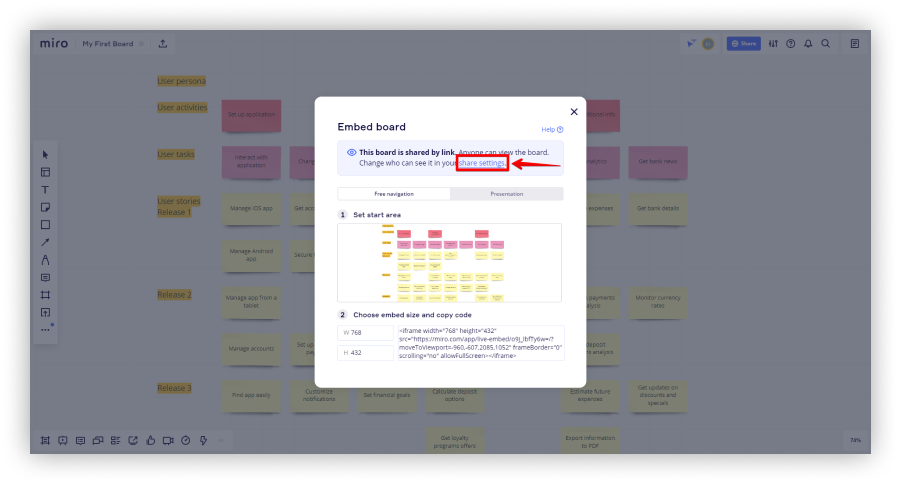
- Click on the Export this board icon.
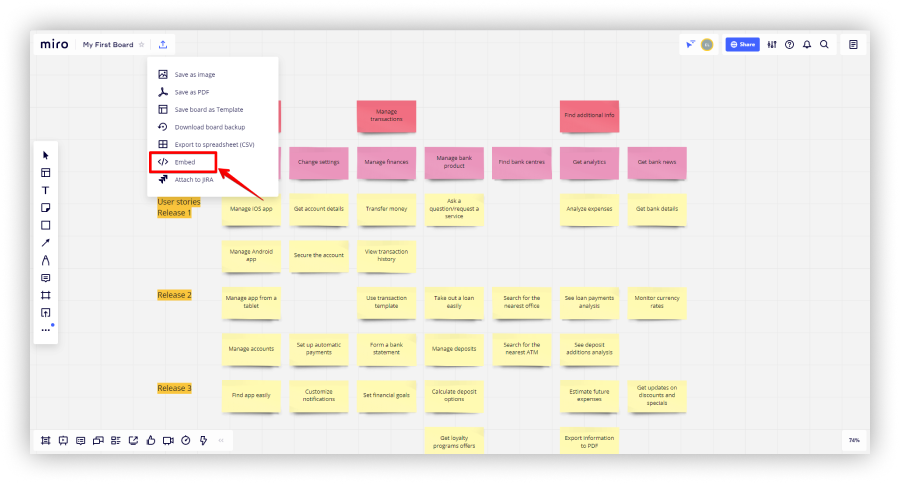
- Select Embed.
- Click on Share Settings and select the desired permissions.
.png)
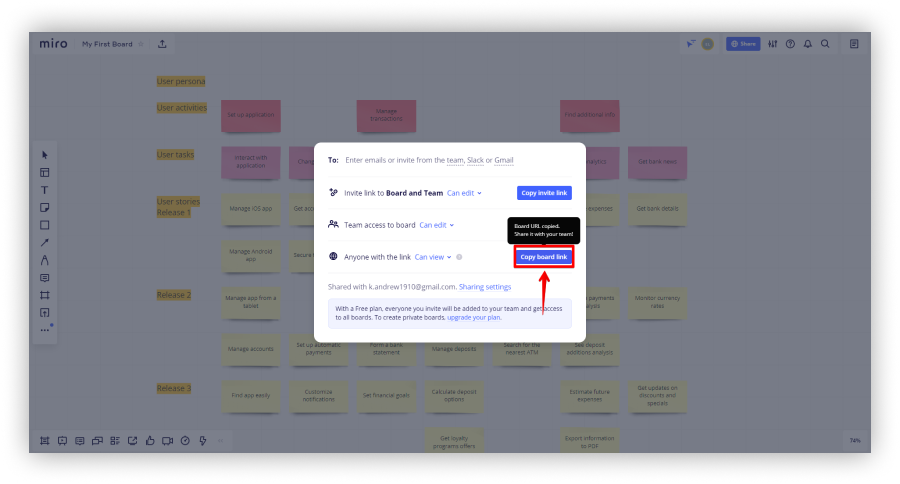
- Select Copy board link and the link will be successfully copied.
Adding Miro embed to FuseBase
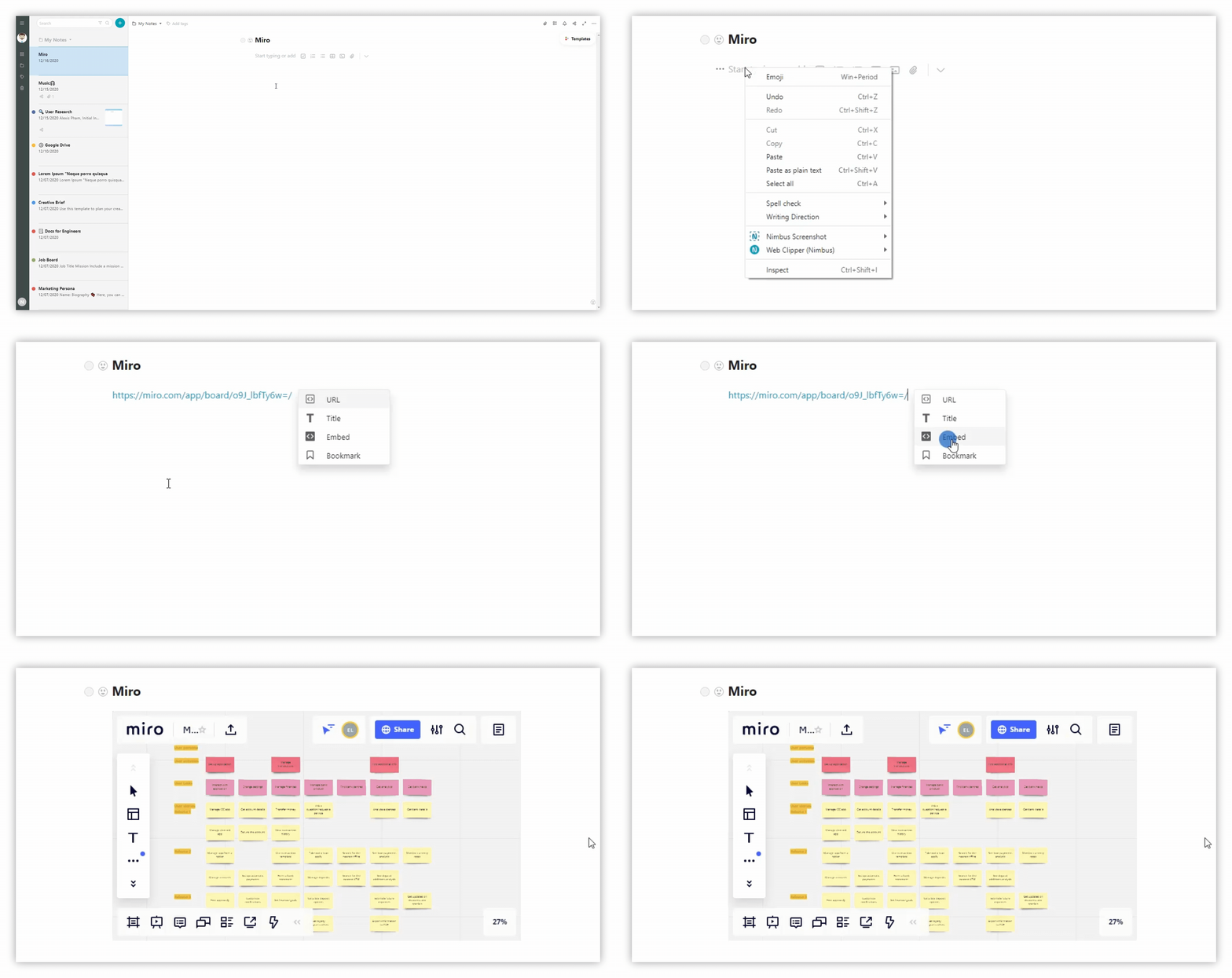
- Open FuseBase.
- Paste the link into the page by using Cmd/Ctrl+V, or by right-clicking and selecting Paste.
- Select Embed.
Resize Embeds
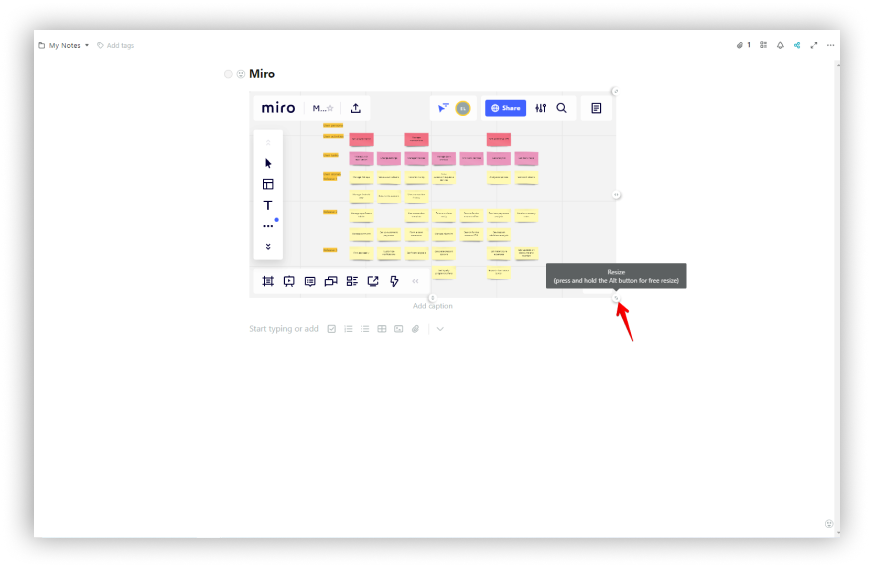
- Drag the upper-right corner and resize (all proportions will be preserved).
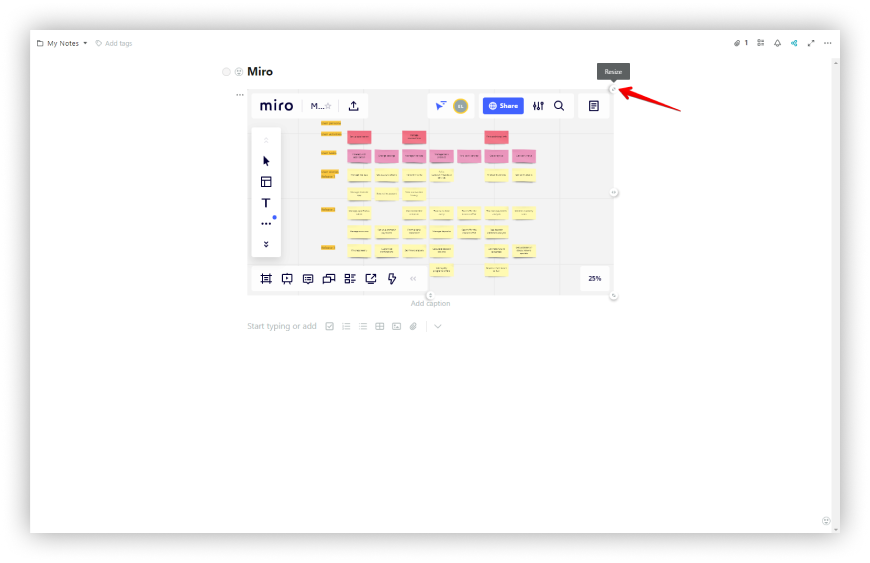
- For free resizing, hold the ALT key and change the size using the bottom-right chip.
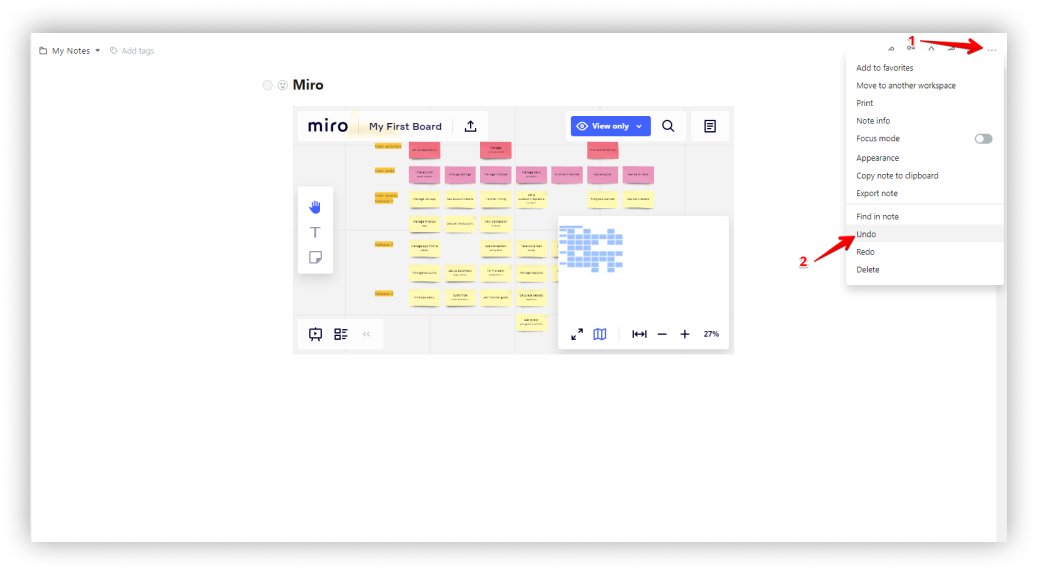
Note: To return the embed to its original position, use the hotkey Ctrl + Z, or click the three dots and select Undo.