Important! This guide describes the integrations that are available out of the box in Fusebase CLI. However, you can integrate Fusebase with any other service that has an open API—simply specify this in the prompt to the AI.
Fusebase CLI allows you to create apps based on data from other services, and for convenience, we have added default MCP support for Notion, Figma and Asana (the list will be expanded). To enable integration, enter the command fusebase integrations in terminal and select the desired service with a space. Then, press Enter.
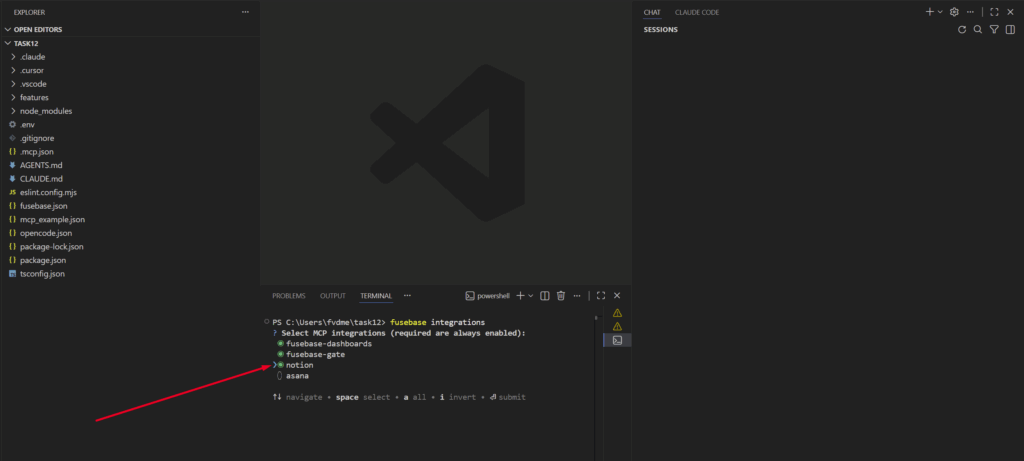
Important! After activating the MCP of another service, we recommend restarting the IDE to activate this MCP. After that, select the /mcp command in Agent’s chat and authorize in the required service.
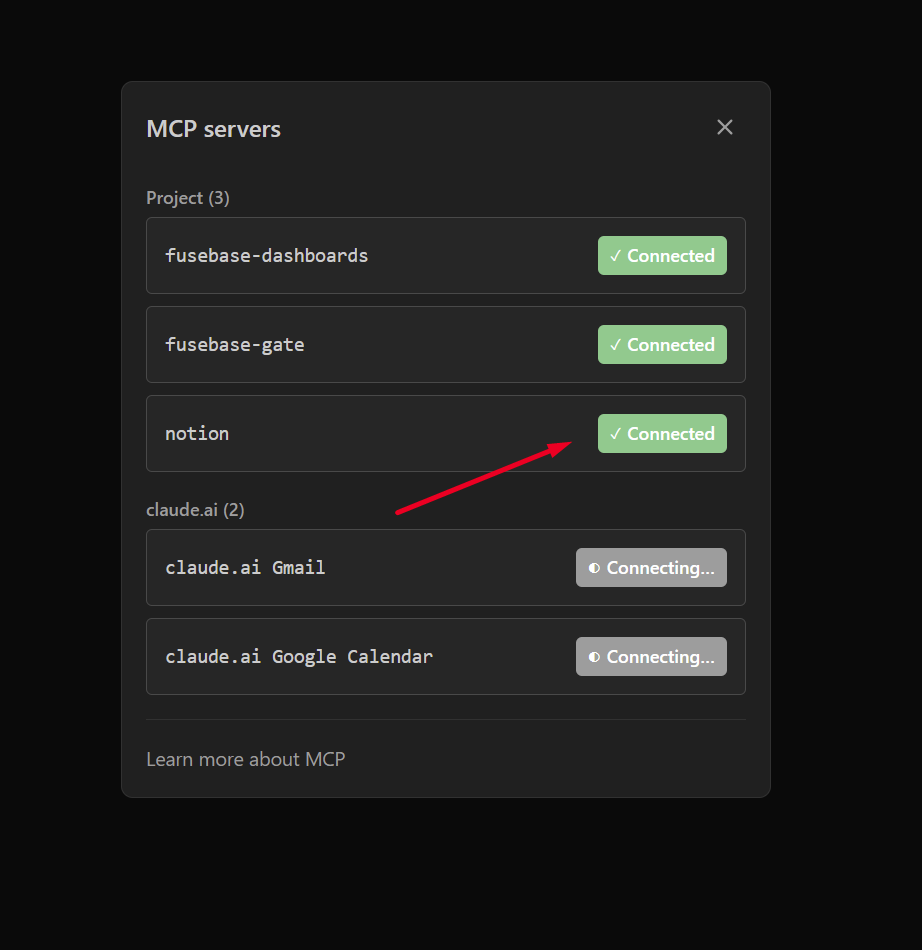
You can also connect custom MCP servers. To add a custom URL, use the command: fusebase integrations add my-mcp –url
Next, specify the MCP URL with the token or authorization key:
https://example.com/mcp –type http [–token TOKEN] or https://example.com/mcp –header ‘Authorization: Bearer x’
Below are complete examples:
fusebase integrations add my-mcp –url https://example.com/mcp –type http [–token TOKEN]
fusebase integrations add my-mcp –url https://example.com/mcp –header ‘Authorization: Bearer x’
You can also disable all custom MCPs with the following command: fusebase integrations disable my-mcp
And this command will reactivate all your custom MCPs: fusebase integrations enable my-mcp
You can also delete individual custom MCPs. To do this, use the following command: fusebase integrations remove my-mcp