Personal use
Personal account | Getting Started
Nimbus Note is one place where you can manage all your information / knowledge bases / workspaces / tasks.
Guide details
- Published
- August 23, 2022
- Read time
- 2 min read
- Category
- Personal use
Nimbus Note is one place where you can manage all your information / knowledge bases / workspaces / tasks.
Transform information chaos from multiple sources into an organized workplace. Empower yourself or your team to get things done faster with less iterations and fewer meetings.
When creating a page, you are not only able to input text, but also use tables, lists, attachments, bookmarks, mentions, embeds, links and much more. Apply a variety of styles to format and change the appearance of your text.
Nimbus Note is user-friendly and easy to navigate – see for yourself below!
A quick way to create a page
- Click on + or use the keyboard combination ctrl + opt/alt + n to create a page.
 (1).png)
Lifehack
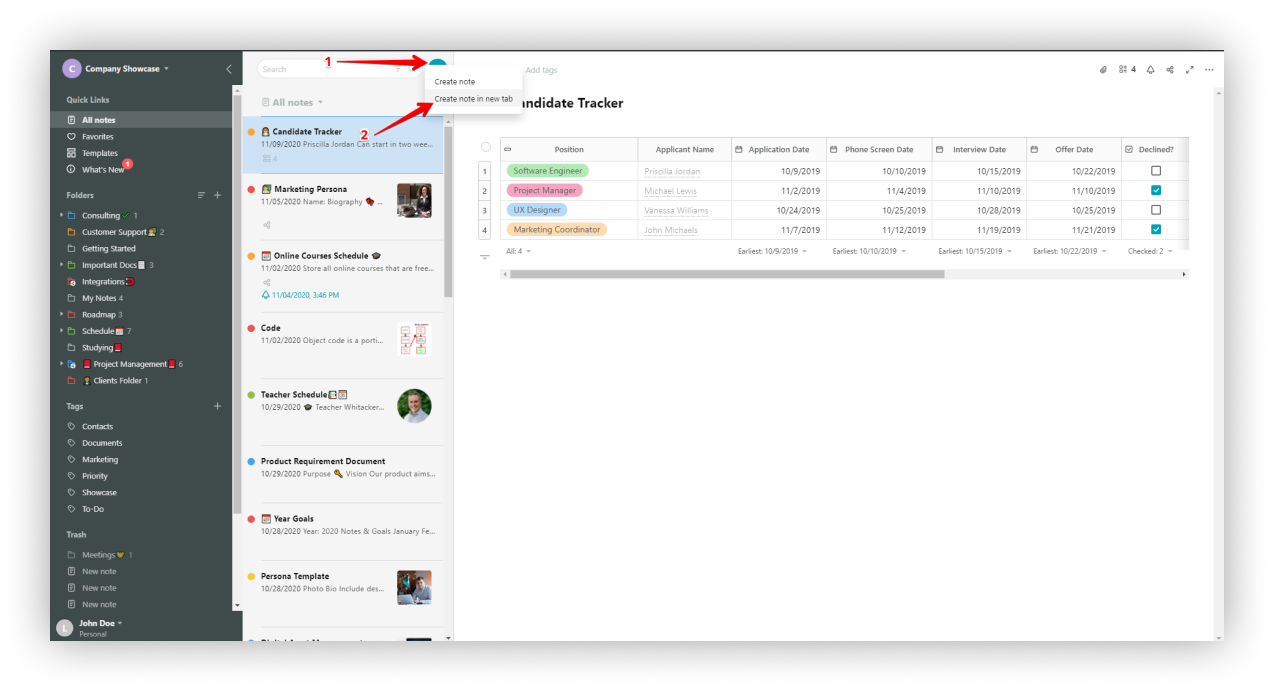
In Nimbus Note, you can create a page in a new tab:
- Right-click on + button.
- Select Create page in new tab
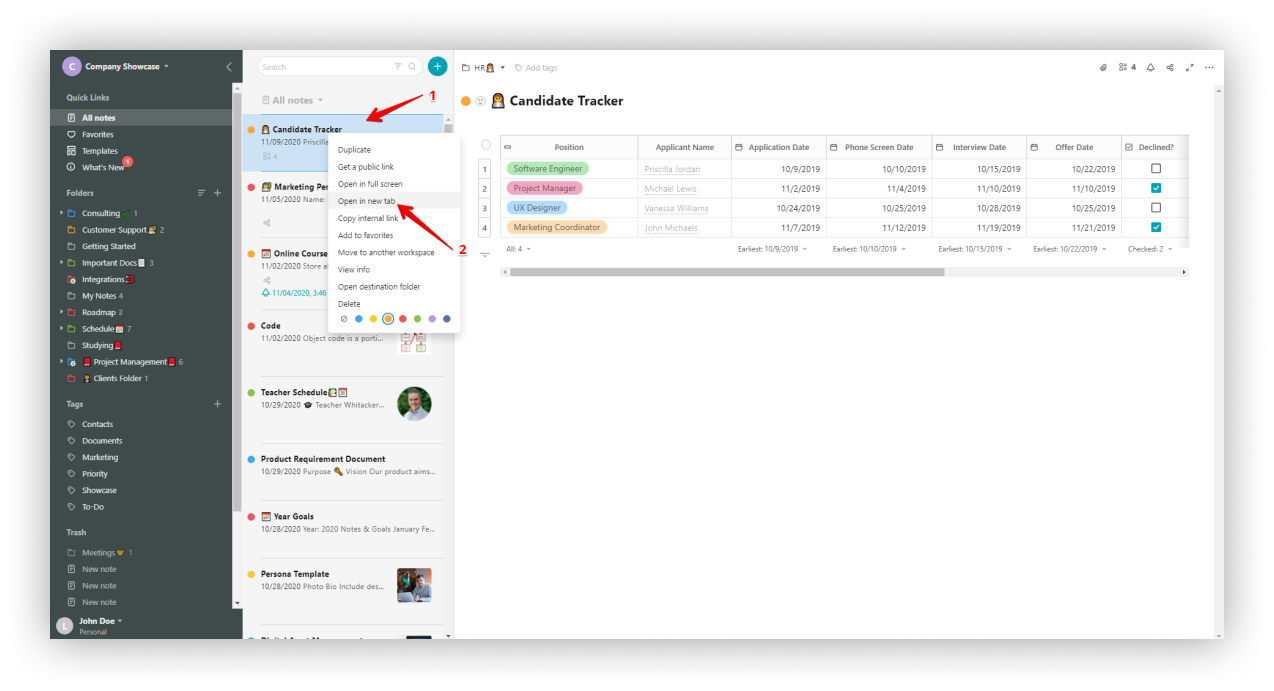
You can also open an existing page in a new tab:
- Right-click on the page.
- Select Open in new tab
Easily create tables and set the number of rows and columns
You can create tables, change the number of rows & columns and amend the appearance of the table.
- Click on the table icon or use cmd/ctrl + ⌥/alt + t.
- Pull the corner to resize the table.
.gif)
Insert objects into your table
- Click on the column menu and select Column type.
- Select a cell and use the Cell type menu.
.gif)
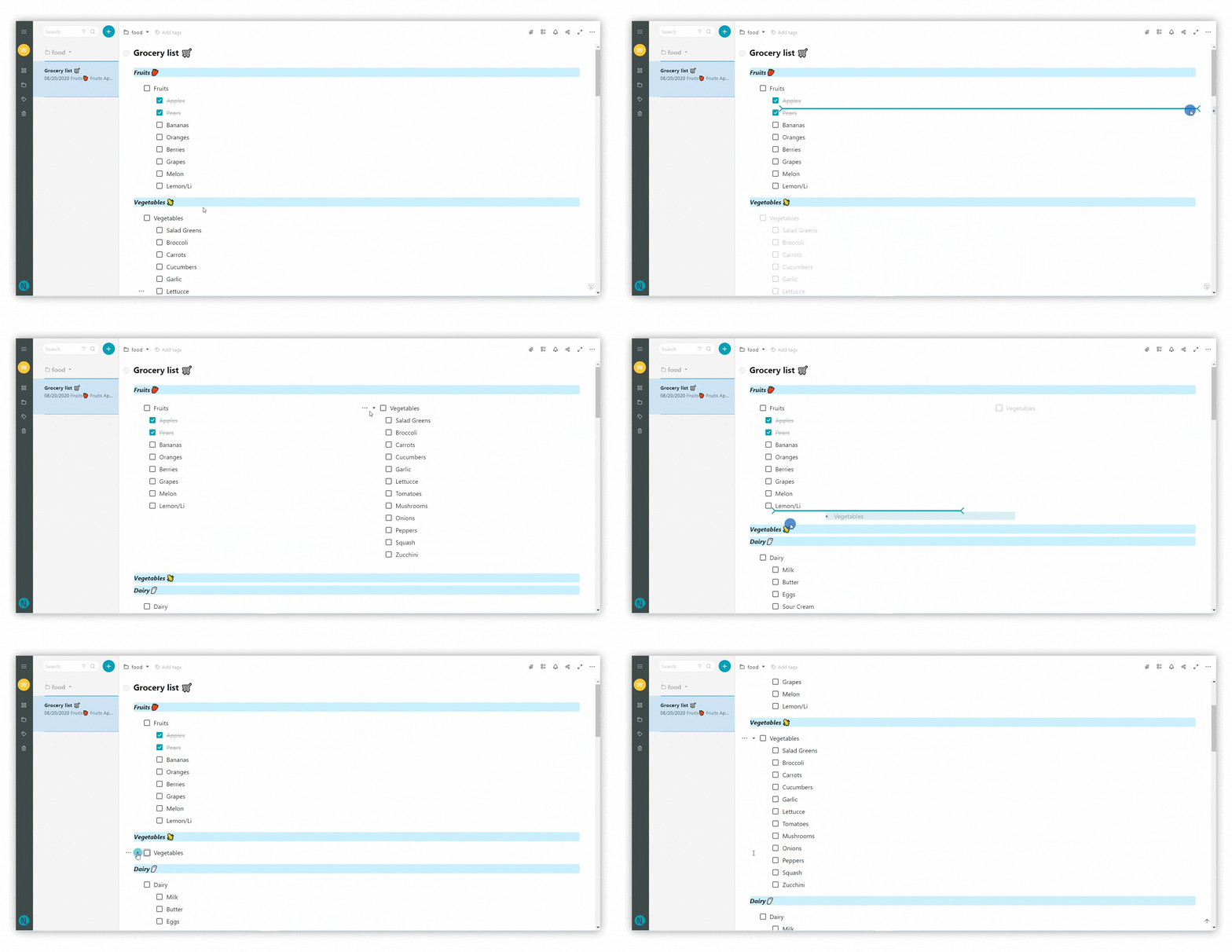
Drop files and move blocks
- Drag and drop files into the editor.
- Move files to columns using drag and drop.
.gif)
More items
- Click on the arrow in the editor to display More items:
- outline
- section break
- quote
- link
- code
- embed
- bookmark
- mention
- Google Drive
.gif)
Embed from popular services like YouTube, Google Maps and Google Docs
You can easily add embeds from popular sites. You can also use Google Sheets to work with spreadsheets.
- Click on the arrow and select Embed or use cmd/ctrl + ⌥/alt + m.
- Paste or type the URL.
Access block options
It’s very easy and convenient to work with blocks. Just select the menu, and a list with many options will appear.
- Click on the three dots menu.
.gif)
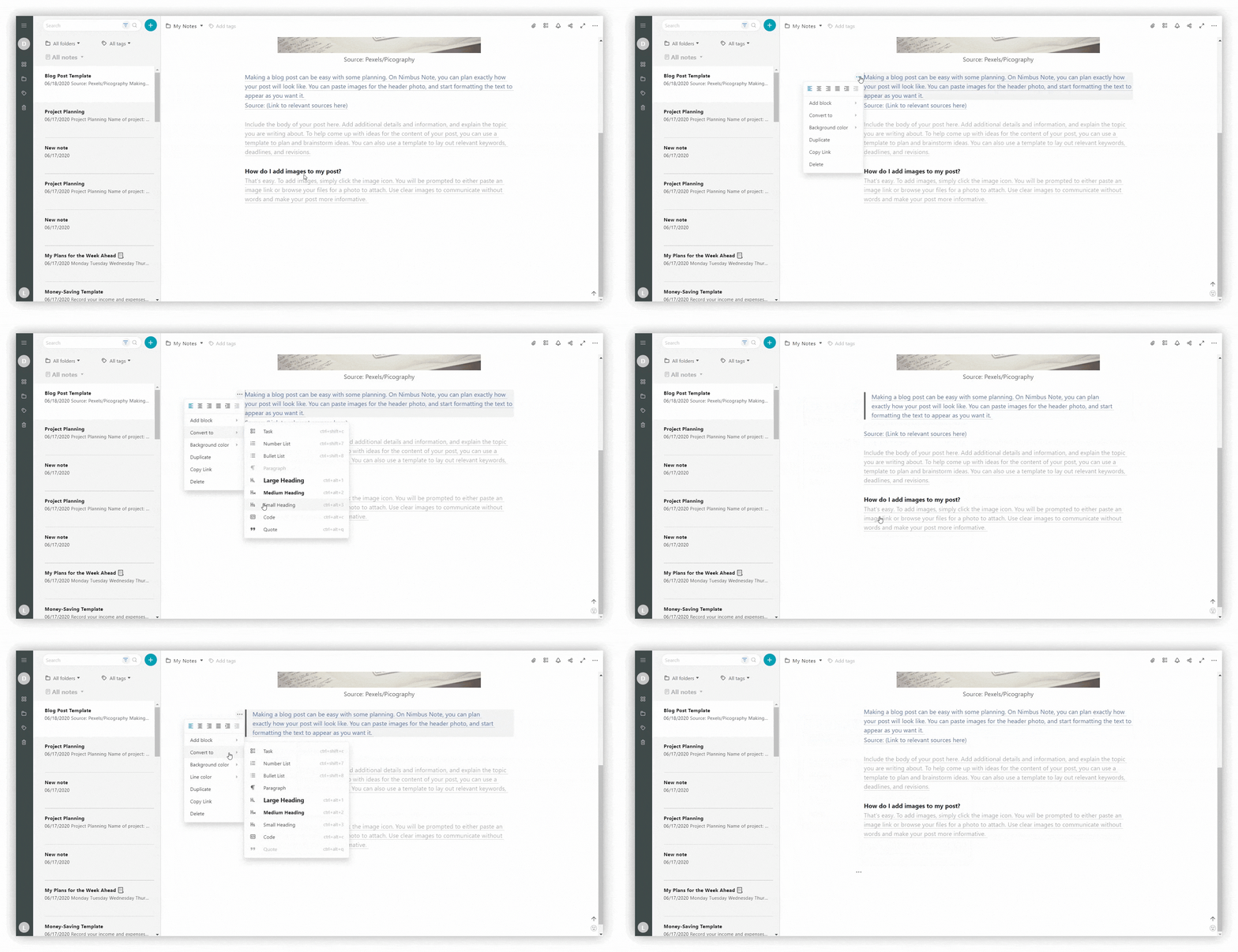
Convert Blocks
Convert blocks to code / embeds / tasks / quotes, and so on.
For this:
- click on the three dots menu
- choose Convert to
Related guides
Read more about creating a new page
Read more about how to navigate
Read more about writing and editing