Getting Started
How to navigate
If you have several workspaces been invited to a friend’s/colleague’s workspace,or invitedto another organization, you can easily switch between them.
Guide details
- Published
- August 20, 2022
- Read time
- 2 min read
- Category
- Getting Started
Navigate through workspaces and organization
If you have several workspaces been invited to a friend’s/colleague’s workspace,or invitedto another organization, you can easily switch between them.
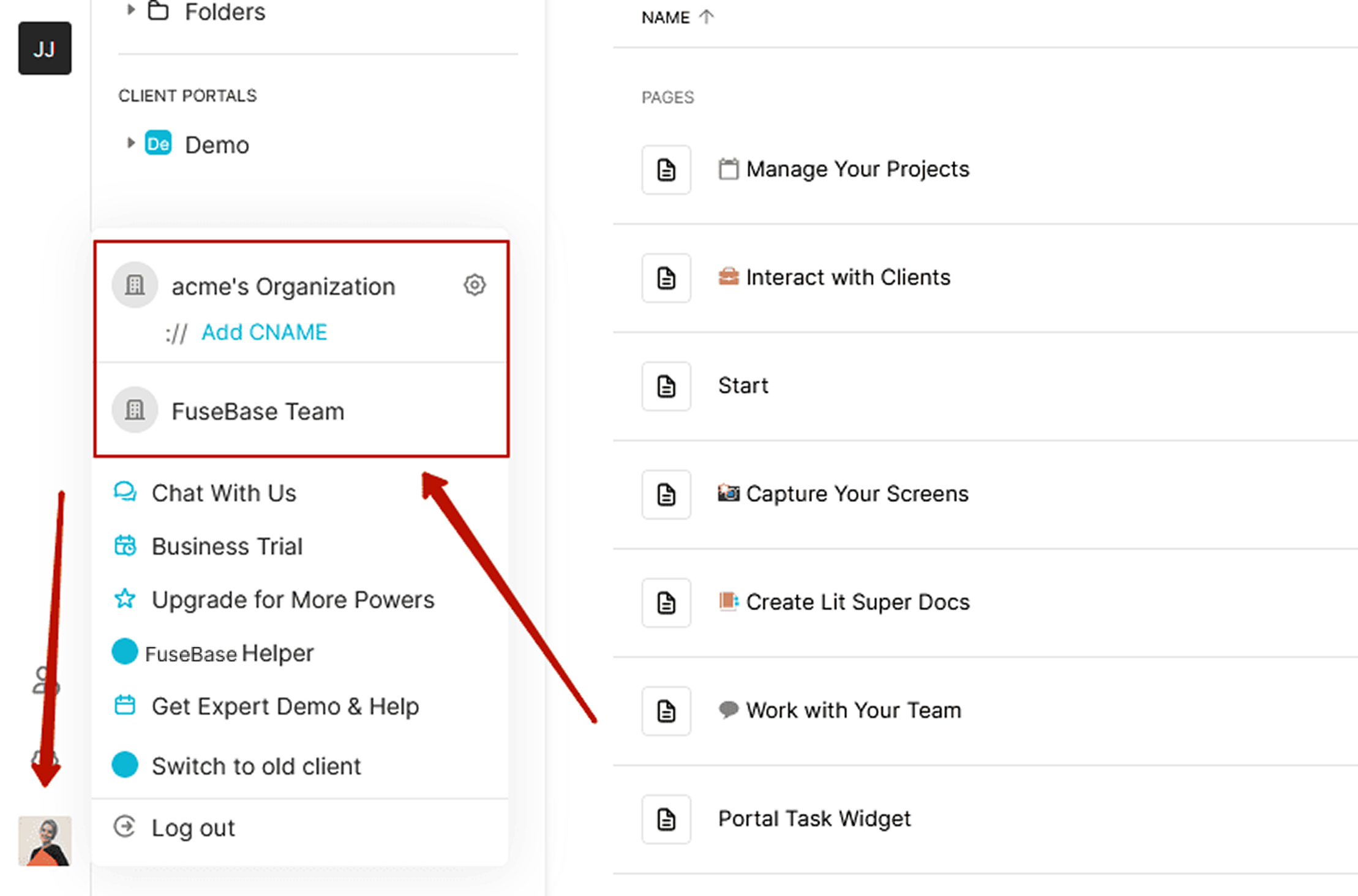
- Click on your account avatar. Here you will see a list of the organizations you are a member of.
- In the left sidebar, you will see the list of workspaces where you’re a member. Click on the desired one to go to the workspace.
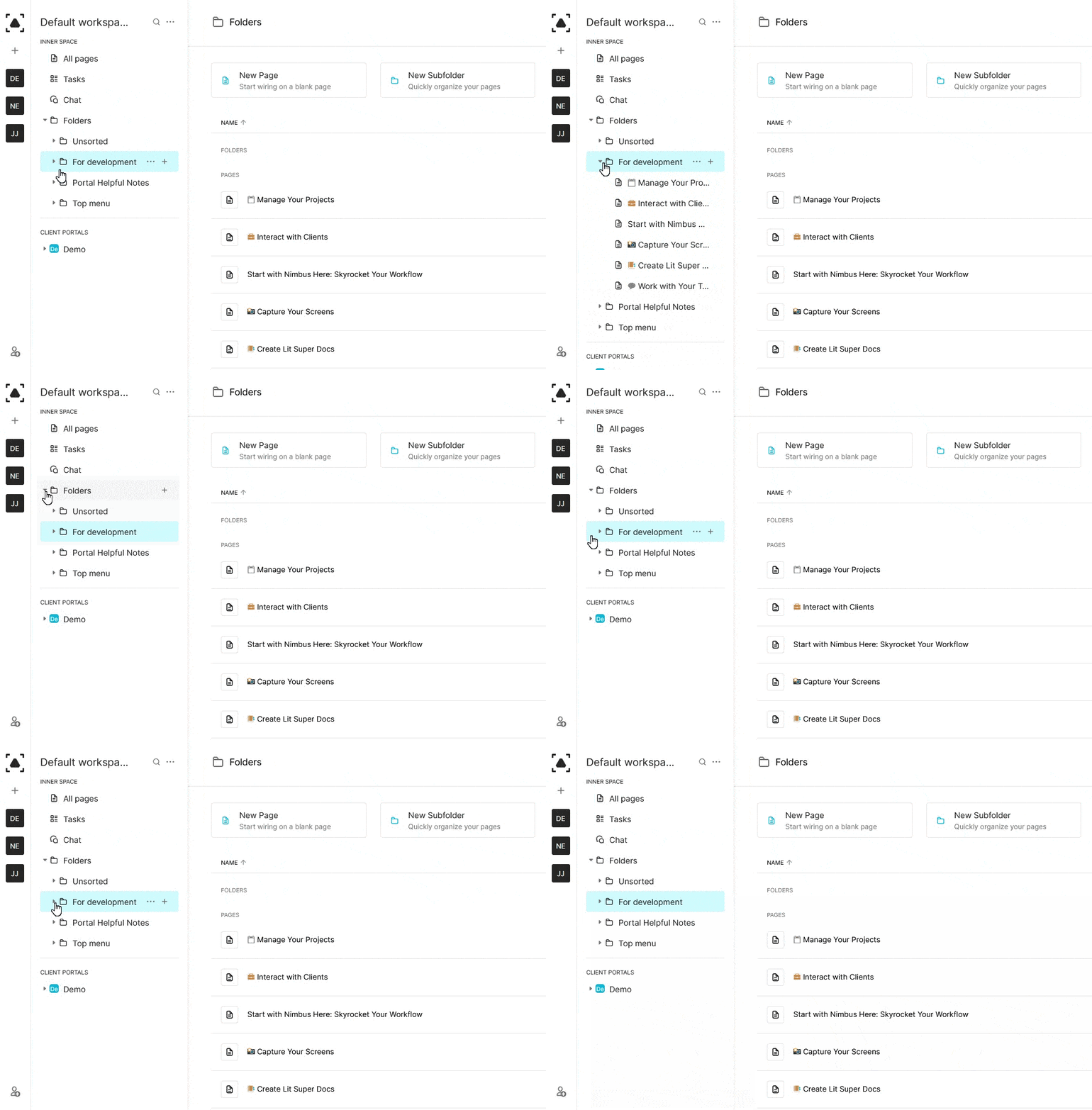
Sidebar and Folders list
The sidebar displays lists the folders and pages in the current workspace. Clicking on a folder expands its structure and shows the subfolders and pages that are in that folder:
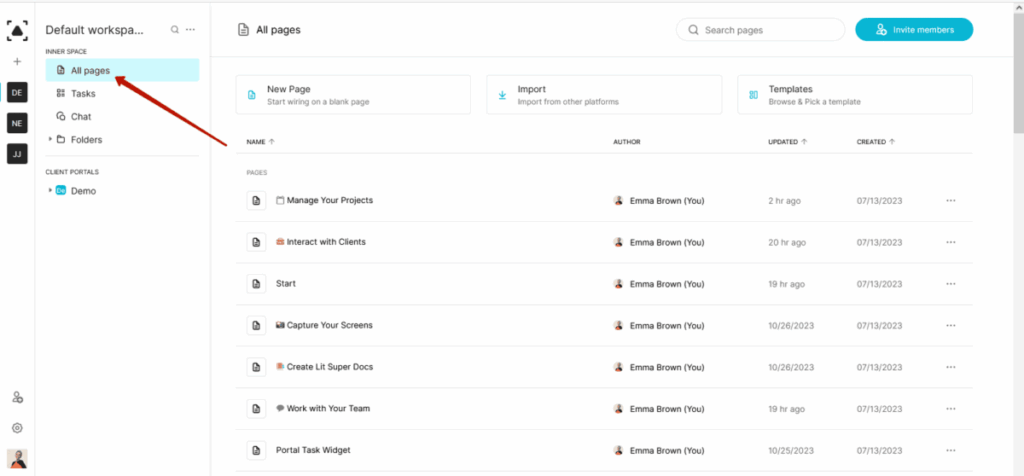
All Pages
If you want to see all the pages that are in the workspace navigate to All Pages:
Folders - list of all folders in workspace
Clicking on Folders will display a list of all root folders in the workspace:
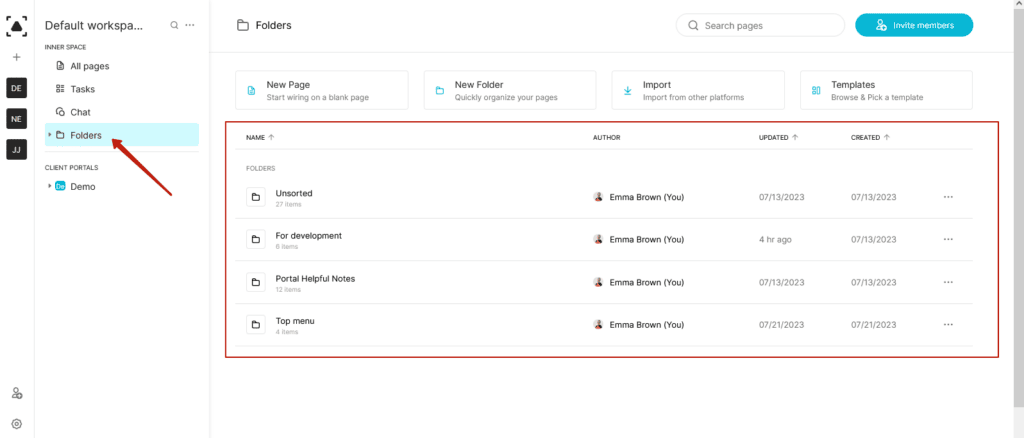
Clicking on a folder will reveal its contents (subfolders and pages).