Table & Database
Connect AI Agents to Fusebase Dashboards with MCP
Fusebase Dashboards MCP connects AI agents directly to the structured data your business runs on. Instead of only reading documents or answering questions, an agent can work with...
Guide details
- Published
- June 30, 2026
- Read time
- 2 min read
- Category
- Table & Database
Fusebase Dashboards MCP connects AI agents directly to the structured data your business runs on.
Instead of only reading documents or answering questions, an agent can work with your live Fusebase databases: leads, clients, requests, tickets, projects, invoices, onboarding records, content plans, and more.
You create an MCP configuration, choose which databases the agent can access, define what it is allowed to do, and generate a secure MCP URL and token. Then you can connect it to Claude, Codex, or any other MCP-compatible agent.
Depending on the permissions you allow, an agent can inspect database structure, find and read records, create new records, update existing data, organize information, and keep workflows moving.
For example, an agent can:
- add a new lead to your sales database after a form submission;
- update a client’s onboarding status when required files are received;
- find incomplete records and request the missing information;
- review incoming requests and assign the correct owner or priority;
- clean up inconsistent statuses, labels, or fields;
- prepare reports using current data instead of outdated exports;
- create and maintain records as part of a larger workflow.
How to obtain the MCP configuration for connecting to FuseBase
1) Open your organization settings and go to the Dashboards MCP section (available only to the owner and organization managers).
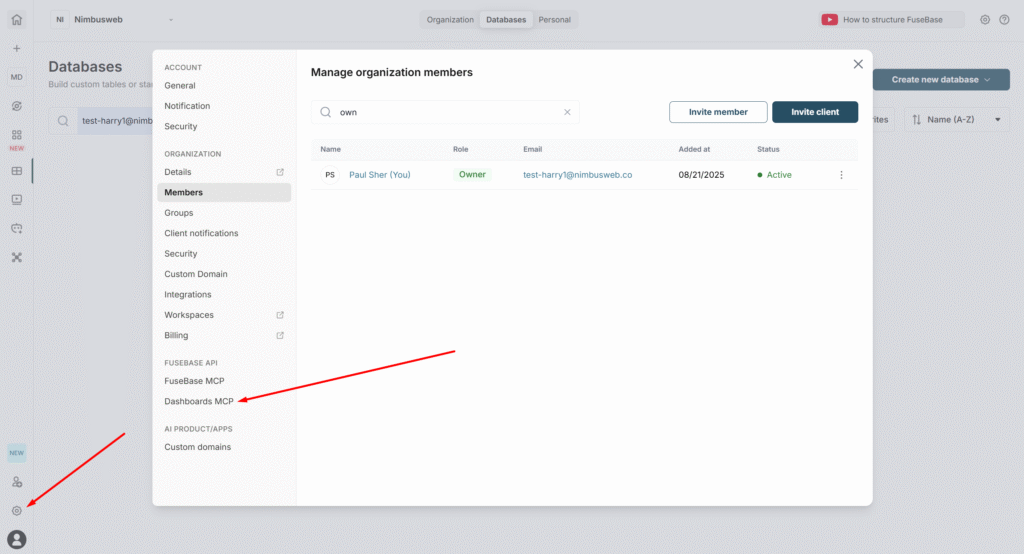
2) 2) Click on Create Dashboard MCP.
3) Specify the name of the MCP config.
4) Next, set the access level that the agent will have with this MCP:
- Full: the agent can edit. Please be cautious when granting this level of access.
- Custom: you decide which areas the agent can access. Off means no access, Read is view-only, and Edit grants full access.
- Read: the agent can view but cannot make any changes in your organization.
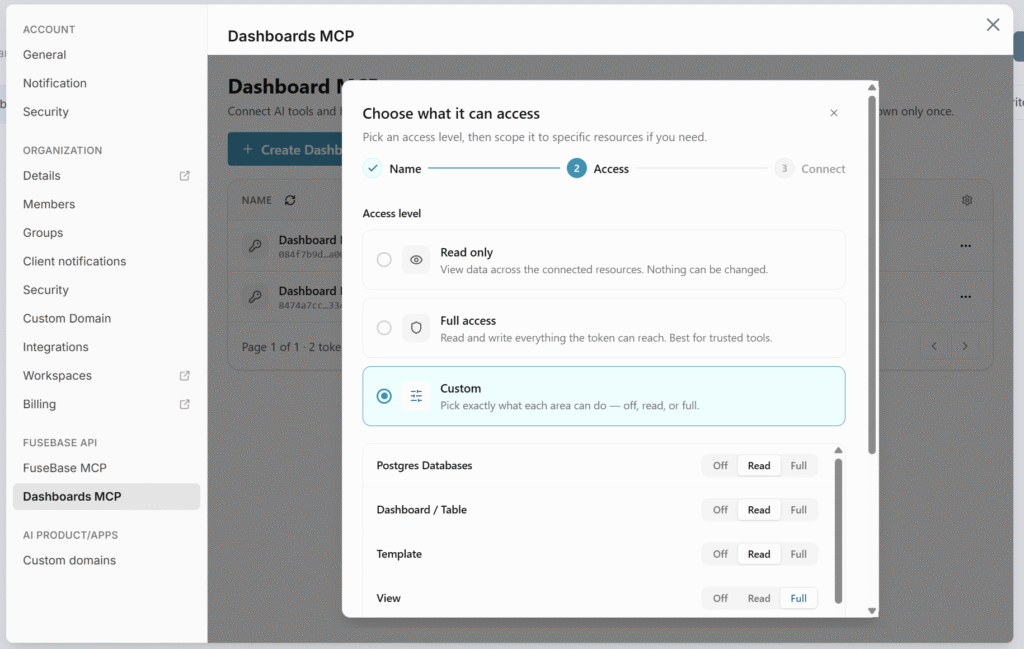
5) Next, click on Create Dashboard MCP, and you will see a page where you can copy your token as well as the configuration for adding to agents.
You can either copy the token and MCP URL, or download ready-made configurations for Claude, Codex, and others as well.
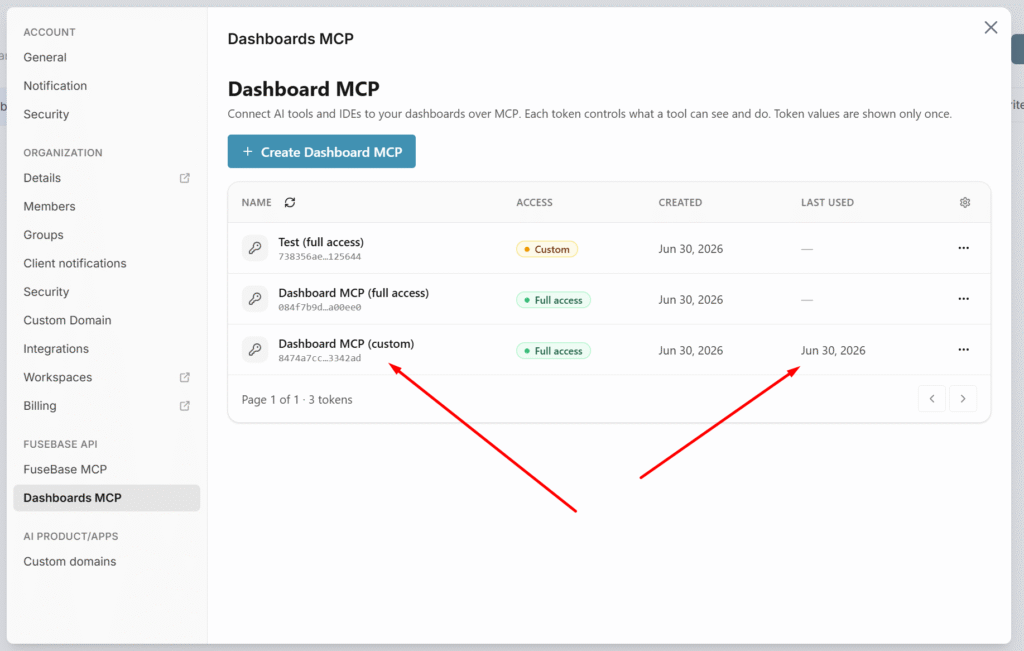
After creation, the new config will appear in the list.
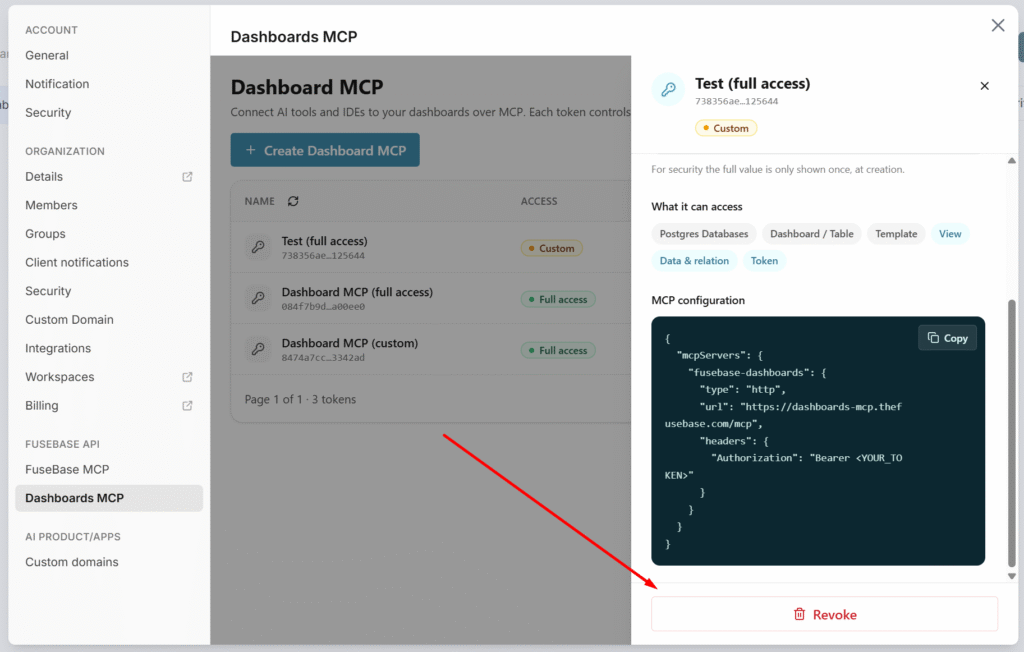
Revoke MCP Config
If desired, you can disable any MCP config. To do this, click on it and click Revoke.