FuseBase Basics
Recording video and audio directly from a page
Record audio and videos right in your page! Just a couple of clicks and your audio or video message is in your page! In a video, you can record both your desktop and your webcam...
Guide details
- Published
- August 27, 2022
- Read time
- 3 min read
- Category
- FuseBase Basics
Recording audio
- Open FuseBase and create new page.
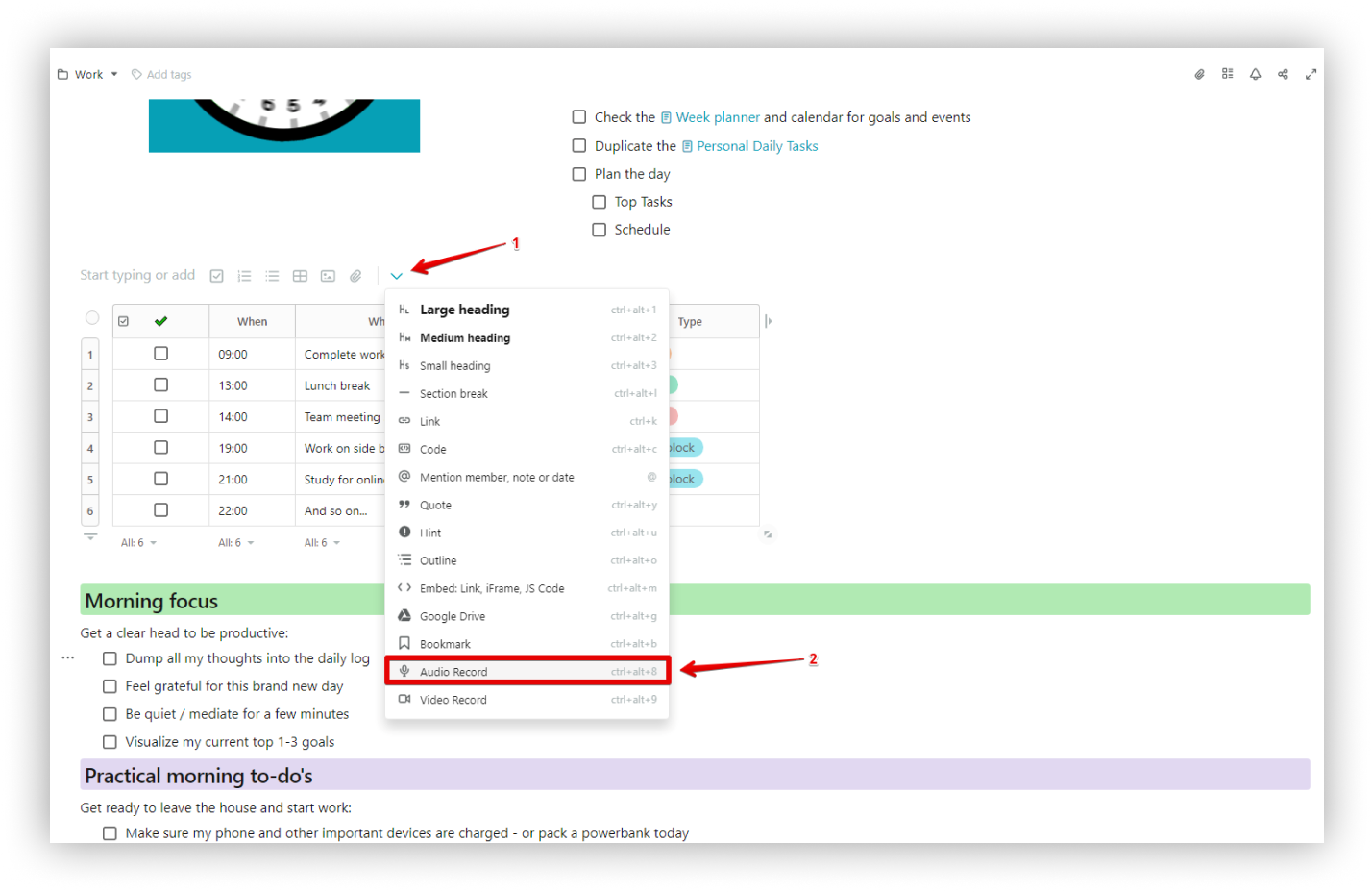
- Click on the arrow and select Audio Record or cmd/ctrl + ⌥/alt + 8.
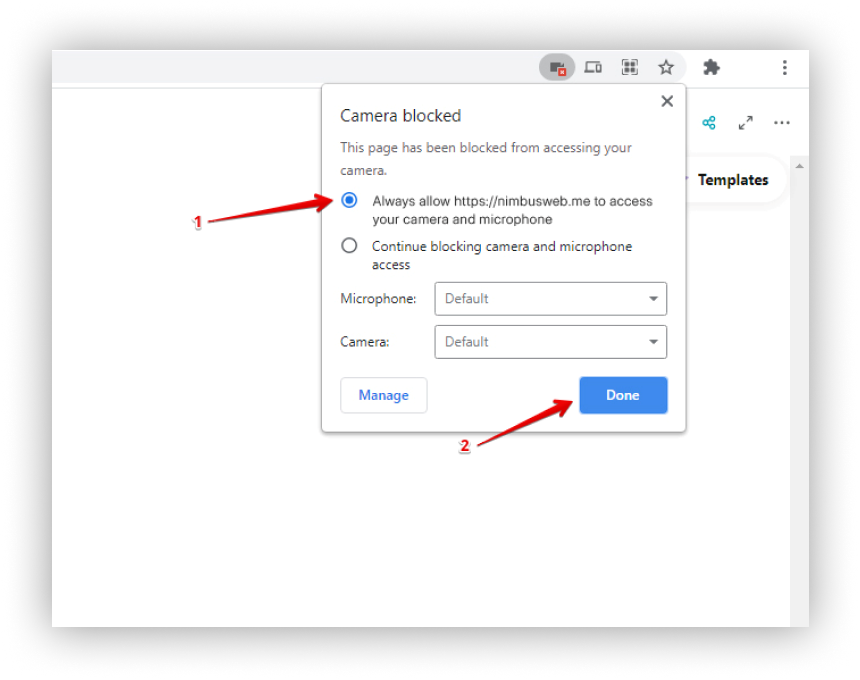
- Give permission to use the microphone.
.png)
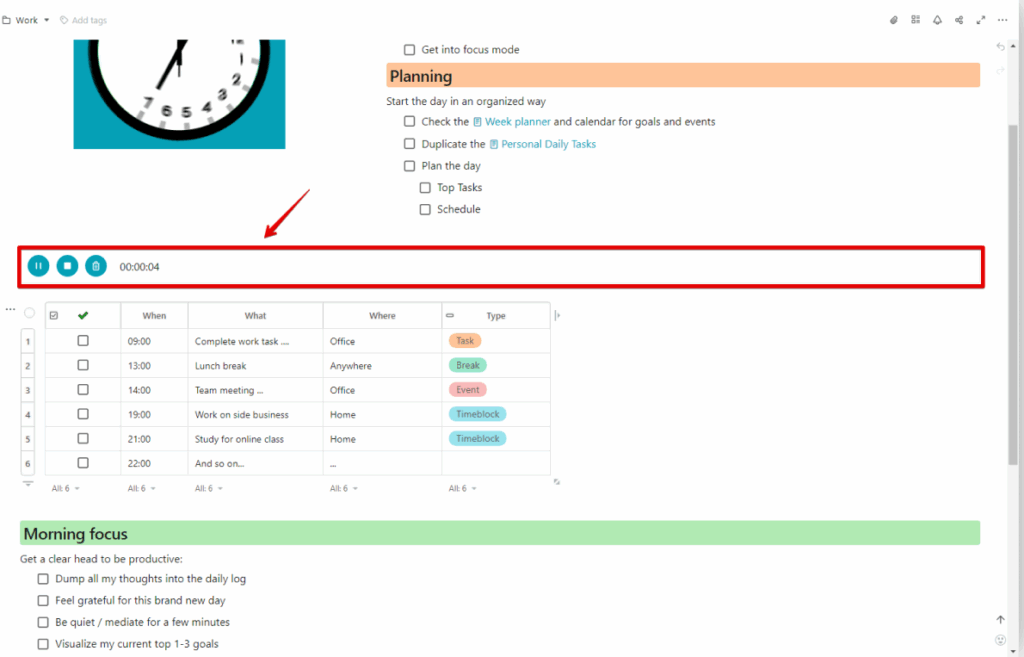
- Audio Recording will start.
How do I stop / pause / delete while recording?
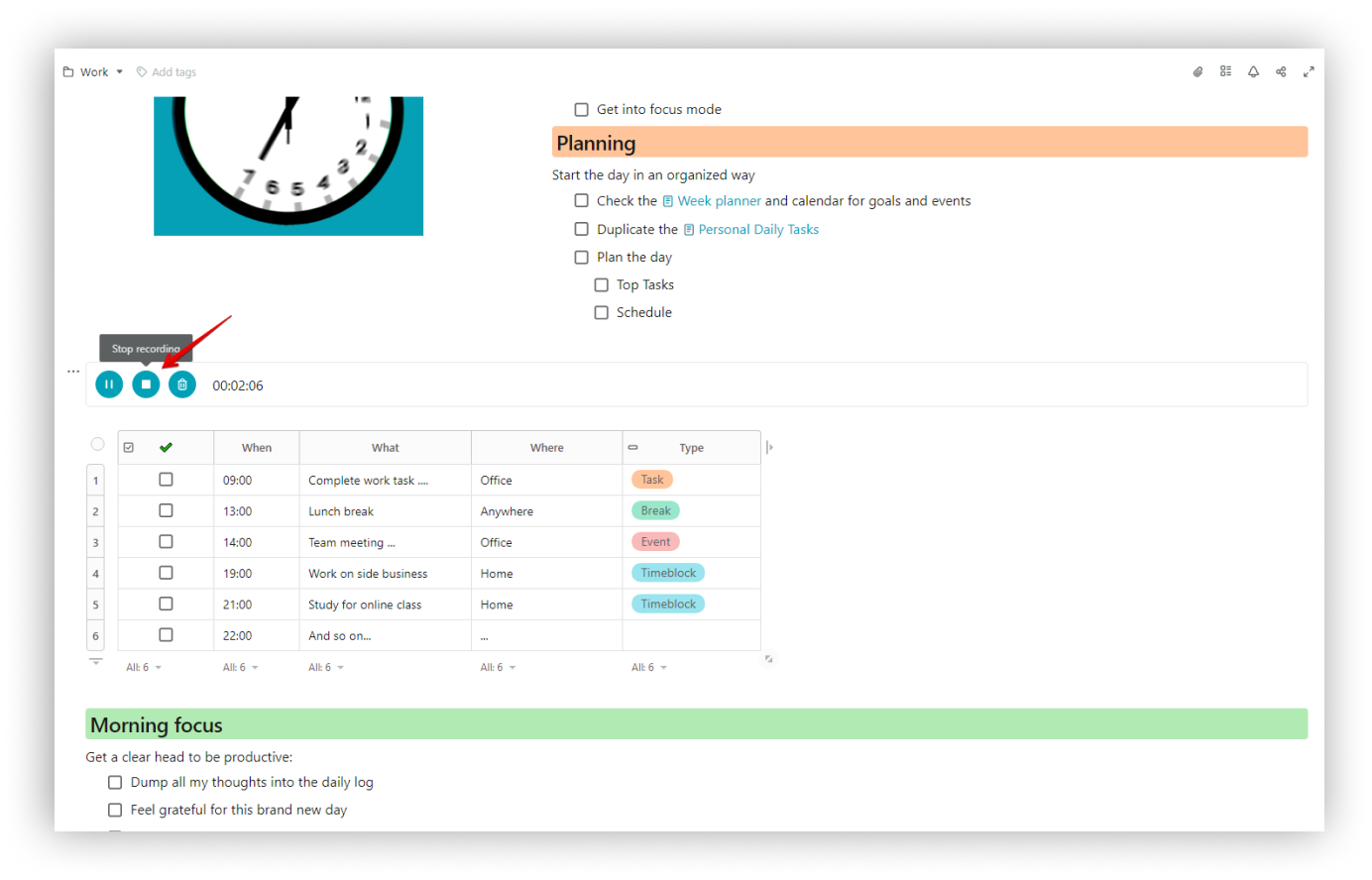
- You can pause by clicking Pause recording and then continue by clicking Resume recording.
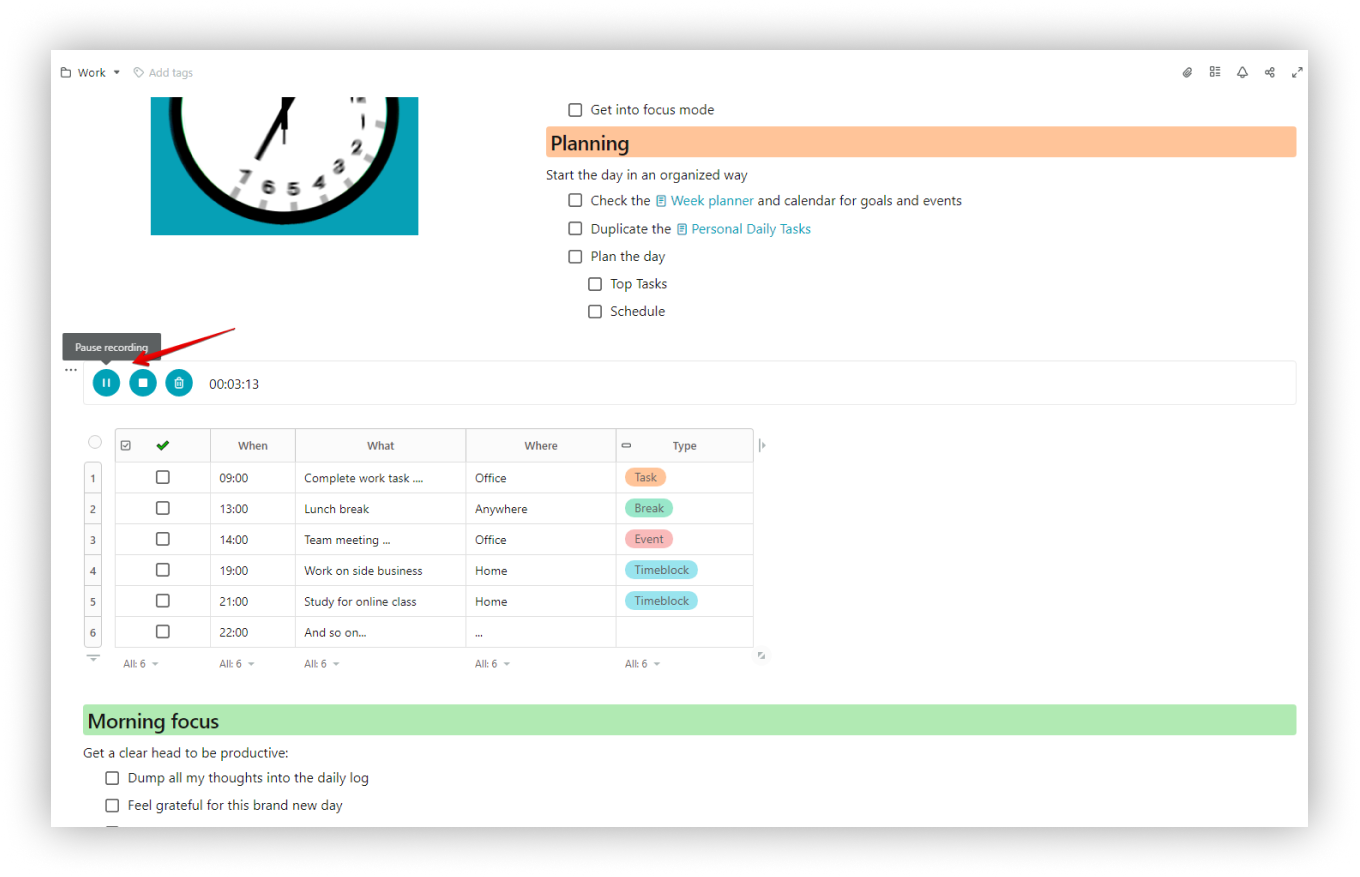
- To cancel recording, click Cancel recording.
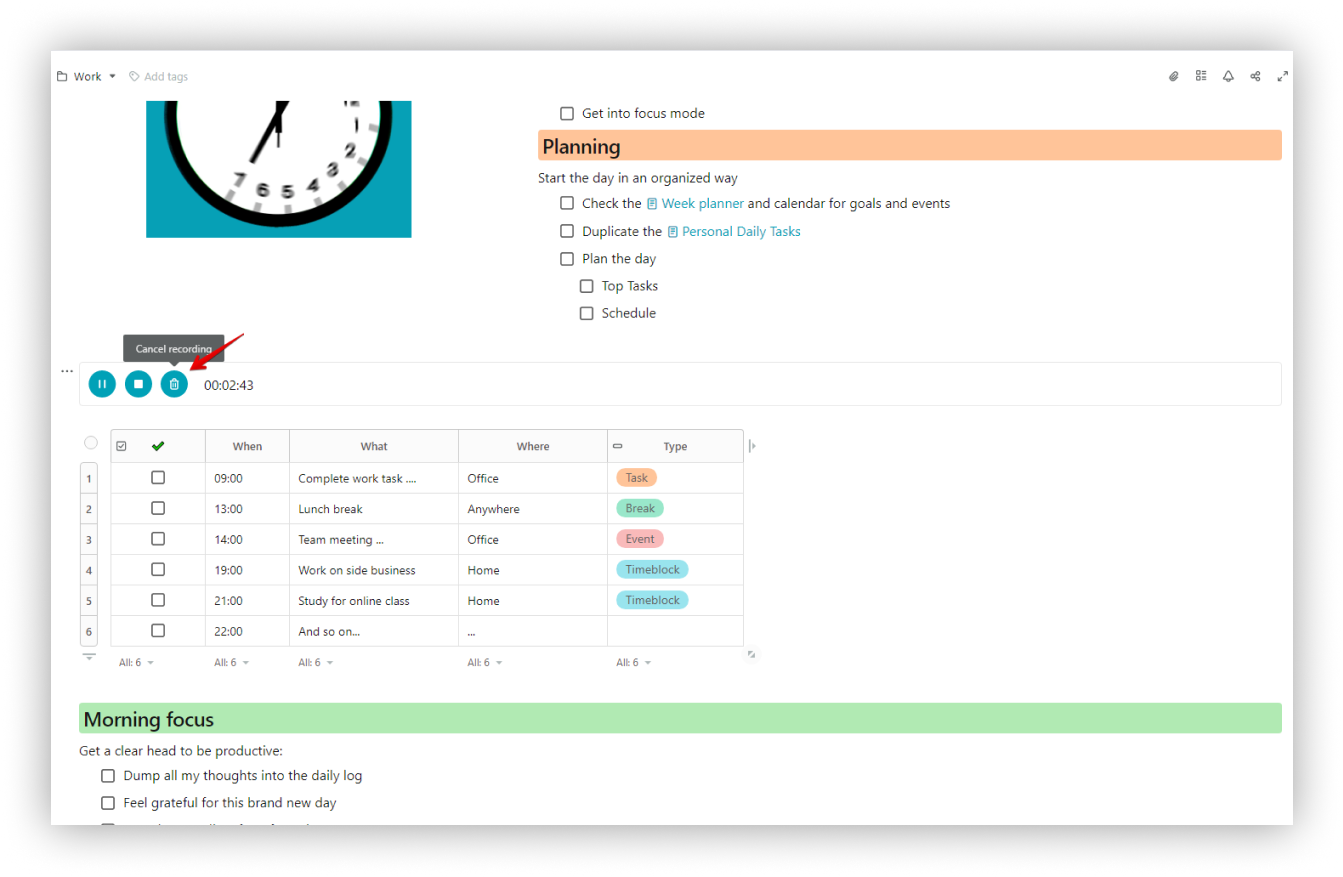
- To stop recording, click Stop recording.
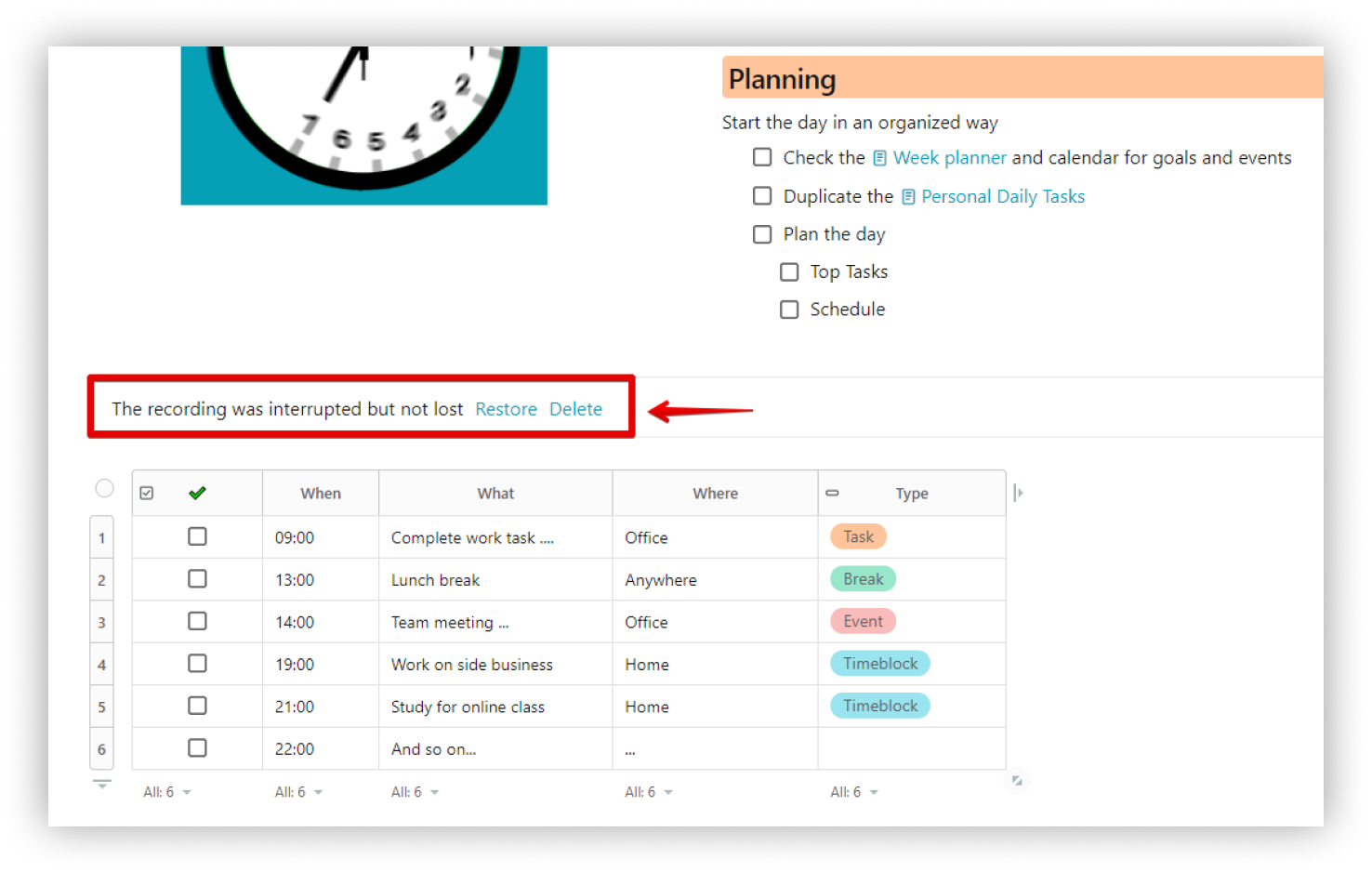
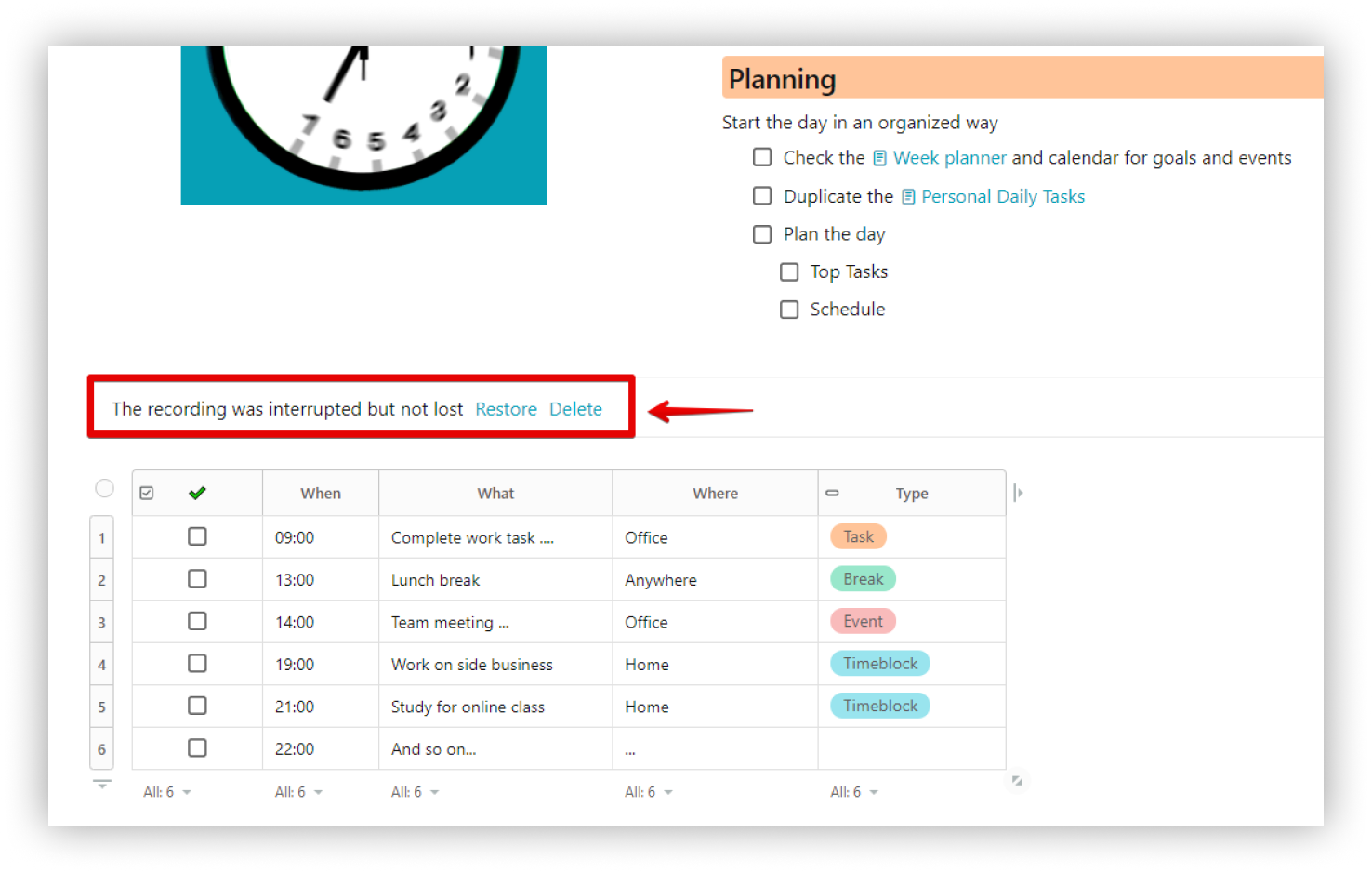
☝ If the audio recording is interrupted for some reason, you can restore or delete it.
Lifehack
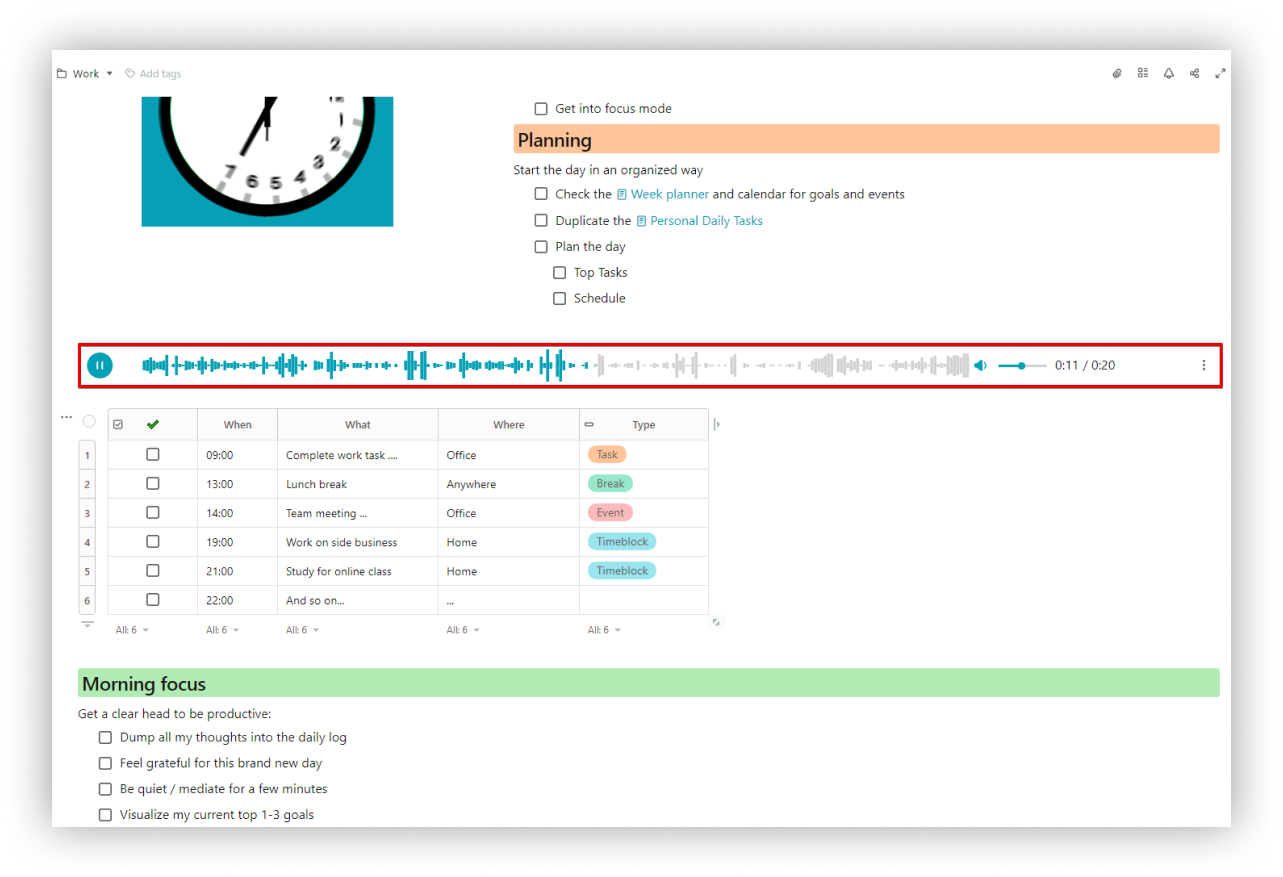
During audio playback, you can click on different parts of the recording to start playing from the selected time.
You can also change the volume: increase, decrease or completely mute the sound.
☝ For free workspaces, the duration limit for recorded files (audio/video) is 5 minutes.
Recording video
Record audio and videos right in your page! Just a couple of clicks and your audio ? or video ? message is in your page! In a video, you can record both your desktop and your webcam image.
Use these features to add information on the go and give more context.
- Click on the arrow and select Video Record or cmd/ctrl + ⌥/alt + 9.
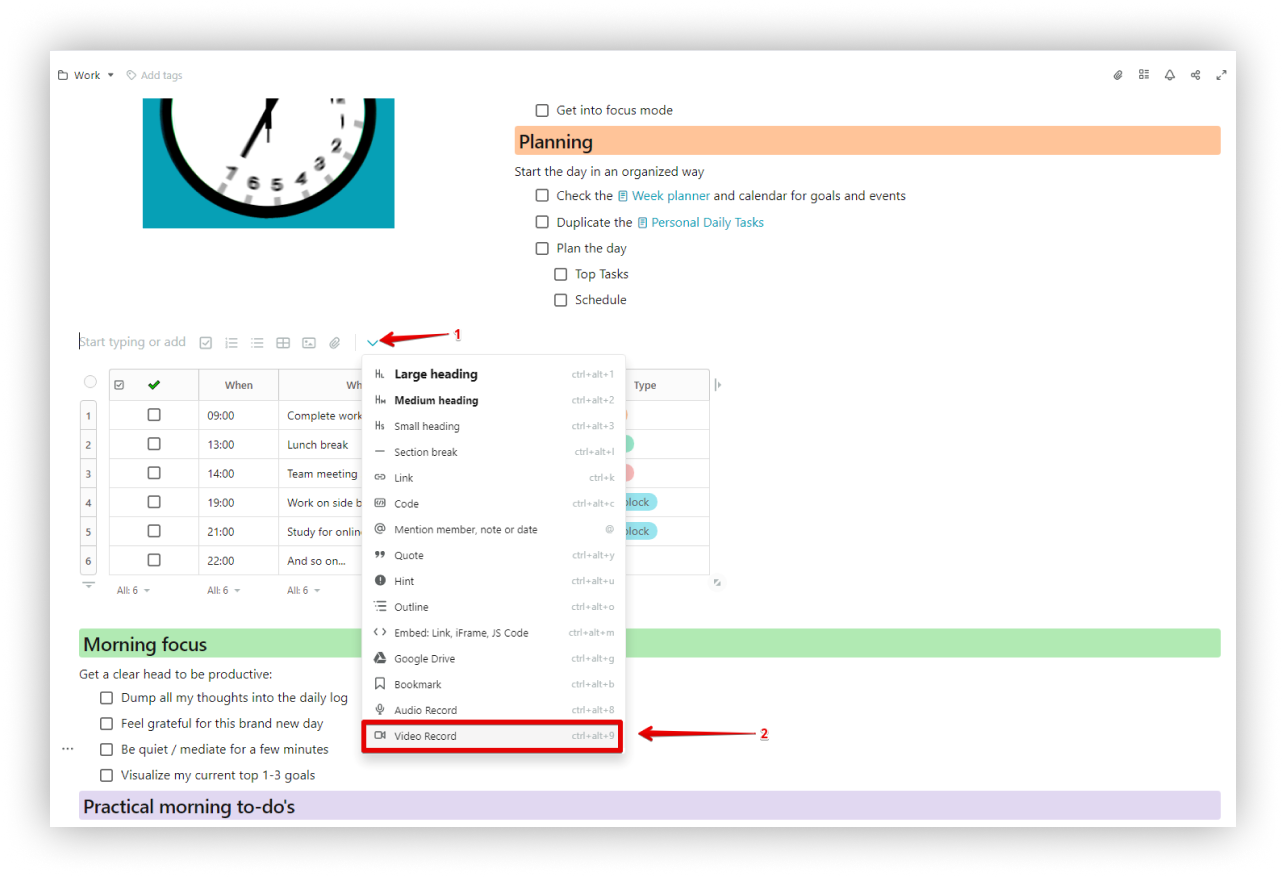
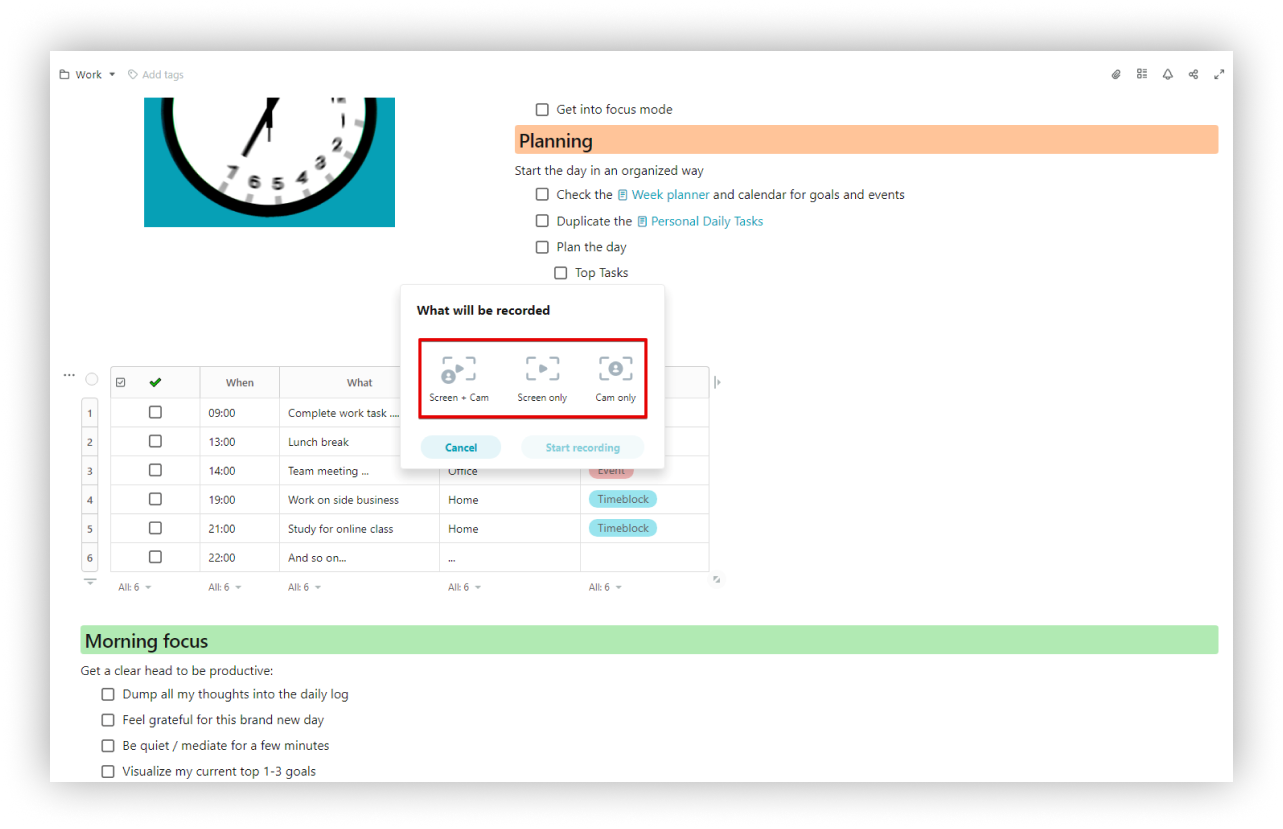
- Select Screen + Cam/Screen only/Cam only.
- Screen + Cam – the screen and webcam will be recorded (will be active only on the client’s page).
- Screen – video from the screen will be recorded.
- Cam – only the video from the webcam will be recorded.
- Give permission to use microphone / camera.
.png)
Screen+cam
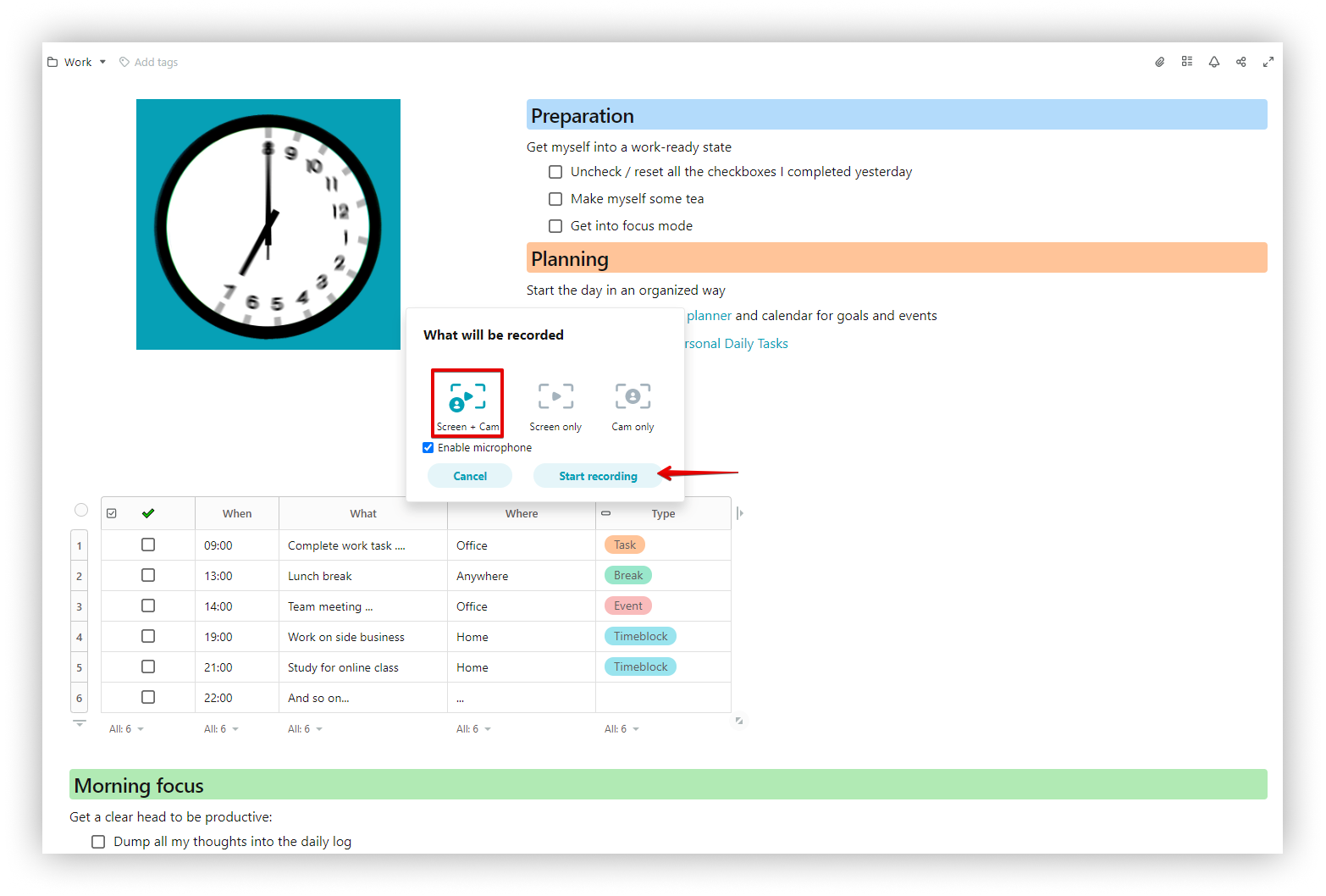
- Select the screen for recording.
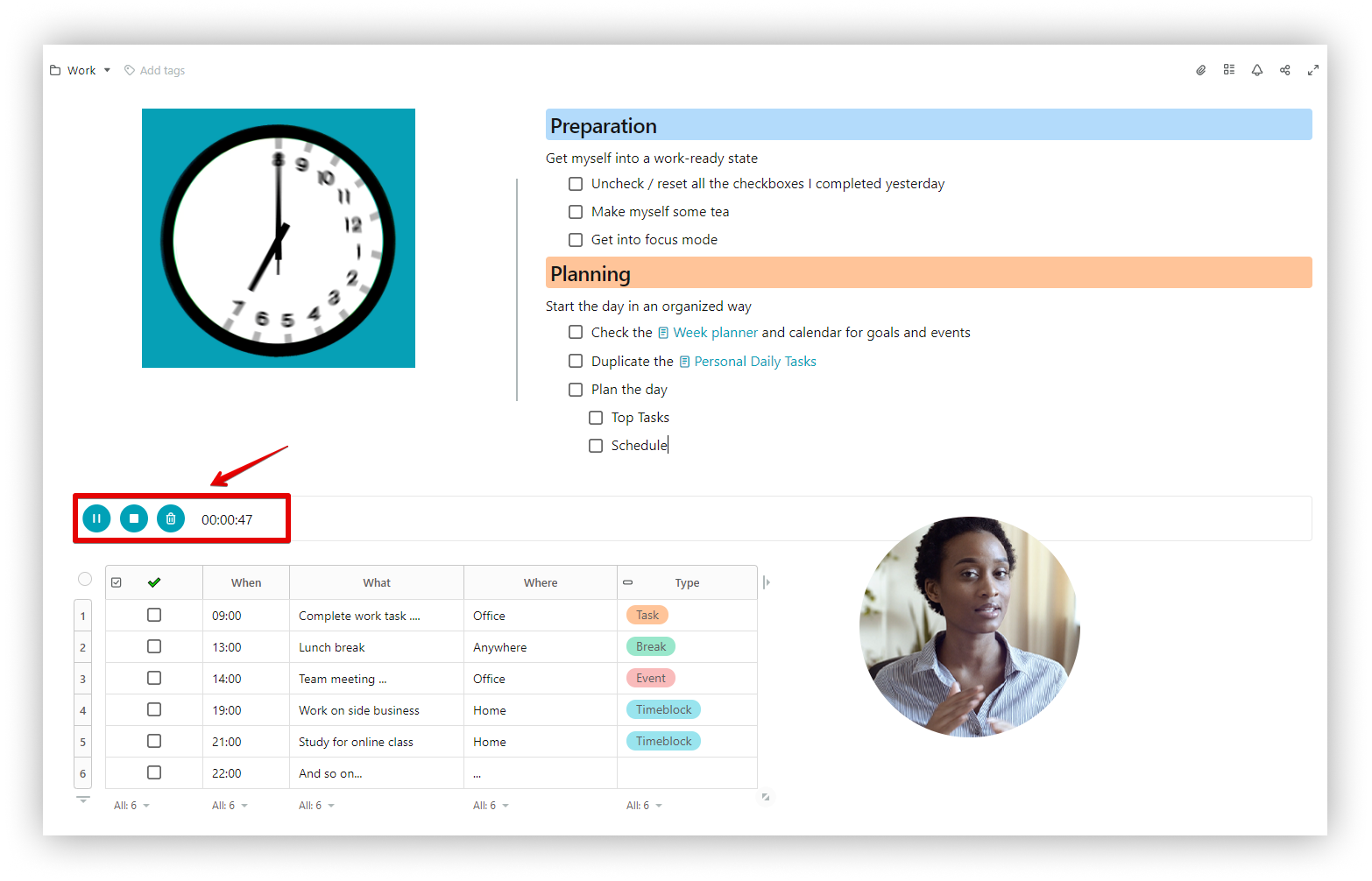
- Recording will start.
During recording, you can pause/stop/delete the recording.
☝ For free workspaces, the duration limit for recorded files (audio/video) is 5 minutes.
Screen only
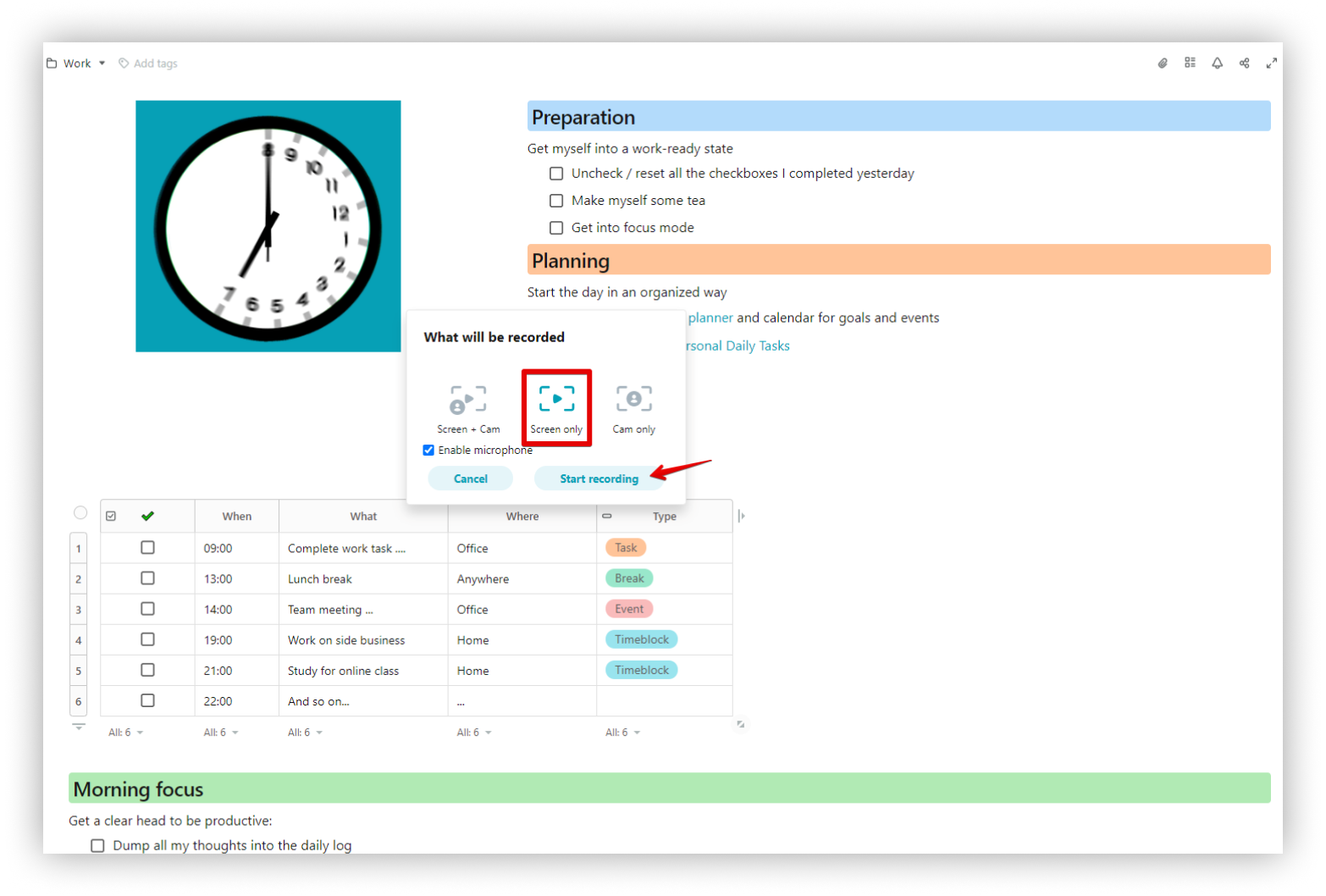
- Select the screen for recording.
- Recording will start.
During recording, you can pause/stop/delete the recording.
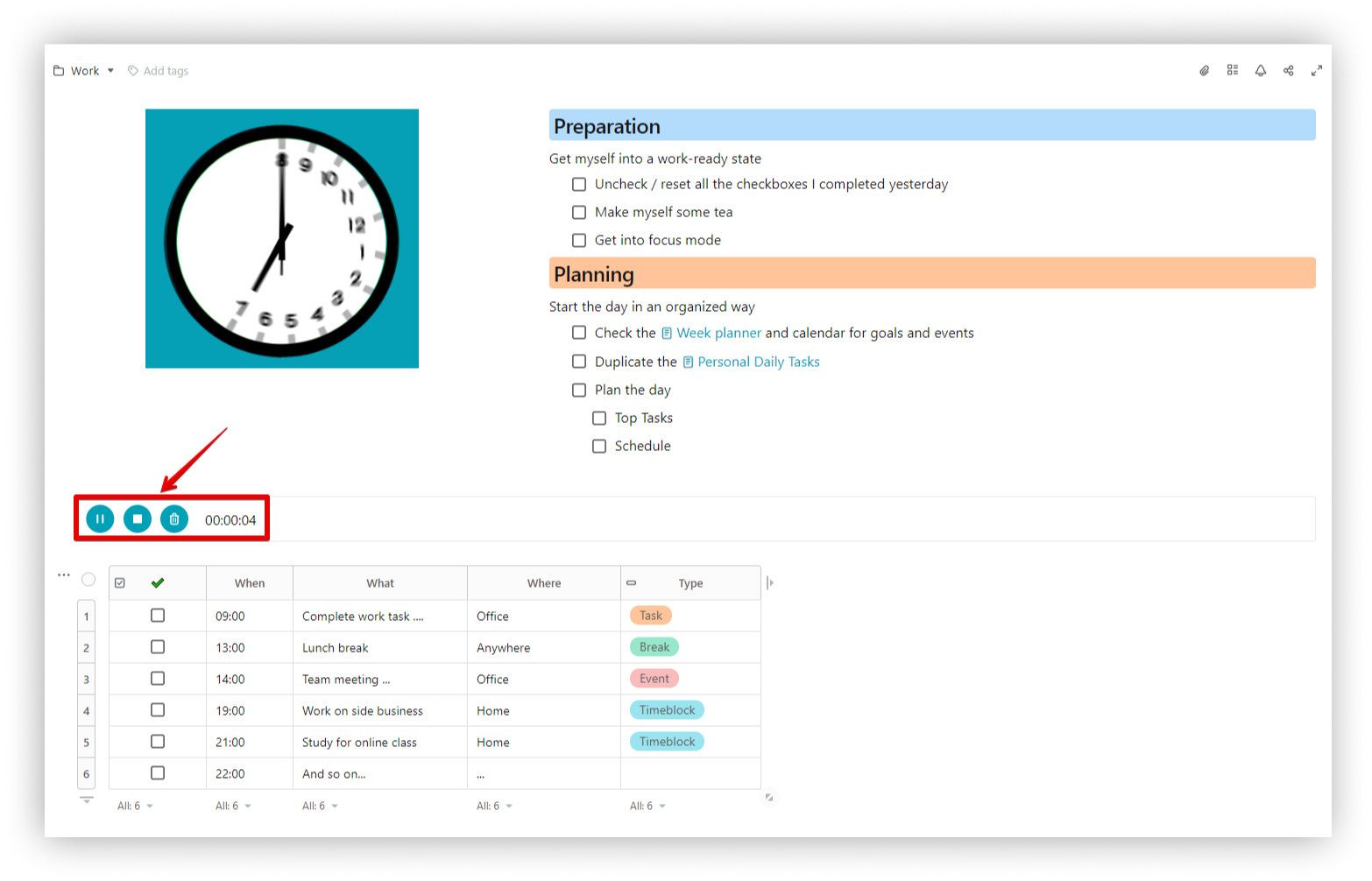
☝ For free workspaces, the duration limit for recorded files (audio/video) is 5 minutes.
Cam only
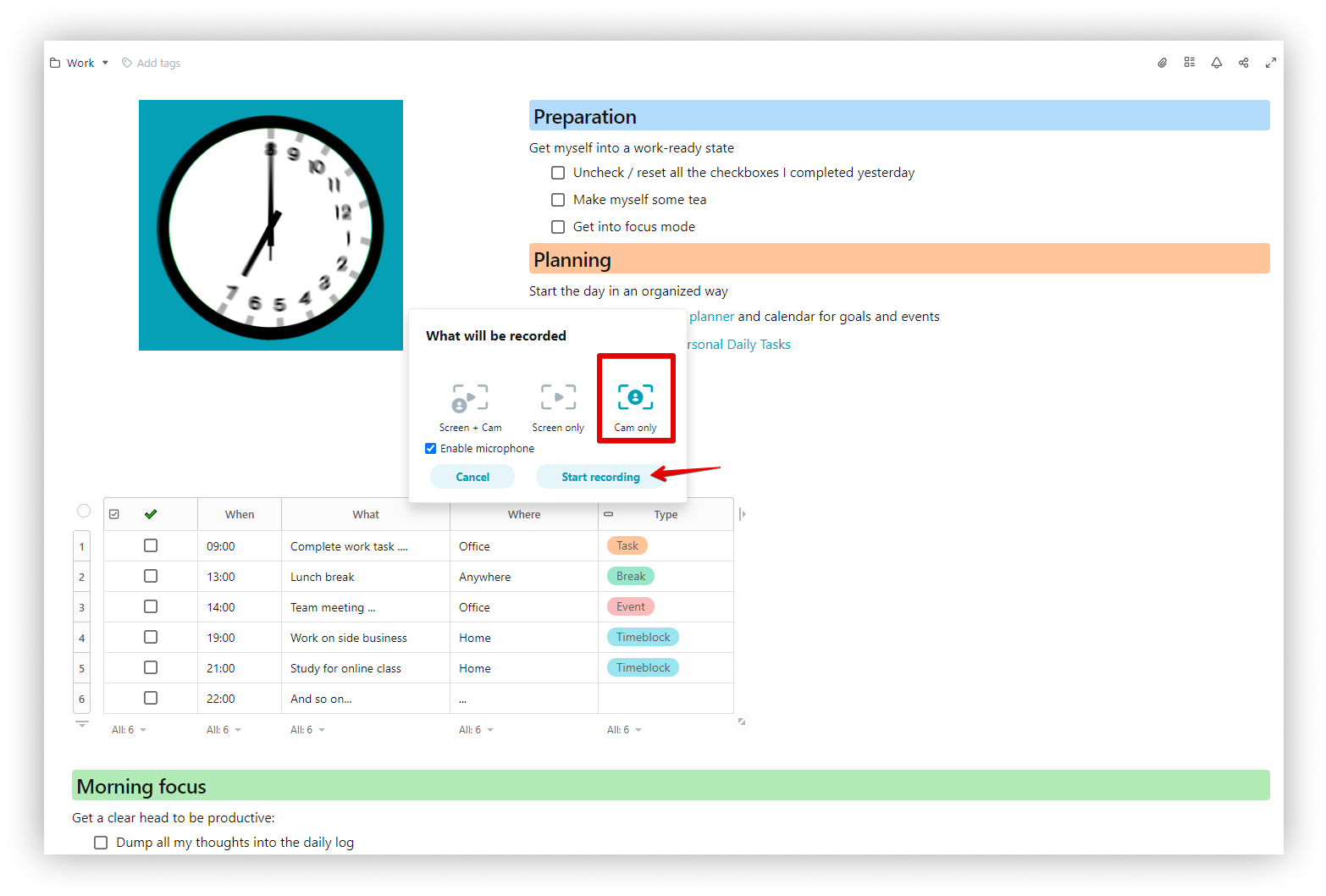
- If you select only camera, recording starts immediately.
During recording, you can pause/stop/delete the recording.
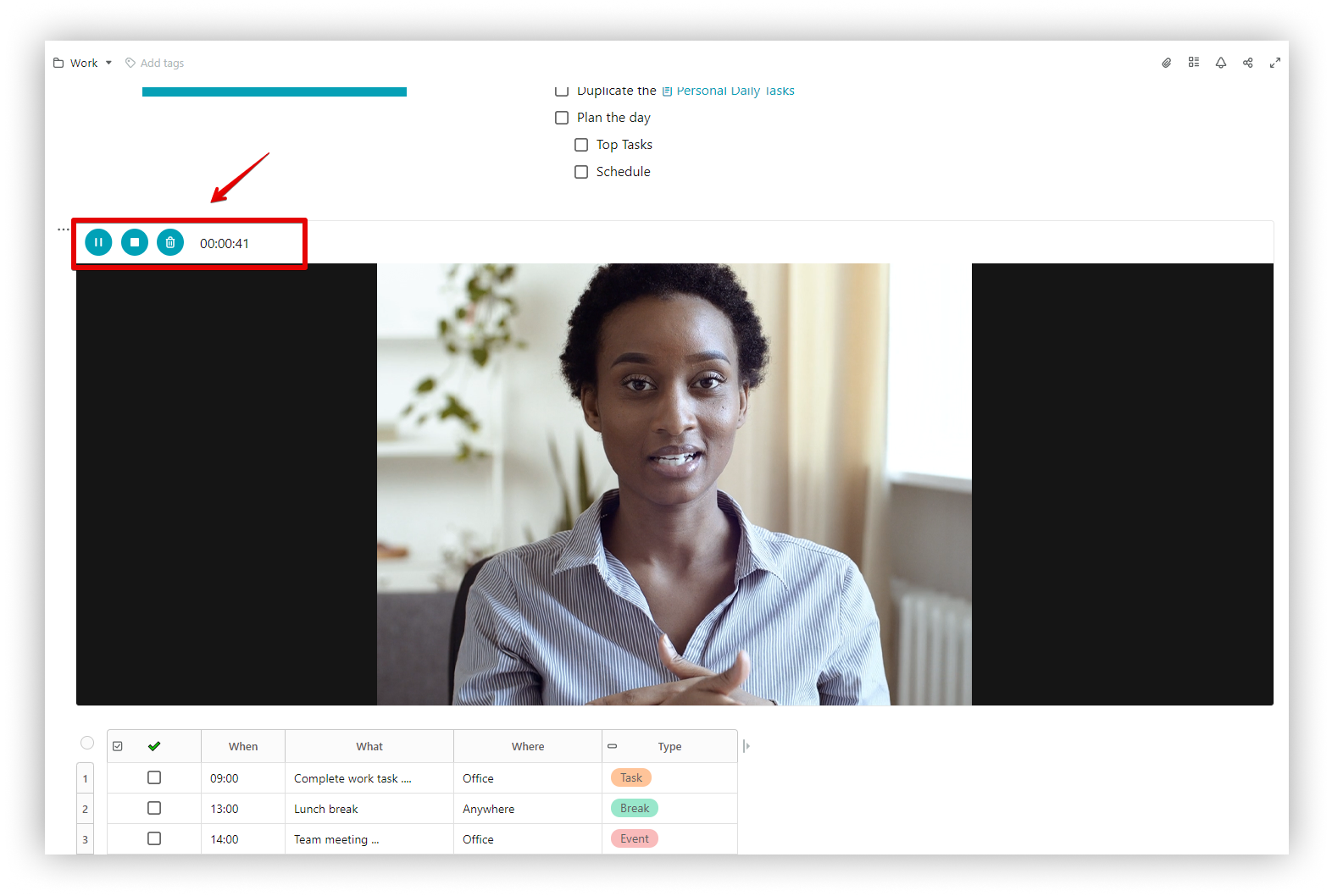
☝ For free workspaces, the duration limit for recorded files (audio/video) is 5 minutes.
☝ If the video recording is interrupted for some reason, you can restore or delete it.
Permissions for Mac users
- Click on the Apple logo on the top left of the menu bar.
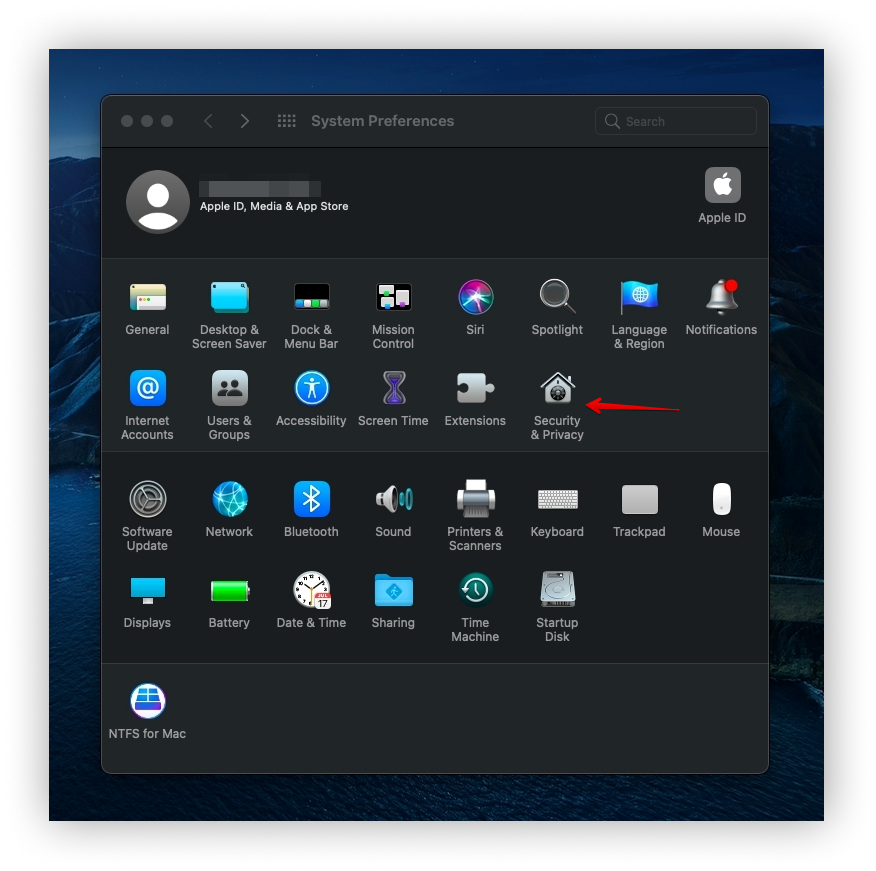
- Click on System Preferences
- Click on the Security & Privacy icon.
- From the modal, scroll down to Screen Recording section.
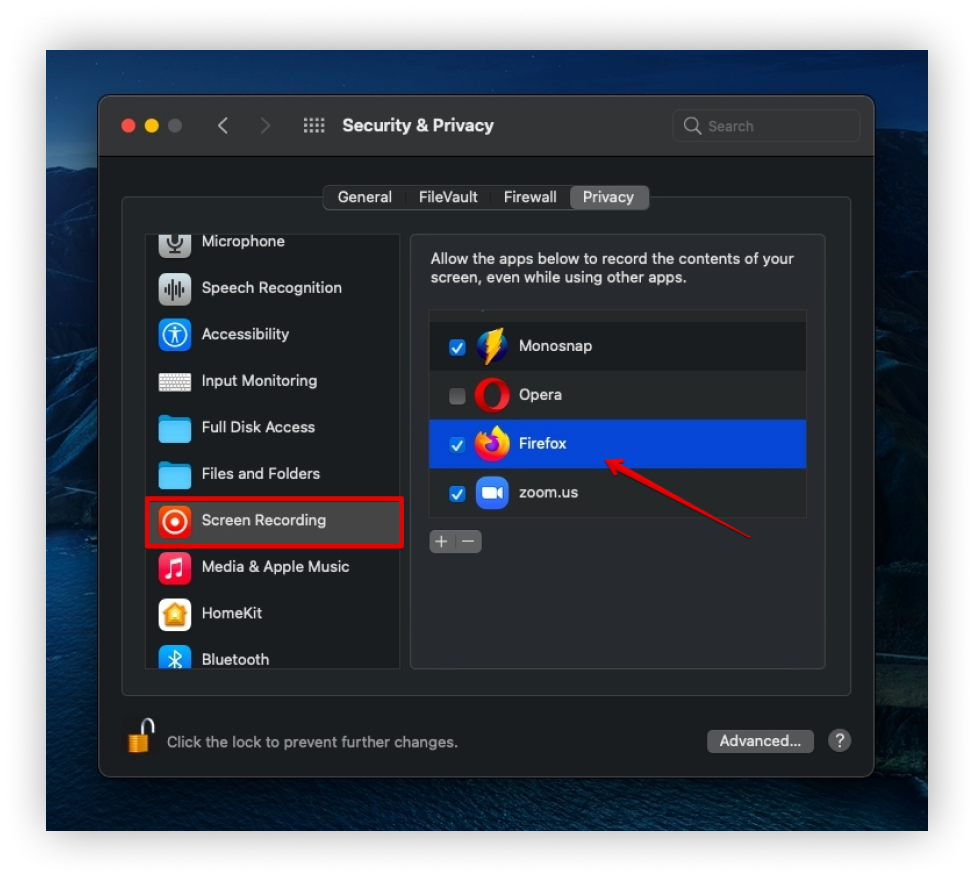
- Click Quit now and restart the Browser.
How do I regain access to my microphone or camera?
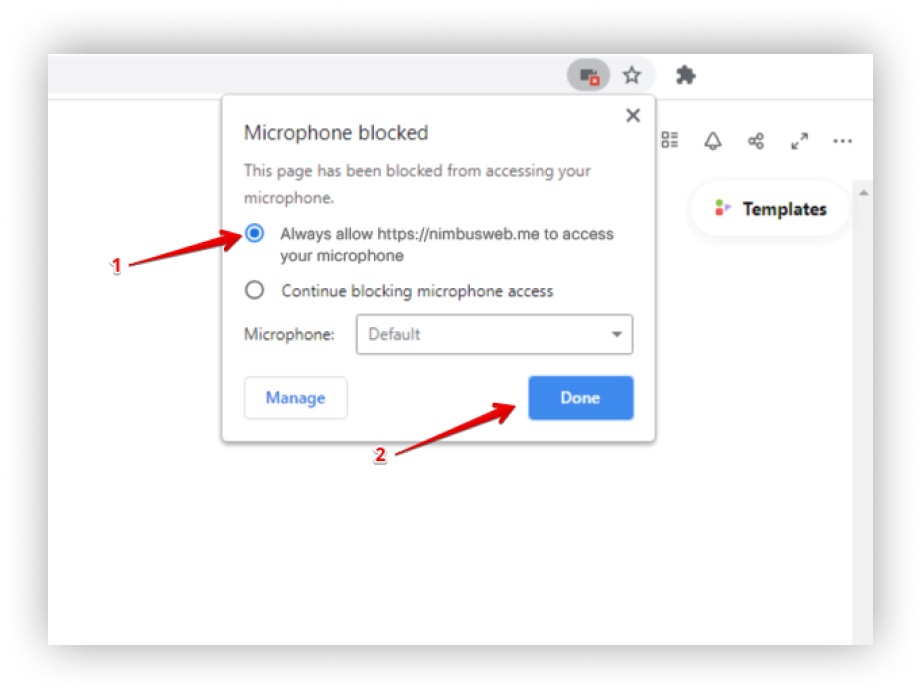
If for some reason you blocked FuseBase’s access to your microphone or camera, then you can quickly restore it.
Regaining access to a microphone
- Click on the icon for lock permissions.
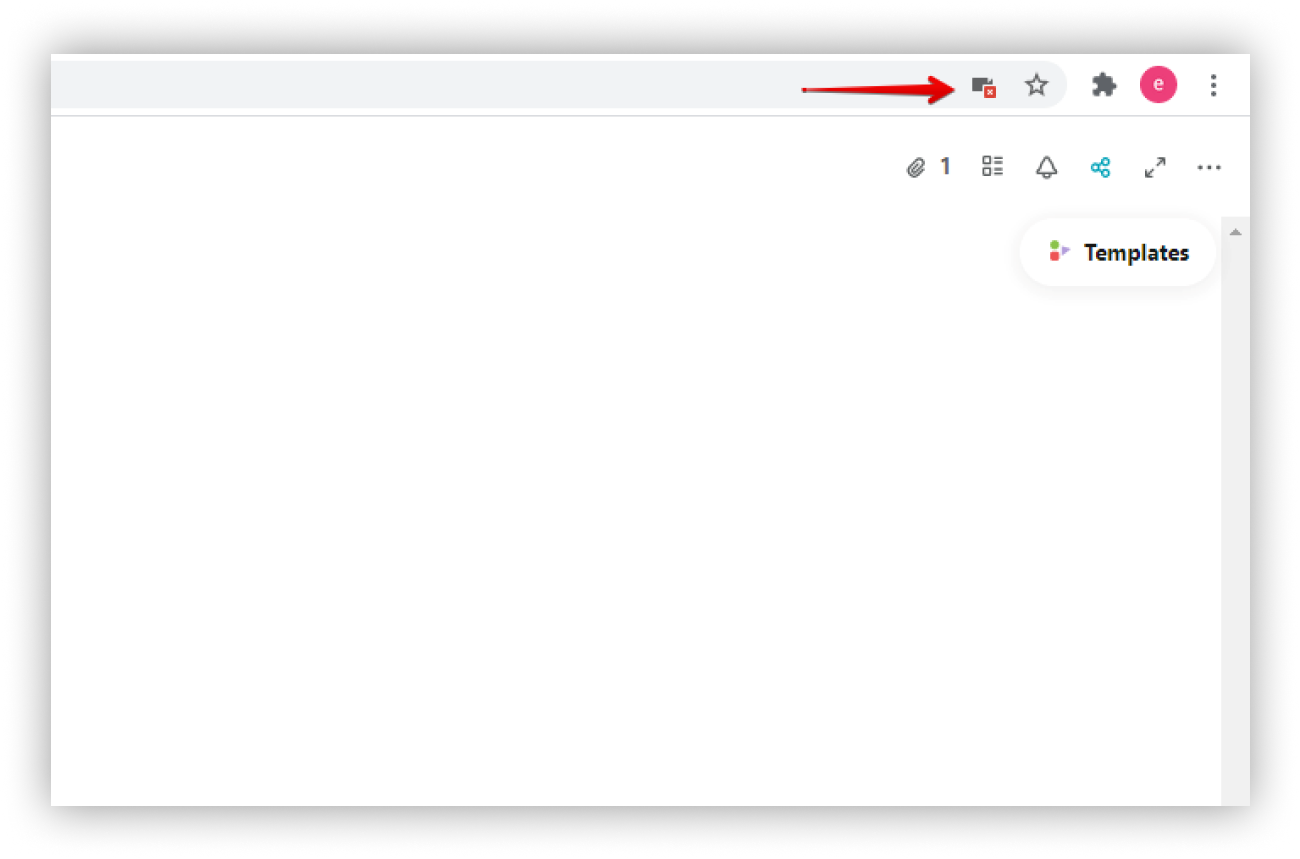
- Next, switch to Always allow and click Done.
Regaining access to a camera
- Click on the icon for lock permissions.
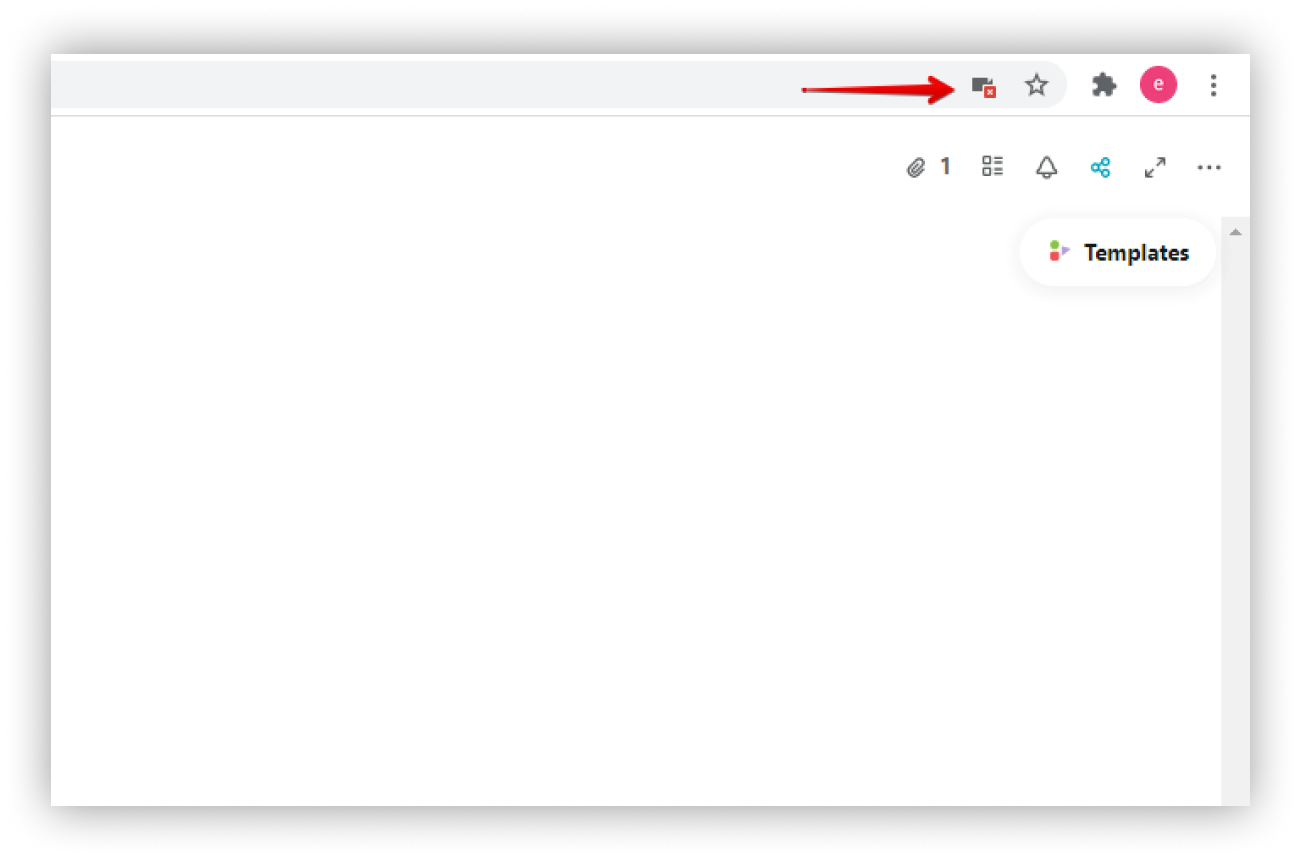
- Next, switch to Always allow and click Done.