FuseBase Basics
Dropdown List
With the Dropdown object, you can create a sheet with a list of options to choose from, depending on your needs. Creating a List You can create a list through the objects menu –...
Guide details
- Published
- March 27, 2023
- Read time
- 1 min read
- Category
- FuseBase Basics
With the Dropdown object, you can create a sheet with a list of options to choose from, depending on your needs.
Creating a List
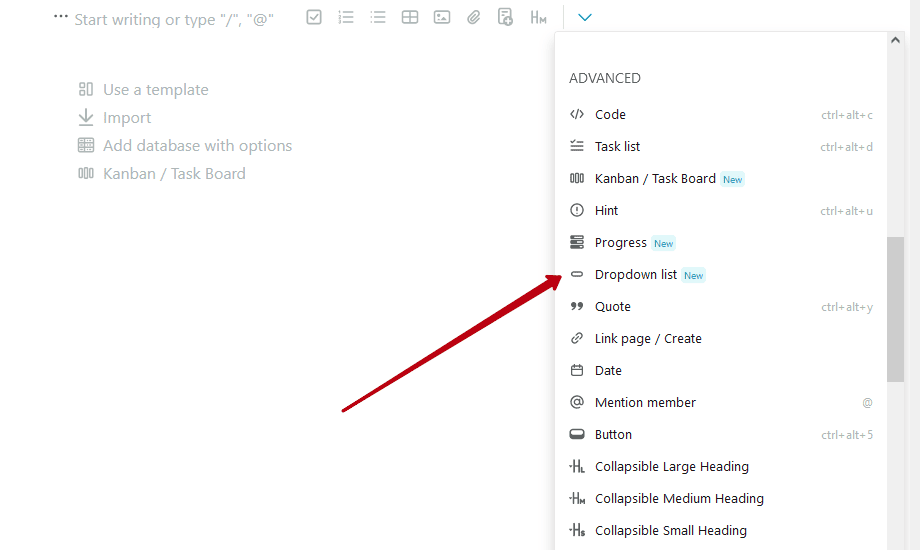
You can create a list through the objects menu – Dropdown List.
Next, you need to make a list of options that will be on the sheet. There can be several options in the list, but only one can be chosen.
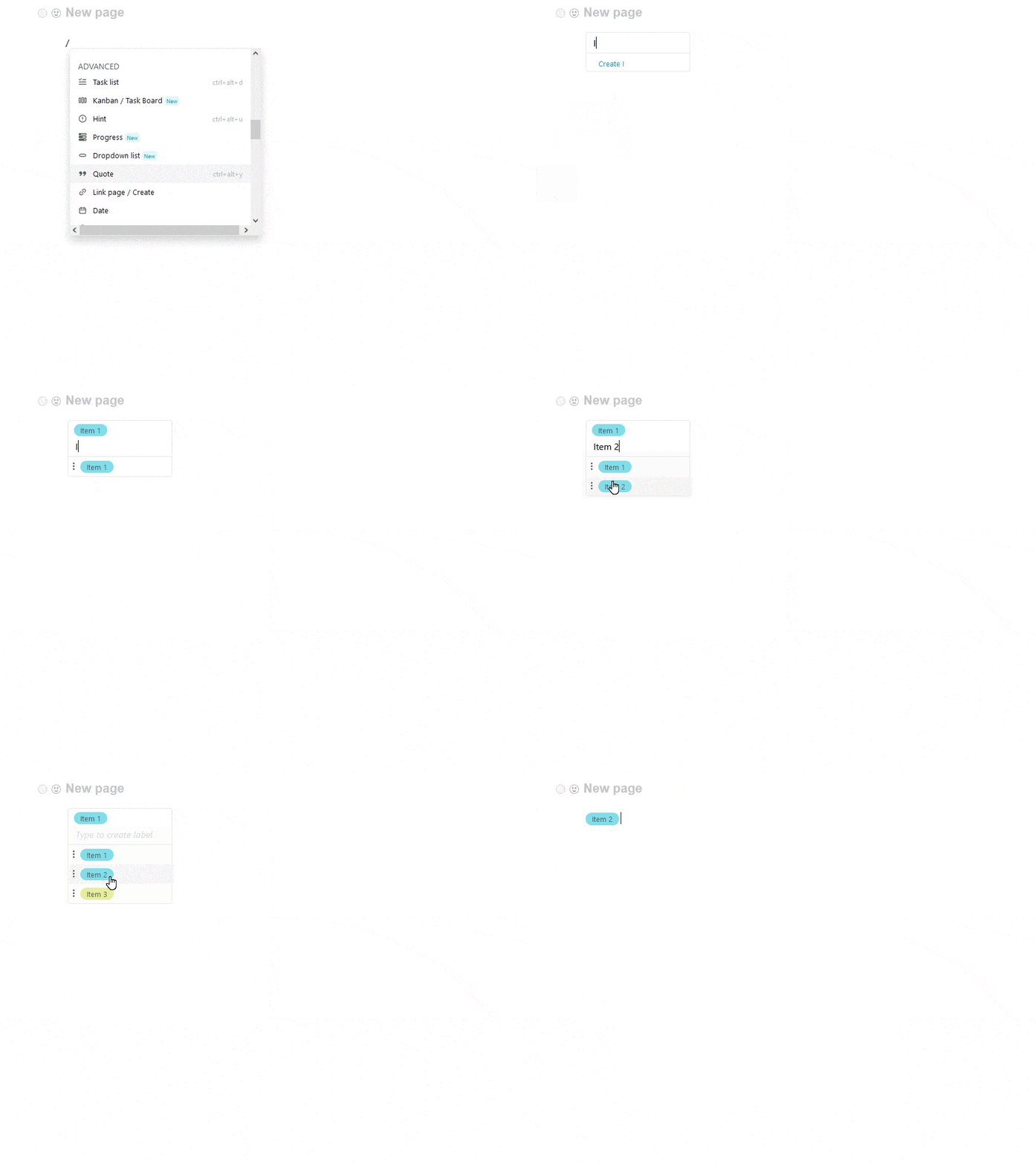
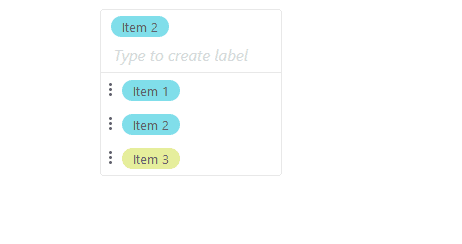
To select another option from the list, click on the list item.

Choose the desired option from the list.
Changing List Items (renaming and color changing)
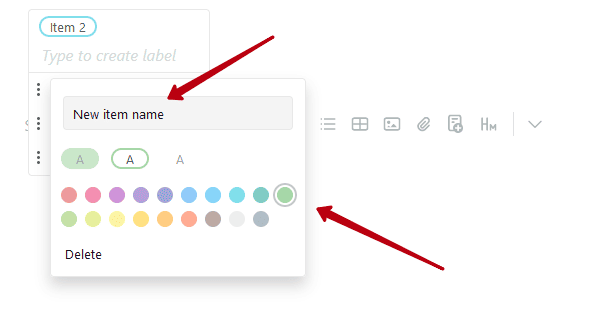
You can change individual list items, such as renaming or changing color. You can do this via the list item menu.
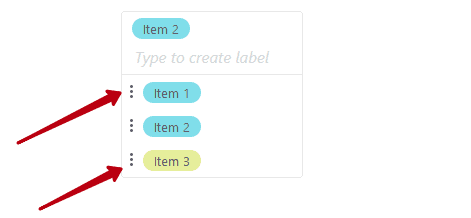
You can rename the option name or change its color.
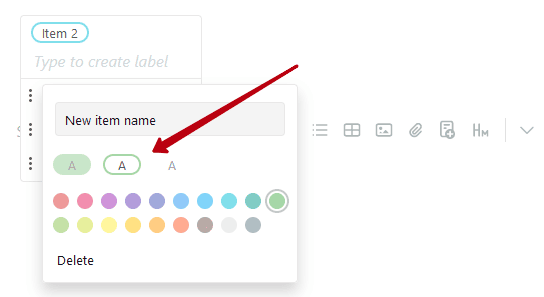
You can also change the style of the list.
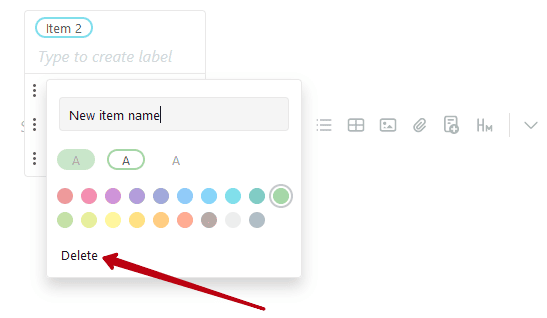
Deleting a List Item
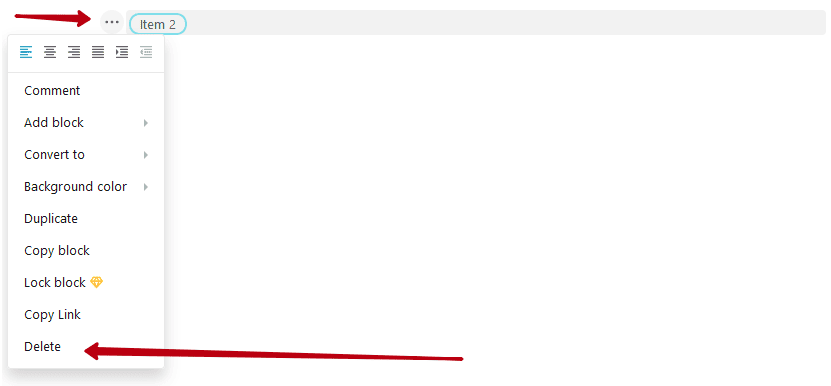
To delete a list item, you need to select the Delete option in the item menu.
Deleting the List
You can delete the entire list just like any other object from the object menu.