FuseBase Basics
Task Board Guide
In FuseBase, you can create not only the usual task lists but also full-fledged Kanban Boards using the Task Board object.
Guide details
- Published
- January 24, 2023
- Read time
- 2 min read
- Category
- FuseBase Basics
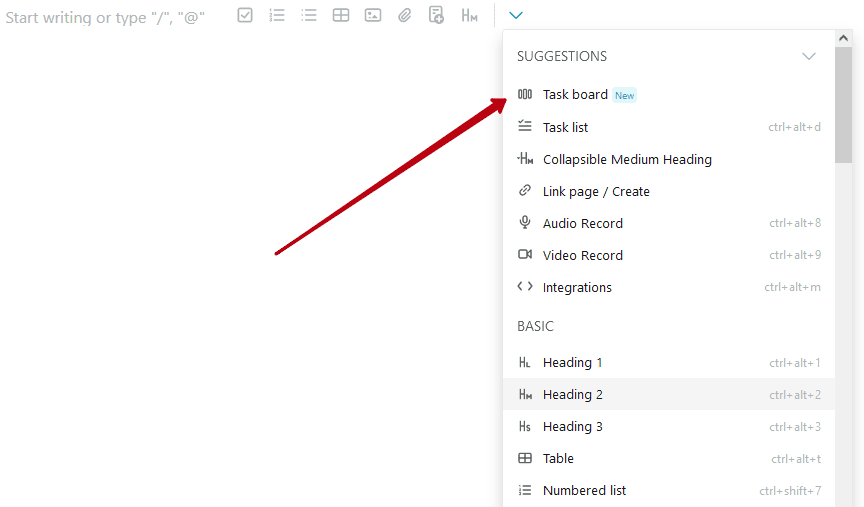
In FuseBase, you can create not only the usual task lists but also full-fledged Kanban Boards using the Task Board object. You can create an object through the menu of objects in the editor –
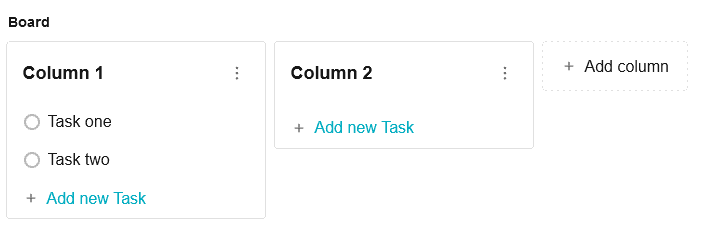
By default, two columns are created in the board, but you can create new ones through the Add column option –
How do I rename the board?
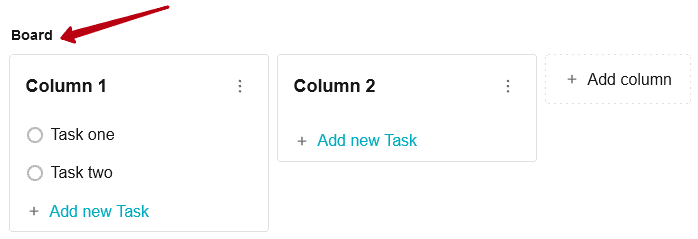
By default, the board has a standard name, but you can rename it. To do this, simply click on the name of the board and specify the desired name –
How do I rename a column name?
Hover over the column name and click on the edit icon –
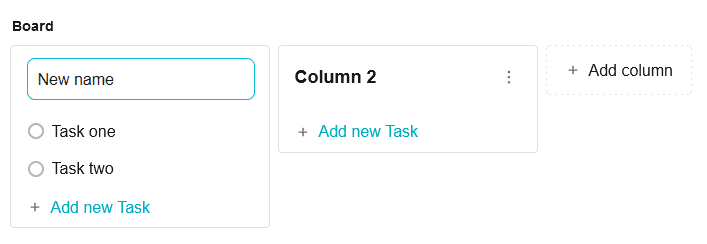
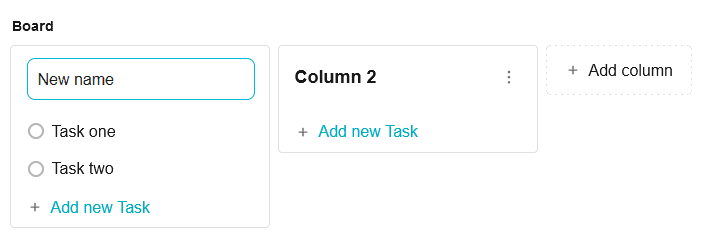
Then enter a new column name and press Enter to confirm –
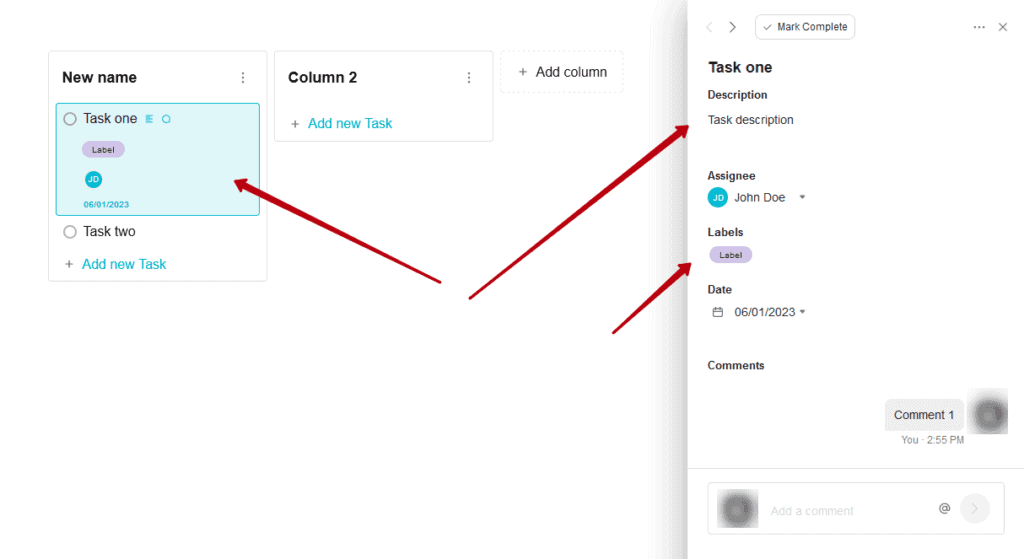
How do I add labels/descriptions/date, etc. to a task?
Click the name of the task to open it in a detailed view. Next, you can add a description, labels, date, etc. to the task –
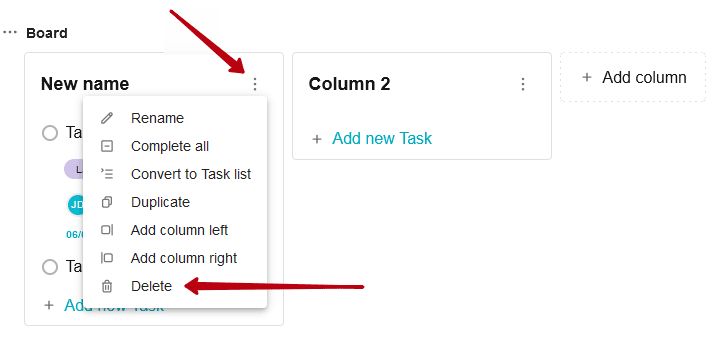
How do I delete a column?
Click on the column’s menu icon and select Delete –
How can I delete a task?
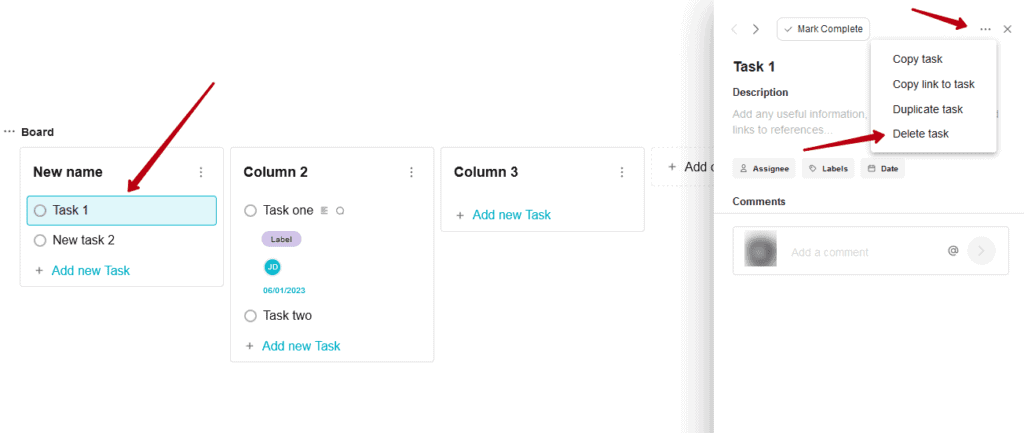
Open the task in detail view and select Delete task in the task menu –
Can I move columns and tasks within the board?
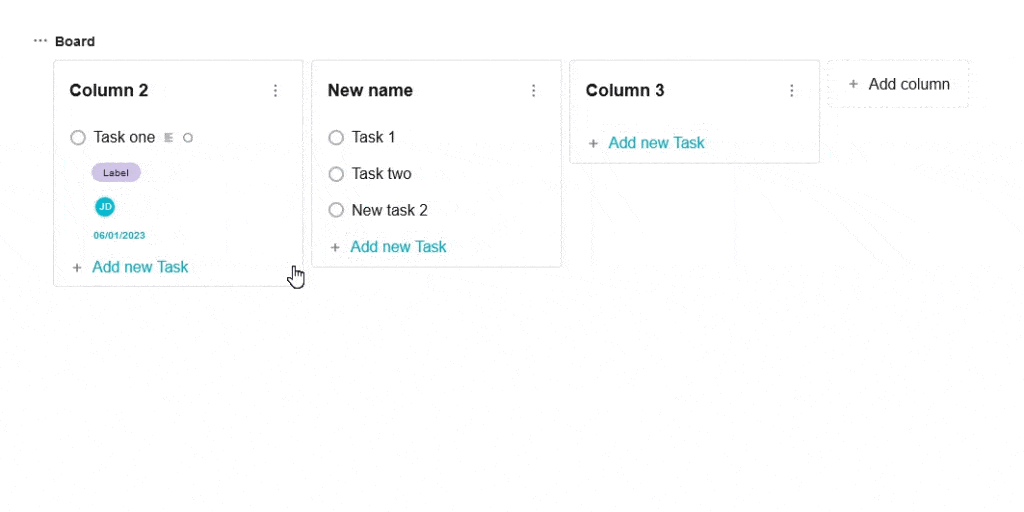
Yes, of course. You can:
- Swap columns
- Reorder tasks in columns
- Transfer tasks between columns
To do this, click on a column or task and keep the mouse button pressed while doing the necessary action –
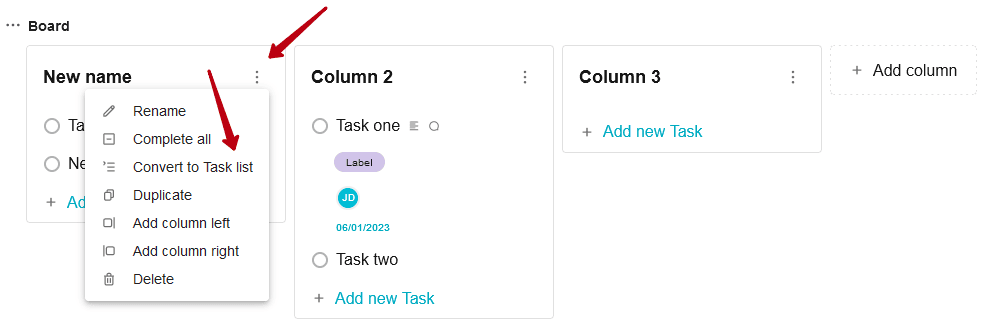
Is it possible to convert the board column to a regular task list?
Yes, you need to select Convert to the task list in the column menu to do this –