Here we will cover commands that will be helpful when working with FuseBase CLI. These commands are independent of the IDE and remain the same whether you are using Cursor, VS Code, or any other editor. These commands can be executed from the terminal.
To run a command, simply type its name. For example, the fusebase command will display all available commands in our CLI.
Now let’s take a closer look at the commands that will be useful to you.
fusebase init – this command is the starting point for creating an app. Specify your IDE, app name, and start building!
fusebase auth – allows you to authenticate in FuseBase. You can use this command, for example, if you have multiple accounts and want to switch between them.
fusebase dev start – lets you launch a local server for testing functionality. This is convenient if you want to check how everything works before pushing it to production.
fusebase deploy – enables you to deploy finished features to production. After deployment, you can test your completed apps with real URLs. Deployment is necessary if you want your latest changes to be available in production.
fusebase update – by default, we automatically update the CLI, but if you have any concerns, you can check for a newer version using this command. It is important to note that when updating the CLI, the following are also updated at the project level: skills, agents, hooks, CLAUDE.MD, AGENTS.MD, and other files.
If you want to add your own instructions, please use a block in the following format:
<!– CUSTOM:SKILL:BEGIN –>
My Instruction
<!– CUSTOM:SKILL:END –>
In this case, your instructions will not be overwritten and will be preserved even after our updates.
fusebase skills update – if you have updated the CLI but are working in the current app, this command will also update the skills and agents.fusebase version – displays the current version of the CLI. This is useful, for example, if you need to contact support. Important! If you have added custom instructions to files such as AGENTS.MD or CLAUDE.MD, please make a backup, as the Update Skill command will completely overwrite these files at the project level.
fusebase app list – displays a list of apps in the app, along with their IDs and links to the apps.
fusebase version – displays the current version of the CLI. This is useful, for example, if you need to contact support.
fusebase config ide – For our CLI to work correctly, you need to select your IDE when creating an app, as the configuration may vary depending on the IDE. But what if you selected the wrong IDE? For example, you chose Cursor instead of Claude Code. Don’t worry! Simply enter fusebase config ide in the terminal and then select the correct IDE.
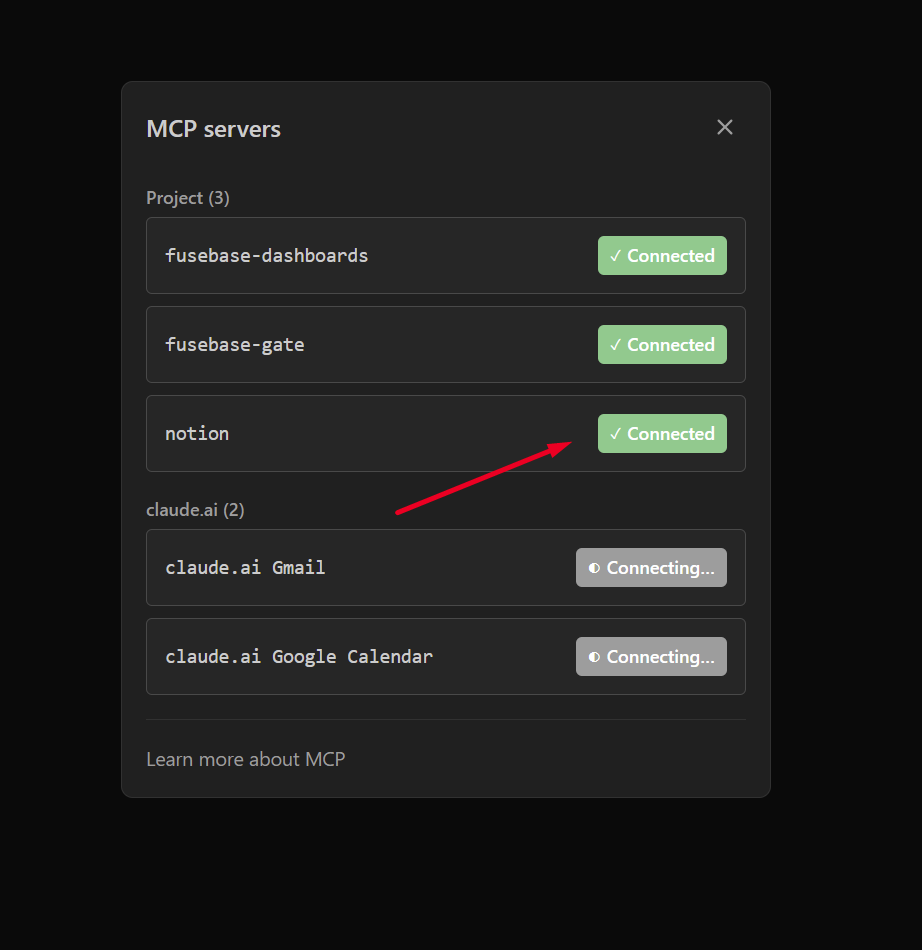
fusebase integrations – Fusebase CLI allows you to create apps based on data from other services, and for convenience, we have added default MCP support for Notion, Figma and Asana (the list will be expanded). To enable integration, enter the command fusebase integrations in terminal and select the desired service with a space. Then, press Enter.
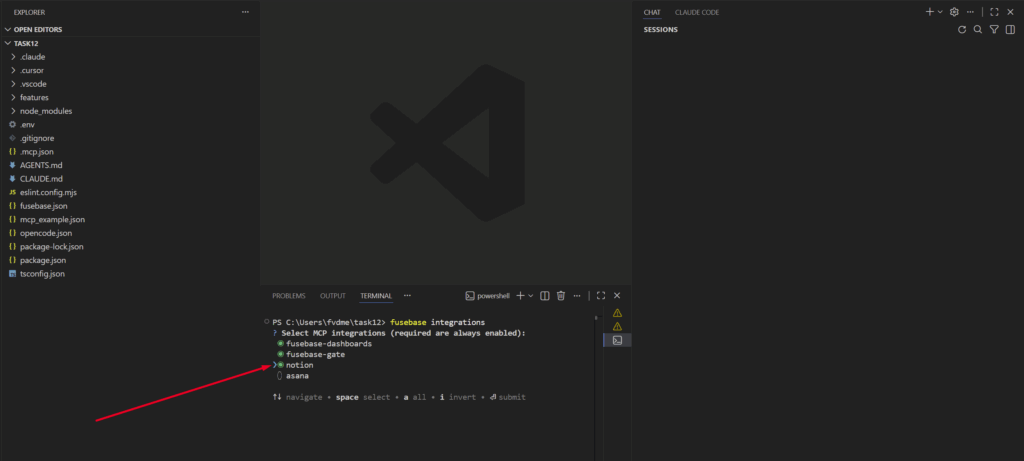
Important! After activating the MCP of another service, we recommend restarting the ID to activate this MCP. After that, select the /mcp command in Agent’s chat and authorize in the required service.