Table & Database
Custom views – building a dashboard for ourselves
Why do you need Custom views? Let’s say you need the ability to build a dashboard for a specific case. For example, where you only see clients from a certain portal, or where...
Guide details
- Published
- September 11, 2025
- Read time
- 2 min read
- Category
- Table & Database
Why do you need Custom views? Let’s say you need the ability to build a dashboard for a specific case. For example, where you only see clients from a certain portal, or where there is a specific set of fields. Of course, you can do this through the main dashboard, but:
- if many people work in the company, the dashboard will keep getting reset
- if I use the dashboard for different cases, I’ll constantly have to reconfigure it
But if there are custom views, everything becomes much simpler:
- I create a view based on the chosen dashboard (for now only a table) and name it as I like
- I configure it (filtering/sorting and hiding or showing columns)
And then I work with this view without touching the main dashboard. And I can create as many views as I (or anyone else) need.
How to add a new custom view?
1) Go to the desired dashboard (for example, Portals).
2) Click on the Custom views option.
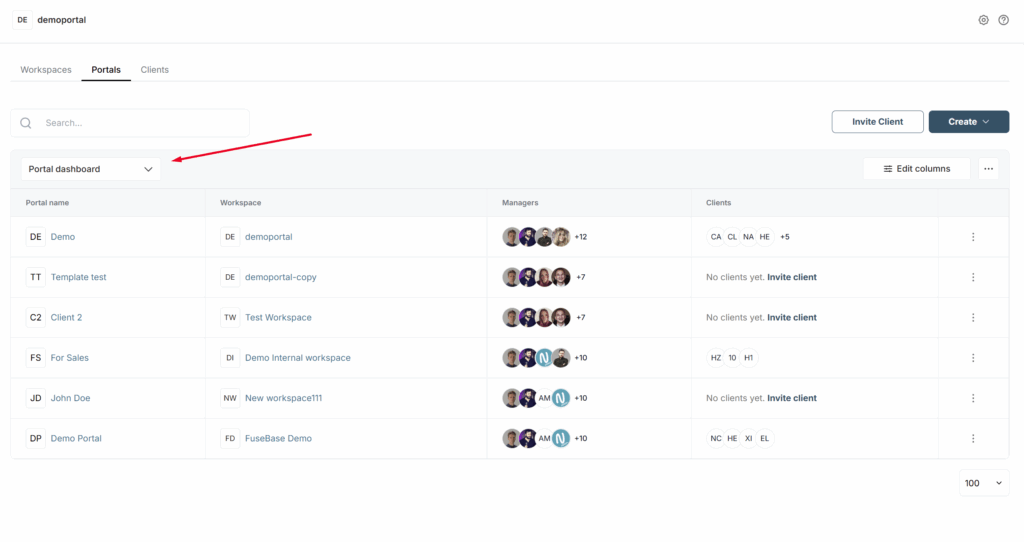
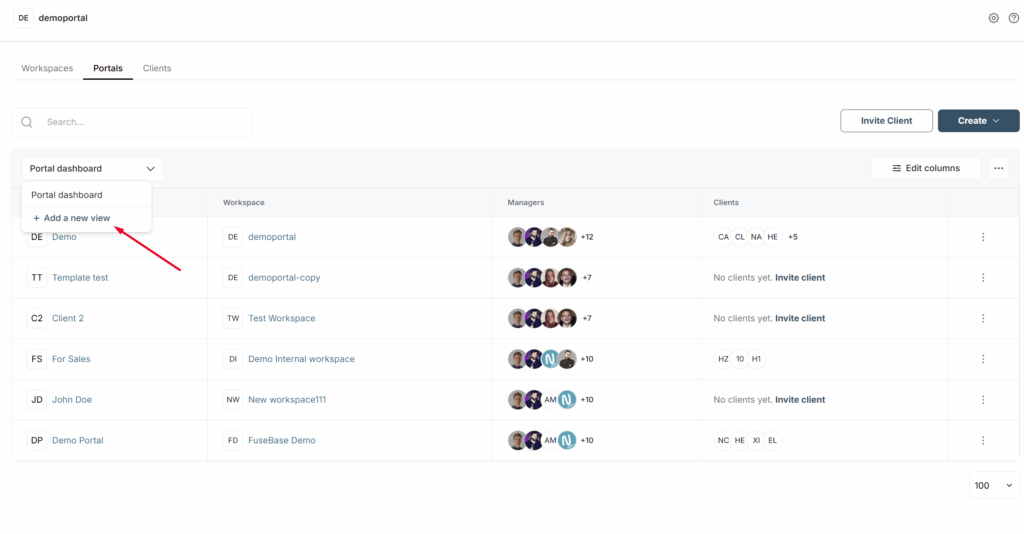
3) Click on Add new view.
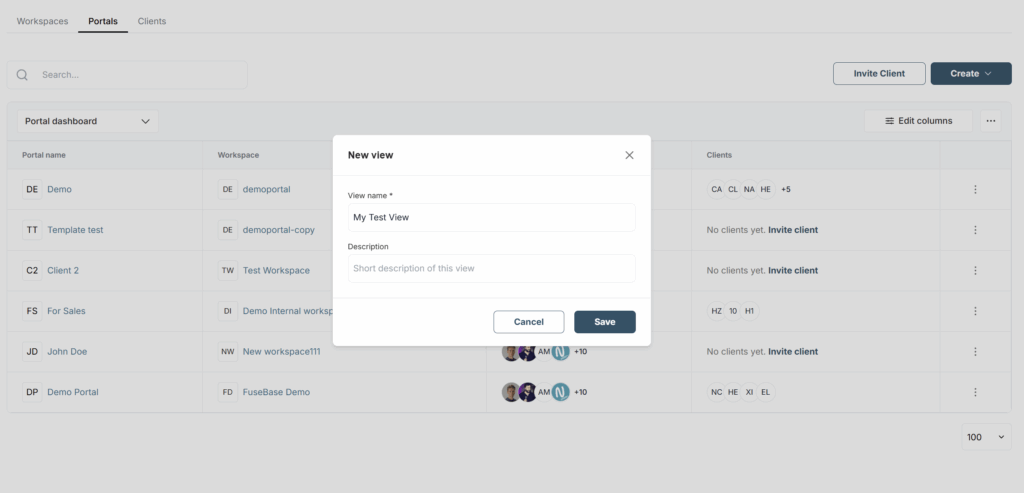
4) Next, specify the name of your new view and a description, if needed.
Next, you can customize your custom view as you like:
- add fields or hide unnecessary ones
- change sorting and filtering
It’s important to note that these changes will not affect other views or the main dashboard.
Editing a custom view
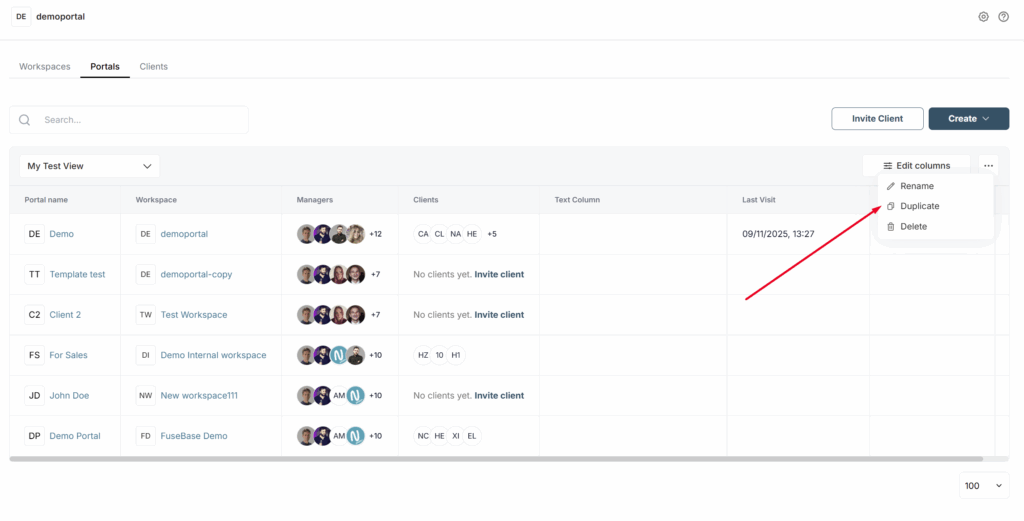
Click on the 3-dot menu to open the menu of the current custom view. Here you can:
- Rename the view
- Duplicate it and create a new view based on the current one
- Delete the view (except for the default view)