Portals
How to use embed feature in the portals?
Learn how embeds can be used to display content from other services on portal pages and embed JS code into the portal
Guide details
- Published
- November 8, 2023
- Read time
- 1 min read
- Category
- Portals
With Embeds, you can display content from other services on the portal pages, such as:
- video from YouTube
- an analytical report from PowerBI
- a booking form from Calendly
You can add Embeds through the Customizer or through the Fusebase page editor.
Adding an Embed via the Customizer
- Go to the Customizer for the portal.
- Navigate to your page or create a new one.
- Select Custom Embed from the Add Block menu:
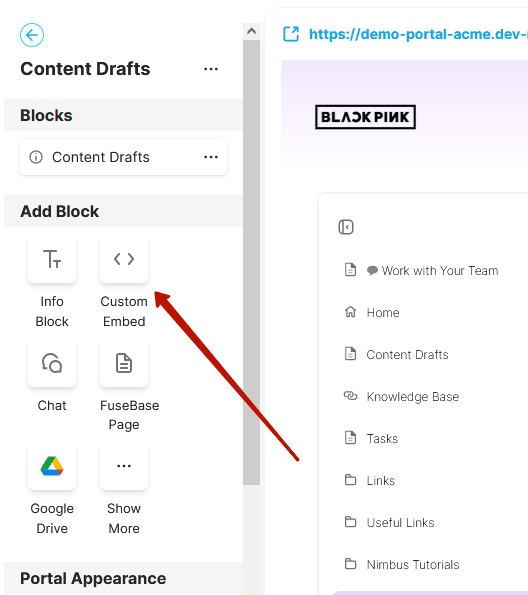
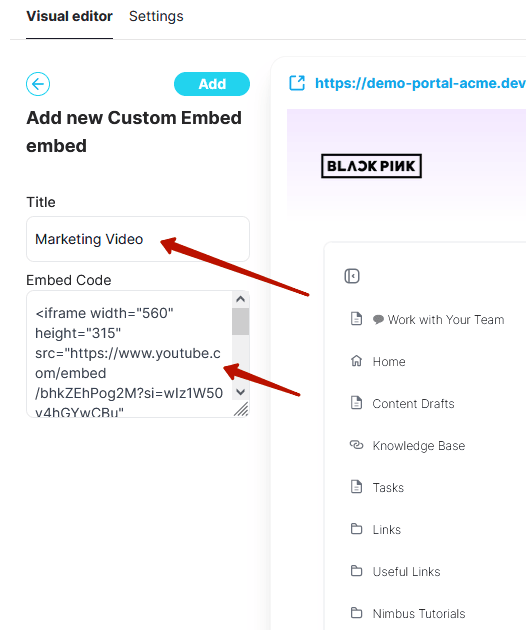
- Enter the widget name and embed code (e.g. Youtube code on video or code from PowerBI):
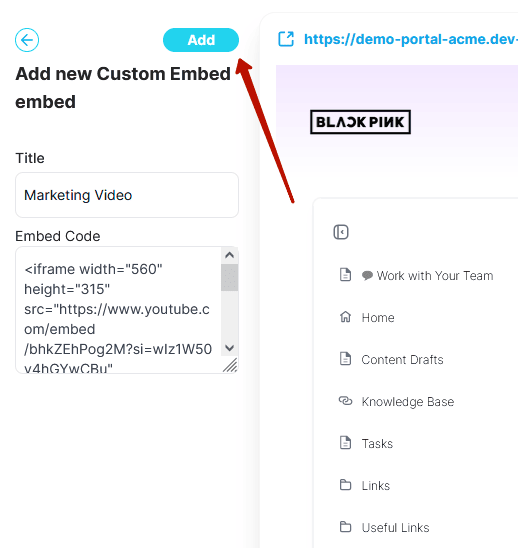
- Click the Add button:
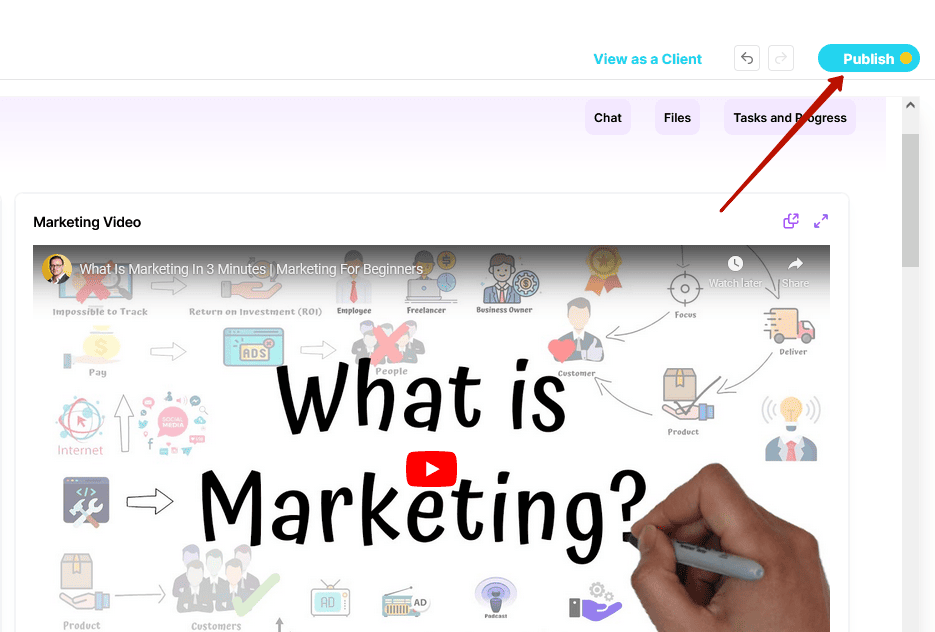
- After saving, the Embed will appear on the portal page:
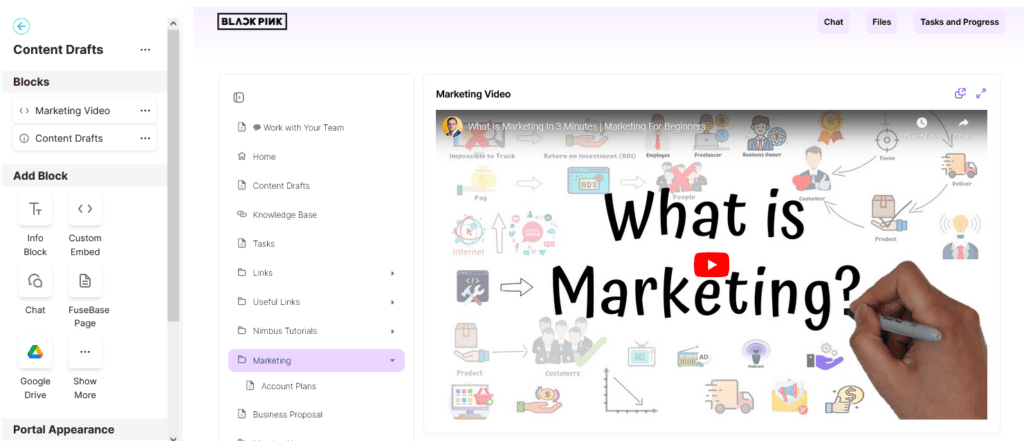
- When you are satisfied with everything, save the changes by clicking Publish:
Adding an Embed via the Fusebase page editor
- Go to the web version
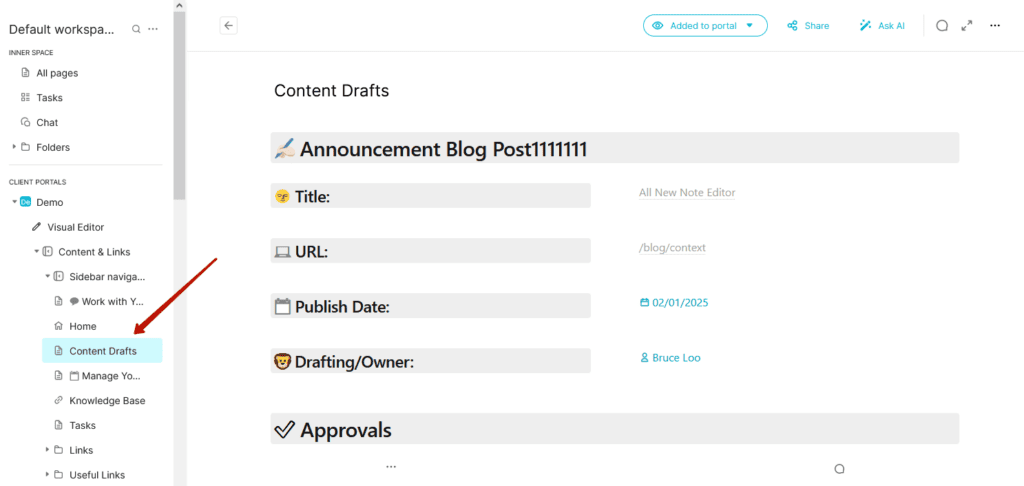
- Open or create the desired page in the client:
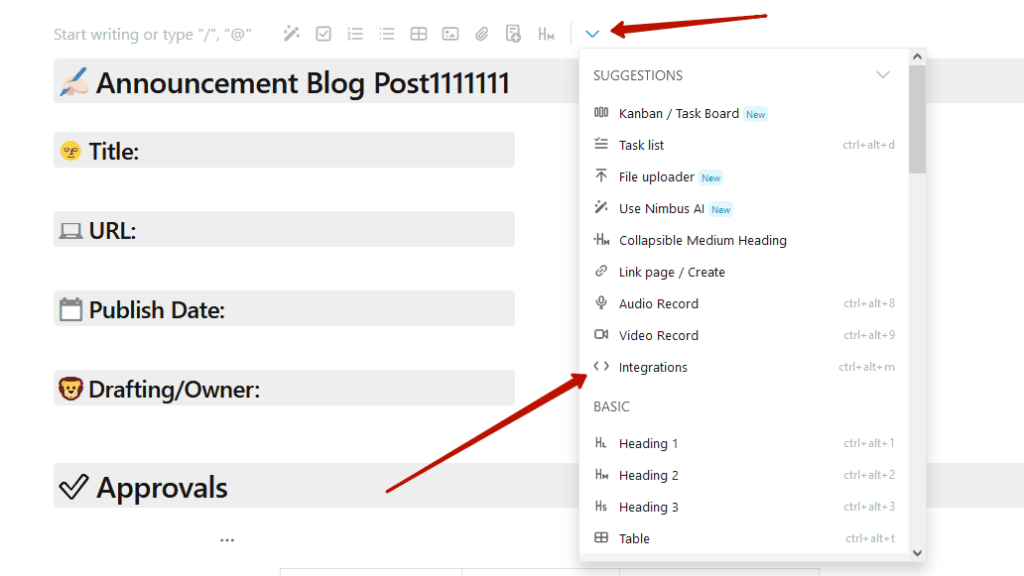
- Click on the desired location in the editor and select Integrations from the list of options:
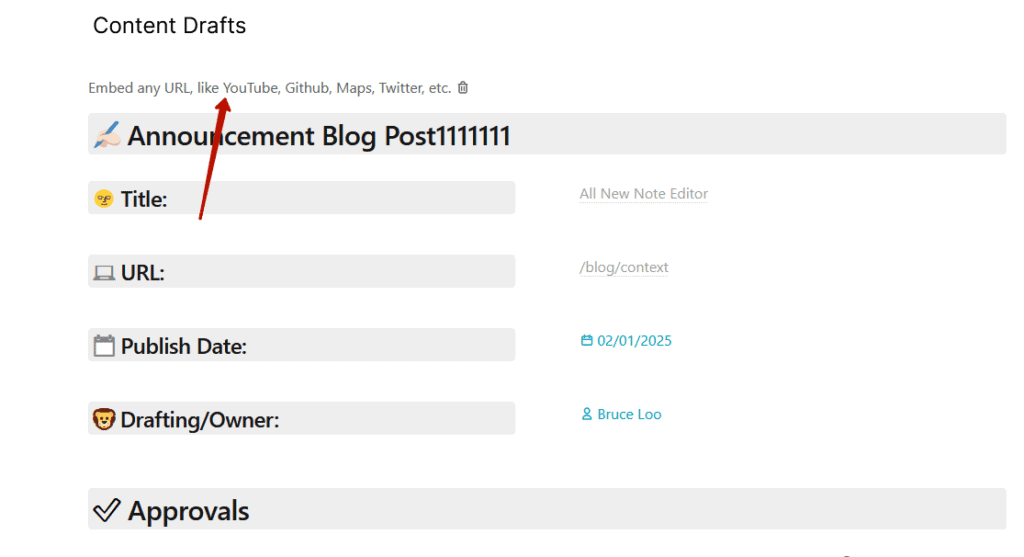
- Enter the code or link to the service in the input field:
- The embedded content will be successfully displayed on the page:
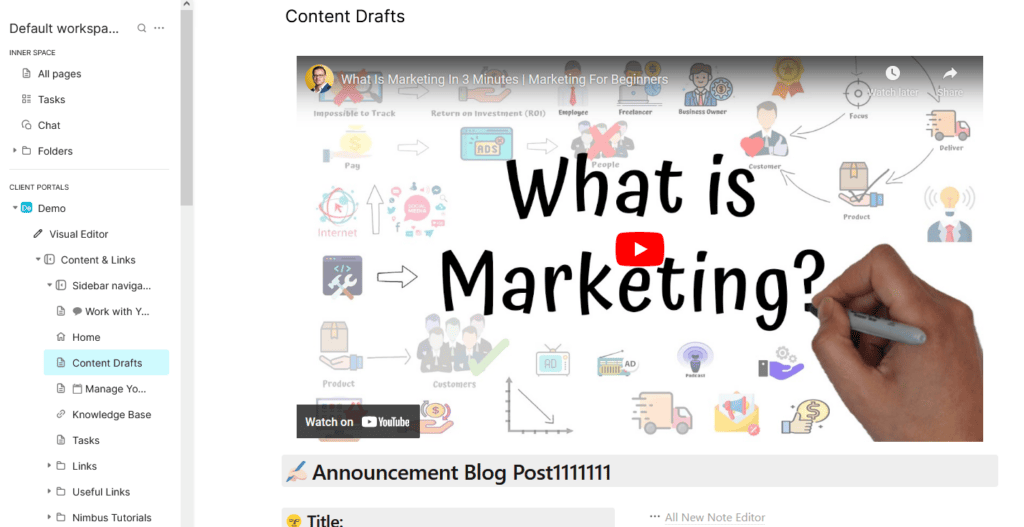
It is important to note that in this case, you do not need to publish the changes—they are published automatically.