Portals
Managing Fusebase Portals with AI Agents: Quick Guide
Fusebase Portal MCP lets external AI agents work with your Fusebase portals in a controlled way. This means agents in tools like Claude, Codex, FuseBase Work, Open Claw, Hermes or...
Guide details
- Published
- August 25, 2026
- Read time
- 3 min read
- Category
- Portals
Fusebase Portal MCP lets external AI agents work with your Fusebase portals in a controlled way.
This means agents in tools like Claude, Codex, FuseBase Work, Open Claw, Hermes or other MCP-compatible systems can help you create and manage client portals without doing everything manually.
With Portal MCP, agents can:
- create new portals
- duplicate existing portals
- invite clients
- invite portal managers
- create pages and folders
- add and update blocks
- edit portal content
- adjust portal styles
- help build portal structures from templates or prompts
What is the goal?
The goal is to make portal creation and maintenance much faster. Instead of manually setting up every portal, page, folder, block, and invite, you can ask an AI agent to do it for you.
For example:
“Create a client onboarding portal for Acme Inc., duplicate our standard onboarding portal, add the client checklist, invite the client, and assign Sarah as portal manager.”
The agent can then use Portal MCP to perform the steps inside Fusebase.
This is useful when you manage many clients, repeat similar portal setups, or want agents to help maintain portal content over time.
How can I obtain the Fusebase MCP configuration for portals?
The FuseBase MCP for portals is part of the overall Fusebase MCP; you can create this configuration in the web client.
1) Open your organization settings and go to the Fusebase MCP section (available only to the owner and organization managers).
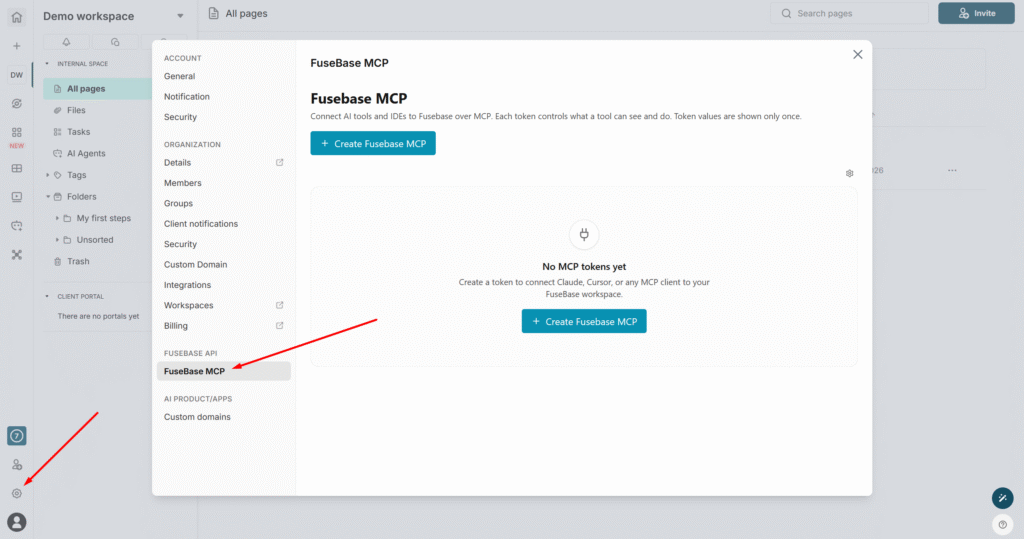
2) Click on Create Fusebase MCP.
3) Specify the name of the MCP config.
4) If you need a configuration specifically for portals, select Custom and keep only Portals enabled.
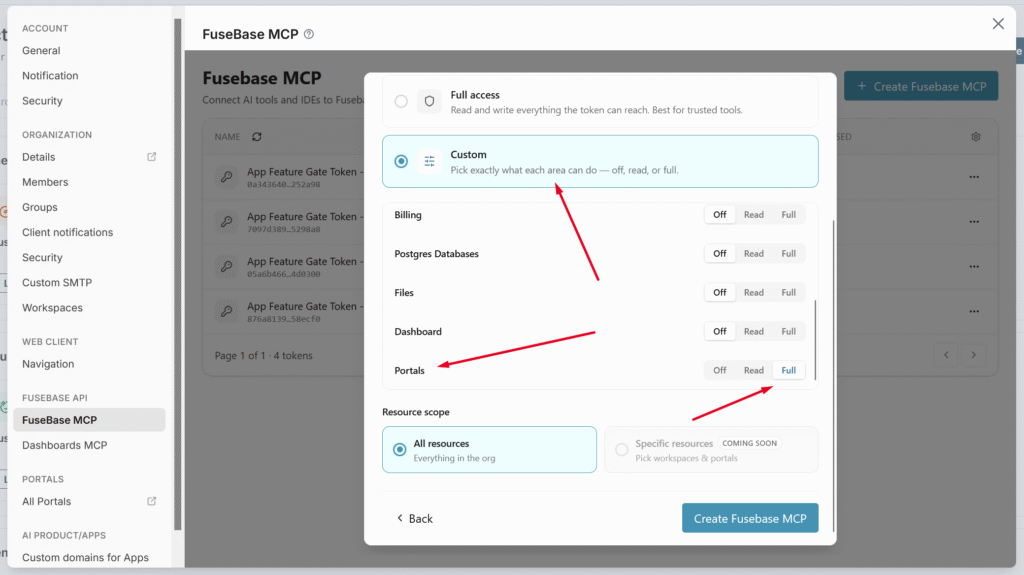
5) Next, click on Create Fusebase MCP, and you will see a page where you can copy your token as well as the configuration for adding to agents. You can either copy the token and MCP URL, or download ready-made configurations for Claude, Codex, and others as well.
What agents can do with portals
Create portals
Agents can create new portals for clients, projects, partners, departments, or service workflows.
Example:
A new client signs up, and an agent creates a dedicated onboarding portal for them.
Duplicate portals
Agents can duplicate an existing portal and use it as a template.
Example:
You already have a “Client Onboarding Template” portal. An agent duplicates it for a new client and updates the name, content, and access.
Invite clients and managers
Agents can invite external clients and internal portal managers.
Example:
An agent creates a new portal, invites the client team, and adds the account manager as the portal manager.
Create portal pages and folders
Agents can build the portal structure.
Example:
An agent creates folders like:
- Welcome
- Documents
- Requests
- Reports
- Approvals
- Resources
Then it adds the right pages inside each folder.
Add and update blocks
Agents can add content blocks to portal pages.
Example:
An agent can create a welcome page with:
- intro text
- checklist
- file uploader block
- links to useful resources
Edit portal styles
Agents can help update portal appearance.
Example:
An agent can adjust portal style settings, apply brand colors, update layout, or prepare a client-ready portal experience.
Prompt Examples
- Create a new portal for Acme Inc.
- Duplicate the Client Onboarding Template portal for a new client.
- Invite john@acme.com to the Acme portal.
- Invite Sarah from our team as the portal manager.
- Create a Welcome page inside this portal.
- Create a Welcome page with intro text, next steps, and a contact section.
- Update the portal style to match this client’s brand colors.