- Do I need to know programming to create products?
- What's the difference between Products and Apps?
- What is MCP?
- Why do we use MCP in FuseBase CLI?
- Why is that useful?
- Is it possible to grant access to a app to specific roles?
- Do I need to install anything else besides the CLI?
- Detailed Functional Description
- What's the difference between the native IDE agent chat, the terminal, and the plugin chat?
- Use Plan Mode
- Which models should you use?
- Why do I need FuseBase Databases versus standard DBs?
- Does the CLI support system dashboards such as Clients, Companies, Meetings, Trackers, etc.?
Do I need to know programming to create products? #
No! You just need to install any popular IDE (for example, Cursor) and FuseBase CLI. It’s very simple and does not require technical skills. Then, you simply specify the type of app you need (for example, a ticketing system or file manager), and the AI agents will handle everything for you.
What’s the difference between Products and Apps? #
Think of an Product as a container for Apps. Every Product contains at least one App. First, you need to create an Product, and then you can ask the AI chat to create a App.
We recommend breaking large Product down into separate Apps. This makes it easier for the AI to manage its context window and reduces the chance of it getting confused.
Additionally, you can set different permission levels for each App, as well as make them Private or Public.
What is MCP? #
MCP stands for Model Context Protocol. In simple terms, it is a common way for AI tools to talk to external tools and data. Instead of building a different connection for every database, API, or service, MCP gives the AI one standard way to discover tools, read context, and run actions. The official MCP docs describe it as a kind of “USB-C for AI”: one shared connection model for many different systems.
Why do we use MCP in FuseBase CLI? #
In our CLI, MCP is the layer that lets the AI work with Fusebase data in a clean and reliable way. That means the CLI can create databases, change them, save data, and run other database actions through a structured connection instead of a pile of custom one-off integrations. For the user, that means the CLI feels simpler: you describe what you want, and the AI can actually work with your data safely and consistently.
Why is that useful? #
Without MCP, every tool connection becomes its own custom integration, which is slower to build, harder to maintain, and harder to scale. MCP solves that by giving the AI a standard way to access tools and context. In our case, that makes the CLI easier to extend over time: today it can work with databases, and later it can also work with more tools, services, and workflows in the same general way.
Is it possible to grant access to a app to specific roles? #
Absolutely! For example, consider a ticketing system where there is a ticket management app and a client-facing feature – creating and viewing tickets. Access to ticket management can be granted only to organization managers, while ticket creation can be available to any members and clients.
This is done using standard prompts. When creating a feature, simply instruct the agent: “Only organization managers can access this app,” or, for example, “All members except clients can access this app,” and so on.
You can read more about roles here: https://thefusebase.com/guides/getting-started/key-role-differences/
Do I need to install anything else besides the CLI? #
No, there is nothing else you need to install besides the CLI. All essential components, including core packages like NodeJS, are already included. If your app requires any additional libraries, the AI agent will prompt you to install them, and you will just need to confirm.
Detailed Functional Description #
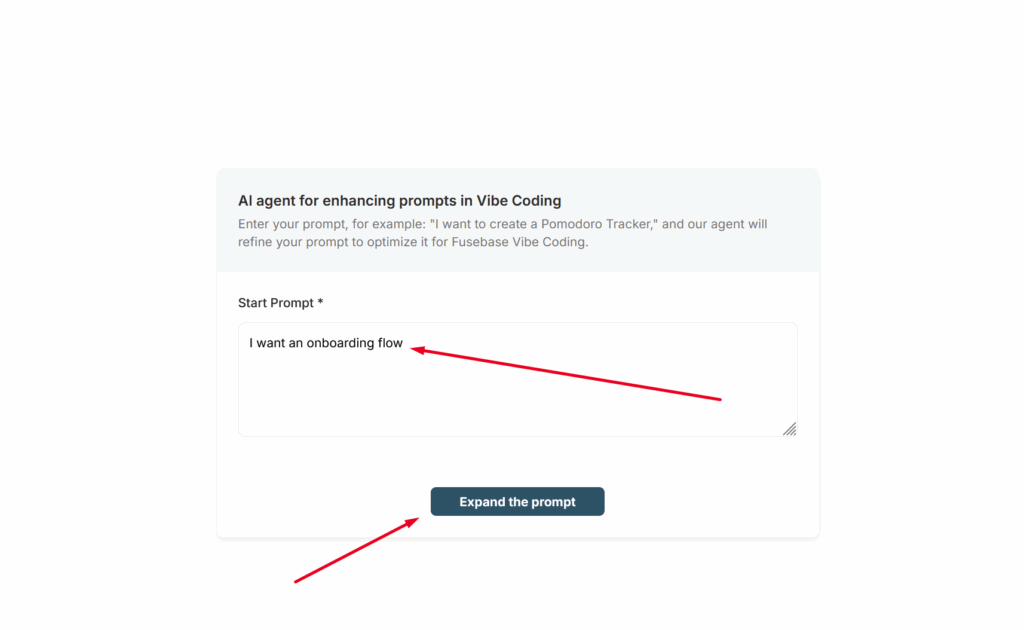
For the AI, it is important to provide as detailed a description of the functionality you want as possible. Yes, you can simply write something like “I want a CRM” or “I want an onboarding flow” and the AI will create such functionality, but the result may not fully meet your expectations the first time.
To save you from having to write everything yourself, we have created a special agent called AI agent for enhancing prompts in Vibe Coding (you can find it in your list of agents).
With this agent, you simply describe what you need, answer a few follow-up questions, and as a result, you will receive a complete technical specification that will help you effectively implement exactly what you need.
What’s the difference between the native IDE agent chat, the terminal, and the plugin chat? #
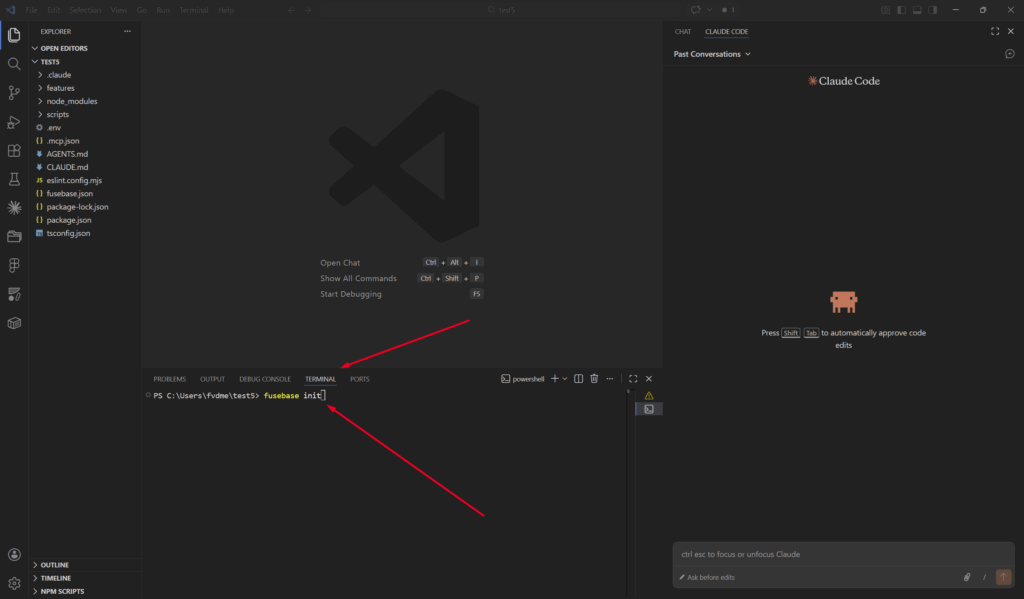
- Terminal — Built for system commands such as
fusebase initandfusebase auth. You can find list of commands here – https://thefusebase.com/guides/fusebase-vibe-code/fusebase-cli-useful-commands/
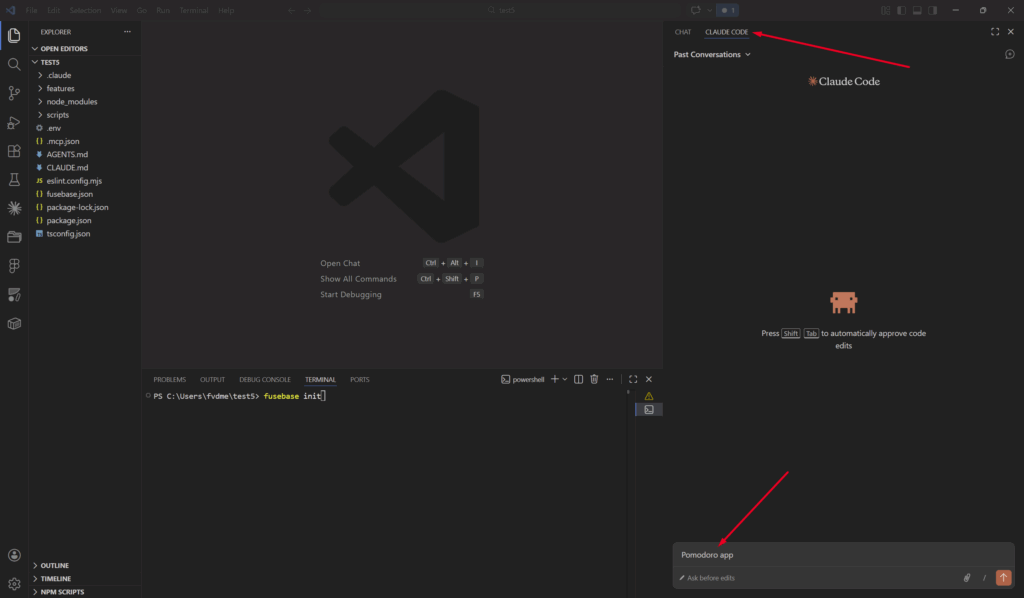
- IDE/Agent Chat – You can create apps through the terminal, but it is much more convenient to do this via the Agent chat, which is designed specifically for AI development. Simply describe what you want to create, and the AI will handle it for you. Each IDE already has pre-installed agents, such as Copilot in VS Code. However, you can (and we recommend this) install external agents like Claude Code or Codex and use them as well.
Use Plan Mode #
If you are building a complex feature, we highly recommend starting with Plan mode. Yes, it will take more time and use more tokens, but it will allow you to plan the feature more thoroughly and achieve better results. This way, you’ll spend less time on revisions—or possibly avoid them altogether.
Which models should you use? #
During feature development, you can use different models depending on the stage of development. For planning or complex features, you can use advanced models such as Claude Opus 4.6 or GPT 5.3. For simpler tasks, you can use models like Haiku or more cost-effective options like GLM/Kimi. FuseBase provides a CLI with ready-made components, so you don’t need to develop everything from scratch. This means you can build apps even with fairly standard models. However, we recommend starting with more powerful models and, over time, evaluating which model works best for your needs.
Why do I need FuseBase Databases versus standard DBs? #
FuseBase Databases are plug-and-play, similar to Notion and Airtable. Here’s what makes them stand out:
- Easy integration — Quickly connect with other services and integrations.
- Simple data management — Add and modify data on the fly without complex setup.
- Rich built-in UI — FuseBase Databases include a sophisticated interface that Supabase-like solutions don’t offer.
- Granular access control — Manage read and write permissions for different users.
- Standalone flexibility — Use them as a standalone solution, or embed them inside your internal workspace and portals.
- Multi-app support — Build multiple different apps on top of a single database.
Does the CLI support system dashboards such as Clients, Companies, Meetings, Trackers, etc.? #
Absolutely! You can retrieve data from these dashboards, create new columns as needed (for example, to add additional information for clients), or add new records (for example, to the Companies or Deals dashboards).
To work with a dashboard, simply specify its name in your prompt. For example: create a LinkedIn column in the Companies dashboard, or display the list of clients from Clients dashboard as convenient cards.