FuseBase Basics
Button object
Use buttons to make your pages even more interactive and efficient! Once you've added a link and set the button design, it will guide your readers.
Guide details
- Published
- August 28, 2022
- Read time
- 1 min read
- Category
- FuseBase Basics
Adding a button
Use buttons to make your pages even more interactive and efficient!
Once you’ve added a link and set the button design, it will guide your readers.
Please note, at the moment, you can attach only public links to buttons. But we are working on adding more options in the future.
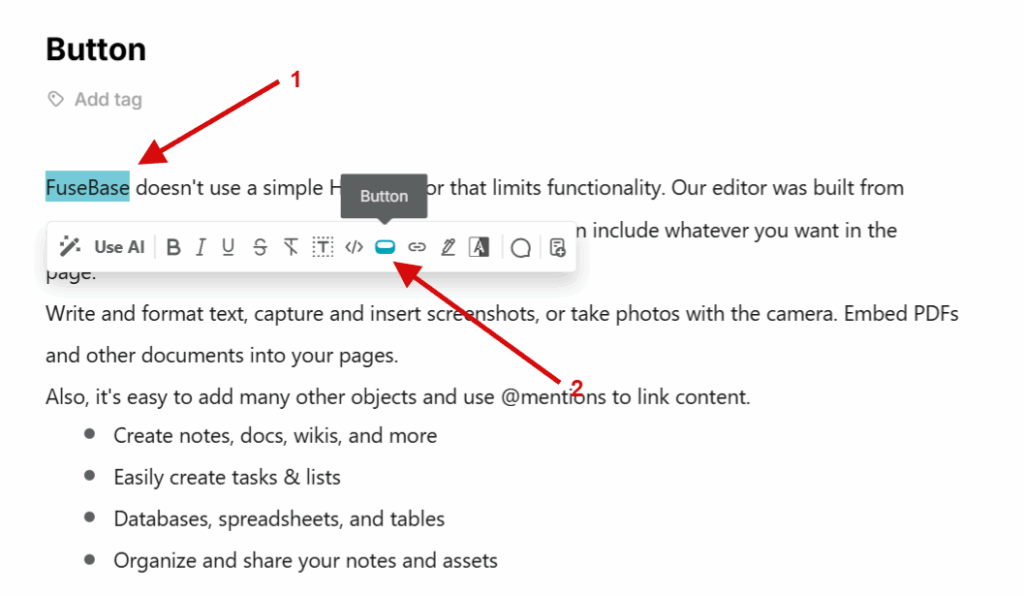
Adding a button through the formatting panel
- Select the text you want.
- Select the Button option.
Appearance of the button
You can choose the appearance of the button:
- Title – a text on the button.
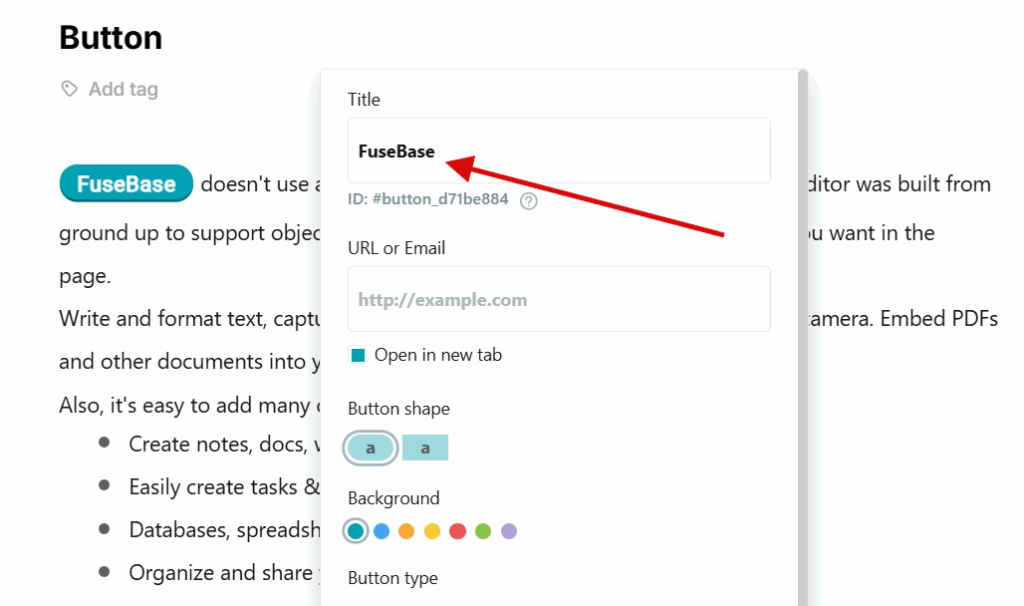
- Unique ID.
- Address – clicking the button opens a specified page.
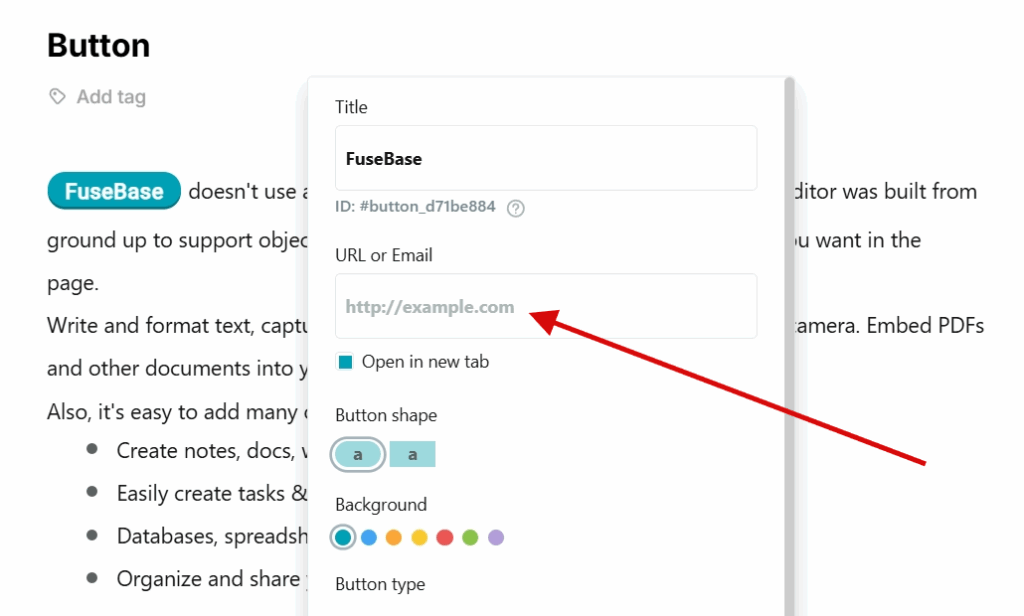
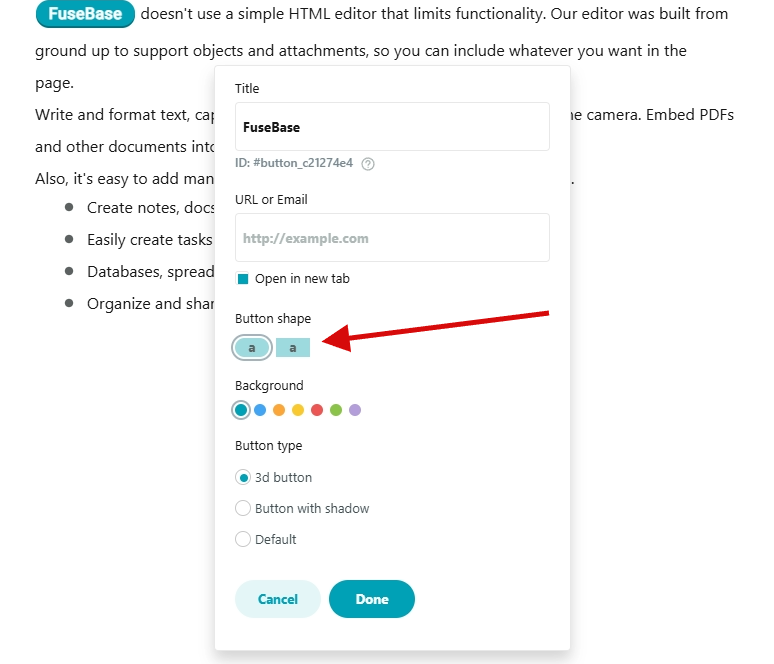
- Button form (round or rectangular) – by default, the form is round.
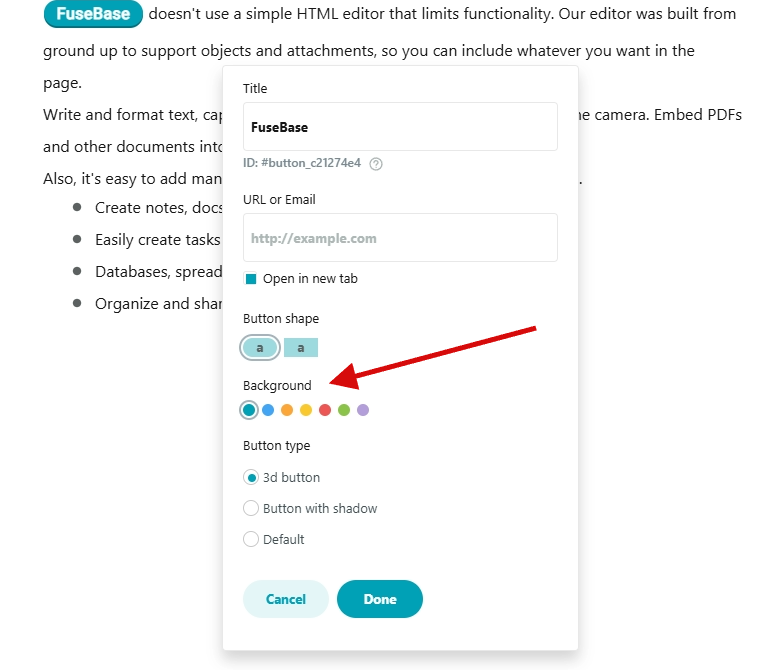
- Button color – by default, the color is blue.
Actions when selecting button
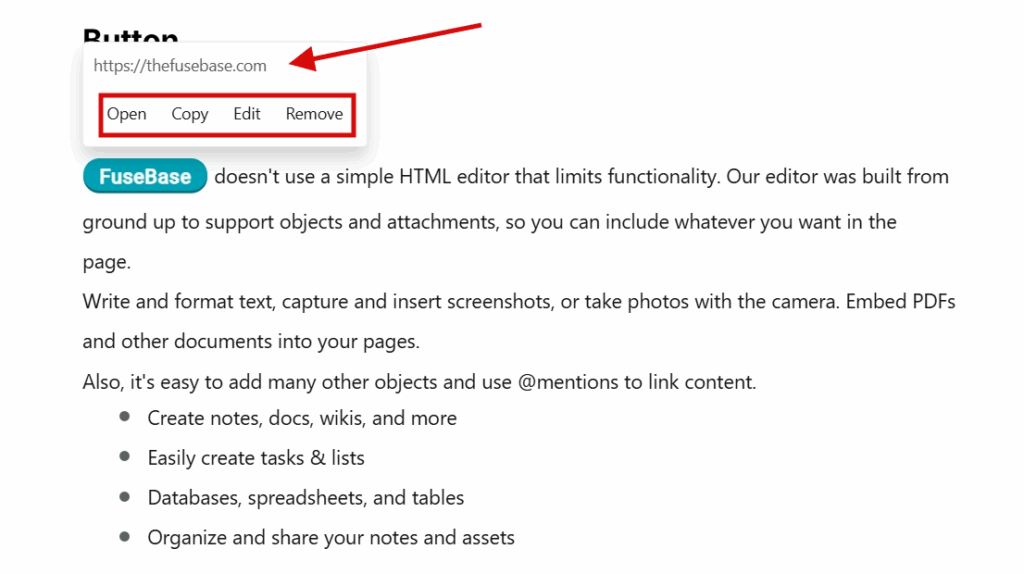
When you click on the configured button, you can:
- Open – open a link.
- Copy – copy the link to the clipboard.
- Edit – edit a button.
- Remove – remove a button.