- Do I need to know programming to create apps?
- Which IDE do you recommend and how can I install it?
- Which model should I use for coding?
- I have installed the IDE and Claude Code (GPT, Gemini, etc.). Is that enough to create FuseBase apps?
- Do I need to install anything else besides the CLI?
- How do I connect Fusebase MCP for Antigravity?
- Authorization in Fusebase is not working
- What structure do you recommend for products?
- I want to use the Fusebase database as a data source for a feature and/or as a destination for saving data. How can I do this?
- Does the CLI support system dashboards such as Clients, Companies, Meetings, Trackers, etc.?
- When creating the app, you encountered an error stating that MCP tools are unavailable.
- I created an product with an incorrect name. What should I do?
- The agent is freezing during feature development - the same command remains running for several minutes
- I restarted the IDE and can't see my session with the AI agent... Has it been lost?
- I accidentally made a app public. Is it possible to make it private again?
- I created a app, and now even clients can access it. This is not secure!
- Downloaded/Install CLI updates but don't see changes
- The app has been implemented, but there are issues with its appearance or logic...
In this guide, we will address the main issues that may arise when using FuseBase CLI and answer the most frequently asked questions.
If you did not find the answer to your question, please contact our support team at contact@thefusebase.com or create a ticket here: https://support.nimbusweb.co/portal/en/newticket
Do I need to know programming to create apps? #
No! You just need to install any popular IDE (for example, Cursor) and FuseBase CLI. It’s very simple and does not require technical skills. Then, you simply specify the type of app you need (for example, a ticketing system or file manager), and the AI agents will handle everything for you.
Which IDE do you recommend and how can I install it? #
Most major IDEs are based on Visual Studio, and we recommend starting with it: https://visualstudio.microsoft.com/downloads/
You can use the built-in Copilot agent for creating FuseBase apps, which supports Claude, GPT, Gemini, and other popular models.
However, we suggest using the Claude Code extension: https://marketplace.visualstudio.com/items?itemName=anthropic.claude-code
It is easy to install by following these instructions: https://code.claude.com/docs/en/vs-code
You can also try Cursor: https://cursor.com/ It is an excellent option for beginners, and all popular models are available out of the box.
Which model should I use for coding? #
During app development, you can use different models depending on the stage of development. For planning or complex apps, you can use advanced models such as Claude Opus 4.7 or GPT 5.5. For simpler tasks, you can use models like Haiku or more cost-effective options like GLM/Kimi. FuseBase provides a CLI with ready-made components, so you don’t need to develop everything from scratch. This means you can build apps even with fairly standard models. However, we recommend starting with more powerful models and, over time, evaluating which model works best for your needs.
We recommend getting the Claude Code Dev (Max) plan: https://claude.com/pricing/max
Cursor also provides its own plan: https://cursor.com/pricing
Additionally, you can purchase from GitHub: https://github.com/features/copilot/plans
I have installed the IDE and Claude Code (GPT, Gemini, etc.). Is that enough to create FuseBase apps? #
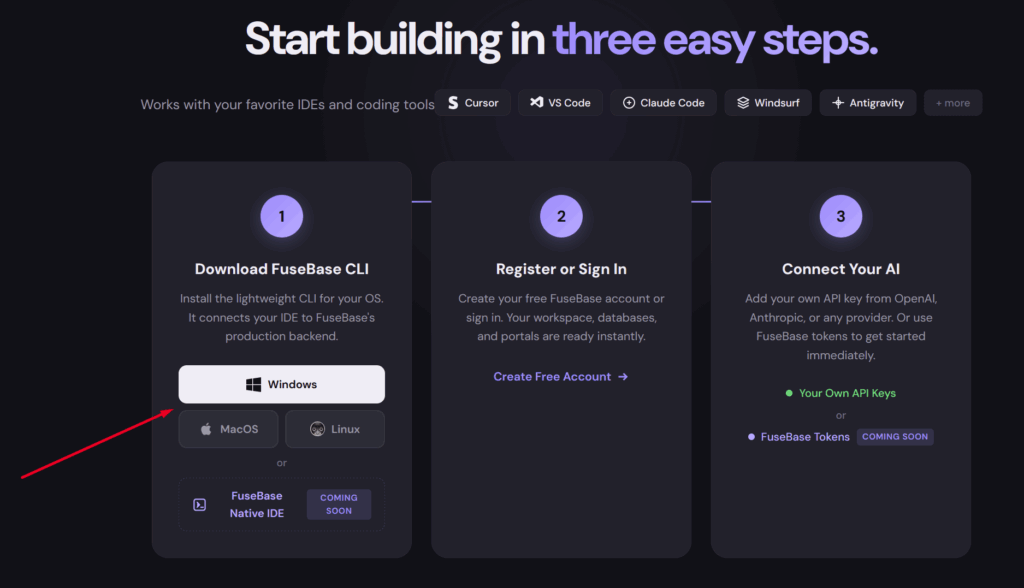
No, to create apps you also need to download and install our CLI—a special module that is fully integrated with our service and enables app development for it. You can download the CLI here: https://ai-dev.thefusebase.com/how-it-works
For Windows, it is simply an .exe file that you need to download and run the setup. For Mac and Linux, copy the provided command and run it in your IDE terminal.
Do I need to install anything else besides the CLI? #
No, there is nothing else you need to install besides the CLI. All essential components, including core packages like NodeJS, are already included. If your app requires any additional libraries, the AI agent will prompt you to install them, and you will just need to confirm.
How do I connect Fusebase MCP for Antigravity? #
The Antigravity IDE by Google has its own specific requirements for configuring MCP with Fusebase. While setup is automatic in other IDEs (such as VS Code, Cursor, etc.), in Antigravity you need to connect MCP manually.
Now, let’s walk through how to set up MCP in Antigravity:
1) Run fusebase init and select Other (Antigravity, WebStorm, Claude Desktop, etc.) — mcp_example.json in the CLI.
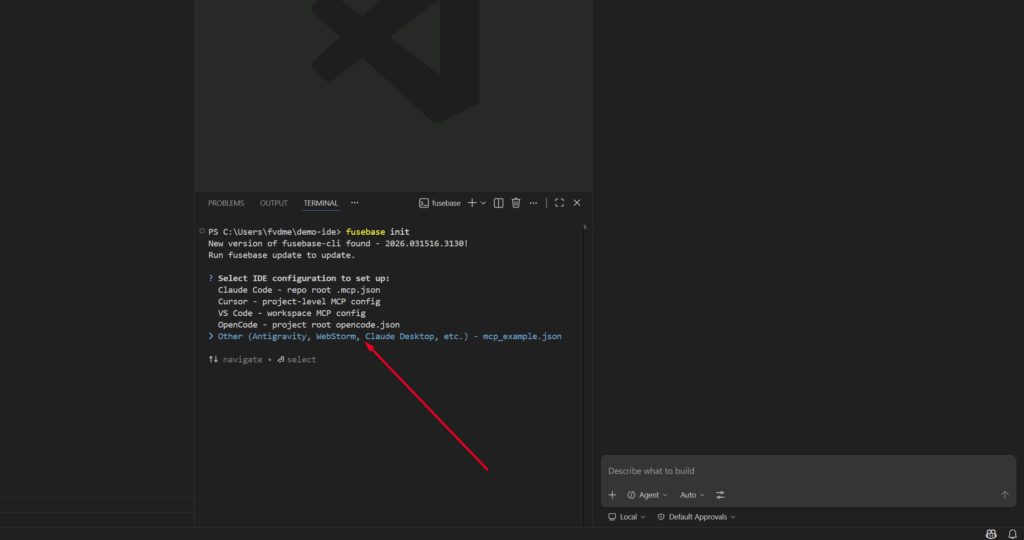
2) Open .env in your project — it contains DASHBOARDS_MCP_URL and DASHBOARDS_MCP_TOKEN.
3) In Antigravity chat, click the three dots (top-right) → MCP Servers.
4) Click Manage MCP Servers.
5) Click View raw config, paste the server config (Antigravity uses serverUrl for remote MCP servers).
{
"mcpServers": {
"fusebase-dashboards": {
"serverUrl": "https://dashboards-mcp.thefusebase.com/mcp",
"headers": {
"Authorization": "Bearer "
}
}
}
}
6) Click Refresh in Manage MCP Servers, or restart Antigravity.
Authorization in Fusebase is not working #
There could be several reasons for issues with authorization. Let’s review the most common ones.
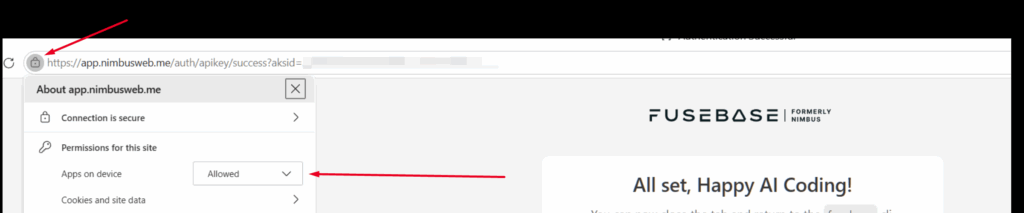
1) Some browsers such as MS Edge require you to allow permissions –
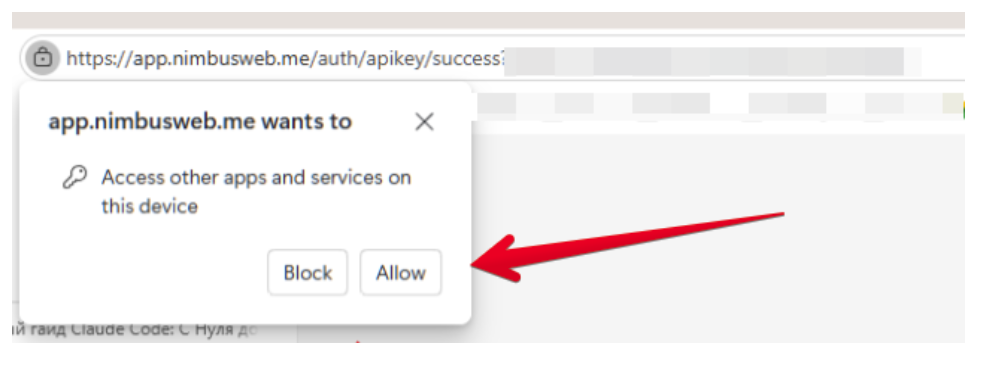
If, for any reason, you did not grant permissions, please click on the icon in the address bar (to the left of the URL) and allow access. Then try authorizing again.
What structure do you recommend for products? #
We recommend using a separate folder/project for each product. Accordingly, if you want to create a new app, click on File -> Open Folder.
Then, create a new folder by right-clicking your mouse -> New -> New folder and select the new folder.
I want to use the Fusebase database as a data source for a feature and/or as a destination for saving data. How can I do this? #
It’s simple – just specify this in the prompt describing your functionality. If you already have a database, you can write directly in the prompt: “Use the My Database as the data source,” or, for example, “Save data to the Cool Database.”
Instead of the name, you can also specify the full URL of the database or table (simply copy it from the Databases section in the web client).
You can also request to have a new database created with column types that best suit your functionality. The AI understands the structure of Fusebase databases, including relationships, and can create a database in the required format.
Does the CLI support system dashboards such as Clients, Companies, Meetings, Trackers, etc.? #
Absolutely! You can retrieve data from these dashboards, create new columns as needed (for example, to add additional information for clients), or add new records (for example, to the Companies or Deals dashboards).
To work with a dashboard, simply specify its name in your prompt. For example: create a LinkedIn column in the Companies dashboard, or display the list of clients from Clients dashboard as convenient cards.
When creating the app, you encountered an error stating that MCP tools are unavailable. #
What should you do?Most likely, this is an internal IDE error, and the only solution may be to restart the IDE. Don’t worry – your data will not be lost.
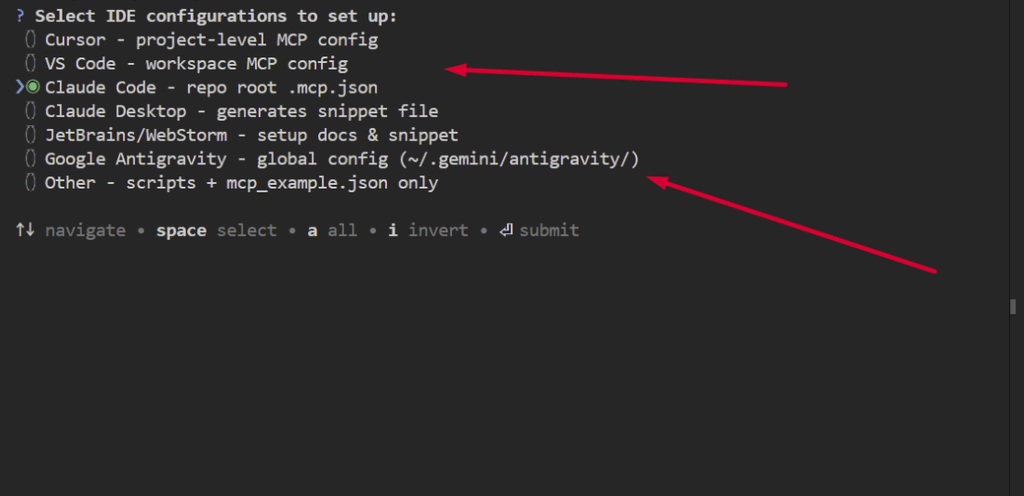
This issue may also be related to an incorrect IDE selection when creating the app (a separate profile is created for each IDE). In this case, simply enter the command fusebase config ide in the terminal and select the correct IDE again.
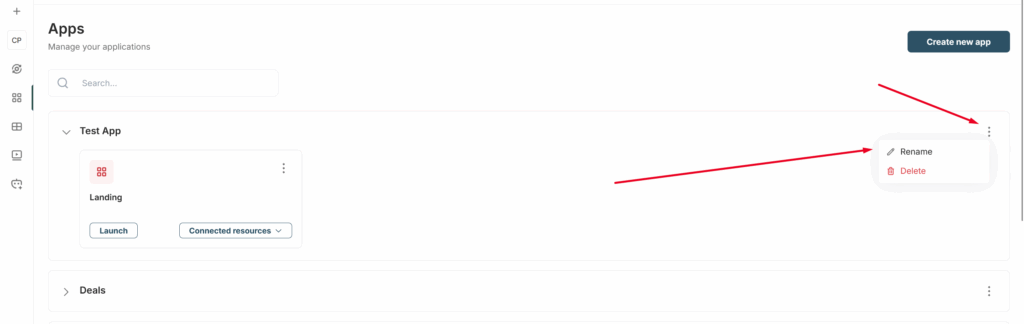
I created an product with an incorrect name. What should I do? #
This is easy to fix! Go to the Products section in the web client and select Rename from the menu of the desired app. Then, simply rename the product or app.
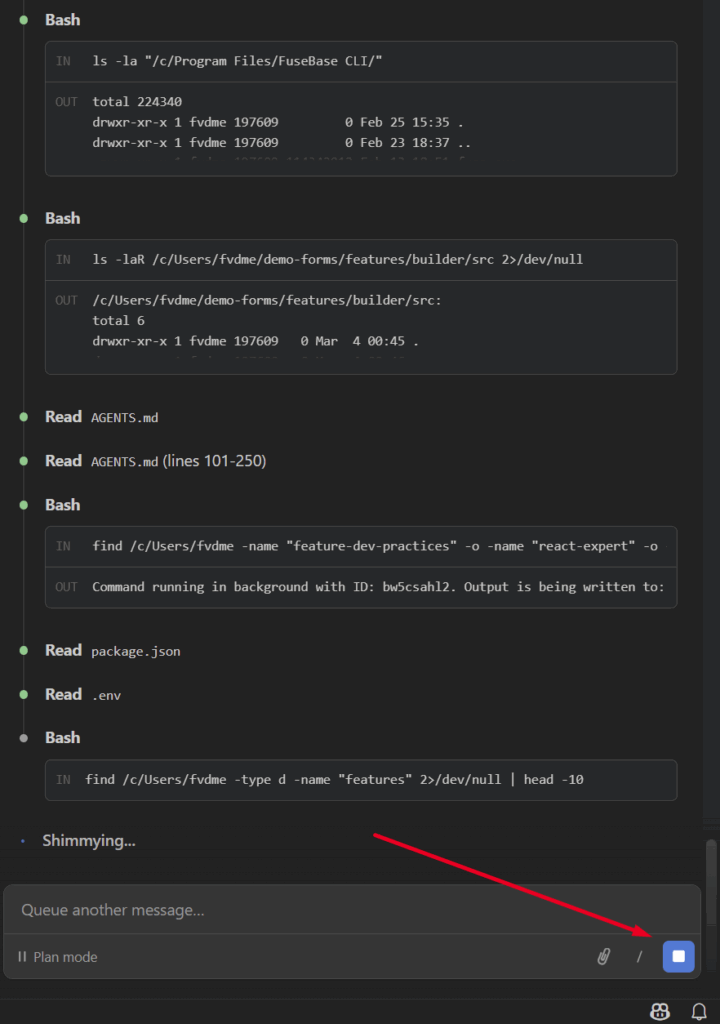
The agent is freezing during feature development – the same command remains running for several minutes #
If the functionality is complex, it is normal for the AI to take some time to process the task. However, if you feel that the AI is simply stuck, you can stop the session and directly ask, “Are you stuck?” or “Why is it taking so long?” This usually helps resolve the issue.
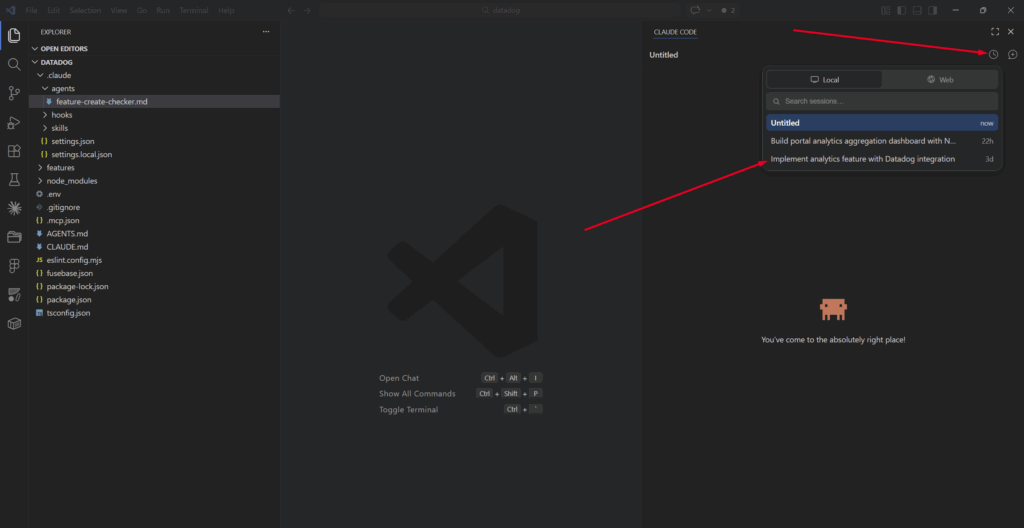
I restarted the IDE and can’t see my session with the AI agent… Has it been lost? #
No, simply click on the session history icon and select your session to continue working.
I accidentally made a app public. Is it possible to make it private again? #
You can make a app public or private during its implementation – just specify in the prompt, for example: “I want this functionality to be available to everyone.”
You can also change a app to public or private after implementation through the Products section.
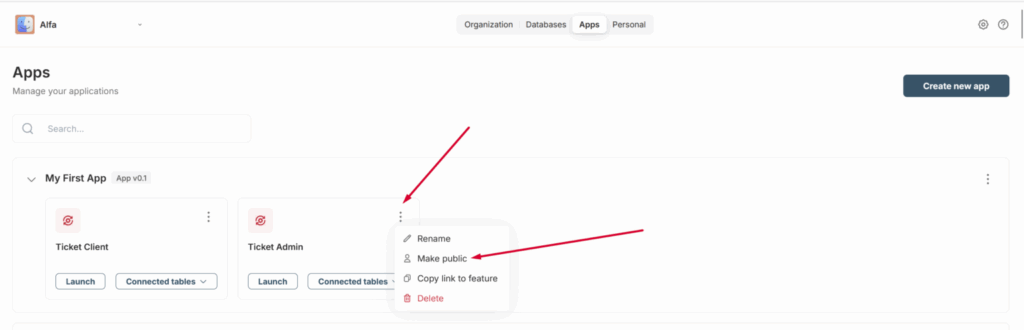
I created a app, and now even clients can access it. This is not secure! #
You can control who has access to each app. When creating a app, simply specify in the prompt, for example, “Only organization managers can access this app,” or “All members except clients can access this app,” and so on.
The permissions for accessing the app will be adjusted accordingly.
Downloaded/Install CLI updates but don’t see changes #
- Try completely restarting your IDE (VS Code, Claude Code, Cursor, etc.).
Ctrl+Shift+P→ type “Developer: Reload Window” and select it. This restarts the VS Code window, which also restarts the Claude Code extension.
The app has been implemented, but there are issues with its appearance or logic… #
Yes, unfortunately, it’s not always possible to create a perfect app on the first try. However, this is normal – if there is an issue, simply point it out and the AI will fix it!
If the issue is visual, simply take a screenshot and add it to the AI chat, and specify that you want the problem resolved.
If the issue is with the logic, describe what is happening and what the expected behavior should be.
For better analysis, you may need to provide a screenshot of the browser console. Here is a helpful guide on how to open the console: https://balsamiq.com/support/faqs/browser-console/
In some cases, a screenshot from the Network console may also be needed. It is located next to the main console, and you can find a guide here: https://docs.element.io/latest/element-support/getting-browser-network-and-console-logs/#the-console-tab