Getting Started
How to copy and duplicate blocks and tables
Any page, table, cell, block, folder you have in FuseBase, can be duplicated or copied with a couple clicks. For instance, duplicating pages enables you to easily create a...
Guide details
- Published
- August 21, 2022
- Read time
- 2 min read
- Category
- Getting Started
Any page, table, cell, block, folder you have in FuseBase, can be duplicated or copied with a couple clicks. For instance, duplicating pages enables you to easily create a template and then create new copies of it in seconds. It’s super useful and here’s a quick guide!
Copy/paste blocks
You can easily copy an entire block or several blocks. Just go to the block menu and select Copy block. Then, paste the block(s) in the same page or in another page by using the hotkey ctrl/cmd + v.
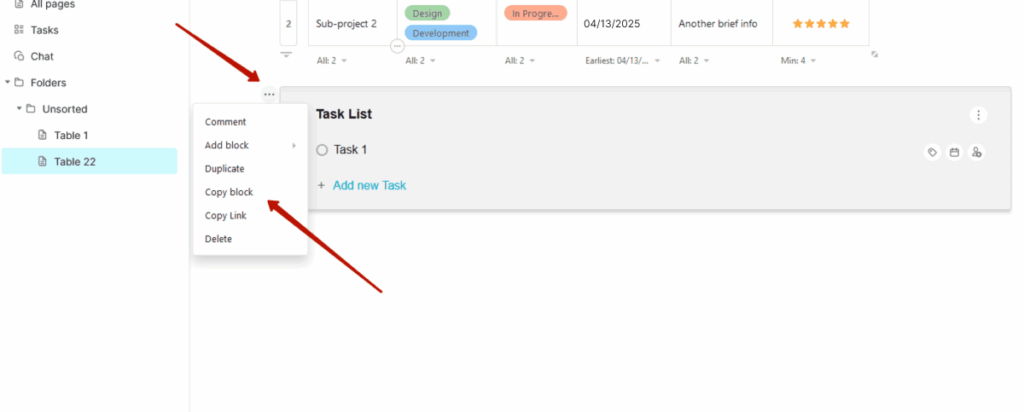
The feature works for all block types: text, pictures, files, tables, and so on! Copy blocks in a couple of clicks! Just go to the block menu and select Copy block.
Copy as many block as you need and paste them in any page! Try it out!
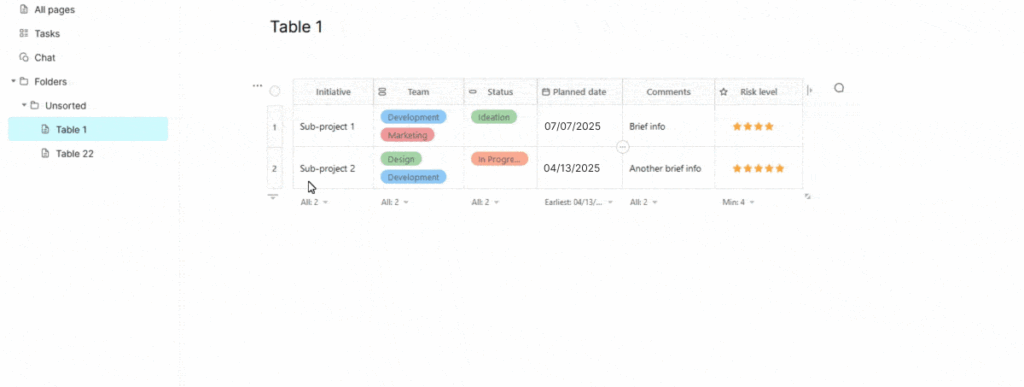
Copy/paste table
- Click on Cell options menu near the table, select Copy table, then paste it in another page by right-click menu or ctrl/cmd + v.
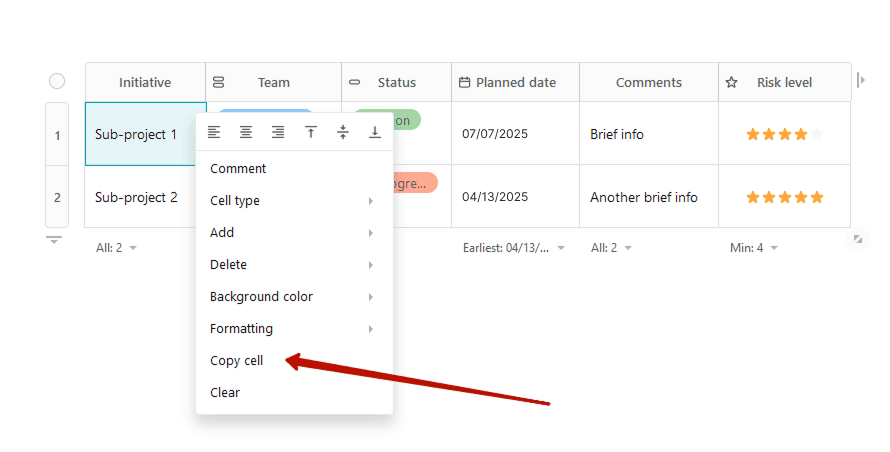
Copy/paste cells
- Choose cells in a table, right-click, select Copy cells, then paste it in another table by ctrl/cmd + v.
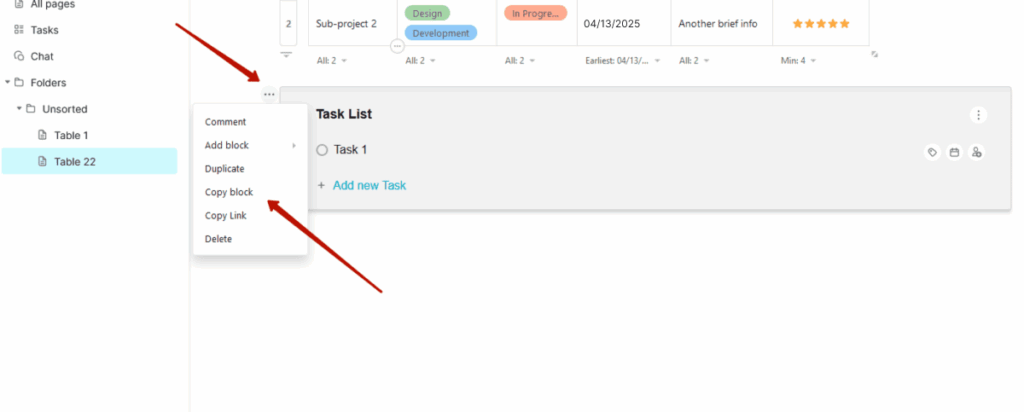
Duplicate a block
- Click on Cell options menu near the block, select Duplicate.
Save a template from public page
- On the public page, click SAVE TO FUSEBASE for saving a template to your workspace:

Then go to FuseBase web client (https://theFuseBase.com/client) and you can find saved template.