Fusebase Vibe Code
Custom Domains for AI Apps – Quick Guide
By default, all apps in Fusebase are accessible as subdomains on thefusebase.app. However, if you wish, you can connect your own domain, allowing your apps to be accessed either...
Guide details
- Published
- May 22, 2026
- Read time
- 3 min read
- Category
- Fusebase Vibe Code
By default, all apps in Fusebase are accessible as subdomains on thefusebase.app. However, if you wish, you can connect your own domain, allowing your apps to be accessed either as a subdomain or even as a root domain (for example, myapp.com).
There are two options for connecting your own domains:
Exact domain/subdomain – This is a great option if you want to use a root domain for your app or if you have only a few apps and are comfortable manually adding DNS records for each app individually. We do NOT recommend this option if you frequently create a large number of apps.
Wildcard – This is an excellent choice if you manage many apps. You simply add a domain or subdomain, such as myapps.com, and then specify the subdomain name in your app settings – no need to add any additional DNS records or configurations. It’s fast and convenient.
Connecting a Custom Domain to Your App
It’s important to note that you can add a custom domain either before or after creating your app. For example, you can first add domains and subdomains, and then link them to your apps.
1) First, you need to add a domain or subdomain for your app. You can do this in the settings section: Settings -> AI Product/Apps -> Custom Domains.
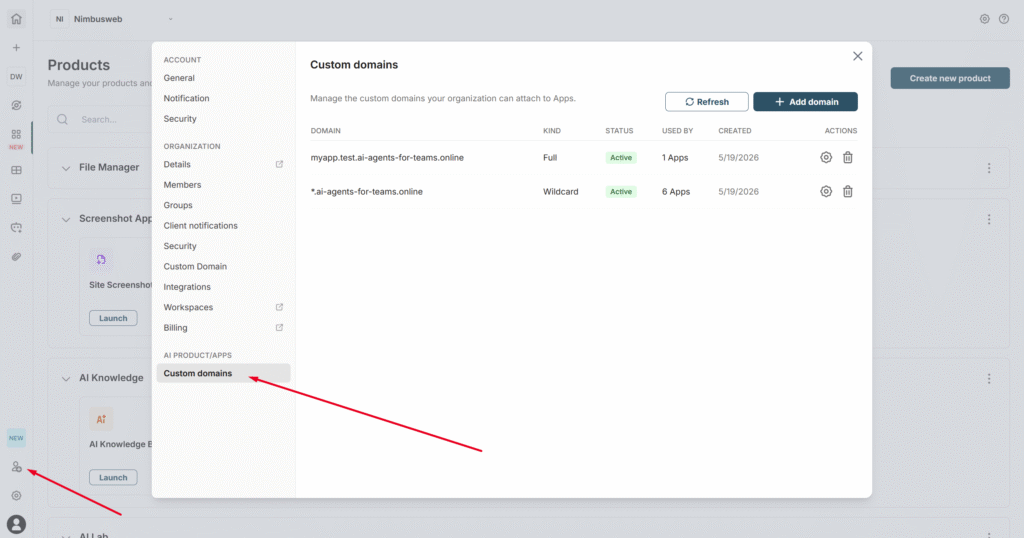
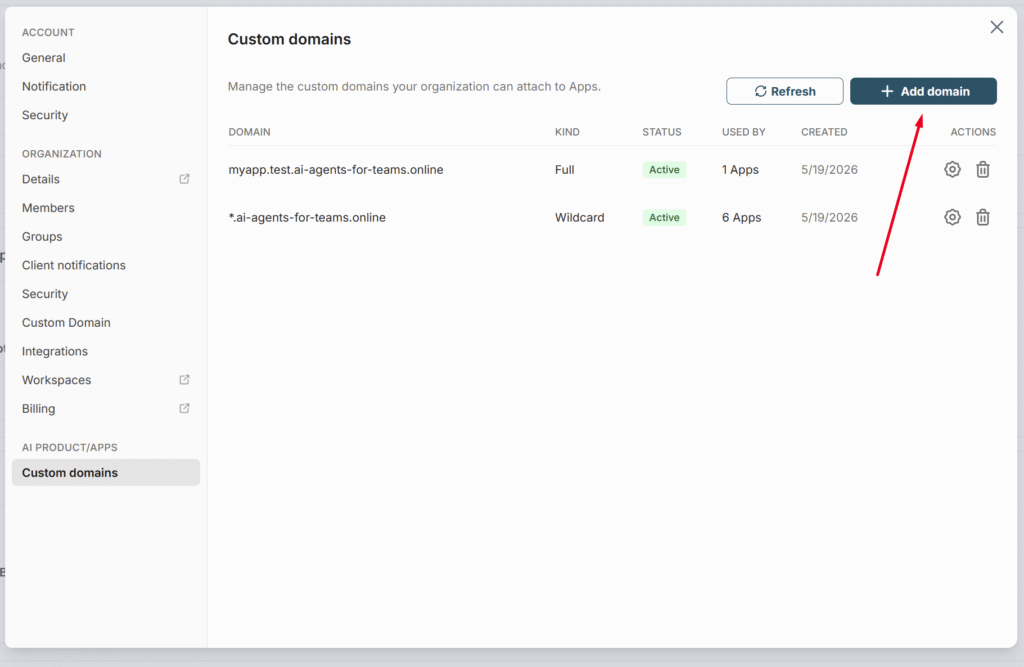
2) Click on Add Domain.
3) Next, choose what you want to add. As mentioned above, if you need your app to be under a root domain or want to specify the exact URL, use Exact domain. If you are creating many apps, it’s better to use Wildcard.
Important! Due to technical reasons, root domains are not currently supported if your domain is registered with GoDaddy (subdomains and wildcard domains are supported). We are working on this and will do our best to add full support soon.
If you select Exact, specify the exact URL for your app, for example, mydomain.com or app.mydomain.com.
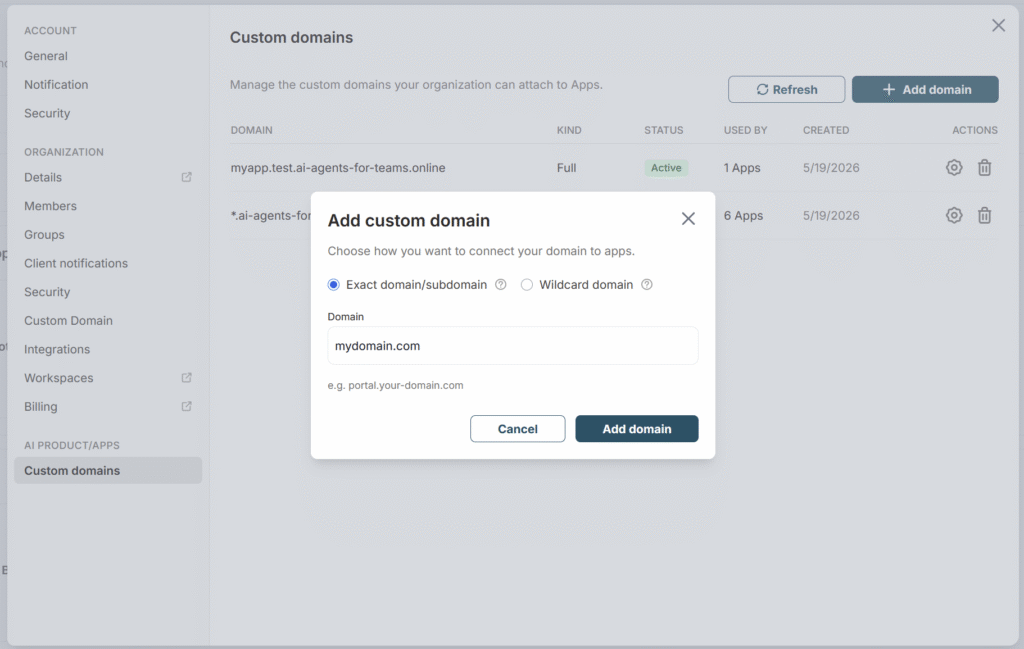
If you choose Wildcard, indicate the domain or subdomain that will be used. For example, if you want your portals to be in the format app.domain.com, specify domain.com. If you want them to be in the format app.subdomain.domain.com, specify subdomain.domain.com.
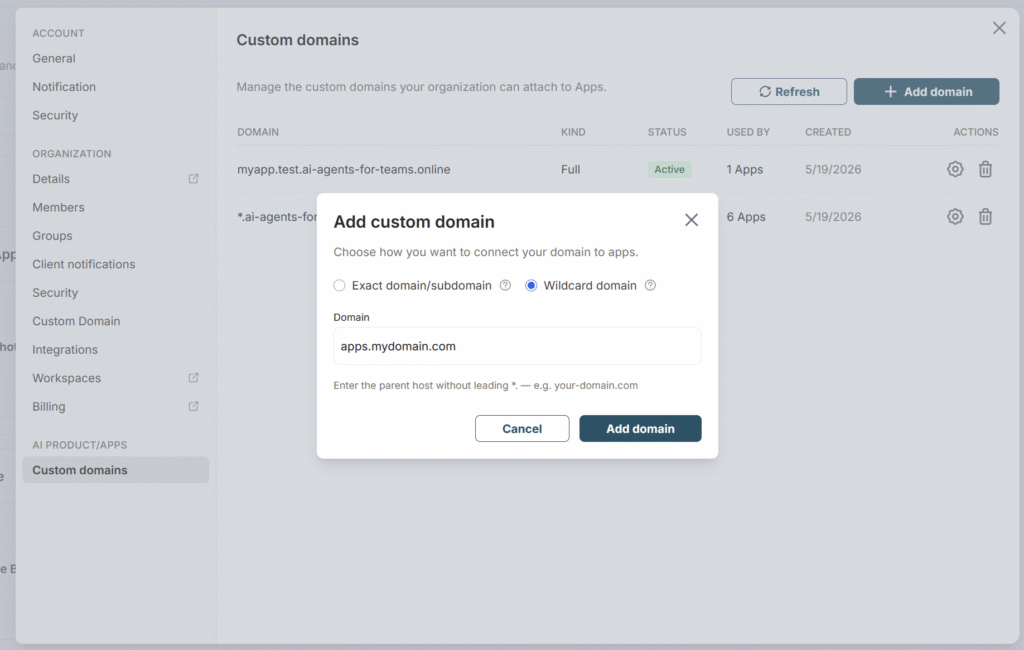
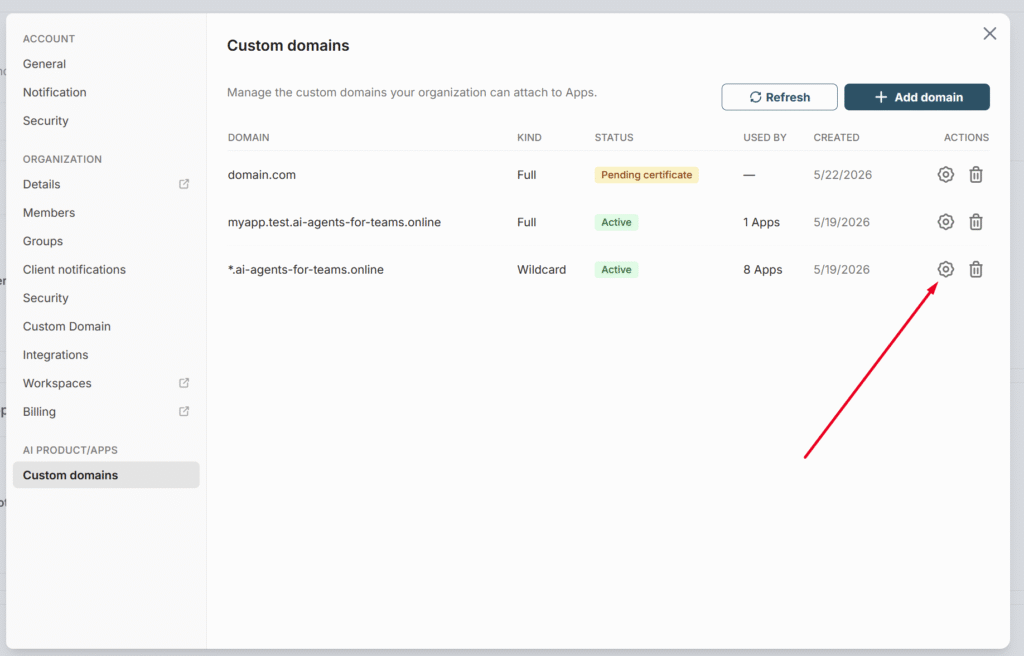
4) Next, click on Add Domain and you will see a window where you can copy the CNAME/ALIAS records. It’s important to note that you need to add both records (Traffic and Certificate) –
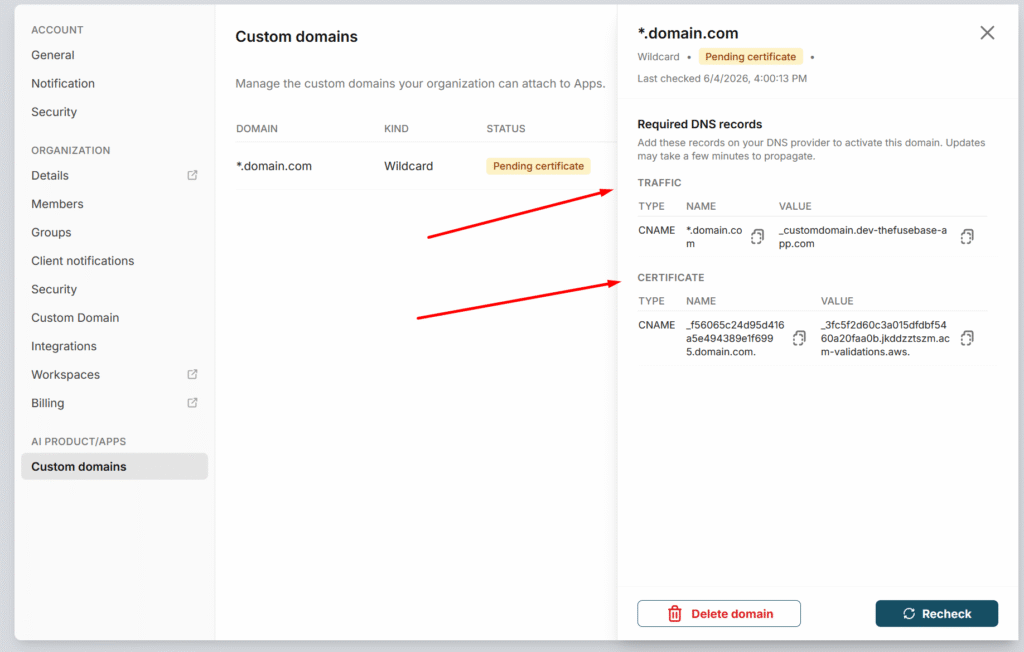
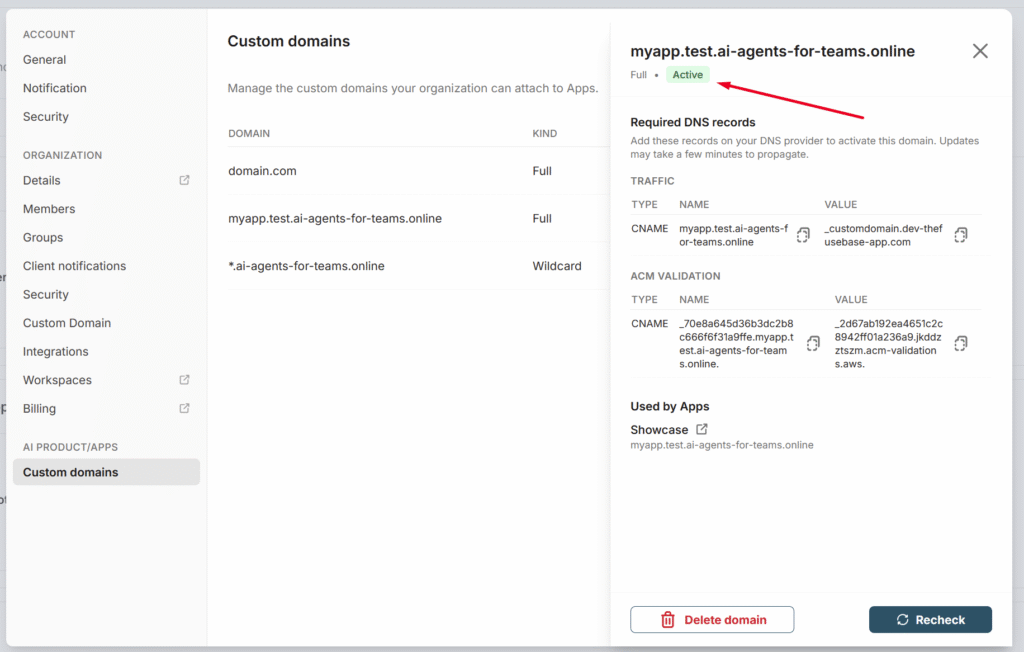
5) Once you’ve added it, click Recheck again and wait until the status shows Active.
6) Next, you can link custom domains to your apps. To do this, select Custom Domain in the menu of the desired app.
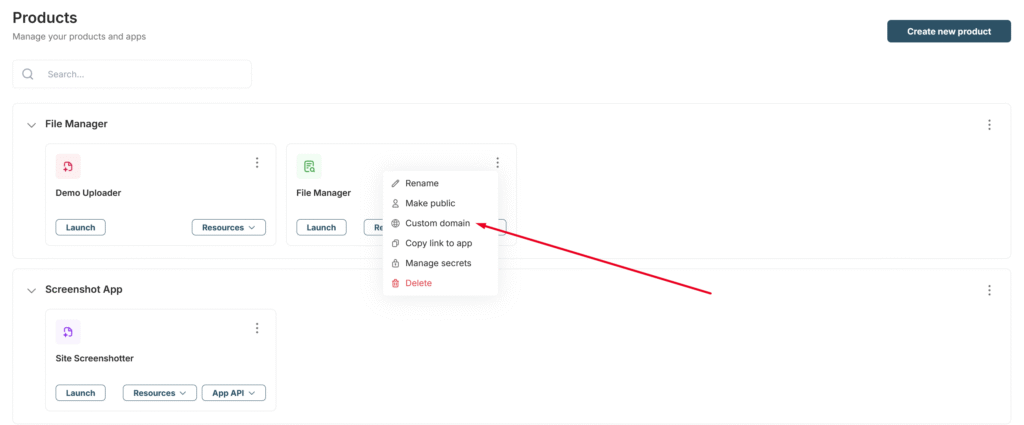
7) From the Custom Domain list, select the desired Exact URL or Wildcard. If you choose Exact, simply click Attach. If you select Wildcard, enter the desired subdomain name (just the name, for example, myapp).
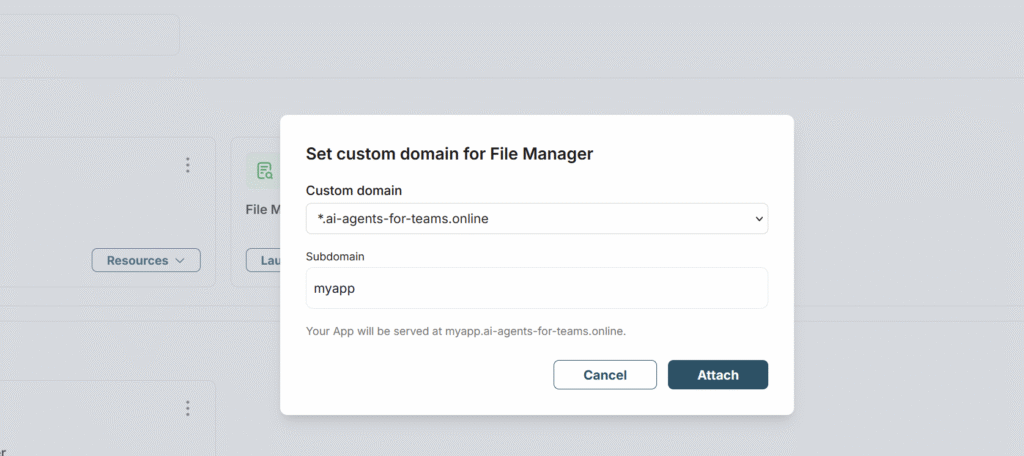
That’s it! Your app will now be available at its custom URL.
In the future, you can:
- Change the subdomain for your app
- Remove the subdomain from your app
To do this, simply go to the Custom Domain menu in your app again.
If you are using Wildcard, you can view the list of all added apps and their subdomains in the Wildcard settings.