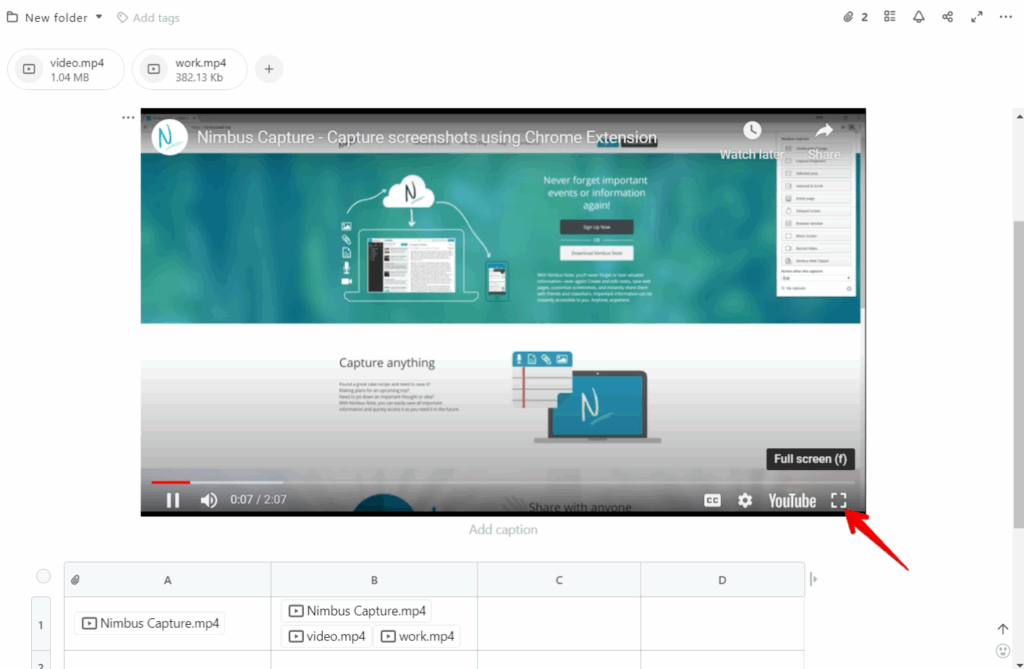
With FuseBase you can add video files to a page both through the attachment panel and the editor. You can also insert videos into tables.
Add and play videos directly in FuseBase with Embed. FuseBase supports such services as Youtube, Vimeo, Vivo, etc.
Add video file #
Create a video block #
- To create a video block, click on the + in the editor and select File or use cmd/ctrl + shift + f.
- Upload video files from your computer or drag and drop them.
With FuseBase Pro AI, you can record videos and save them in your page. To make the page and video look more personalized, we have added a couple of options to customize video players.
Drop files, resize and move blocks #
- Drag and drop files into the editor.
- Move files to columns by dragging them.
- Click and drag the block to the right/left, or up/down.
- Click on the paperclip icon and you will see the attachments panel.
- Upload video files from your computer or drag and drop them.
Why did I get a message saying I can’t play my video? #
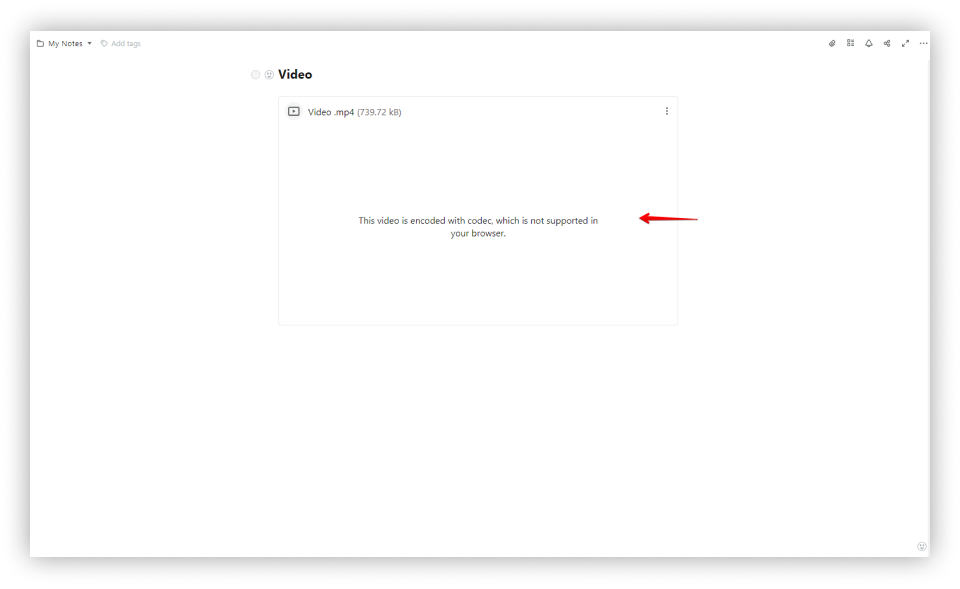
Most likely, your video is encoded by the H.265 codec, which is not supported by most browsers, including Google Chrome and Mozilla Firefox.
What should I do now? #
At the moment, the only option is to convert the video to the H.264 codec and upload it again into a page.
You can do this through this online service – https://anyconv.com/h265-to-h264-converter/
You can also use the Freemake desktop converter – hhttps://www.freemake.com/free_video_converter/
Video file menu #
Video settings #
- Click on the three dots menu next to the block.
- Select Video settings.
- Then select the option you need.
Autoplay – enable or disable autoplay when it is in the visible area.
Sound by default – the ability to turn off the default sound. Works great with autoplay function.
Loop – if you need looping “endless” playback then this option is for you.
Show controls – the ability to disable video control tools and the line with the video name.
Shadow – allows you to add shadow to the video file.
How to make shadow effect for images or videos
In FuseBase, you can highlight not only text, but also pictures and video. This is possible with the help of Shadow effect. Just click on the picture or video menu, and in the Style menu activate the Shadow option.
If you don’t want to change the settings one by one, then turn on the Motion mode and you will have a zingy video in one click. It looks great on the landing page and in the knowledge base.
Option control is available through the video menu – Video parameters.
Menu in the editor #
Click on the three dots next to a video to open the menu for the video in the editor.
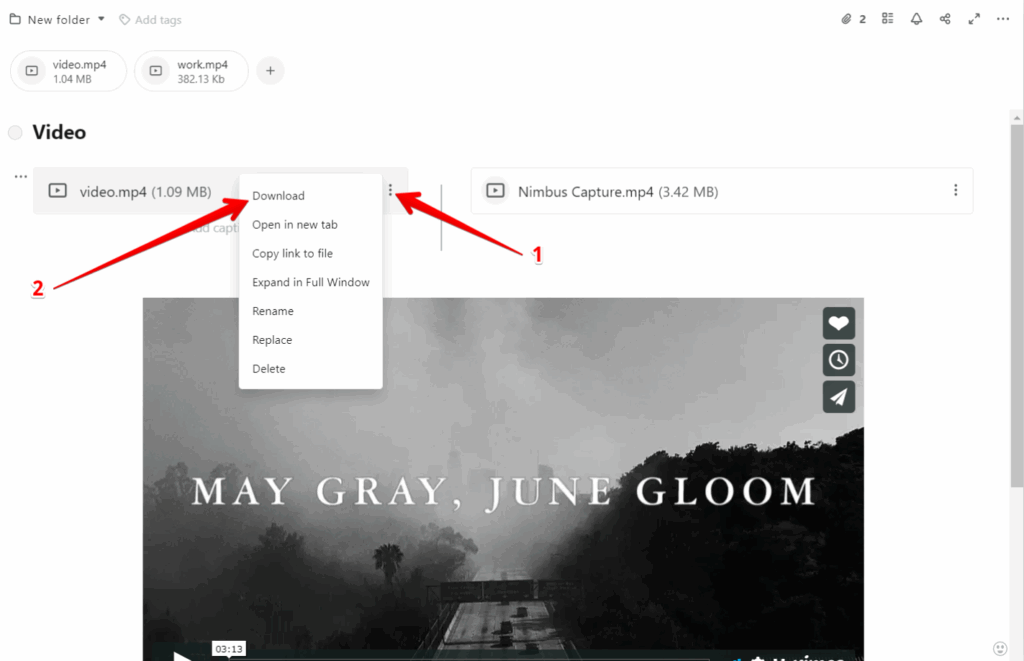
Download #
Download videos into your computer – for this, select Download.
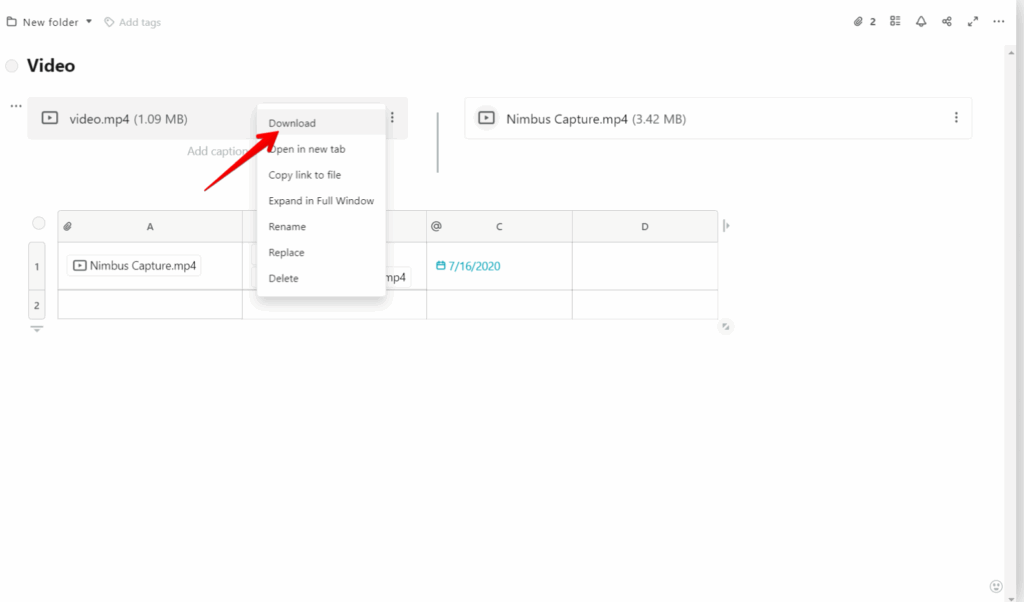
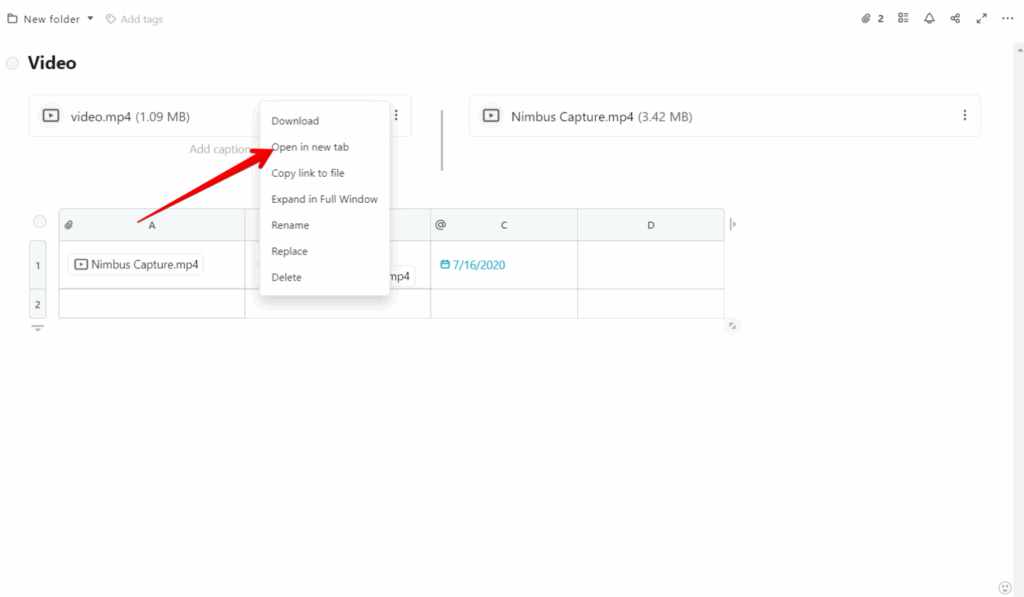
Open in new tab #
To open a video in a new tab, click on the three dots menu and select Open in new tab.
Copy link to file #
Copy the link to a video file by selecting the three dots menu and pressing Copy link to file.
Expand in Full Window #
Watch videos in full-screen mode by selecting Expand in full window.
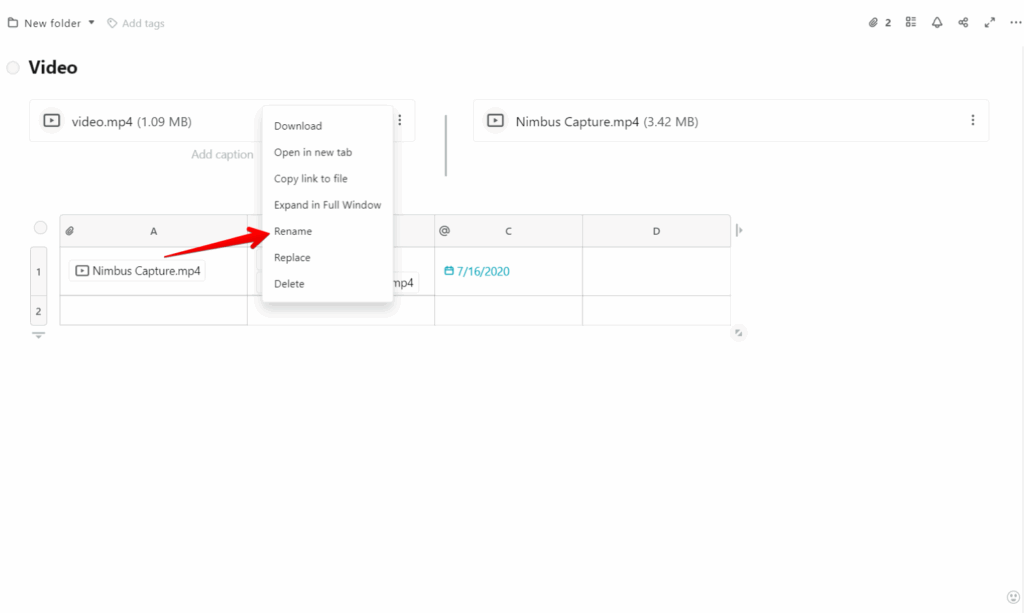
Rename #
To rename a video file, select the three dots menu and click Rename.
Replace #
Replace a video file with any other file by selecting Replace.
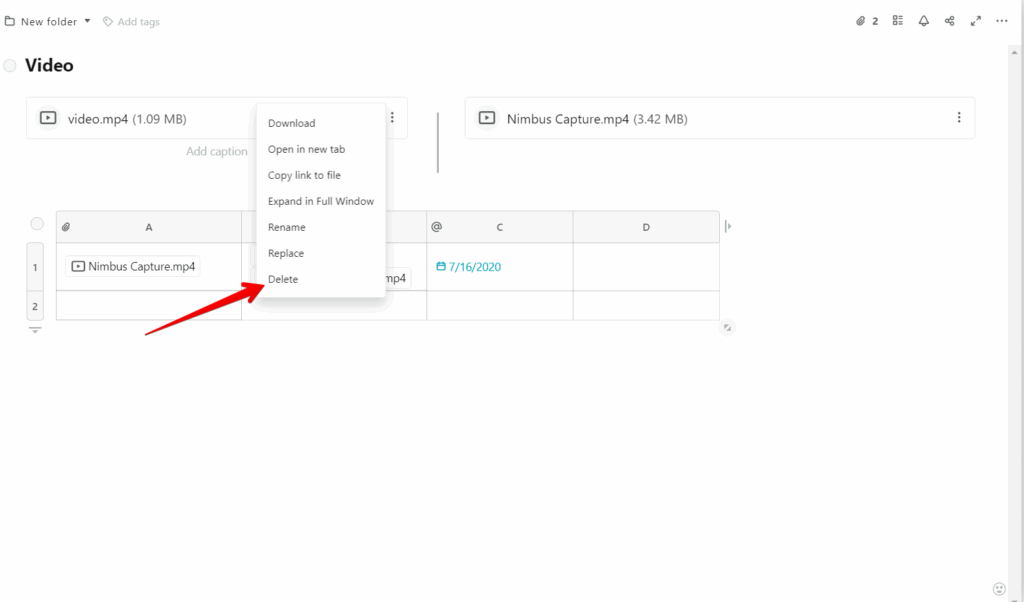
Delete #
To delete the video file, select Delete.
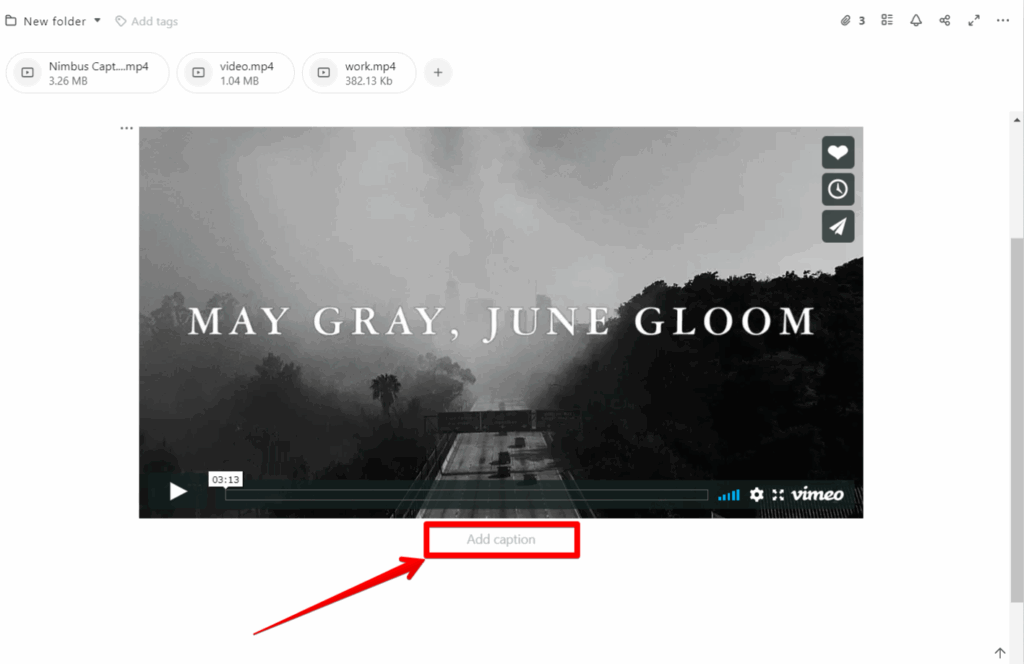
Add a caption #
You can add descriptions to video files by clicking under the file.
Adding video files to tables #
In FuseBase, you can add videos to tables. To do this, you need to create a table.
- Click on the table icon or use cmd/ctrl + ⌥/alt + t.
- Select Attachment as the type of column or cell.
- Upload a video file from your computer or drag and drop it.
Adding video through Embed #
With the embed function, you can insert links from popular sites including YouTube, Vimeo, Vivo, SoundCloud, and more.
- Click on the arrow and select Embed or use cmd/ctrl + ⌥/alt + m.
- Paste or type the URL.
Convert URL into video embed #
- Paste the URL into a page.
- Convert to Embed or use cmd/ctrl + ⌥/alt + m.
Play a video in full screen #
If it’s a YouTube embed, click the square icon on the right below the video.