- Do I need to know programming to create apps?
- Which IDE do you recommend and how can I install it?
- I have installed the IDE and Claude Code (GPT, Gemini, etc.). Is that enough to create FuseBase apps?
- Do I need to install anything else besides the CLI?
- What structure do you recommend for apps?
- I created an app with an incorrect name. What should I do?
- I accidentally made a feature public. Is it possible to make it private again?
- I created a feature, and now even clients can access it. This is not secure!
In this guide, we will address the main issues that may arise when using FuseBase CLI and answer the most frequently asked questions.
Do I need to know programming to create apps? #
No! You just need to install any popular IDE (for example, Cursor) and FuseBase CLI. It’s very simple and does not require technical skills. Then, you simply specify the type of app you need (for example, a ticketing system or file manager), and the AI agents will handle everything for you.
Which IDE do you recommend and how can I install it? #
Most major IDEs are based on Visual Studio, and we recommend starting with it: https://visualstudio.microsoft.com/downloads/
You can use the built-in Copilot agent for creating FuseBase apps, which supports Claude, GPT, Gemini, and other popular models.
However, we suggest using the Claude Code extension: https://marketplace.visualstudio.com/items?itemName=anthropic.claude-code
It is easy to install by following these instructions: https://code.claude.com/docs/en/vs-code
You can also try Cursor: https://cursor.com/ It is an excellent option for beginners, and all popular models are available out of the box.
I have installed the IDE and Claude Code (GPT, Gemini, etc.). Is that enough to create FuseBase apps? #
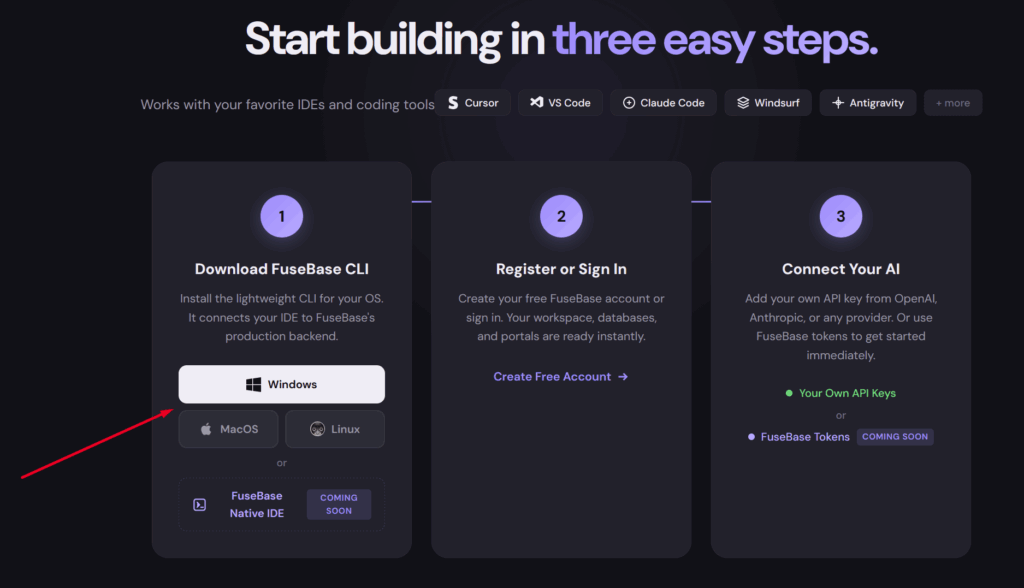
No, to create apps you also need to download and install our CLI—a special module that is fully integrated with our service and enables app development for it. You can download the CLI here: https://ai-dev.thefusebase.com/how-it-works
For Windows, it is simply an .exe file that you need to download and run the setup. For Mac and Linux, copy the provided command and run it in your IDE terminal.
Do I need to install anything else besides the CLI? #
No, there is nothing else you need to install besides the CLI. All essential components, including core packages like NodeJS, are already included. If your app requires any additional libraries, the AI agent will prompt you to install them, and you will just need to confirm.
What structure do you recommend for apps? #
We recommend using a separate folder/project for each app. Accordingly, if you want to create a new app, click on File -> Open Folder.
Then, create a new folder by right-clicking your mouse -> New -> New folder and select the new folder.
I created an app with an incorrect name. What should I do? #
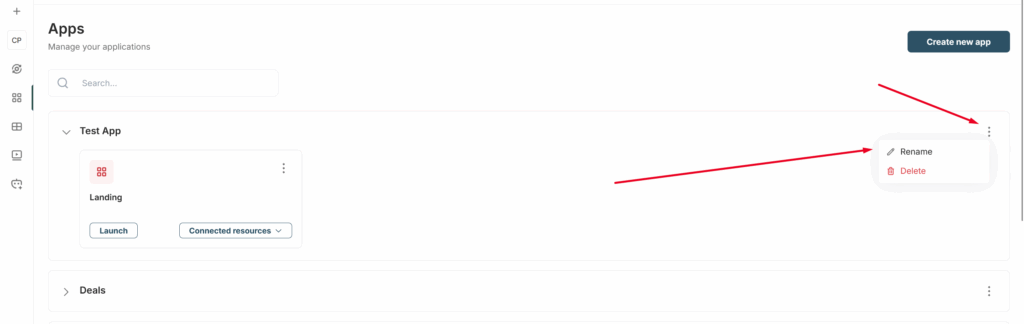
This is easy to fix! Go to the Apps section in the web client and select Rename from the menu of the desired app. Then, simply rename the app or feature.
I accidentally made a feature public. Is it possible to make it private again? #
You can make a feature public or private during its implementation—just specify in the prompt, for example: “I want this functionality to be available to everyone.”
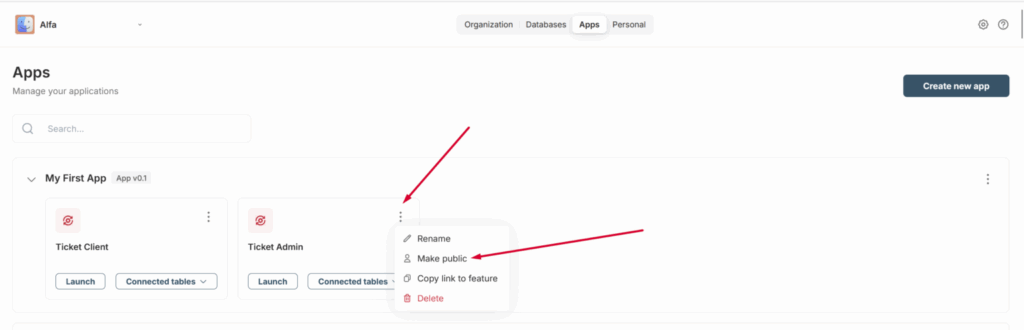
You can also change a feature to public or private after implementation through the Apps section.
I created a feature, and now even clients can access it. This is not secure! #
You can control who has access to each feature. When creating a feature, simply specify in the prompt, for example, “Only organization managers can access this feature,” or “All members except clients can access this feature,” and so on.
The permissions for accessing the feature will be adjusted accordingly.