The Users column allows you to add members and clients of the organization to a cell. For example, you can use it to assign those responsible for completing a task, specify department employees, and more.
To add a column, follow these simple steps:
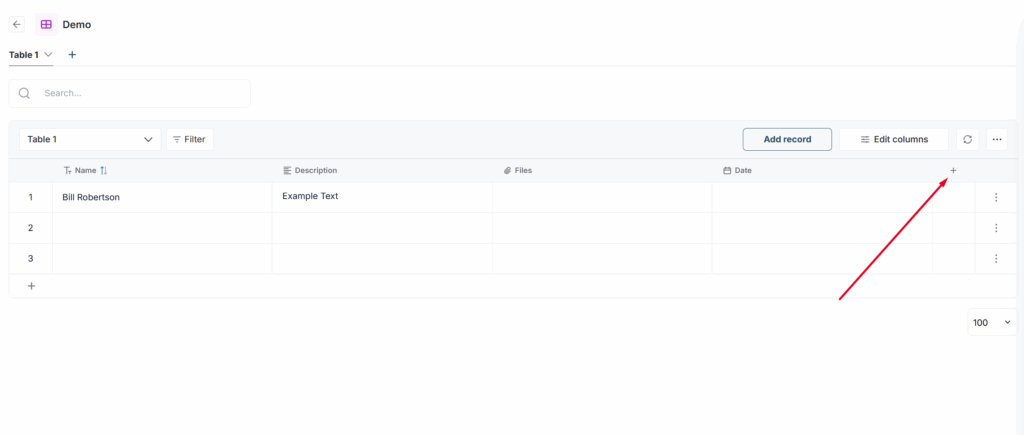
1) Click on the + to create a new column.
2) Select Users.
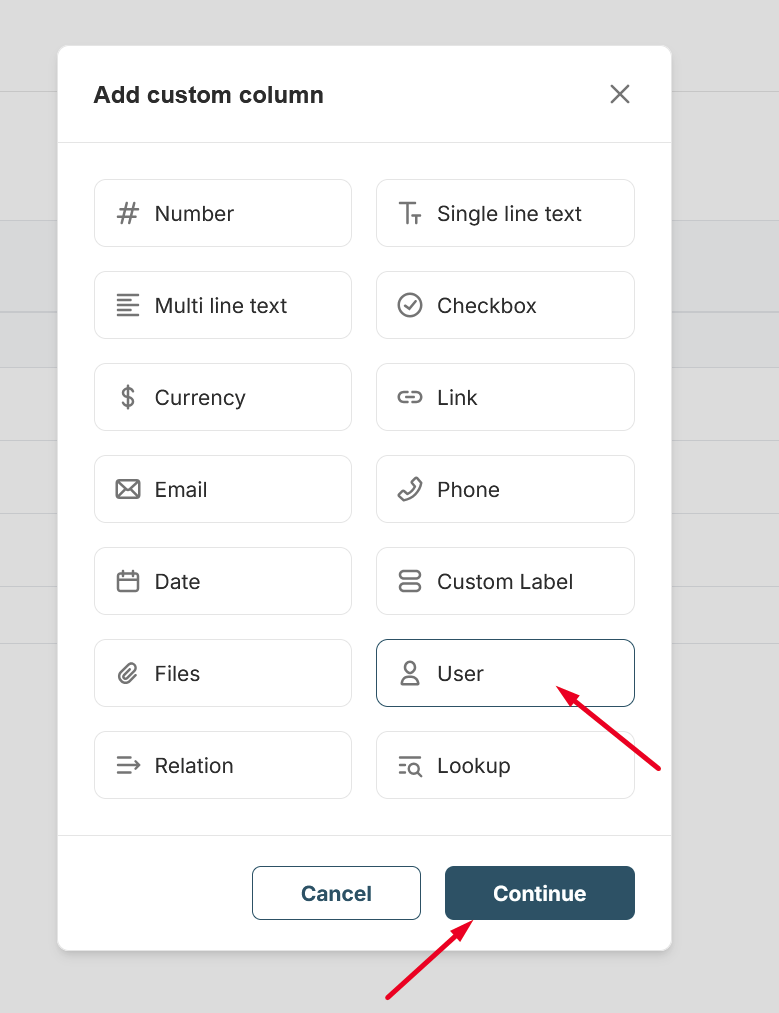
3) Enter the column name and click Add.

Next, simply click on the cell and select the required users from the list to add them to the cell.
How can I edit members, for example, add new ones or remove someone? #
Click on the cell with the members and select the members you want to add. You can also remove members by clicking the X (it will appear when you hover over the member).
I want to allow only one member to be added to the cell. Is that possible? #
Yes, absolutely. You need to disable the “Multiple selection” option in the column settings.
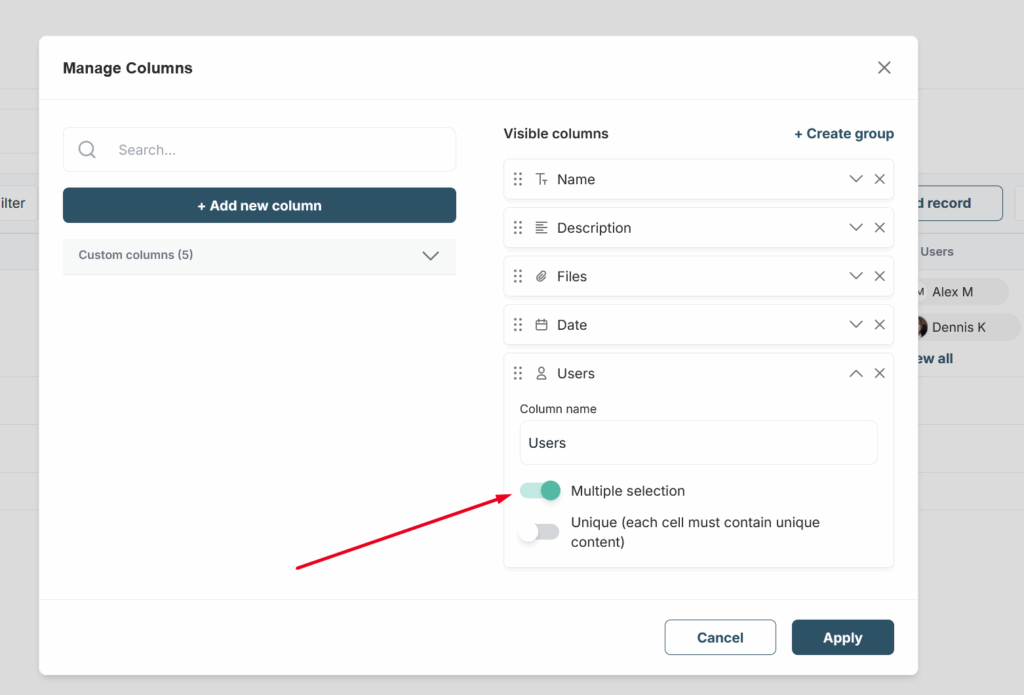
Yes, of course. You need to disable the “Multiple selection” option in the column settings. This can also be done when creating the column.