In FuseBase, you can comment on and discuss text blocks, images, files, tables and more. In the comments, you can use mentions to notify other workspace participants. At the end of the discussion, you can mark the thread as resolved or delete it.
Adding comments #
To add a comment in the web or desktop application, follow these steps.
- Click on the three dots next to the desired block.
- Select Comment.
- In the pop-up that appears, type your comment and press Enter.
Inline comments #
In FuseBase, you can add inline comments to the selected text.
- Highlight the desired text (a word/sentence or multiple blocks of text).
- Click on the comment icon.
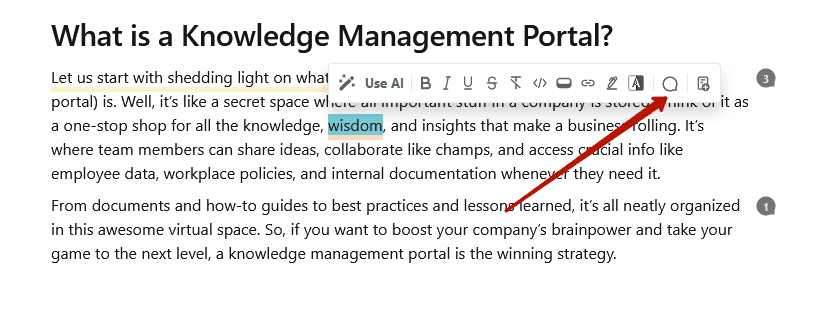
- Add comment.
- A thread with an inline comment will be created.
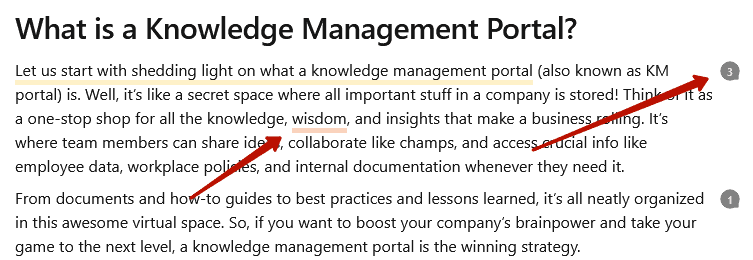
After creating a comment, you will see the commented text is highlighted and the counter icon next to the commented block will appear. The counter defines the number of comments inside the thread.
View comments #
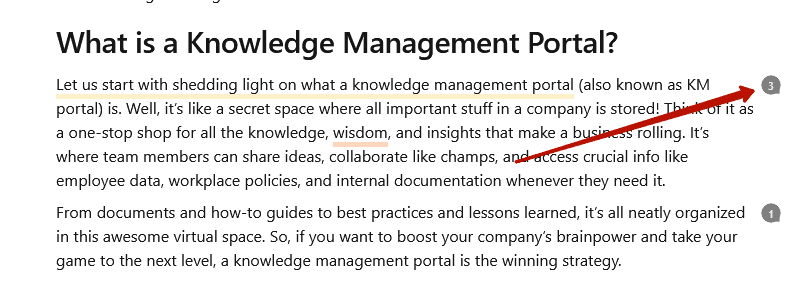
To view a comment for a desired block, tap on the comment icon, which can be found to the right of the block.
Adding replies to comments #
To add a reply, you need to:
- Go to the desired thread.
- Tap on the desired comment.
- Select the reply icon.
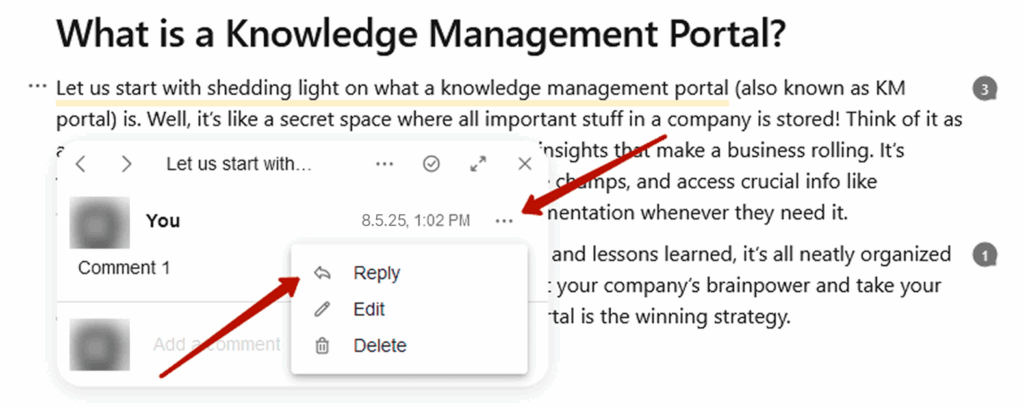
- Write the comment in the input field and press Enter.
Deleting a comment and deleting the entire thread #
You can delete both an individual response and the entire comment thread in a block.
Deleting a comment #
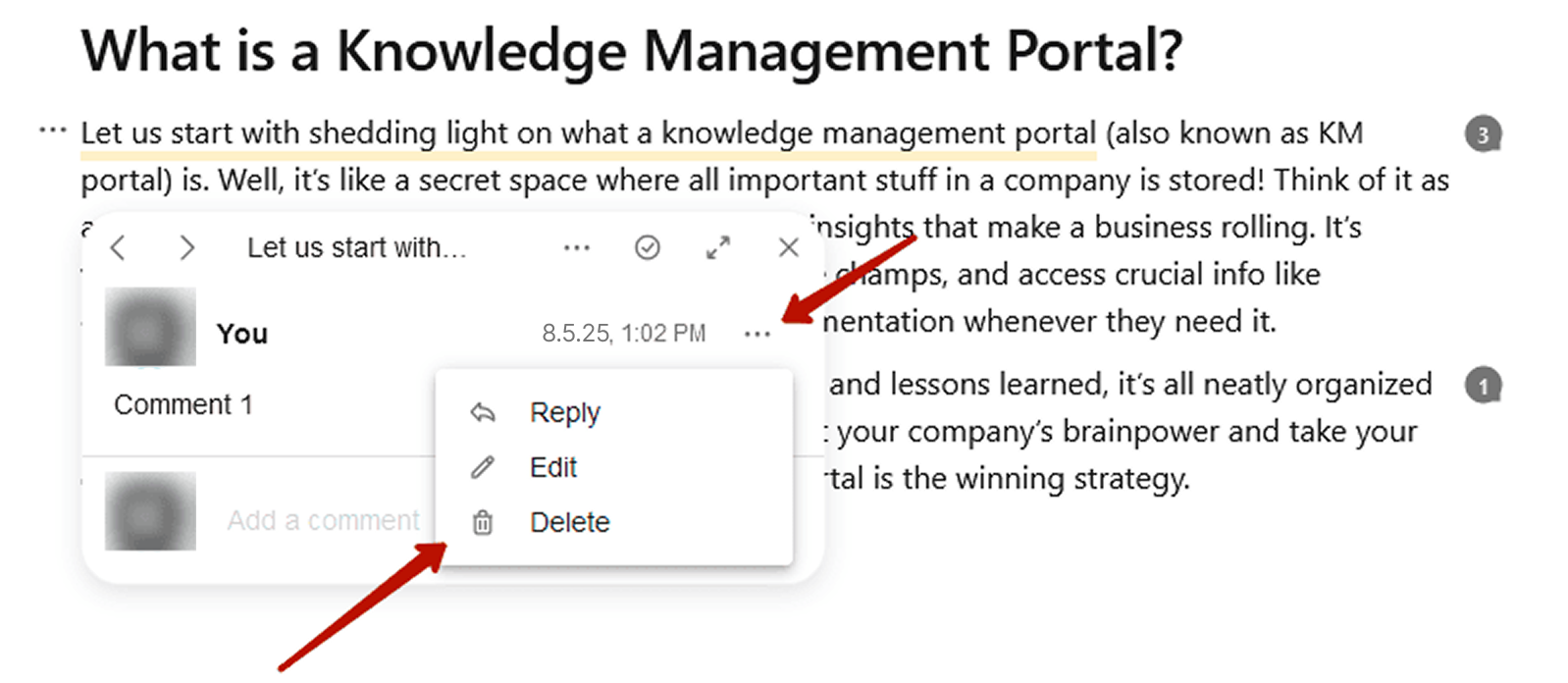
To delete a comment inside a thread:
- Open a thread.
- Click on the desired comment.
- Select the trash icon.
Deleting the entire thread #
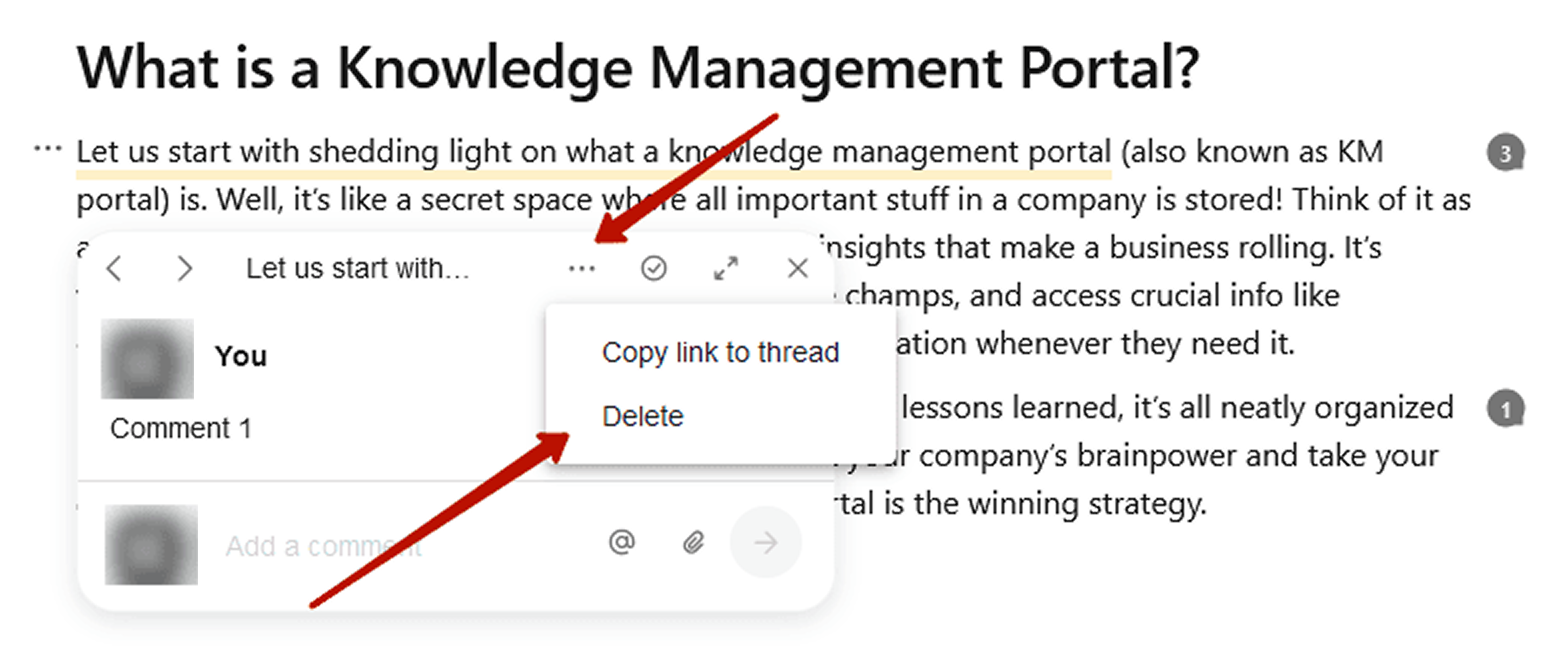
To delete the entire thread, do the following.
- Open the thread.
- Click on the Delete in thread’s menu.
Editing a comment #
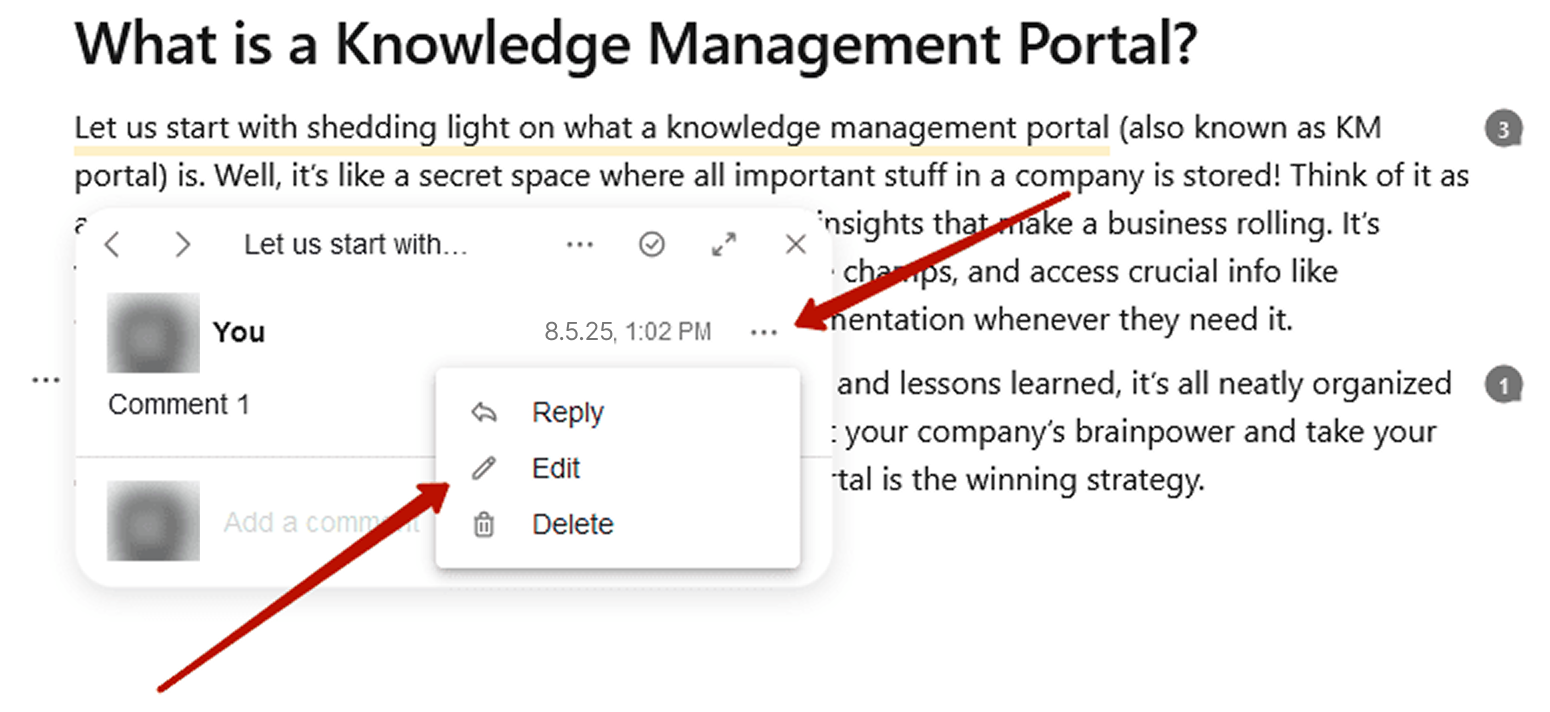
You can also edit your comment at any time (it will be marked as edited). To do this:
- Open a thread.
- Click on the desired comment.
- Select the Edit icon.
Resolve thread #
If the issue in the thread is fixed, then you can mark it as resolved.
- Open the thread.
- Select the checkmark (resolved icon) at the top of the pop-up.
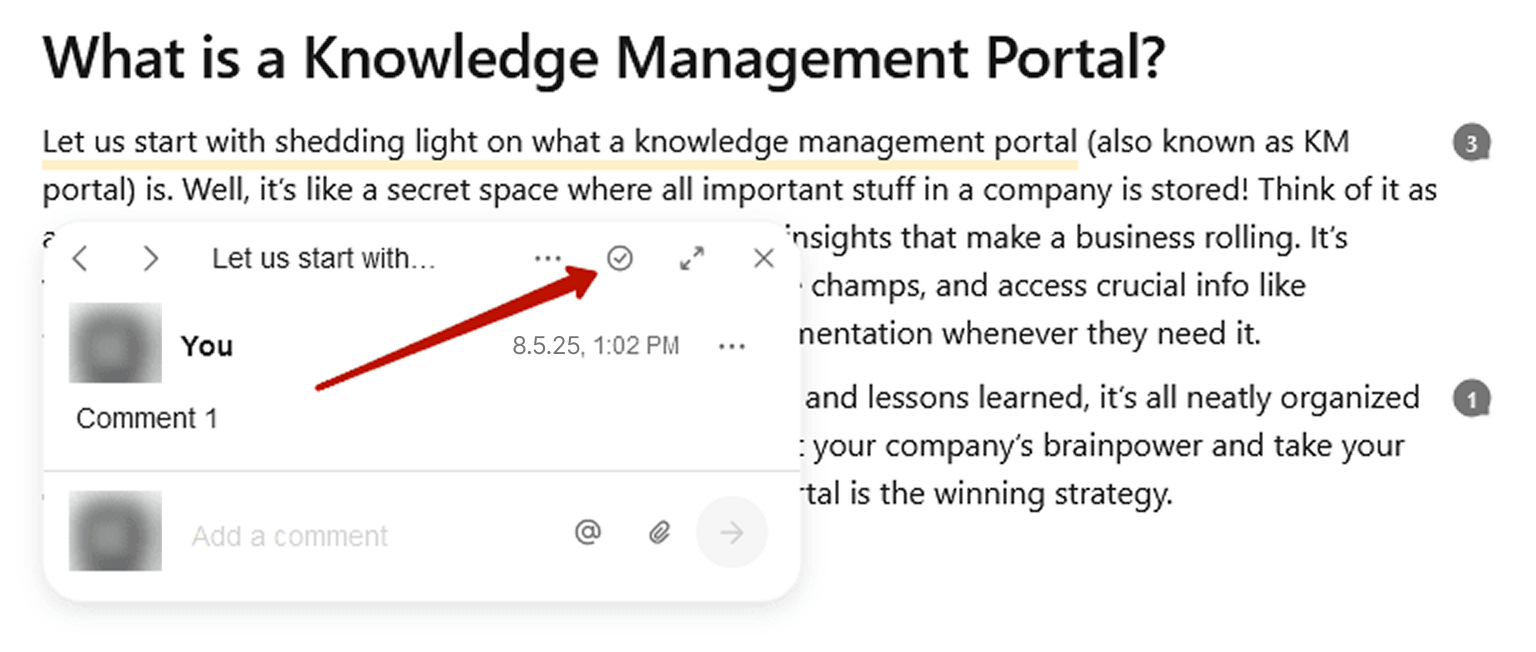
After resolving a thread, you will not see it in the list of threads.
To see the resolved threads, open the page and enable the Show resolved comments toggle in the page’s menu.

Adding files to comments #
In addition to text, you can add files to your comments. For example, they can be screenshots with a description of the problem or an archive with a design.
Adding a file #
To add a file, click on the attachment icon in the comment input.
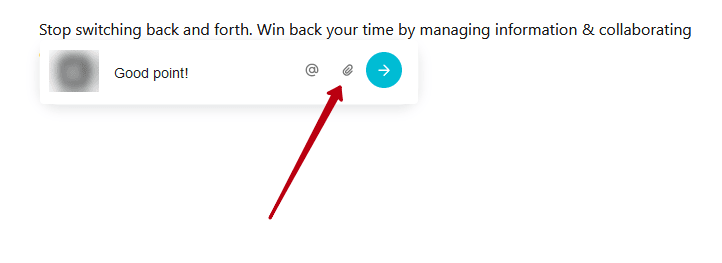
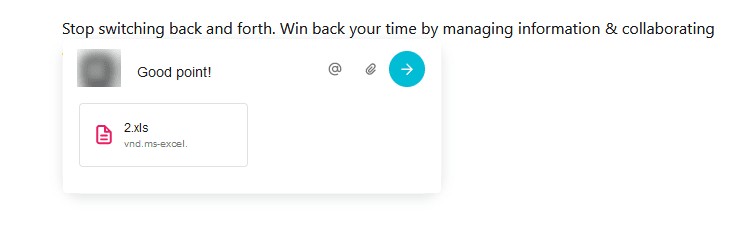
Next, select the desired file and wait for it to load. It will be displayed on the comment card.
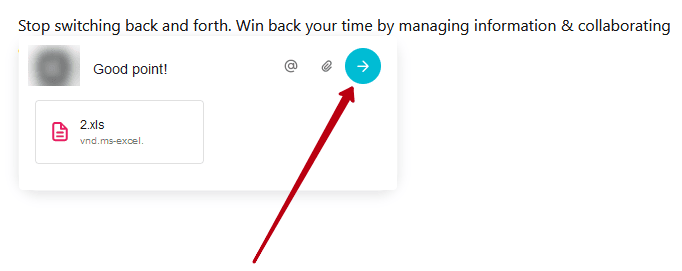
Click on the submit comment button to add it to the thread.
File download #
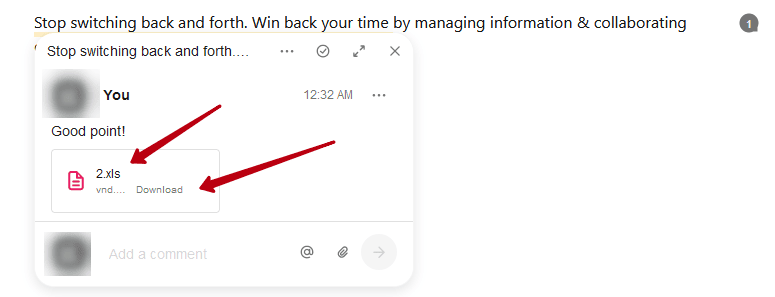
Click on the file name or on Download to download the file.
Deleting a file #
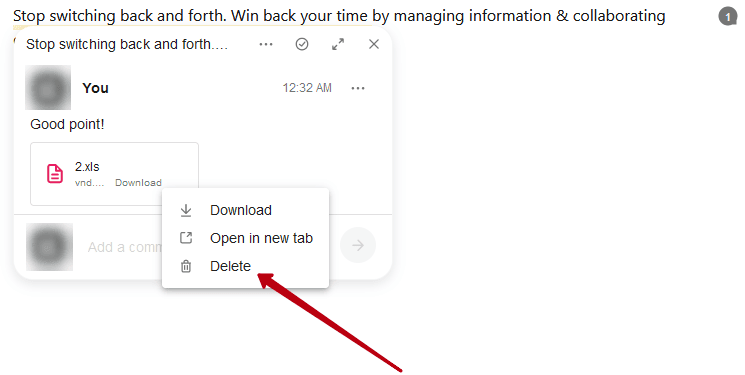
If you want to delete a file, click on Delete in the file menu (displayed when you hover over the file).