With FuseBase you can add audio files to a page both through the attachment panel and the editor. You can also insert audio into tables.
With embedding, you can also add a link to SoundCloud or YouTube Music in your page.
Add audio file #
Create an audio block #
- To create an audio block, click on the + in the editor and select File or use cmd/ctrl + shift + f.
- Upload audio files from your computer or drag and drop them.
Drop files, resize and move blocks #
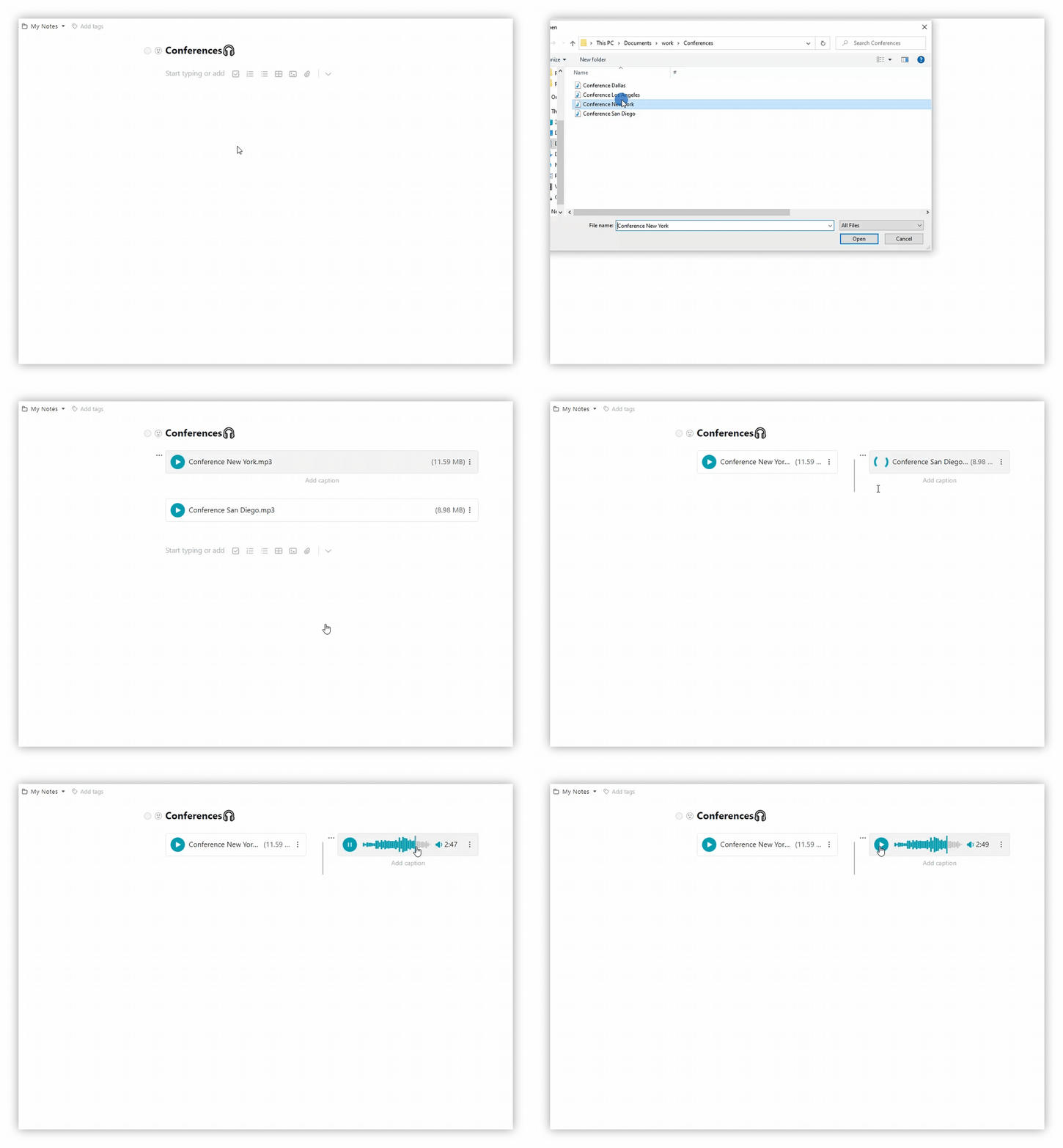
- Drag and drop audio files into the editor.
- Move files to columns by dragging them.
- Click and drag the block to the right/left, or up/down.
In the menu you can pick from a variety of functions.
- Download
- Open in new tab
- Rename
- Delete
Audio Player #
All audio files can be played directly in the page through the built-in audio player, which supports all popular formats: MP3, M4A, CAF, AMR, and so on.
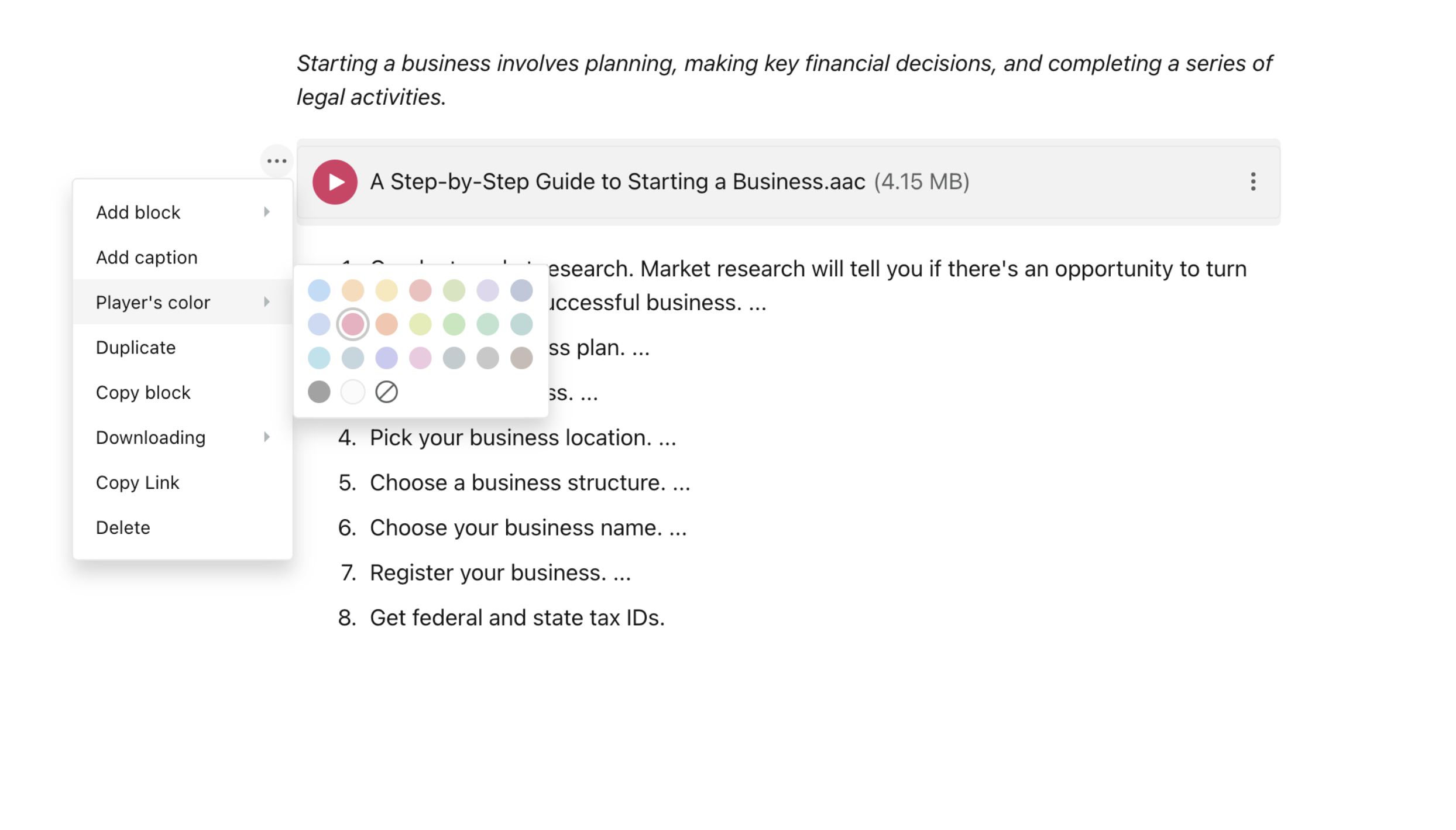
☝ Note: You can change the color scheme for your audio player by clicking on the player block menu and selecting the desired color in the Player’s color item.
Lifehack #
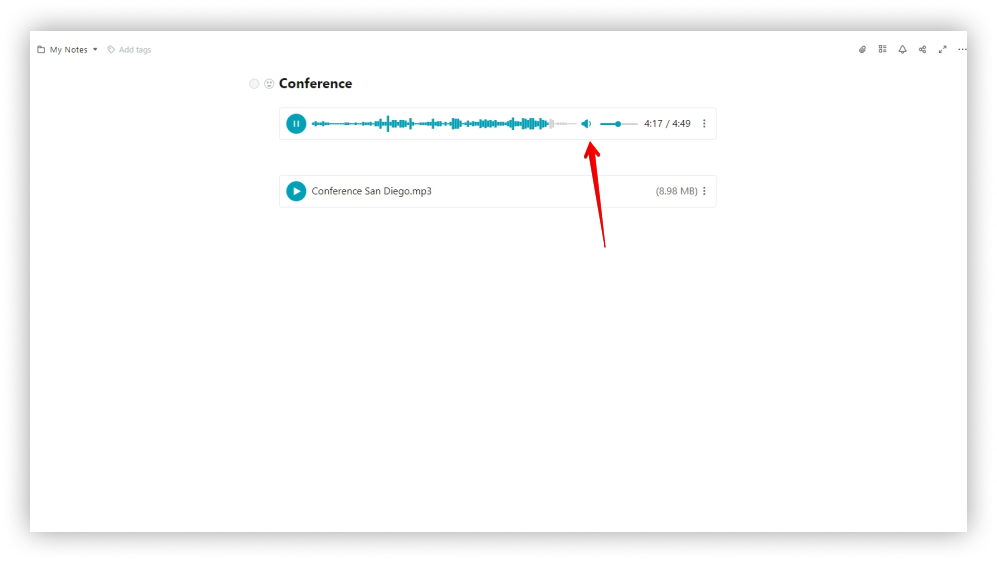
During audio playback, you can click on different parts of the recording to start playing from the selected time.
You can also change the volume – increase, decrease or completely mute the sound.
Menu in the editor #
Click on the three dots next to an audio to open the menu for the audio in the editor.
Download #
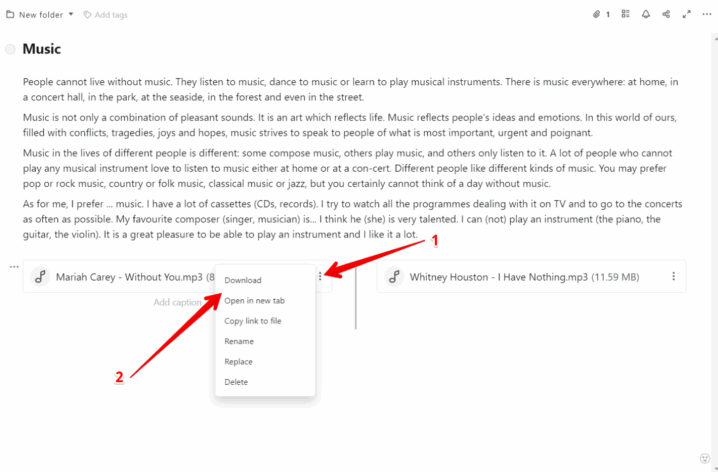
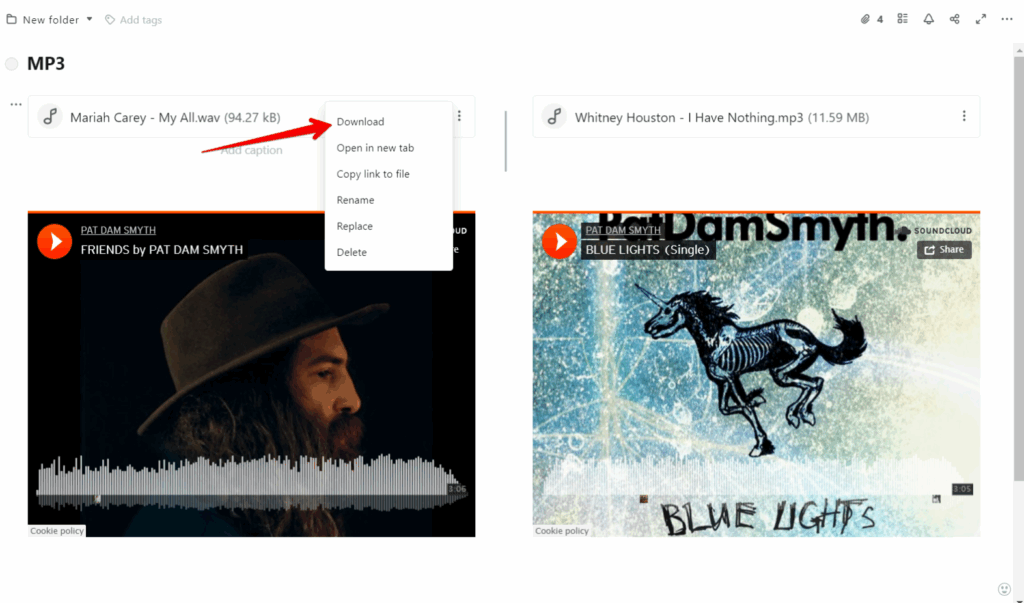
Download audio files to your computer – for this, select Download.
Open in new tab #
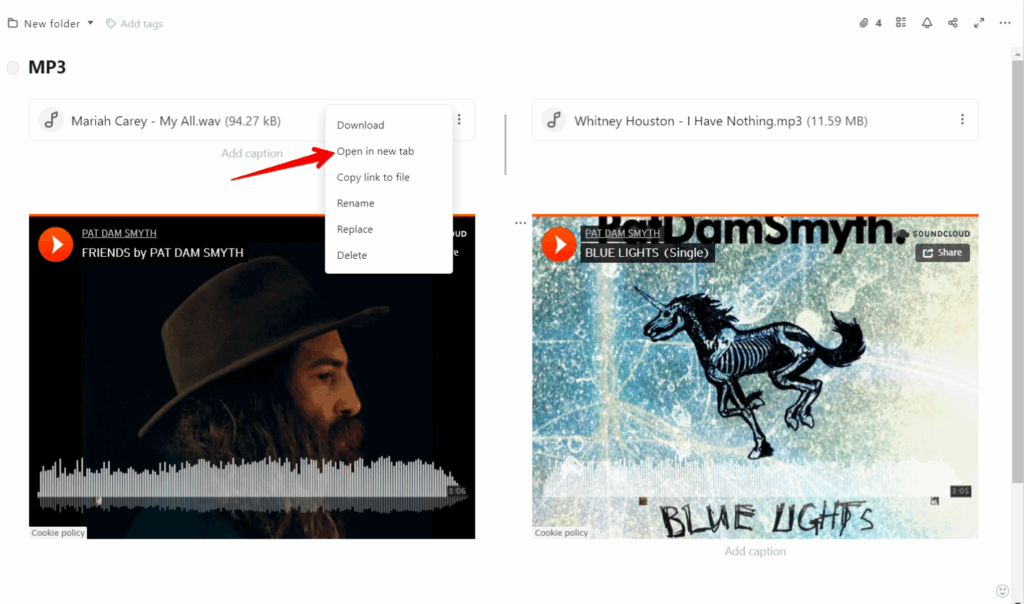
To open an audio in a new tab, click on the three dots menu and select Open in new tab.
Copy link to file #
Copy the link to an audio file by selecting the three dots menu and pressing Copy link to file.
Rename #
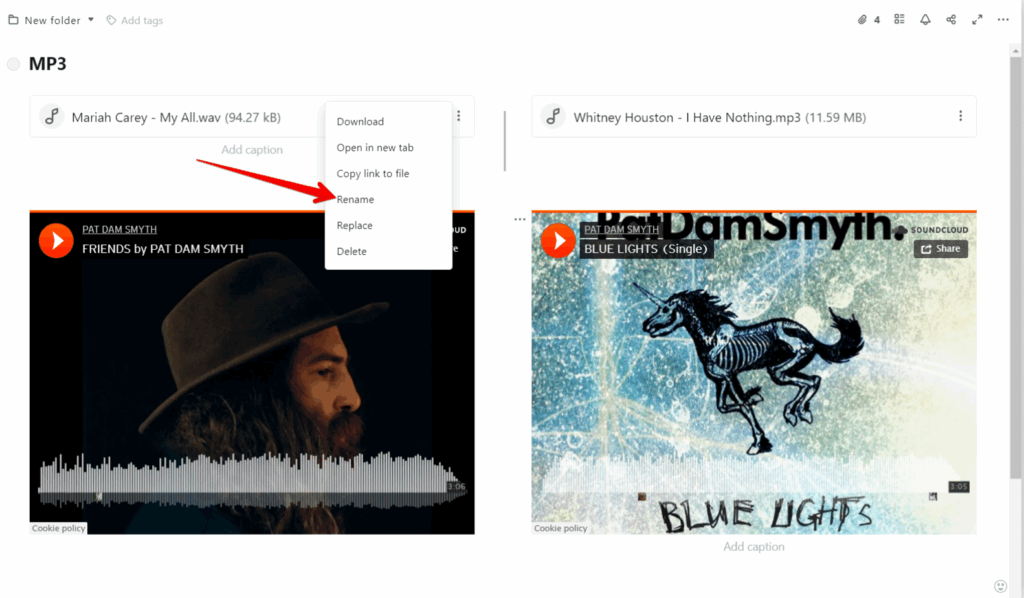
To rename an audio file, select the three dots menu and click Rename.
Replace #
Replace an audio file with any other file by selecting Replace.
Delete #
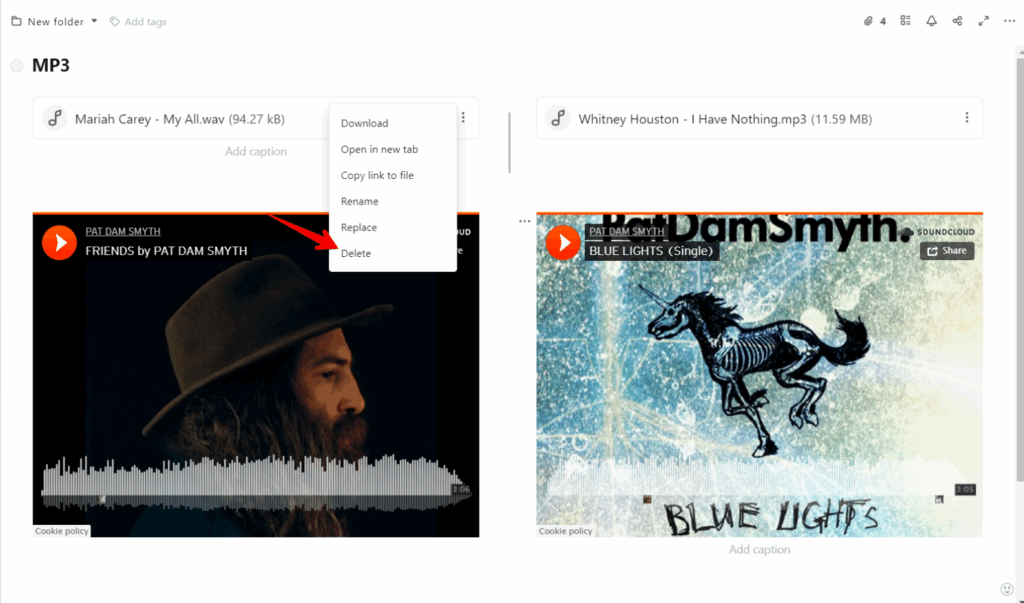
To delete the audio file, select Delete.
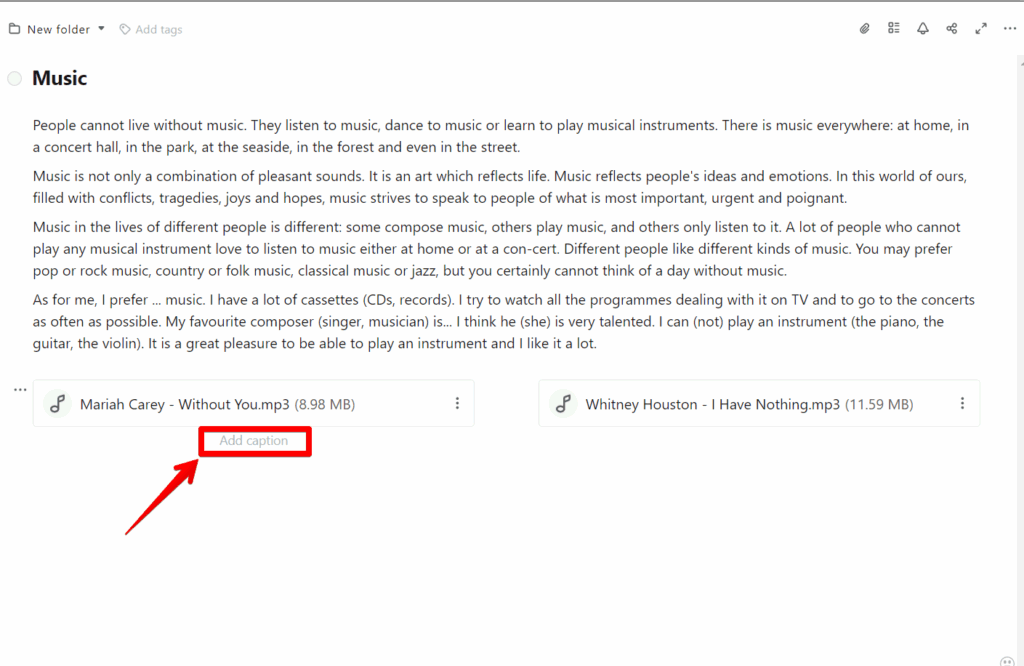
Add a caption #
You can add descriptions to audio files by clicking under the file.
Adding audio files to tables #
Need to insert an audio file to a table? Not a problem.
- To do this, create a table.
- Click on the table icon or use cmd/ctrl + ⌥/alt + t.
- Select Attachment as the type of column or cell.
- Upload an audio file from your computer or drag and drop it.
Adding audio through Embed #
With the embed function, you can insert links from popular sites including Youtube Music, SoundCLoud, and more.
- Click on the arrow and select Embed or use cmd/ctrl + ⌥/alt + m.
- Use ctrl + v to paste or type the URL.
Listen to audio recordings #
☝ Play all audio files directly in the page with our built-in audio player! It supports MP3, M4A, CAF, AMR, and other popular formats. Check it out in the web client or desktop versions (Windows and Mac)!