If you already have tables in other services (Airtable, Notion, Google Sheets, etc.), you can transfer them to Fusebase using the import option. Currently, import from CSV is available, but we also plan to add import from XLS files in the future.
You can import into either a new table or an existing one. Let’s try importing into a new table.
1) Click on “Create new database” or “Create new table.” Select “Import from CSV.”
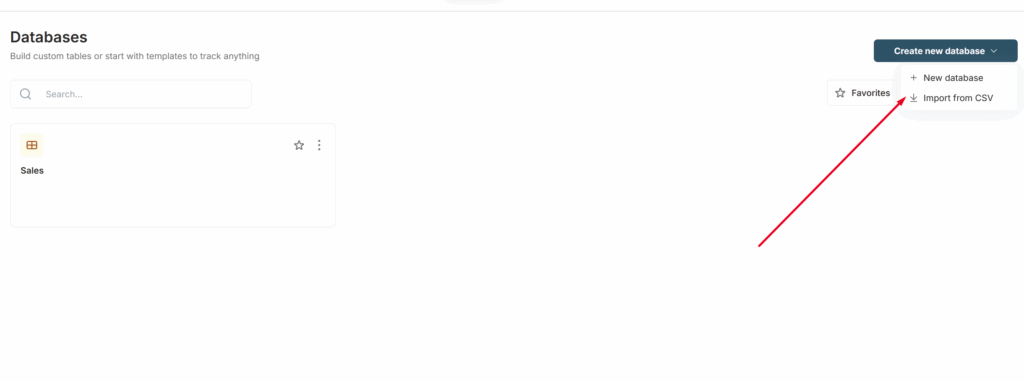
2) Enter the table name and click Next.
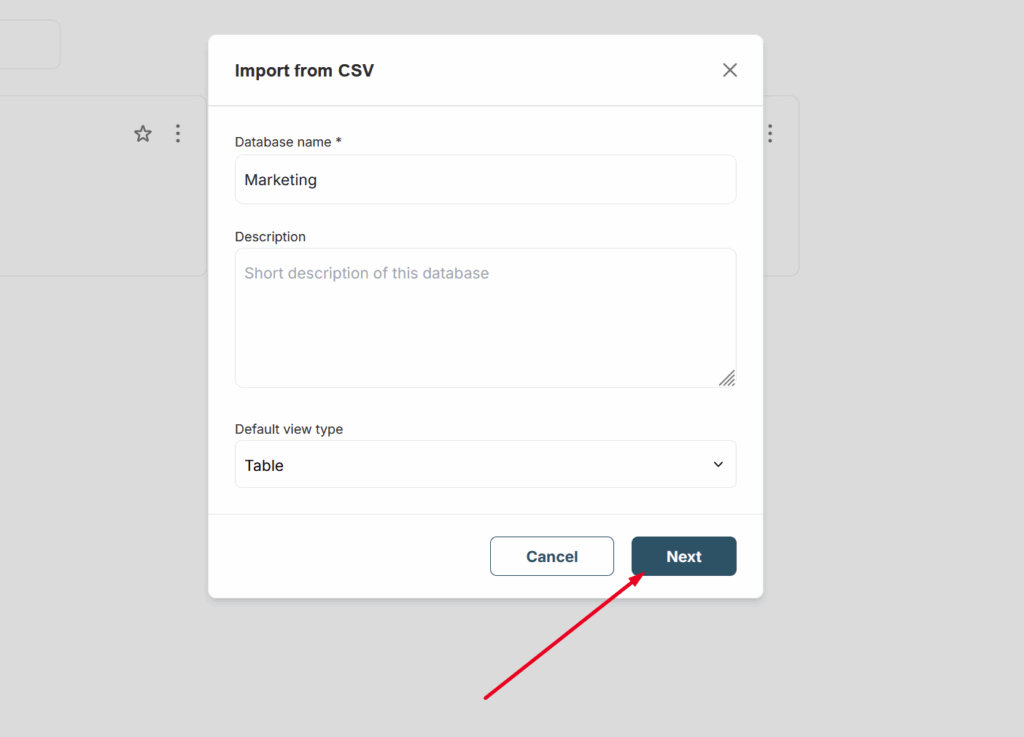
3) Next, select the CSV file that you previously exported from another service or from Fusebase.
4) Next, you need to specify the import parameters. In the Delimiter field, enter the column separator used in your import file. This is usually a comma, but other options are possible.
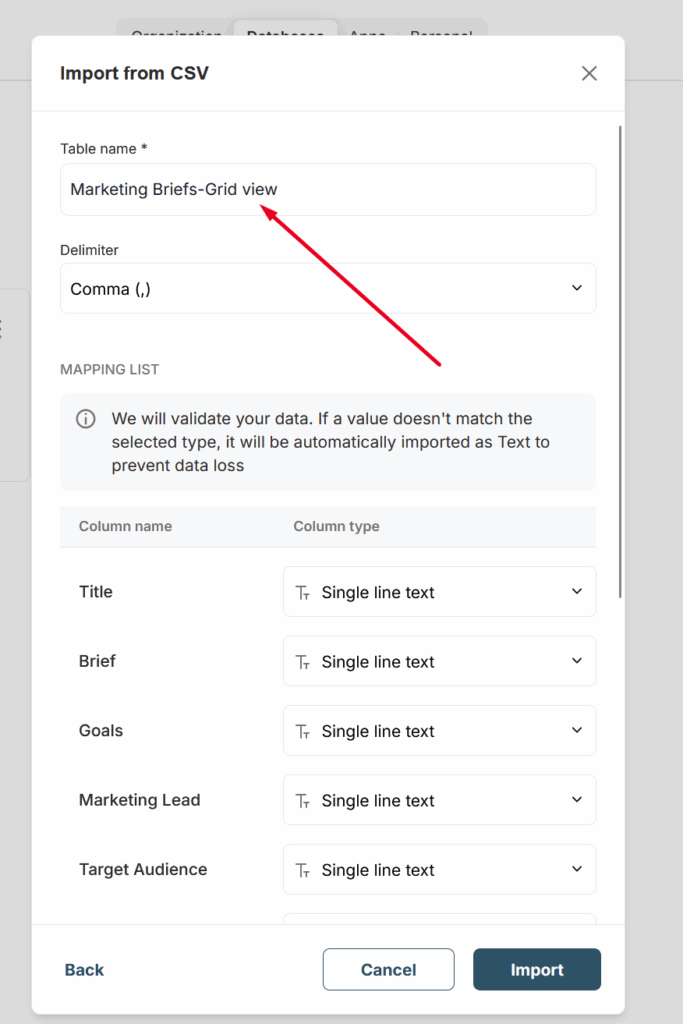
You will also need to select the column types in the Mapping list. On the left, you will see a list of imported columns, and on the right, you can specify their types.
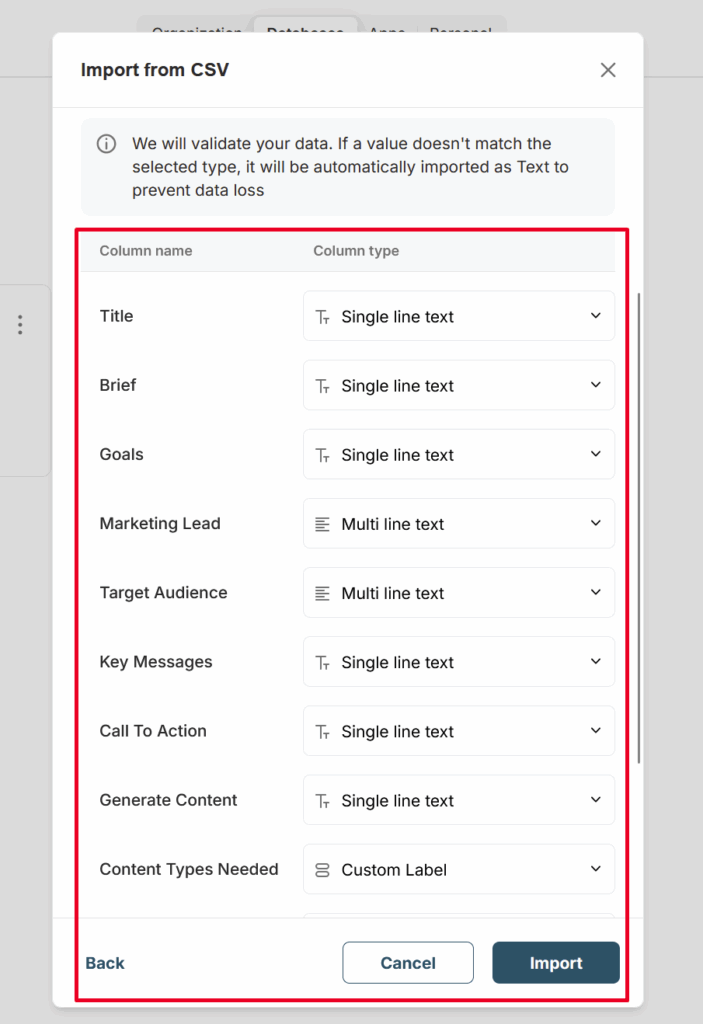
Next, click Import to start the process.
If you need to import into an existing table, open the desired table and select Import from its menu.
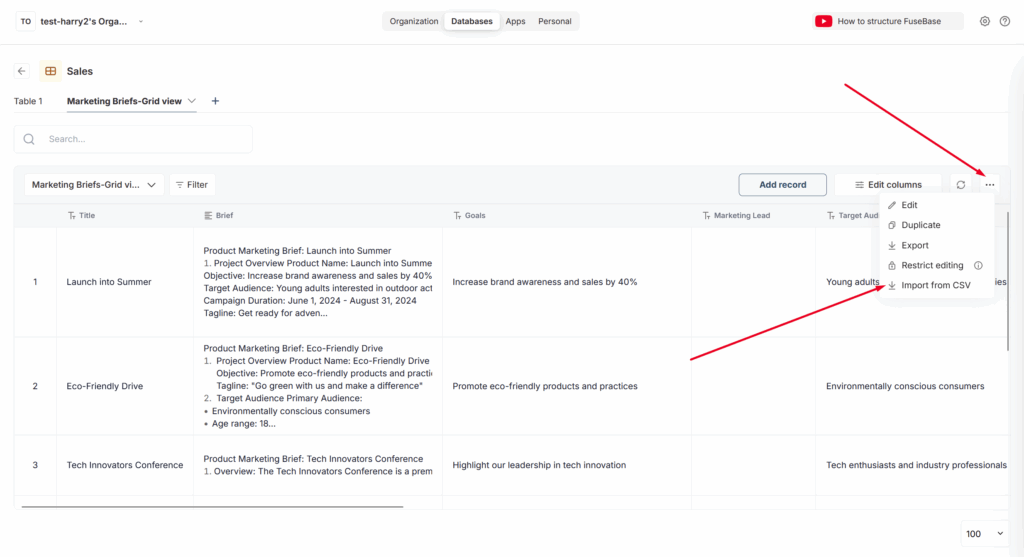
Next, choose the CSV file and review how the table looks in the preview. Please note that when importing into an existing table, we do not replace existing columns but create new ones.