With Magic links, you can give your clients quick access to portals, even if they are closed to the outside world.
There are several options for creating magic links, which we will explain in this guide.
Magic Link when sending an invite to the portal #
You can send an invite to the portal directly from the portal customizer via the Share Menu.
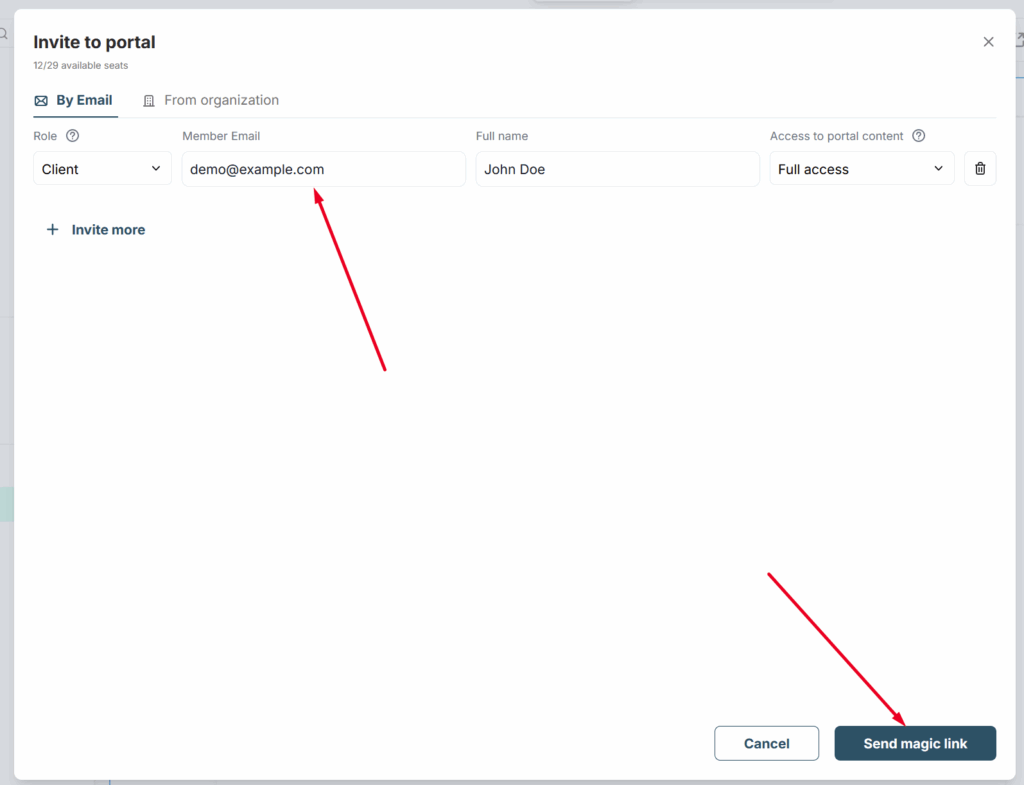
After successfully sending the invite, your client will receive an email with a link for quick access to the portal.
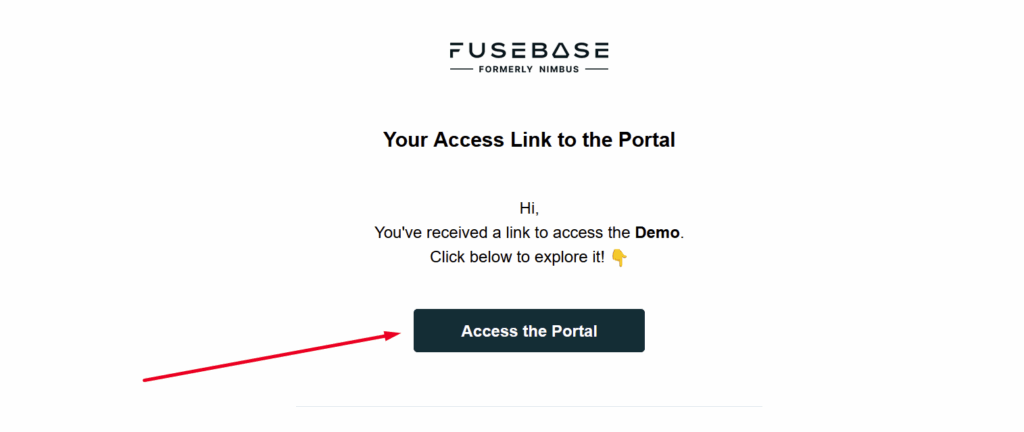
When you click on Access the portal:
- An account will be automatically created in the organization for this email (if there was no account yet);
- The user will be added to the organization with the selected role;
- The user will get access to the portal.
It is important to note that the Magic Link is not permanent and is only active for 24 hours. After 24 hours, the client will no longer be able to use this link and will need to request a new link to access the portal. This is done for higher security.
Requesting portal access without a Fusebase account #
If a user without an account opens a closed portal, he sees the following message.

If desired, the user can enter his email into the input and click Send access link.
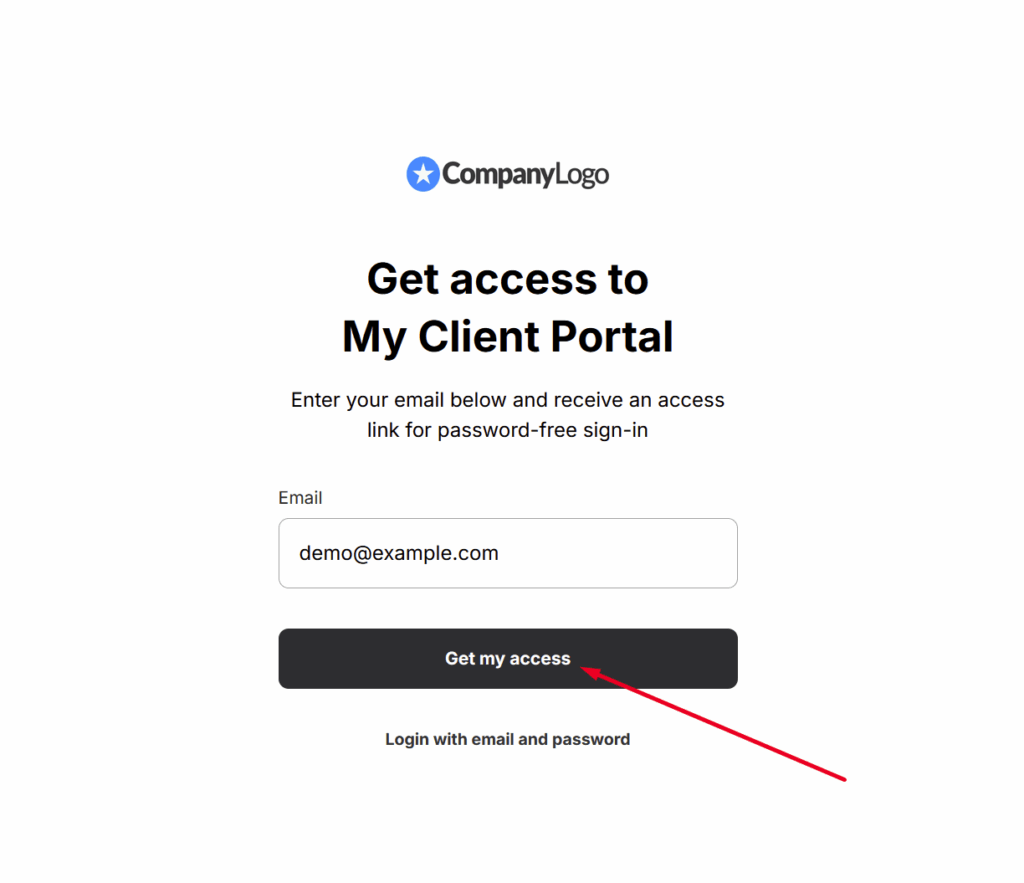
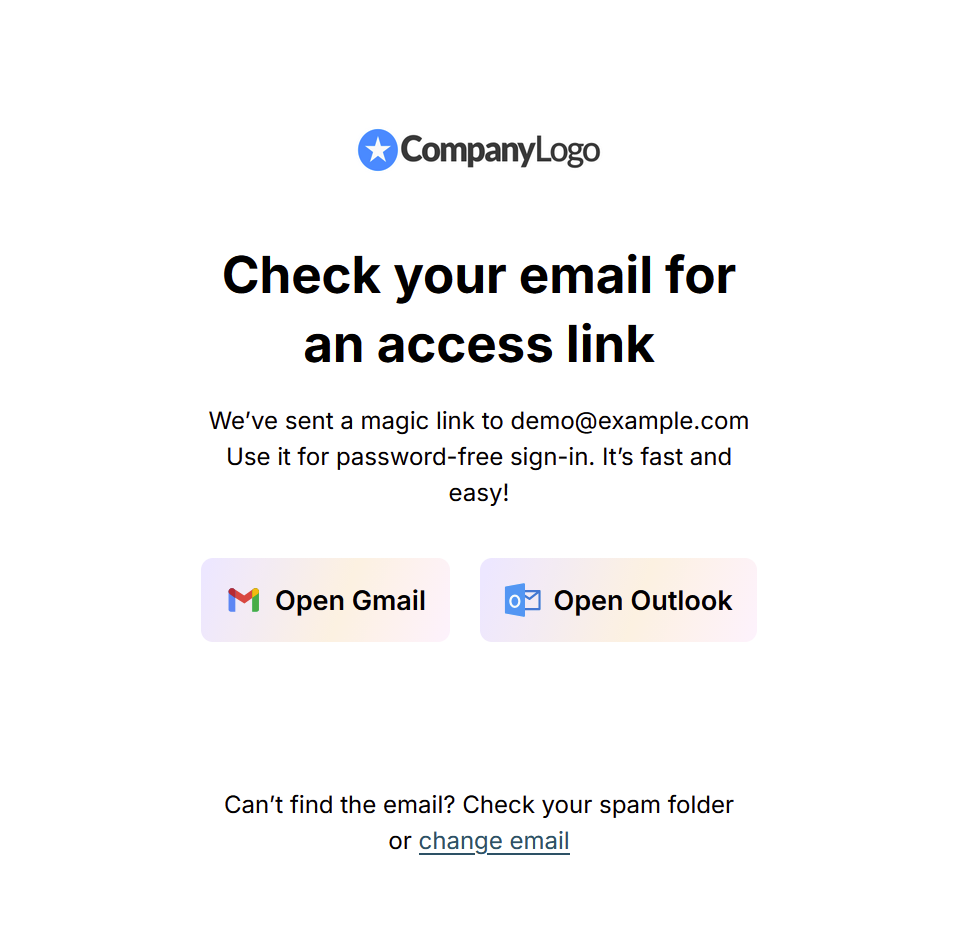
If the user already has access to the portal, he will see the appropriate message and a link for quick access to the portal will be sent to his email.
If the email does not have access to the portal, there will be an error message.

Next, the email of the owner of the organization will receive a message that the new user has requested access to the portal and the owner can manually give access to the portal.
Deactivating the link #
If you urgently need to disable the Magic Link for a specific client, you can do this in the business console at https://teams.nimbusweb.me/
Navigate to the appropriate workspace and find the desired client in the client list. Then, in the menu, select Deactivate magic link for portal –
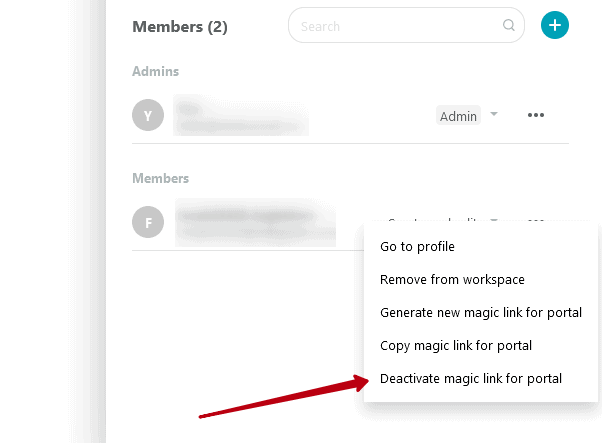
After that, the link will become inactive and the user will not be able to use it to access the portal.
Magic Links with Additional Security #
You can add additional security to your Magic link. You can set a special key that can be provided to clients for logging into the portal, as an additional layer of security alongside the Magic Link.
How to add a key #
- Go to the Organization Console – https://teams.nimbusweb.me/
- Go to the desired workspace with a portal with the Magic link activated.
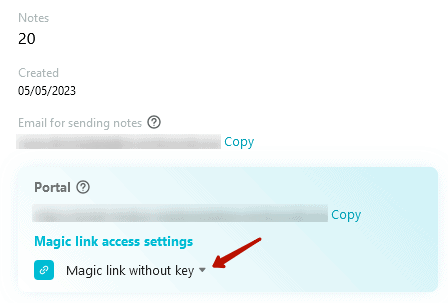
- Click on the arrow next to the Magic link without key.
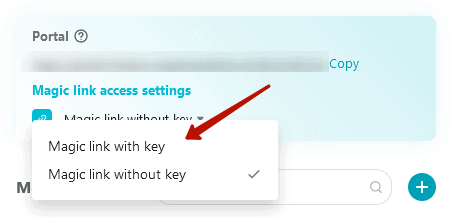
- Select Magic link with key.
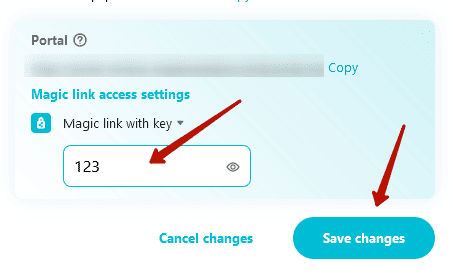
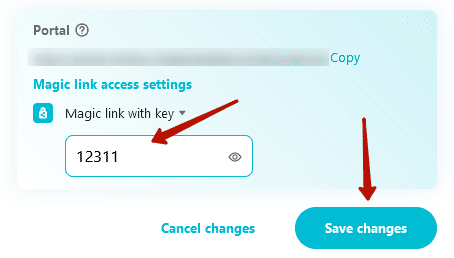
- Enter the desired key and click Save changes.
How to change the key #
To change the key, open the project settings again and enter the new value. Don’t forget to save it afterward.
How to disable the key #
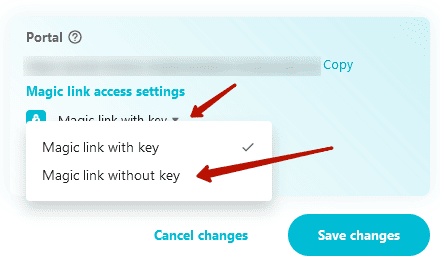
To disable the key, click on the arrow again, select Magic link without key and Save changes.
Authorization via email/password #
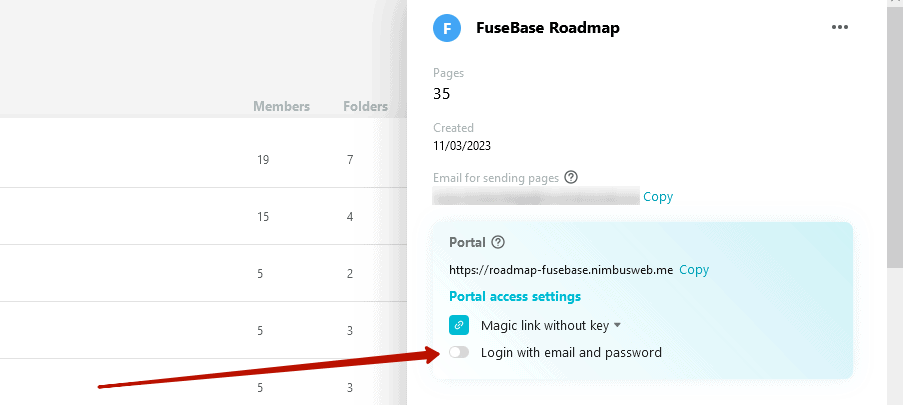
You can also allow your visitors to authenticate to the portal by entering their email and password. To do this, you need to:
1) Go to the Business Console – https://teams.nimbusweb.me.
2) Go to the workspace with the desired portal.
3) Enable the Login with email and password option:
Unified Link for Multi-Portals #
For example, if you have 10 clients and you’ve created 10 portals for them, you may want to provide them with a quick way to access their specific portal, such as through your website or a link in an email newsletter. This can be easily achieved using the Unified Link.
1) Go to your organization’s business console – https://teams.nimbusweb.me
2) In the organization settings, activate the switcher “Enable unified portal link.”
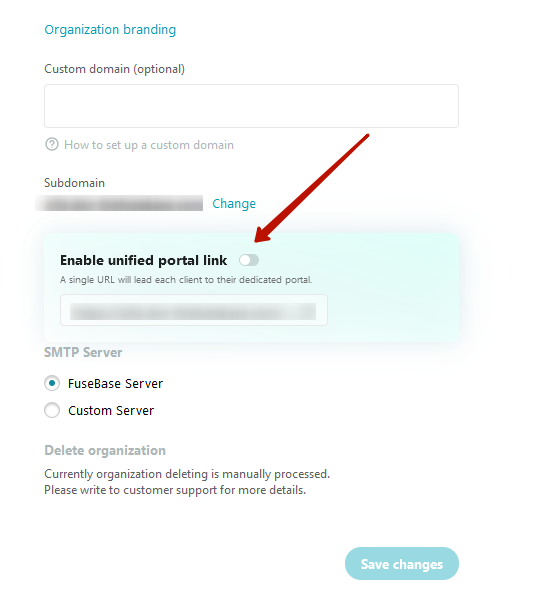
3) Copy the link
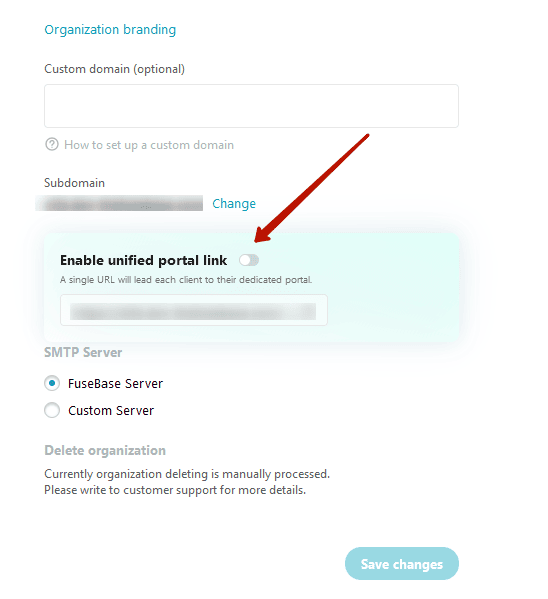
You can place this link on your website or include it in your email campaigns. When clients click on the link, they will be redirected to their respective portal.