FuseBase Work
Using Fusebase Apps as Connectors in Fusebase Work: Quick Guide
What are Fusebase Apps? Fusebase Apps are custom tools you can create for your own workflows. Instead of waiting for a new product feature, you can build exactly what you need: a...
Guide details
- Published
- August 28, 2026
- Read time
- 2 min read
- Category
- FuseBase Work
What are Fusebase Apps?
Fusebase Apps are custom tools you can create for your own workflows.
Instead of waiting for a new product feature, you can build exactly what you need: a proposal creator, onboarding flow, document request, approval process, dashboard, report generator, file transfer tool, client intake form, and more.
Here you can learn more about apps and how to create them – https://thefusebase.com/guides/fusebase-vibe-code/fusebase-apps-quick-guide/
Fusebase Apps can now be connected to Fusebase Work as connectors.
When you create a Fusebase App, it can automatically include an API. This means the app can be used not only by people, but also by AI agents inside Fusebase Work.
That means your agents can:
- use your custom apps;
- send data into apps;
- receive results from apps;
- trigger app actions;
- connect multiple apps into a workflow;
- complete business processes with less manual work.
This makes your apps more powerful because they are no longer isolated. They can become tools inside your AI-powered organization.
How to connect apps in FuseBase Work
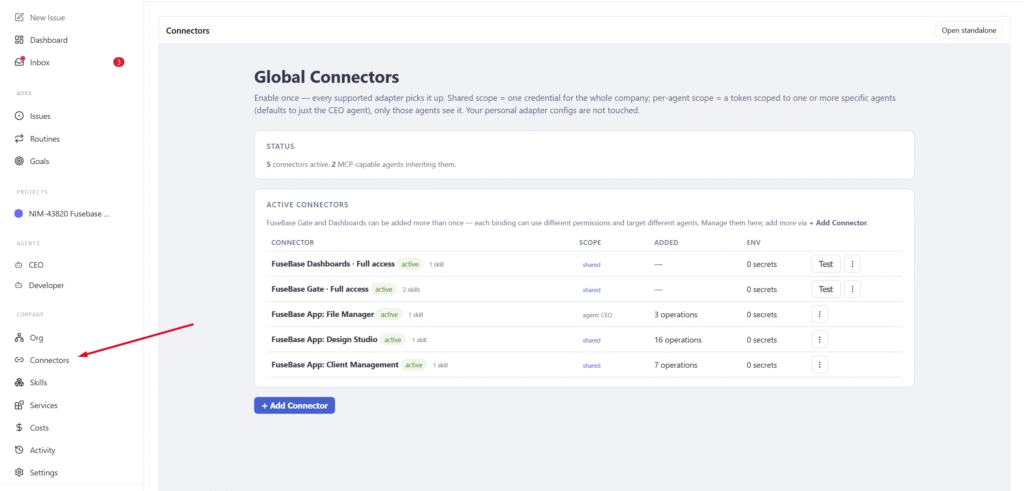
1) Go to your FuseBase Work and open the Connectors section.
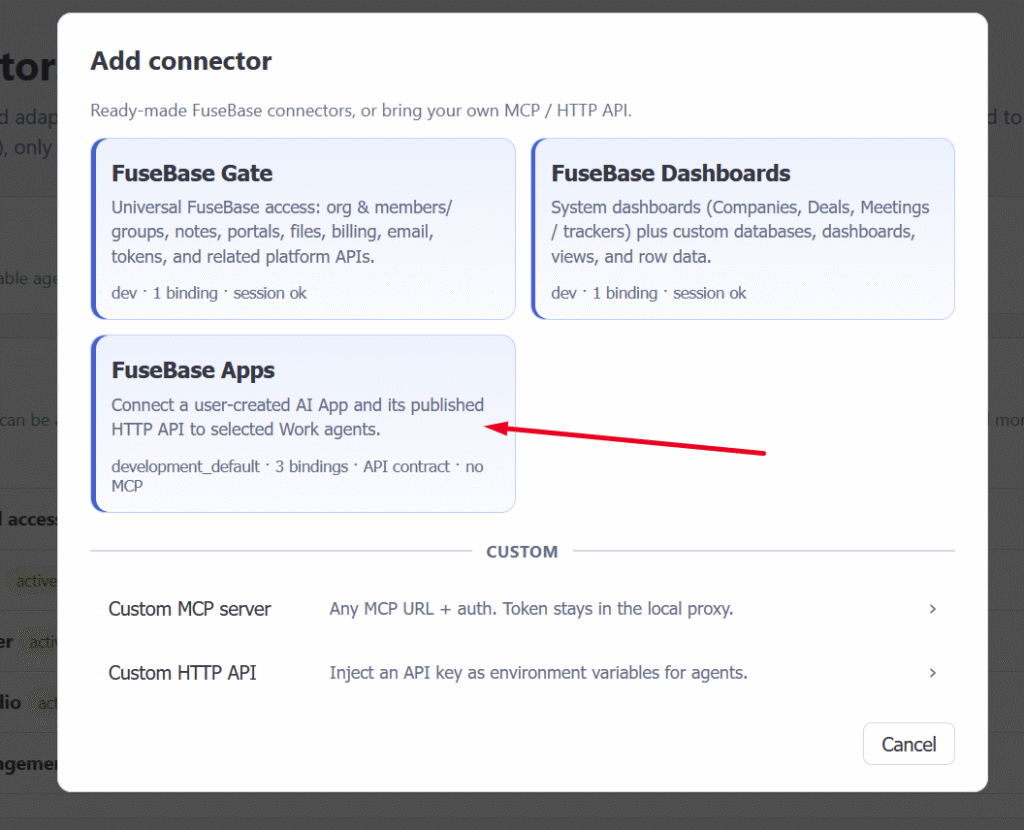
2) Click Add connector and select FuseBase Apps.
3) Choose the required app from the list.
It is important to note that only apps with an API can be connected. You can find more information on how to add an API to your app here — https://thefusebase.com/guides/fusebase-vibe-code/apps-that-work-together-quick-guide/
4) Select who will have access to it – all agents or specific ones.
How to use apps in FuseBase Work tasks
If you have added at least one app, then when creating a task you will see the Apps tab (it will appear after you select an agent in Assignee).
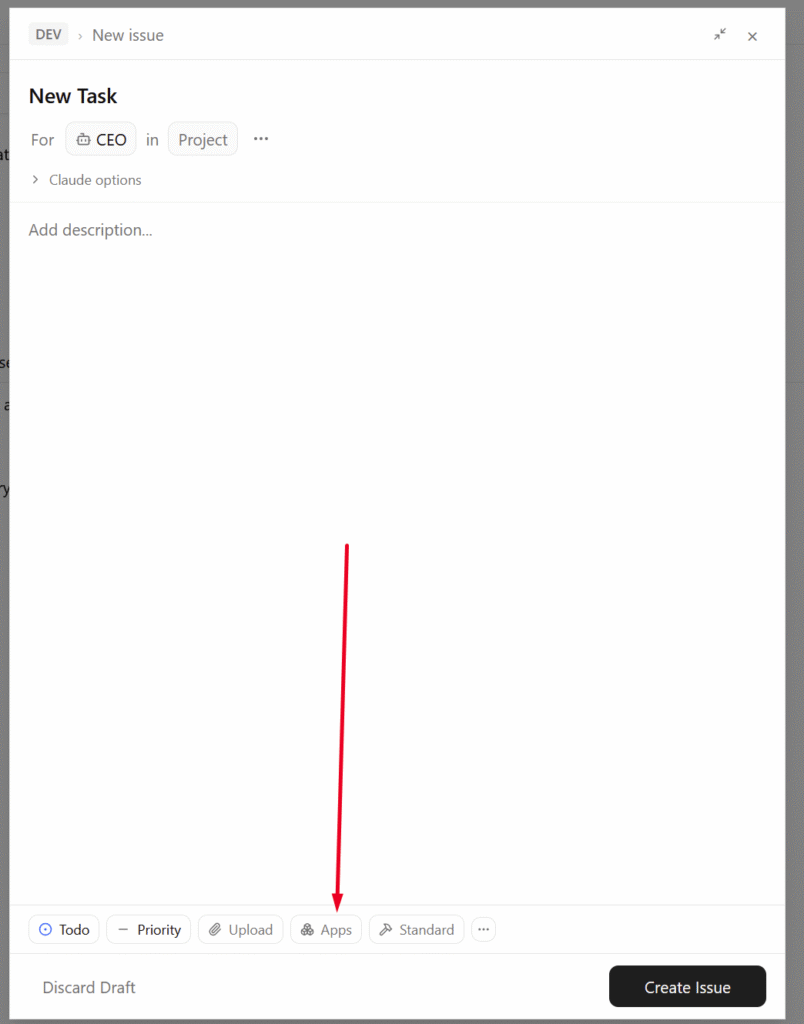
Next, you can select one or multiple apps, and they will be used in executing the task.
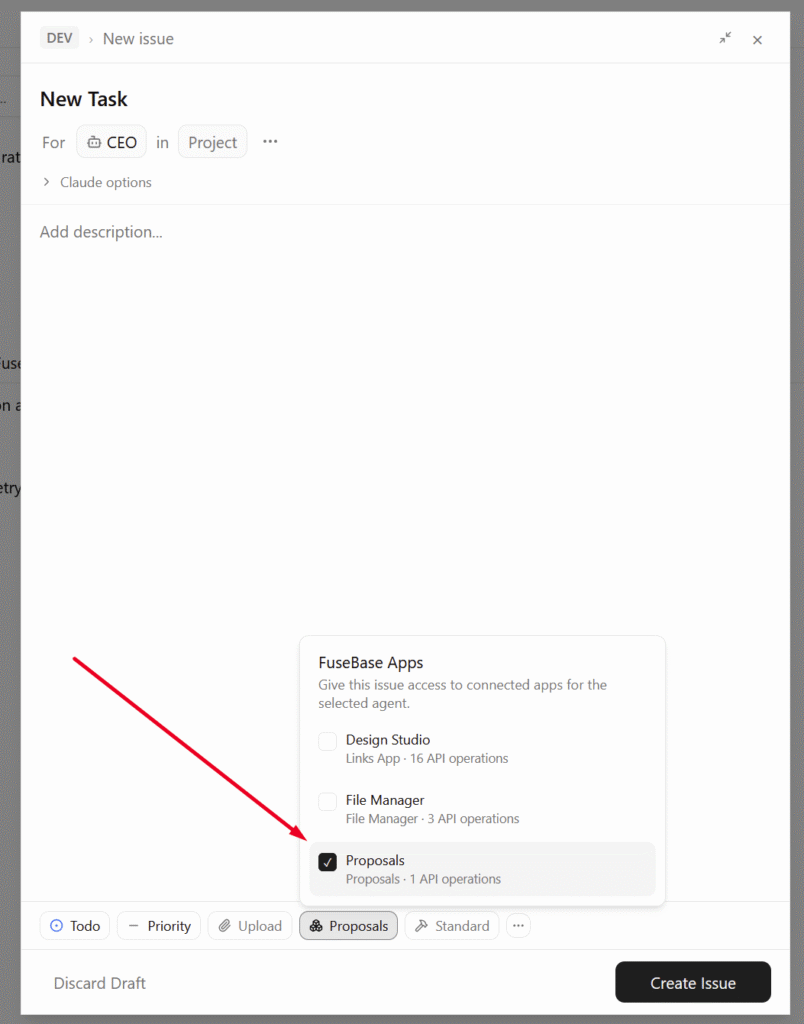
Next, you can simply specify in the task exactly what you need. For example – Create a proposal on the required topic with the specified data and send it to the client *.
Common use cases
Proposal App
Create proposals and let agents prepare and send them.
Example:
A Sales Agent collects client details, creates a proposal, adds pricing, sends it to the client, and updates the deal status.
Invoice or Billing App
Let agents create invoices, check payment status, and update related records.
Example:
A Finance Agent creates an invoice after a project is approved and follows up if payment is overdue.
Request App
Let agents collect files, forms, approvals, and confirmations.
Example:
A Client Success Agent starts a request, sends it to the client, checks what is missing, and follows up automatically.