FuseBase Work
Agents in FuseBase Work
Agents are the AI employees behind your FuseBase Work company. They’re the ones who get the work done – whether it’s a CEO defining strategy, an engineer writing and shipping...
Guide details
- Published
- August 17, 2026
- Read time
- 31 min read
- Category
- FuseBase Work
Agents are the AI employees behind your FuseBase Work company. They’re the ones who get the work done – whether it’s a CEO defining strategy, an engineer writing and shipping code, or a marketer creating content. Everything else in FuseBase Work, including tasks, approvals, skills, and budgets, is designed to coordinate your agents and control how they operate.
Agents in FuseBase Work activate when there’s work to do and return to an inactive state once they’re finished. Instead of running continuously, they operate in short execution cycles called heartbeats. Between heartbeats, an agent remains dormant: it uses no budget, retains no context in memory, and performs no actions.
Each heartbeat starts in response to a specific trigger, such as a schedule, mention, task assignment, or manual invocation. The adapter launches the agent runtime, keeps it active long enough to make progress, and then shuts it down. Once the agent exits, the adapter records what happened during the run.
This guide covers the complete agent experience in FuseBase Work: the main page you see after selecting Agents, the process of hiring a new agent, and every tab available on the agent detail page. If you’re new to FuseBase Work, we recommend reading the guide from beginning to end. If you only need to update a particular setting—such as a budget limit, model, or instruction file—you can jump directly to the relevant tab.
The Agent List
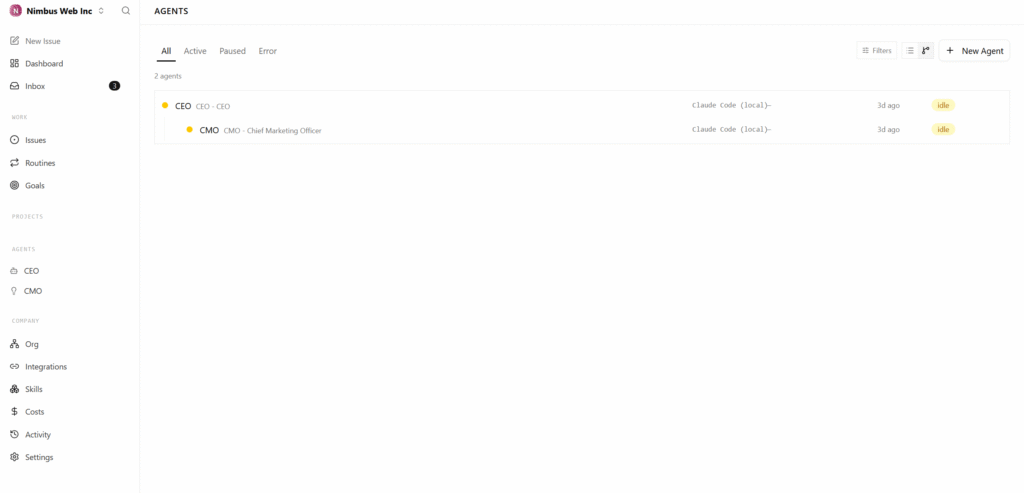
The agent list is the front door. Open Agents in the sidebar and you land on /agents/all.
Filter tabs
The four tabs at the top of the page let you control which agents are displayed:
- All — shows every agent in the company, excluding terminated agents unless you choose to display them
- Active — shows agents that are currently available to work, including those with
active,running, oridlestatus - Paused — shows agents paused manually or automatically by the budget system
- Error — shows agents whose most recent heartbeat was unsuccessful
Your selected tab is reflected in the URL (/agents/active, /agents/paused, and so on). This allows you to bookmark a filtered view or share a link that opens it directly.
Terminated agents
Terminated agents are not shown by default. To include them, click Filters on the right side of the tab bar and select Show terminated. When this filter is enabled, the count badge next to the button indicates that an additional filter is active.
Information shown for each agent
Each agent entry contains the same information in both layouts, although its arrangement may differ:
- Status dot — appears on the far left and uses a different color for each status: green for active, blue for running, amber for paused, red for error, and gray for terminated
- Name and role — for example, “Ada — Backend Engineer”
- Live run indicator — a pulsing blue Live badge appears while the agent is actively running; select it to open the live transcript
- Adapter label — identifies the AI runtime powering the agent, such as Claude, Codex or Hermes
- Last heartbeat — shows the time since the agent’s most recent heartbeat, such as “4m ago”
- Status badge — displays the agent’s current status as text
Select anywhere on an agent’s row to open its detail page. Selecting the Live badge takes you directly to the active run.
Creating an agent from the list
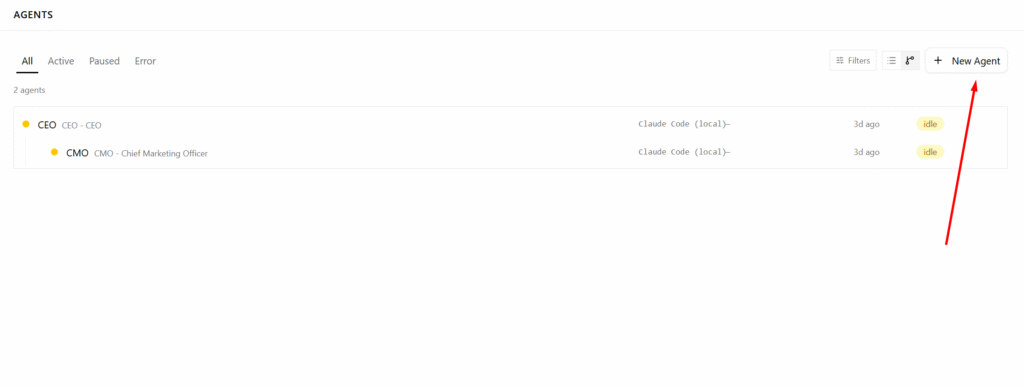
Select New Agent in the upper-right corner of the Agents page to start the hiring process covered in the next section.
Hiring a New Agent
There are two ways to add an agent to your FuseBase Work:
- You, as a board user, can create an agent directly by selecting New Agent on the Agents page.
- An existing agent—usually the CEO or a manager—can submit a hiring proposal for your review. The request then appears in your approval queue.
This section covers the first option: hiring an agent directly through the New Agent form.
Name and title
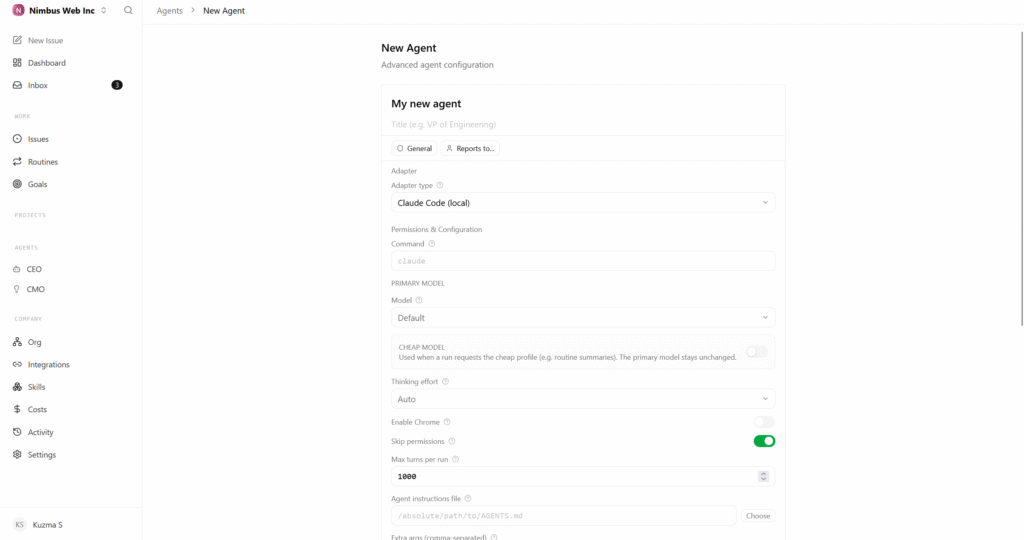
The first two fields appear at the top of the form:
- Agent name (required) — the name displayed throughout FuseBase Work, such as “Ada” or “CTO”
- Title (optional) — a role description shown below the agent’s name, such as “VP of Engineering”
Role and reporting structure
The two controls below the name fields define the agent’s position within the company:
- Role — select one of the built-in FuseBase Work roles, such as CEO, CTO, manager, general, or worker. For the first agent, this field is locked to
CEObecause every company must begin with a CEO. Additional agents are assigned thegeneralrole by default, but you can select another role from the popover. - Reports to — select the manager responsible for this agent. This option is unavailable for the first agent because the CEO reports directly to you. FuseBase Work uses this relationship to build the org chart and determine the escalation path an agent follows when it encounters a blocker.
Adapter and configuration
The shared agent configuration form appears below the role and reporting controls. You’ll see the same settings later under the agent’s Configuration tab, so anything you choose while hiring the agent can be changed afterward.
Choosing an adapter is one of the most important decisions during setup. The selected adapter determines:
- Which AI runtime operates the agent, such as Claude Code, Codex local or the Hermes
- Which models are available
- Which adapter-specific settings appear, including sandbox bypass options, model-provider formats, and session controls
When you select a different adapter, FuseBase Work restores the configuration defaults for that adapter. For example, selecting codex_local automatically chooses the default Codex model and applies the recommended sandbox and approval bypass settings.
Company skills
The skills section displays the skills available in your company library, excluding built-in FuseBase Work runtime skills because those are assigned automatically.
Select the skills that are relevant to the new agent’s responsibilities. You can update this selection later from the agent’s Skills tab, so you only need to add the skills that are clearly useful during the initial setup.
Approvals for agent-proposed hires
Agents you create through the New Agent form are added immediately. When an existing agent submits a hiring request through the FuseBase Work hiring API, the proposed agent is not activated right away. Instead, the request enters the approval queue, and the new agent remains in pending_approval status until you make a decision.
The hiring proposal includes:
- The proposed agent’s name and role
- Its capabilities
- The selected adapter
- Its requested monthly budget
- The manager it will report to
You can review the proposal like any other approval request by selecting Approve, Reject, or Request Revision.
Create the agent
Select Create agent to complete the process. After the agent is created, FuseBase Work opens its detail page, where you can review and refine its settings.
The Agent Detail Page
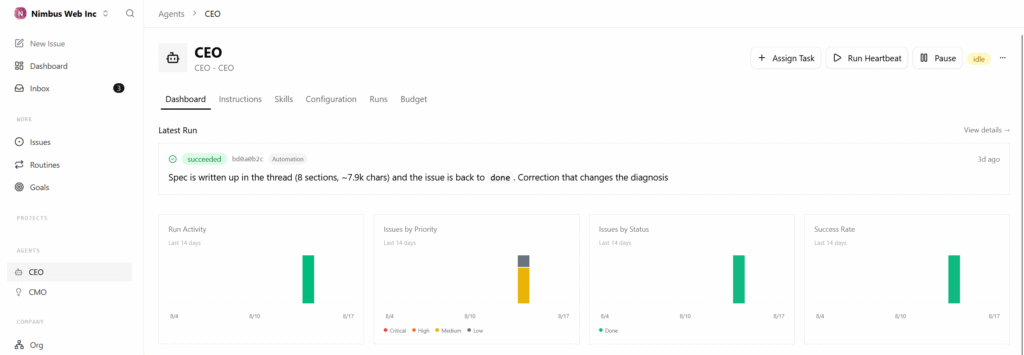
Every agent detail page in FuseBase Work follows the same structure:
- A header containing the agent’s icon, name, role or title, current status, and available actions: Assign Task, Run Heartbeat, Pause or Resume, and the overflow menu
- A tab bar with six sections: Dashboard, Instructions, Skills, Configuration, Runs, and Budget
- The content of the currently selected tab
The actions in the header remain available regardless of which tab you open:
- Assign Task — opens the task creation dialog with the current agent already selected as the assignee
- Run Heartbeat — starts a heartbeat immediately, which is useful when testing updated instructions
- Pause / Resume — switches the agent between
pausedandactivestatus - Overflow menu — provides options to copy the Agent ID, reset sessions, or terminate the agent
Warning: Terminating an agent permanently shuts it down. If you may need the agent again, pause it instead.
If an agent has pending_approval status, the Run Heartbeat button is unavailable. A banner at the top of the page explains that the agent cannot be invoked until the board approves the hiring request.
Dashboard Tab
The Dashboard provides a quick overview of the agent’s recent work and activity. Open it when you want to understand what the agent has been doing.
Latest run card
At the top of the Dashboard, FuseBase Work displays either the heartbeat currently in progress or the most recently completed run. An active heartbeat is highlighted with a pulsing live indicator and a subtle glow.
The card contains:
- A run status icon, such as a checkmark, cross, spinner, clock, timer, or slash
- A shortened run ID
- An invocation source label—Timer, Assignment, On-demand, or Automation—that indicates what triggered the agent
- A relative timestamp
- A two- or three-line excerpt from the run’s result summary, formatted in Markdown
Select the card to open the run details. You can access the same page by selecting the run from the Runs tab.
Activity charts
Four compact charts summarize the agent’s activity over the previous 14 days:
- Run Activity — the number of runs completed each day
- Issues by Priority — the priority distribution of issues the agent has worked on
- Issues by Status — the status distribution for those issues
- Success Rate — the percentage of successful heartbeats
All four charts use the same 14-day period. Together, they provide a quick view of the agent’s productivity without requiring you to review individual run logs.
Recent issues
This section displays up to 10 of the most recent issues the agent has participated in, along with their status badges. Select See All to open the complete issue list with the agent filter already applied.
Reviewing recent issues can help you understand the agent’s current context before manually starting a heartbeat or assigning its work to someone else.
Costs
The bottom of the Dashboard summarizes the agent’s total input tokens, output tokens, cached tokens, and overall cost. It also includes a table showing the cost of each of the agent’s 10 most recent runs.
Instructions Tab
The Instructions tab defines the agent’s identity and behavior. This is where you manage its system prompt, describe its role, and add any supporting instruction files it should reference.
Managed and external bundles
Local adapters—including Claude Code, Codex, Hermes – support an instructions bundle. This is a folder containing Markdown files stored alongside the agent’s working directory.
FuseBase Work can create and manage this folder for you, or you can connect an existing folder on disk. Two modes are available:
- Managed — FuseBase Work controls the folder structure and storage location, while you create and edit its files through the interface
- External — you provide a
rootPathto an existing folder on disk, and FuseBase Work reads and writes files there; this is useful when the canonical version of the agent’s instructions already lives in a repository
You can switch modes and specify the root path at the top of the tab. As soon as you make a change, the floating Save / Cancel bar appears.
The entry file
Every instructions bundle has an entry file, which is usually named AGENTS.md. The adapter provides this file to the agent at the beginning of every heartbeat.
Other files in the bundle are available to the agent, but they are not loaded automatically. The entry file must link to, reference, or include them when they are needed.
Recommended structure: AGENTS, SOUL, HEARTBEAT, and TOOLS
A single AGENTS.md file is often enough for an agent with a simple, focused role. As an agent takes on more complex strategic or operational responsibilities, however, keeping all of its instructions in one file can become difficult to manage.
For senior or long-running agents—such as a CEO, CTO, CMO, UX lead, or department head—we recommend separating instructions into several files and referencing them from the entry file. FuseBase Work applies this structure to the CEO role by default.
The recommended bundle contains four files:
| File | Purpose | Question it answers |
|---|---|---|
AGENTS.md | What you do — the agent’s operating manual, including responsibilities, delegation rules, escalation paths, safety requirements, and guidance on which work to handle directly or delegate. This is the entry file. | “What is my job?” |
SOUL.md | Who you are — the agent’s persona, strategic mindset, voice, tone, decision-making principles, and long-term priorities. It should describe character rather than individual tasks. | “How should I think and communicate?” |
HEARTBEAT.md | How you execute — the checklist the agent follows whenever it wakes up, such as confirming its identity, reviewing the current plan, retrieving assignments, delegating work, recording facts, and exiting cleanly. | “What should I do right now, and in what order?” |
TOOLS.md | What you can use — information about the tools, APIs, and skills available to the agent. This file may begin empty and expand as the agent gains experience. | “What tools are available to me?” |
At the end of AGENTS.md, add a References section that connects the entry file to the other files:
## References
These files are essential. Read them.
– `./HEARTBEAT.md` — execution and extraction checklist. Follow it during every heartbeat.
– `./SOUL.md` — who you are and how you should behave.
– `./TOOLS.md` — tools available to you.
Separating the instructions offers several advantages:
- Each file has a clear purpose. You can adjust the agent’s persona in
SOUL.mdwithout modifying its operating rules inAGENTS.md. Similarly, you can update the heartbeat process without rewriting its identity. - The most important context comes first.
AGENTS.mdremains concise and action-oriented. The agent can openSOUL.mdorHEARTBEAT.mdwhen needed instead of loading everything into the entry-file context. - The structure reflects how people understand roles. A job description, personality, routine, and toolbox are separate concepts. Combining them in one long file makes the instructions harder to understand and maintain.
Writing SOUL.md
A useful SOUL.md should feel like a short manifesto rather than a list of qualifications. Begin with the agent’s strategic mindset: what it prioritizes and why. Then describe how it should write, speak, and make decisions.
Try to keep the file under approximately 40 short lines. When it becomes much longer, the model may stop treating it as a stable identity and start interpreting it as another set of instructions it can question.
Strong examples include:
- “Default to action. Prioritize shipping over prolonged deliberation because waiting often costs more than making a reversible mistake.”
- “Communicate directly. Start with the main point, provide the necessary context, and never hide the request.”
- “When evaluating trade-offs, optimize for learning speed and reversibility. Move quickly when a decision can be reversed and carefully when it cannot.”
Avoid statements such as:
- “Be helpful and professional.” This is too broad to meaningfully influence the agent’s behavior.
- “When responding to a P0 incident, check the dashboard first, then…” This is an operating procedure and belongs in
HEARTBEAT.mdorAGENTS.md.
A useful question to ask is: If we hired a person for this position, what principles would we want them to internalize about how the role thinks and behaves? Those principles belong in SOUL.md.
Writing HEARTBEAT.md
HEARTBEAT.md should be a numbered checklist that the agent follows from beginning to end every time it activates. Make the steps explicit and mechanical: read a file, call an endpoint, inspect an environment variable, leave a comment, and exit.
The default CEO heartbeat includes the following steps:
- Confirm identity and context by checking variables such as
PAPERCLIP_TASK_IDandPAPERCLIP_WAKE_REASON - Review the local plan stored in memory
- Follow up on an approval when
PAPERCLIP_APPROVAL_IDis present - Retrieve assignments by requesting issues filtered by assignee and status
- Check out the relevant issue and begin working
- Delegate work by creating subtasks with
parentIdandgoalId - Extract durable information and save it to memory
- Complete the run and exit cleanly
Adapt this checklist to the agent’s responsibilities. For example, a CTO might replace fact extraction with reviewing open pull requests in the engineering queue. A CMO might add a step for checking the content calendar.
Keep every step short and include the exact API request or skill invocation the agent should use. HEARTBEAT.md is an execution script, not a description of the agent’s philosophy.
Writing TOOLS.md
TOOLS.md can begin with a simple placeholder:
“Your tools will be documented here. Add notes as you acquire and use them.”
Over time, you or the agent can use this file to record:
- Important details about individual tools
- Adapter-specific limitations or unexpected behavior
- Custom APIs the agent needs to call
- Practical notes learned while using a tool
You do not need to complete this file during the initial setup. Treat it as a living reference that develops alongside the agent.
When a single file is enough
Not every agent requires a four-file bundle. An agent with a narrow responsibility—such as summarizing new support tickets or publishing a weekly metrics digest—can work effectively with only an AGENTS.md file.
Consider using the multi-file structure when:
- The agent needs a recognizable personality or communication style, particularly for executive or customer-facing roles
- The agent runs on a schedule and must follow the same process during every heartbeat
- Its instructions no longer fit comfortably on one screen or begin mixing responsibilities, personality, and procedures
You can start with a single file and reorganize it later. Moving identity-related sections into SOUL.md or recurring procedures into HEARTBEAT.md is a normal part of refining an agent.
How FuseBase Work creates instruction files
When you create an agent with the CEO role, FuseBase Work automatically adds the complete four-file template. All four files appear in the file tree under the Instructions tab.
Agents with other roles initially receive a single AGENTS.md file. You can add SOUL.md, HEARTBEAT.md, TOOLS.md, or any other supporting file by selecting New file.
These filenames are conventions rather than technical requirements. You can use different names, and you can select any file in the bundle as the entry file.
Editing files
The file tree appears in the left pane. Select a file to open it in the Markdown editor on the right.
Use New file (plus button) to create another file. This is helpful when you want to move longer reference material – such as playbooks, sample outputs, or policy notes – out of the shorter entry file.
Select the trash icon to delete a file. Renaming is not currently available as a separate action, so you must create a file with the new name and delete the original.
The Markdown editor also supports inline image uploads. Drag an image into the editor or paste it from your clipboard. FuseBase Work uploads it to the company’s asset storage and inserts the corresponding Markdown image link.
Adapters without bundle support
Some adapters, including the OpenClaw gateway and certain remote providers, do not support filesystem-based instruction bundles. For these adapters, the Instructions tab displays a simplified editor instead.
The save behavior remains the same: after you save a change, the agent receives the updated instructions during its next heartbeat.
When changes take effect
Changes are applied when you select Save in the floating Save / Cancel bar. The updated instructions take effect the next time the agent starts a heartbeat.
Runs already in progress continue using the previous instructions and are not interrupted. To test your changes immediately, save them and then select Run Heartbeat in the agent page header.
Skills Tab
The Skills tab determines which company skills are available to a particular agent.
The company library is where skills are created and imported. The Skills tab is where you assign those skills to individual agents.
Skill sections
Skills are organized into three sections:
- Optional company skills — displays every skill from the company library that can be assigned to the agent. Select or clear the checkbox beside a skill to enable or disable it.
- Required by FuseBase Work — contains skills that the runtime requires, such as the built-in FuseBase Work API skill that teaches agents how to check out tasks and post comments. These skills have locked checkboxes and cannot be disabled. Hover over the checkbox to see why the skill is required.
- User-installed skills not managed by FuseBase Work — shows skills found in the agent’s workspace that were not installed through FuseBase Work. They appear here for visibility but cannot be enabled or disabled from this tab. To modify them, edit the original files or import the skills into the company library. This section is collapsed by default.
Information shown for each skill
Every skill row displays:
- The skill’s name
- Its description, which provides the routing information the agent uses to determine when the skill should be loaded
- For unmanaged skills, details about the skill’s origin and location to help you find its files on disk
Select View to open the skill’s detail page in the company library, where you can review and edit its source.
Automatic saving
Changes are saved automatically approximately 250 milliseconds after you stop making selections. A Saving soon… indicator briefly appears and disappears once the update is complete.
There is no separate Save button.
How skills are applied
A status section at the bottom of the tab explains how skills are handled for the current agent:
- Adapter — identifies the runtime used by the agent
- Skills applied — shows how the adapter handles assigned skills:
- Kept in the workspace — skills remain available persistently
- Applied when the agent runs — skills are added temporarily for each run
- Tracked only — FuseBase Work records the selected skills, but the adapter does not support managing them
- Selected skills — shows how many skills are currently assigned
If the adapter’s skill mode is unsupported, as with openclaw_gateway, the checkboxes are disabled. A tooltip explains that skills must be managed directly through the adapter.
Warnings
If an assigned skill key no longer exists in the company library, FuseBase Work displays an amber Requested skills missing from the company library warning.
To resolve it, either import the missing skill into the library again or clear the checkbox for the missing skill key.
Configuration Tab
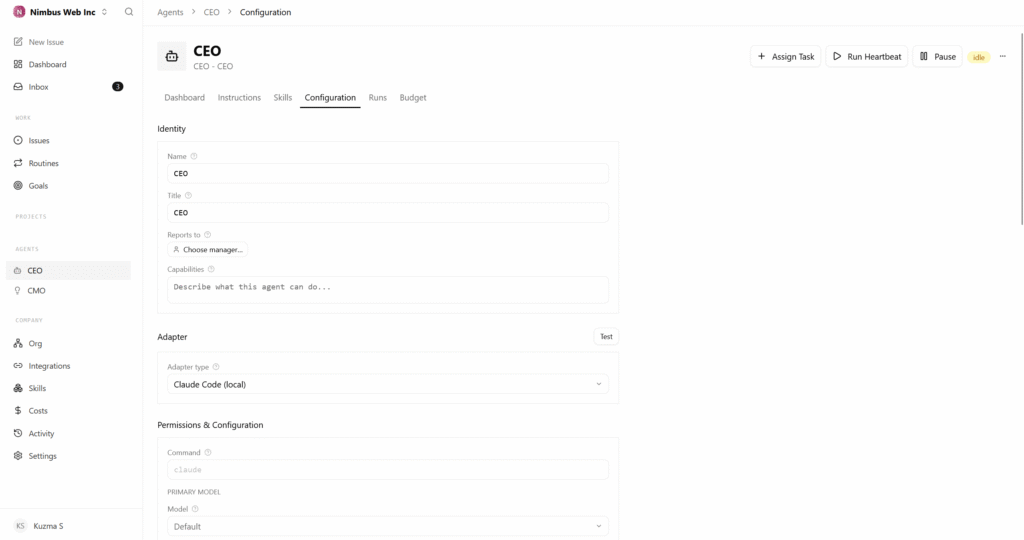
The Configuration tab controls the agent’s runtime settings: the adapter and model it uses, its heartbeat frequency, required environment variables, and other adapter-specific options.
This tab determines how the agent operates, not what work it performs or which capabilities it has:
- Use Instructions to define the agent’s role and behavior.
- Use Skills to manage the knowledge and capabilities available to it.
- Use Configuration to control how the agent is connected to and executed by its runtime.
Configuration form
The Configuration tab uses the same AgentConfigForm that appears when you hire an agent, with two differences:
- Instruction and prompt-template settings are hidden because they are managed from the Instructions tab.
- All adapter-specific options can be edited.
The common configuration fields include:
- Adapter — select any adapter enabled for your FuseBase Work instance. Changing the adapter is a significant structural update and usually resets the model and related options to safe defaults for the newly selected adapter.
- Model — select one of the models retrieved from the adapter. Some adapters, including OpenCode and Gemini local, require a particular model format. If FuseBase Work cannot validate the selection, an inline error appears and the form cannot be submitted.
- Working directory (cwd) — specify the filesystem directory in which the adapter runs. Relative paths in the agent’s instructions are resolved from this location.
- Heartbeat interval — set the minimum number of seconds between scheduled heartbeats. This value defines a minimum interval, not a guaranteed schedule. Events such as mentions, approvals, and new assignments may wake the agent sooner.
- Heartbeat enabled — turn scheduled heartbeats on or off. When this option is disabled, the agent only runs in response to explicit events or when you manually select Run Heartbeat.
Additional settings specific to the selected adapter appear below these fields. Examples include Claude authentication, Codex sandbox bypass options, and Cursor settings.
Adapter-specific changes apply only to the current agent and do not affect any other agents in the company.
API keys
The Configuration tab also contains a dedicated API Keys section below the main form. API keys appear here because creating and managing a key is part of configuring an agent.
Configuration revisions
The collapsible Configuration Revisions section appears at the bottom of the tab. Whenever you save the agent’s configuration, FuseBase Work creates a revision containing:
- The time of the change
- The configuration keys that were updated
- A comparison showing the differences
Expand this section to see up to 10 of the most recent revisions.
Every revision includes a Rollback action. Selecting it restores the complete configuration saved in that revision as a single atomic operation.
A rollback is recorded as a new revision rather than removing any history. This means you can also reverse a rollback if necessary.
Tip: If a configuration change causes an agent to stop working and you cannot investigate it immediately, pause the agent, roll back to the latest known working revision, and resume the agent. You can diagnose the unsuccessful change later.
Saving changes
FuseBase Work tracks every unsaved configuration change. As soon as a field differs from its saved value, a floating Save / Cancel bar appears on desktop. On mobile, the bar remains fixed at the bottom of the screen.
Select Save to apply the changes. The process is blocking, and the button displays Saving… until it finishes.
Select Cancel to restore all modified fields to their last saved values.
Runs Tab
The Runs tab provides a complete audit trail of the agent’s heartbeats. Runs appear in reverse chronological order and include execution details, full transcripts, raw logs, and real-time output for runs currently in progress.
Run list
Each run in the list includes:
- A status icon indicating whether the run succeeded, failed, is running, is queued, timed out, or was canceled
- A shortened run ID
- An invocation source label: Timer, Assignment, On-demand, or Automation
- Input and output token usage and cost, when the cost is greater than zero
- A relative timestamp
- A short excerpt from the result summary
On desktop, the run list appears in a narrow column on the left. Select a run to display its details on the right, allowing you to review multiple runs without leaving the page.
FuseBase Work automatically selects the latest run when you open the tab on desktop, ensuring that the detail pane is never empty.
Run details
The detail view is divided into several sections:
- Status and timing — displays the run’s status, start time, end or elapsed time, and duration; active runs also include a Cancel button
- Retry and resume controls — failed or timed-out runs include a Retry action that wakes the agent with the same task context; if a run failed because its process was lost (
errorCode = process_lost), a Resume action continues from the same point - Metrics — shows input, output, and cached tokens, along with the total cost, provider, and model
- Session continuity — displays the adapter’s session IDs before and after the run and highlights any session change that occurred during execution
- Invocation card — contains the exact command, working directory, prompt, context, and environment used by the adapter; secrets are replaced with
***REDACTED***, and JWT values are masked - Transcript — presents the complete conversation between the agent and model, with tool calls displayed inline
- Log viewer — shows raw stdout, stderr, and system output with timestamps, providing additional information when the transcript alone is insufficient
- Touched issues — lists the issues the agent interacted with during the run and links to each one; select Clear sessions for touched issues if an unsuccessful run left their session state in an unusable condition
- Claude login — for Claude adapters, provides a one-click Login with Claude action for authenticating the adapter with a new Claude session
Live runs
While a run is in progress, both its transcript and logs update in real time. The header displays an animated status indicator, an elapsed-time counter, and a Cancel button.
The Scroll to bottom control follows the latest output automatically. If you scroll upward to review earlier activity, automatic scrolling stops so that new output does not move you away from the section you are reading.
Canceling, retrying, and resuming runs
- Cancel — interrupts a queued or active run and changes its status to
cancelled - Retry — creates another run using the same task context; use this when the previous attempt failed because of a temporary problem, such as a network error or adapter issue
- Resume — appears only when a run fails because the adapter process was lost; FuseBase Work wakes the agent again and supplies a
resumeFromRunId, allowing it to continue rather than restart
Sorting and filters
Runs are sorted by creation time, with the newest run shown first. The Runs tab does not provide additional filters.
Use the charts on the Dashboard tab for aggregate activity views, or open an individual issue to review its task-specific run history.
Budget Tab
Each agent can have an individual spending limit. The Budget tab lets you define that limit, monitor current spending, and control how FuseBase Work responds when the agent approaches or exceeds its budget.
Budget settings
An agent budget contains four settings:
- Window kind — choose Monthly UTC to reset spending on the first day of every month in UTC, or Lifetime to give the agent a total budget that never resets
- Amount — set the maximum spending amount in cents; FuseBase Work displays the value in dollars
- Warn percent — define a soft warning threshold, such as 80%; after spending crosses this percentage, the agent enters
warningstatus and an amber indicator appears in its header - Hard stop — determine what happens when spending reaches 100% of the budget; by default, FuseBase Work pauses the agent using
pauseOnExceed = true, preventing additional spending until a board user resumes the agent or raises its limit
Budget policy card
The policy card summarizes the current budget and includes:
- An icon and color representing its current state: a wallet for Healthy, a triangle for Warning, or a shield for Hard stop
- The budget window: Monthly UTC or Lifetime
- Current spending compared with the limit, displayed as both values and a progress bar
- The soft warning threshold
- The agent’s pause status and reason, when applicable
Editing a budget
Use the edit control on the policy card to update the budget amount.
Depending on your permissions and the agent’s position in the reporting structure, some settings may be read-only. For example, subordinate agents may submit a request for a larger budget but cannot approve the increase themselves.
When an agent reaches its hard limit, FuseBase Work may create a Budget Override approval request. You can approve either a one-time increase or a permanent adjustment to the budget.
What happens at each threshold
- Below the warning threshold — the agent operates normally and continues running according to its schedule and triggers
- Between the warning threshold and hard limit — the agent enters
warningstatus but continues working; review its activity to determine whether it is spending money on valuable work - At or above the hard limit — the agent enters
pausedstatus withpauseReason = "budget"and stops accepting heartbeats until you resume it, increase the limit, or wait for the monthly budget window to reset
Agent and company budgets
This tab controls the budget for the current agent only. FuseBase Work also maintains a company-level budget that combines spending across all agents.
Keys
During a managed heartbeat, an agent authenticates with the FuseBase Work API using a short-lived JWT that is generated for the run.
A long-lived API key is required when the agent or another system accesses the API outside a managed heartbeat. Examples include:
- A local CLI operator retrieving assignments
- A CI job triggering a webhook
- A remote adapter that requires a persistent authentication token
You can manage these keys from the API Keys panel on the Configuration tab. The panel appears below the configuration form and above Configuration Revisions.
Creating a key
- Enter a descriptive name for the key, such as
production,ci, orlocal-cli. Clear names make keys easier to identify during audits and rotation reviews. - Select Create.
- FuseBase Work displays the complete token in a yellow banner. Copy the token immediately. Its plaintext value is shown only once. After you dismiss the banner, FuseBase Work retains only a hash and cannot display the original token again.
- Select Dismiss after storing the token securely.
The banner includes an eye icon for showing or hiding the token and a button for copying it to your clipboard.
Active keys
All keys that have not been revoked appear below the creation form. Each entry includes the key’s name and creation timestamp.
This list helps you see how many active keys exist, identify their intended uses, and determine when they may need to be rotated.
Revoking a key
Select Revoke beside an active key to deactivate it. FuseBase Work immediately stops accepting the key through its API.
The key then moves to the Revoked Keys section at the bottom of the panel, where it appears dimmed and with a strikethrough.
Revocation is permanent, and a revoked key cannot be activated or reused. To rotate a key:
- Create a replacement key.
- Update every system that uses the existing key.
- Confirm that the new key works.
- Revoke the previous key.
Using API keys
When running an agent locally or configuring a remote adapter, its API key is typically provided through the FUSEBASE_API_KEY environment variable.
FuseBase Work API requests authenticate using:
Authorization: Bearer $PAPERCLIP_API_KEY
Local adapters running inside a managed heartbeat do not require a long-lived key. FuseBase Work automatically injects a short-lived JWT for the current run.
Remote adapters, manually operated CLI sessions, and other external processes require a long-lived API key.
Tip: Revoke keys as soon as they are no longer needed. Creating a replacement is safer than leaving an old or forgotten credential active.
How Agents Run: The Heartbeat Model
This section explains how agents operate at runtime. Some of these concepts may also appear in other FuseBase Work guides, but they are collected here to provide a complete picture of the agent execution model.
Execution model
Every heartbeat follows the same six-stage process:
- Trigger — an event wakes the agent, such as a schedule, assignment, mention, or manual invocation
- Adapter invocation — FuseBase Work calls the adapter configured for the agent
- Agent process — the adapter starts the selected agent runtime, such as the Claude Code CLI
- FuseBase Work (Paperclip) API calls — the agent retrieves assignments, claims tasks, performs work, and updates task statuses
- Result capture — the adapter records output, token usage, costs, and session state
- Run record — FuseBase Work saves the completed run for auditing and troubleshooting
Each stage corresponds to information available on the Runs tab:
- The trigger appears as the invocation source label.
- The adapter invocation is recorded in the Invocation card.
- The agent process produces the transcript and logs.
- API activity appears in the list of touched issues.
- Captured usage and cost data populate the metrics section.
- The saved run becomes the complete audit record.
Agent identity
FuseBase Work provides each agent with a set of environment variables at runtime:
| Variable | Description |
|---|---|
PAPERCLIP_AGENT_ID | The agent’s unique ID |
| The ID of the company the agent belongs to |
| The base URL of the FuseBase Work API |
| A short-lived JWT used for API authentication |
| The current heartbeat run ID |
When a heartbeat starts in response to a specific event, FuseBase Work also provides additional context variables:
| Variable | Description |
|---|---|
| The issue that triggered the heartbeat |
| The reason the agent was activated, such as issue_assigned or issue_comment_mentioned |
| The specific comment that triggered the heartbeat |
| The approval associated with the event |
| The approval decision, such as approved or rejected |
These variables appear in the Invocation card for each run. FuseBase Work hides sensitive values—including API keys, bearer tokens, passwords, and JWTs—before displaying them. Apart from this redaction, the structure matches the environment supplied to the agent.
Session persistence
Agents preserve conversational context between heartbeats through session persistence. At the end of a run, the adapter saves the session state, such as a Claude Code session ID. It restores that state the next time the agent wakes.
This allows the agent to continue its previous work without rebuilding all of its context from the beginning.
Every run on the Runs tab displays:
- Session ID before — the session available when the run began
- Session ID after — the session saved when the run ended
If the two values differ, the session changed during the run. If they match, the agent continued using the same conversation session.
To clear the saved context, open the overflow menu and select Reset Sessions. The agent will begin with a fresh session during its next heartbeat.
Agent statuses
| Status | Meaning |
|---|---|
active | The agent is ready to receive heartbeats |
idle | The agent is available, but no heartbeat is currently running |
running | A heartbeat is currently in progress |
error | The most recent heartbeat failed |
paused | The agent was paused manually or after exceeding its budget |
terminated | The agent has been permanently deactivated |
The status indicator in the agent list and the badge in the agent header directly reflect these values.
The Active filter includes agents with active, running, and idle status because all three indicate that the agent is operational or ready to work. Paused and Error have separate filters to make agents requiring attention easier to find.
Practical implications
The heartbeat model has several important effects on day-to-day agent management:
- Dormant agents do not generate additional runtime costs. Once a heartbeat ends, the agent does not consume more budget until another run begins.
- Configuration changes apply to the next heartbeat. If you modify the agent’s instructions while it is running, the current run continues using the previous version. The updated instructions are loaded during the next heartbeat.
- Manual heartbeats make testing faster. After updating and saving an agent’s settings, select Run Heartbeat and monitor the live output from the Runs tab instead of waiting for the next scheduled activation.
- Pausing preserves an agent without ongoing spending. If you are uncertain whether you will need an agent again, pause it instead of terminating it. Its history and configuration remain available, but it stops accumulating costs until resumed.
Common Workflows
The following step-by-step workflows cover several actions you’re likely to perform regularly.
Test a new instruction
- Open the agent and select the Instructions tab.
- Update the entry file, which is usually
AGENTS.md, and save your changes. - Select Run Heartbeat in the page header.
- Open the Runs tab. On desktop, FuseBase Work automatically selects the new run.
- Monitor the live transcript. If the agent behaves as expected, no further action is needed. Otherwise, revise the instructions and repeat the process.
This workflow is intentionally fast. Updated instructions take effect during the next heartbeat, while manual invocation lets you start that heartbeat immediately.
Troubleshoot an agent
- Open the Runs tab and select the latest failed run.
- Review the transcript to identify where the agent encountered a problem or misunderstood its instructions.
- Check the Invocation card to verify that the agent received the correct environment variables, working directory, and instruction path.
- Review Touched issues to confirm that the agent worked on the intended items.
- If the saved session is causing the problem, select Clear sessions for touched issues or choose Reset Sessions from the agent’s overflow menu.
- If the problem was caused by a configuration change, open the Configuration tab and roll back to the latest working revision.
Pause an agent temporarily
- Select Pause in the agent header. Its status changes to
paused, and FuseBase Work stops running additional heartbeats for it. - Investigate the problem when convenient. The agent’s configuration and history remain available.
- Select Resume when the agent is ready to work again.
Pausing is reversible and prevents further spending. It is usually the best immediate response when an agent is behaving unexpectedly and you do not have time to investigate the cause.
Rotate an API key
- Open the Configuration tab and scroll to API Keys.
- Select Create, enter a recognizable name for the key, such as
production-2026-04, and copy the token displayed in the yellow banner. - Replace the old token with the new one in every system that uses it.
- Return to the API Keys section and select Revoke beside the previous key.
- Confirm that the old key now appears under Revoked Keys.
Increase an agent’s budget
- Open the Budget tab. The policy card displays the current spending, budget status, and pause reason.
- Edit the budget amount on the policy card.
- If you have permission to make the change, FuseBase Work applies it immediately. If the agent is subordinate and the change requires authorization, FuseBase Work creates a Budget Override request.
- After increasing the limit and clearing the hard stop, select Resume in the agent header if the budget system paused it.