FuseBase Work
How to connect Asana to FuseBase Work (example of a third-party MCP integration)
In this guide, we’ll show you how to connect a third-party service to FuseBase Work, using Asana as an example. 1) To get started, create an application for authorization in...
Guide details
- Published
- August 11, 2026
- Read time
- 2 min read
- Category
- FuseBase Work
In this guide, we’ll show you how to connect a third-party service to FuseBase Work, using Asana as an example.
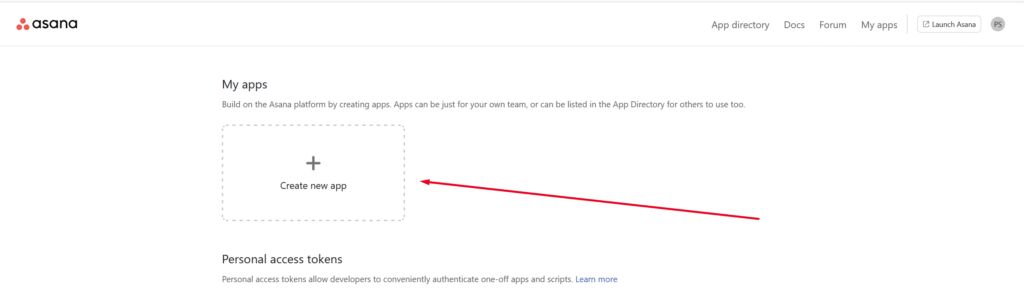
1) To get started, create an application for authorization in Asana. To do this, go to the My Apps page, typically located at: https://app.asana.com/0/my-apps
2) Create a new app –
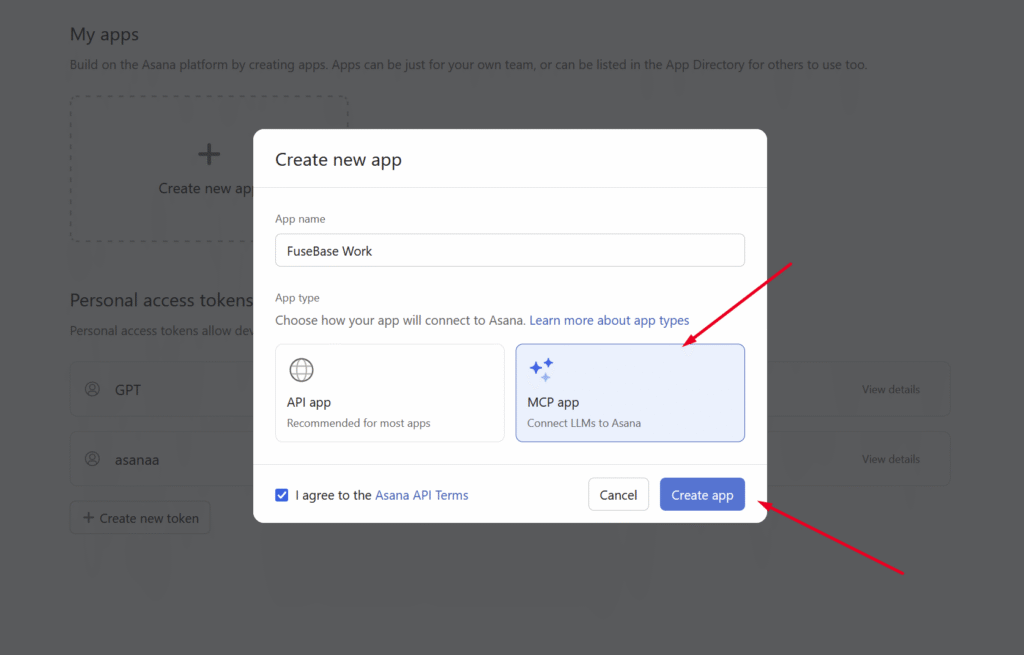
3) Select the app type MCP and click Create App. You will be taken to the app settings. Do not close this tab.
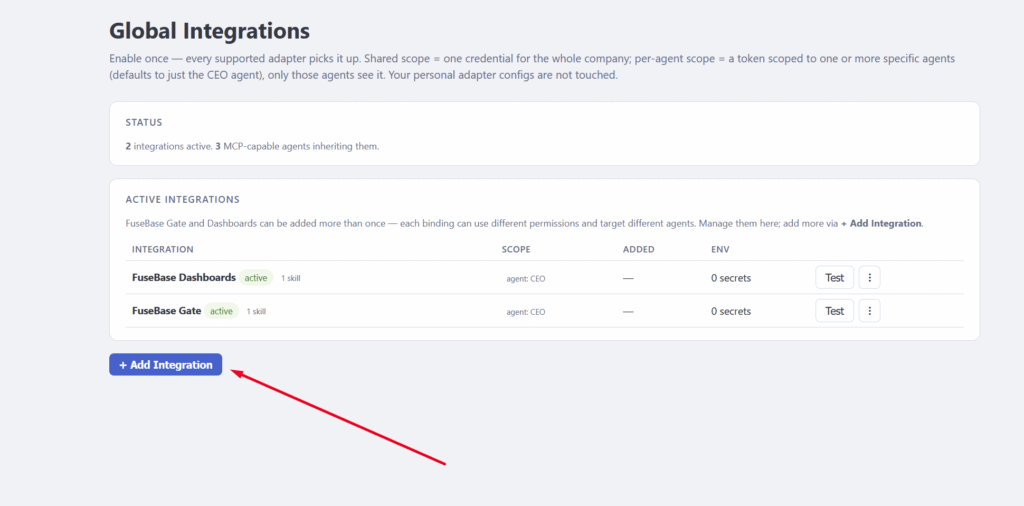
4) Next, in another tab, go to the Integrations section in FuseBase Work and click Add Integration –
5) Select Custom MCP Server –
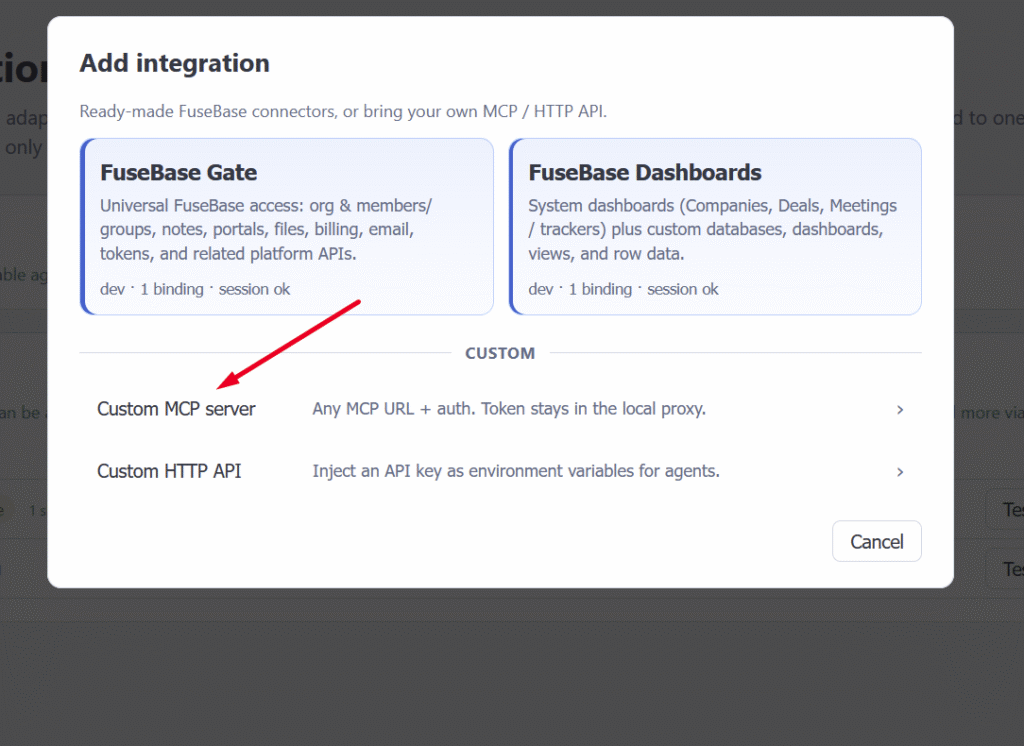
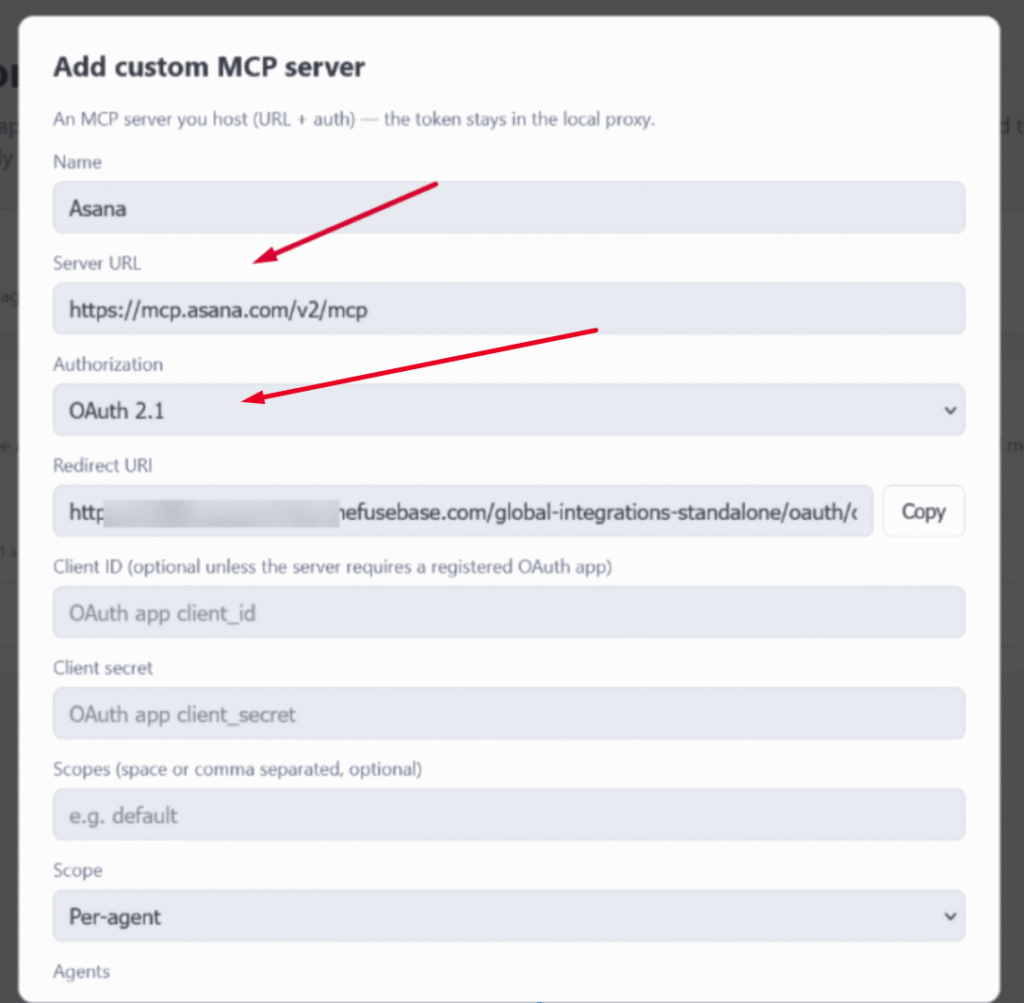
6) In the dialog that appears, specify the integration name and the MCP server URL — https://mcp.asana.com/v2/mcp This is the standard MCP URL for Asana. Set the authentication type to OAuth 2.1.
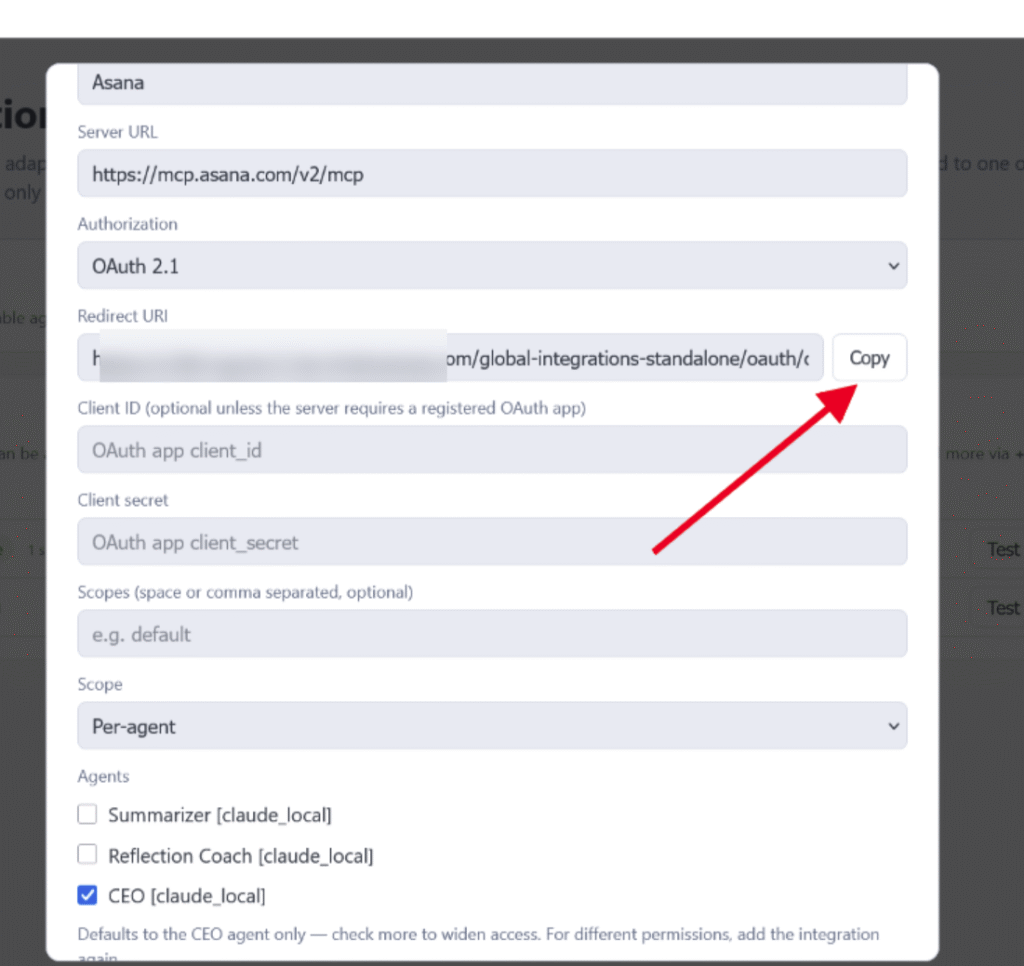
7) Click Copy next to the Redirect URL.
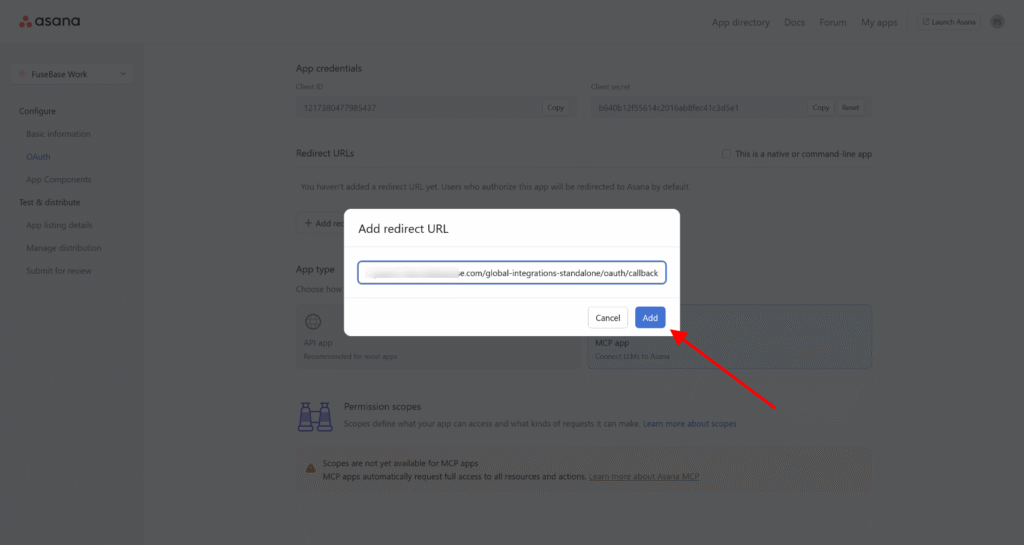
8) Then return to the Asana app settings and open the OAuth section. Click Add Redirect URL and paste the link you copied in FuseBase Work. Please remember to save your changes.
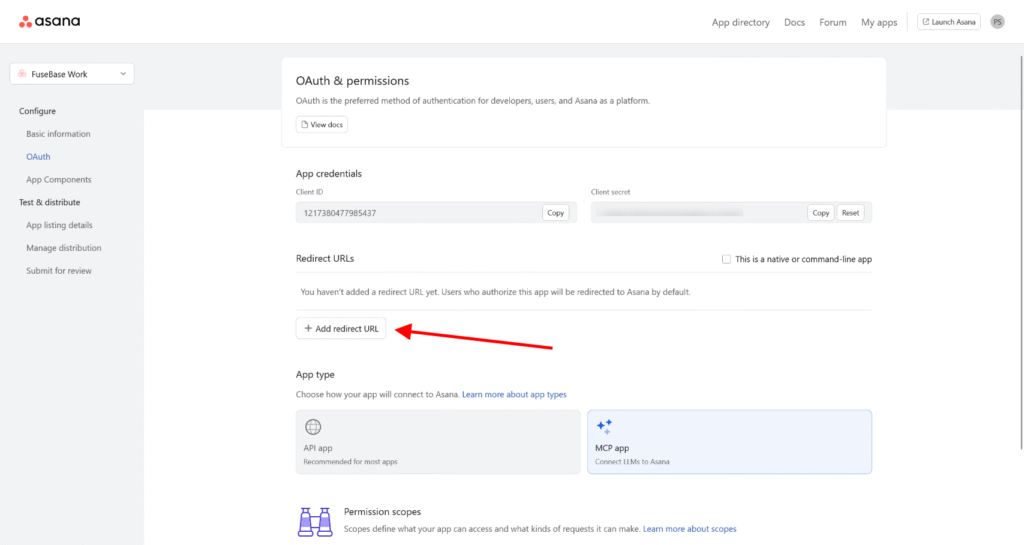
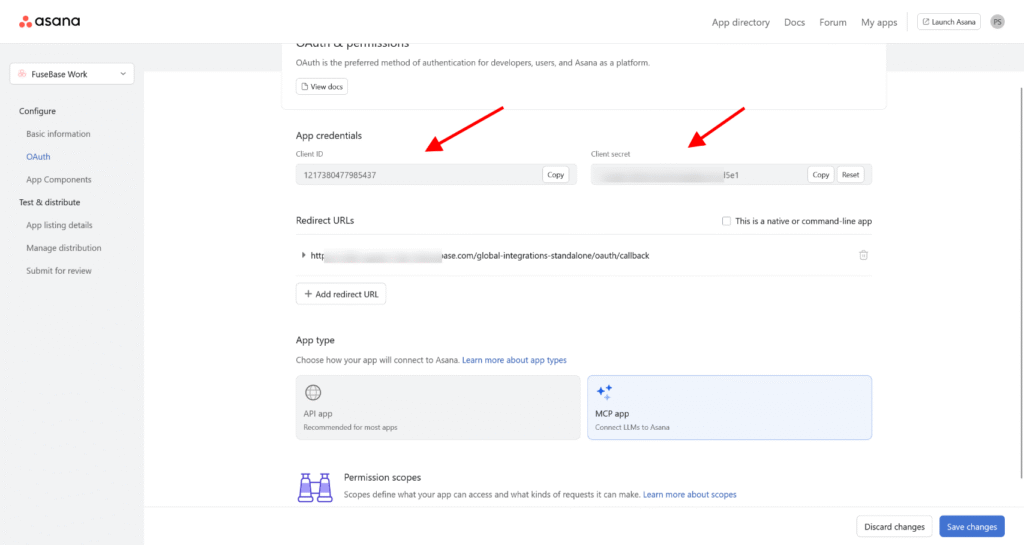
9) Next, copy the Client ID and Client Secret one by one and paste them into the corresponding fields in FuseBase Work.
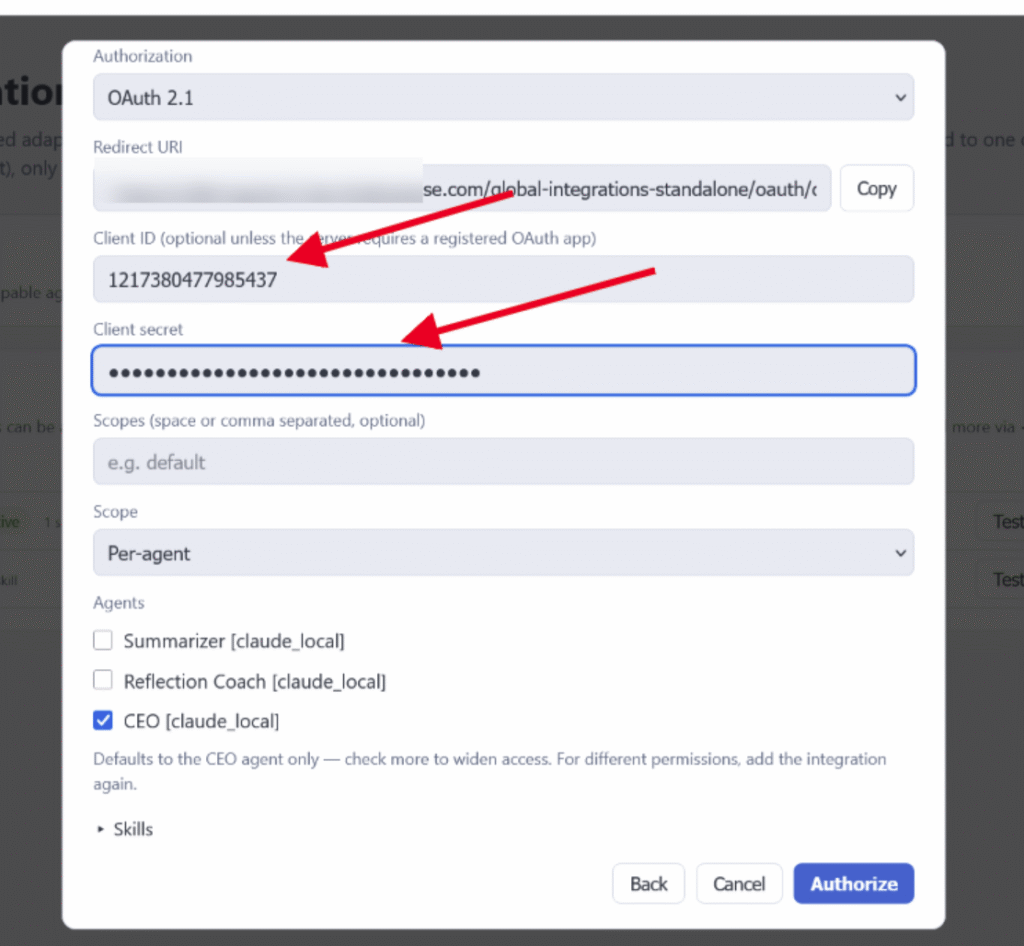
10) Next, click Authorize and grant access to Asana.
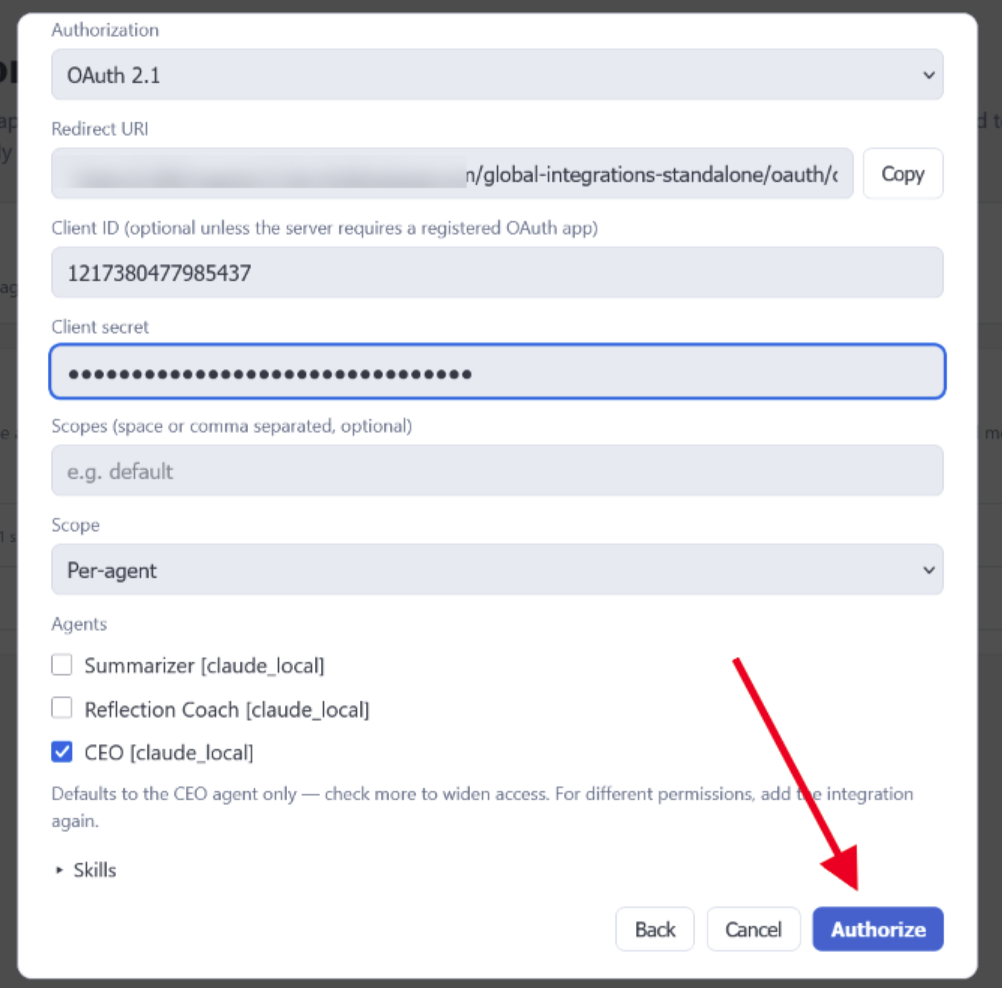
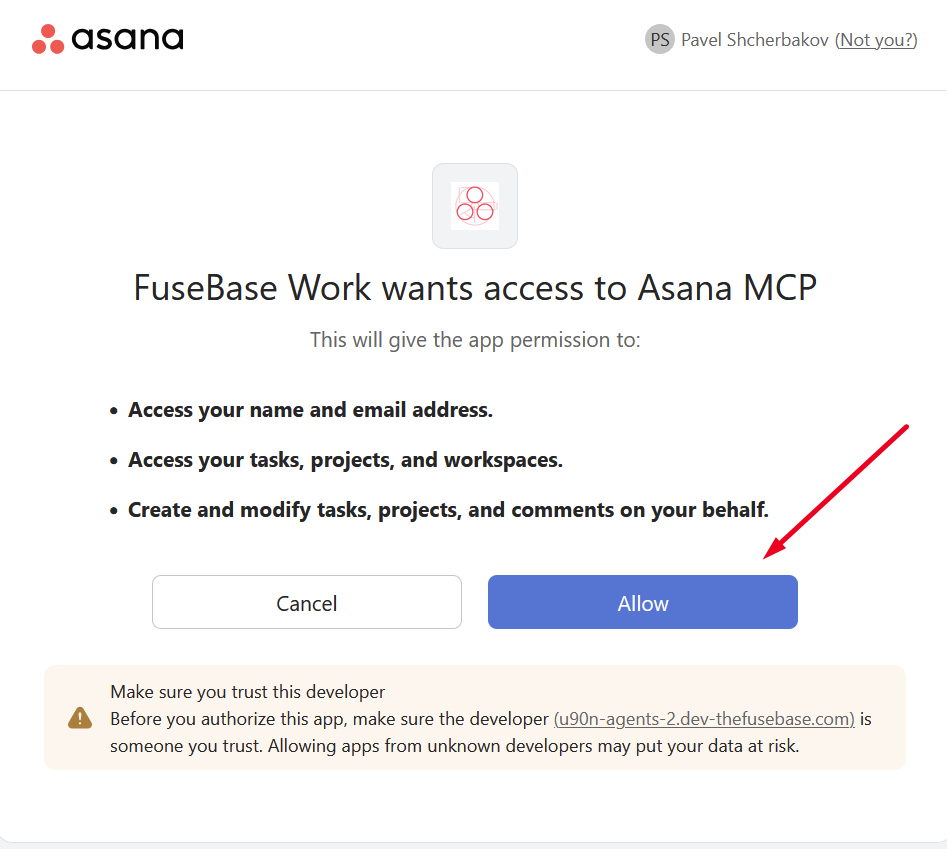
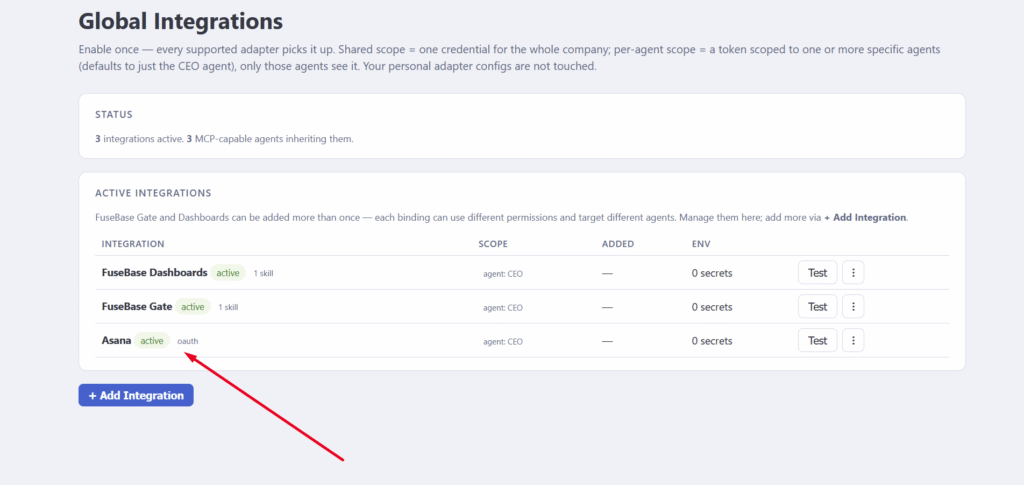
11) After successful authorization, you will see the Asana MCP in the list of integrations, and you can start managing your projects from FuseBase Work.
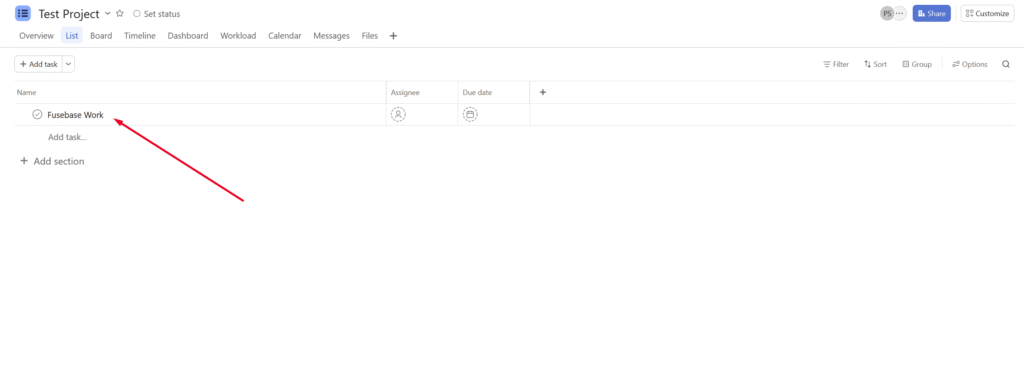
For testing, we can create a task in Asana –
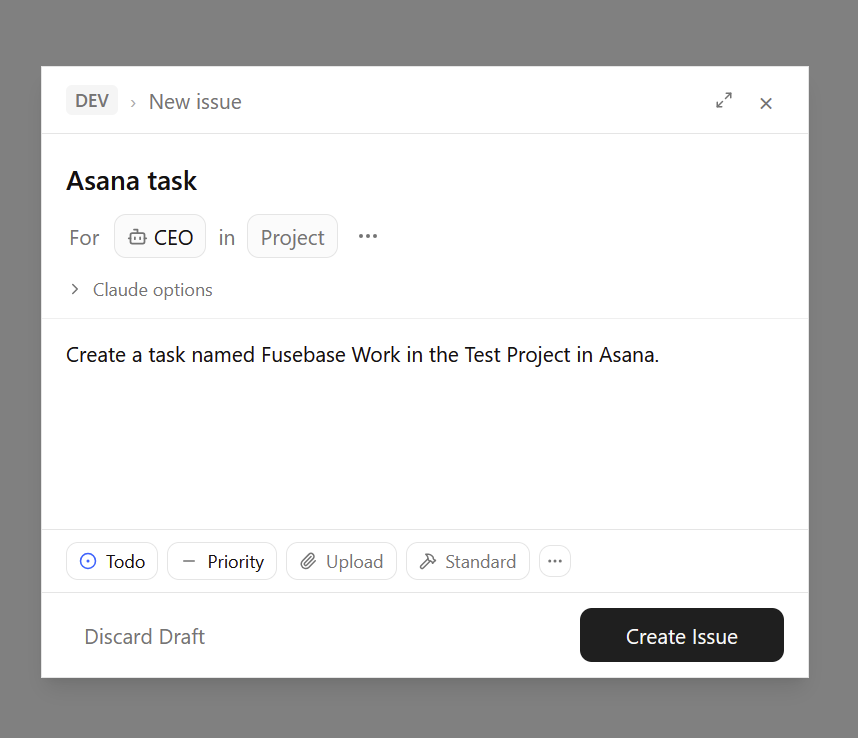
As we can see, the task was created successfully –