FuseBase Sites
Managing FuseBase Sites with AI Agents: Quick Guide
Connect Claude, Codex or another AI agent to FuseBase Sites over MCP or the API, then let it create sites, invite clients, build pages and apply styles.
Guide details
- Published
- October 21, 2026
- Read time
- 3 min read
- Category
- FuseBase Sites
FuseBase Sites MCP lets external AI agents work with your FuseBase Sites in a controlled way. Agents in Claude, Codex, FuseBase Work, OpenClaw, Hermes and other MCP-compatible tools can then create and manage sites for you, so you don’t have to do every step by hand.
With Sites MCP, an agent can:
- create new sites with a custom design and style
- duplicate existing sites
- invite clients and managers
- create pages and subpages
- add and update blocks
- edit content
- adjust site styles
Get the FuseBase MCP configuration for Sites
Sites MCP is part of the overall FuseBase MCP, and you create its configuration in the web client.
- Open your organization settings and go to FuseBase MCP. Only the organization owner and managers can see this section.
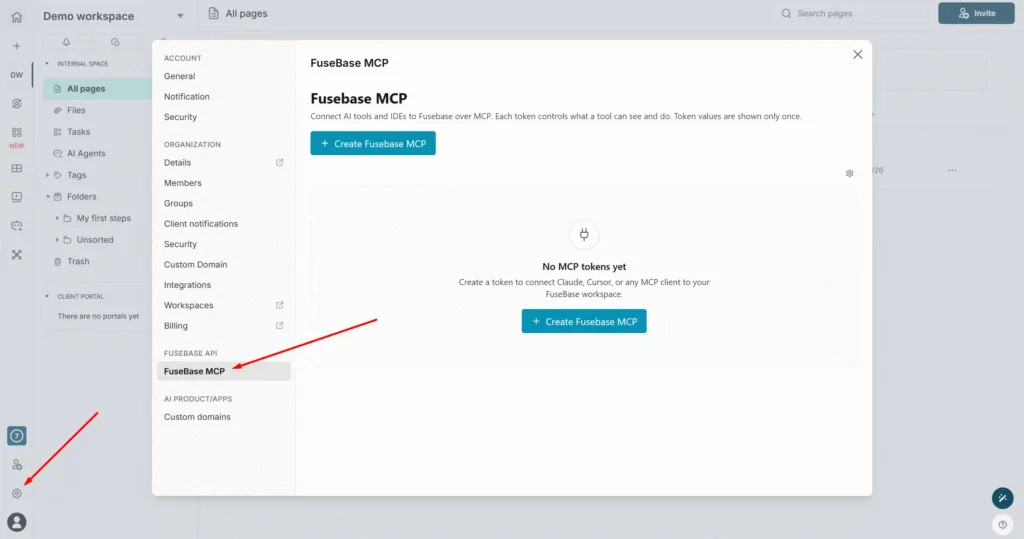
- Click Create FuseBase MCP.
- Enter a name for the configuration.
- To give the configuration access to sites only, select Custom and keep only Sites enabled.
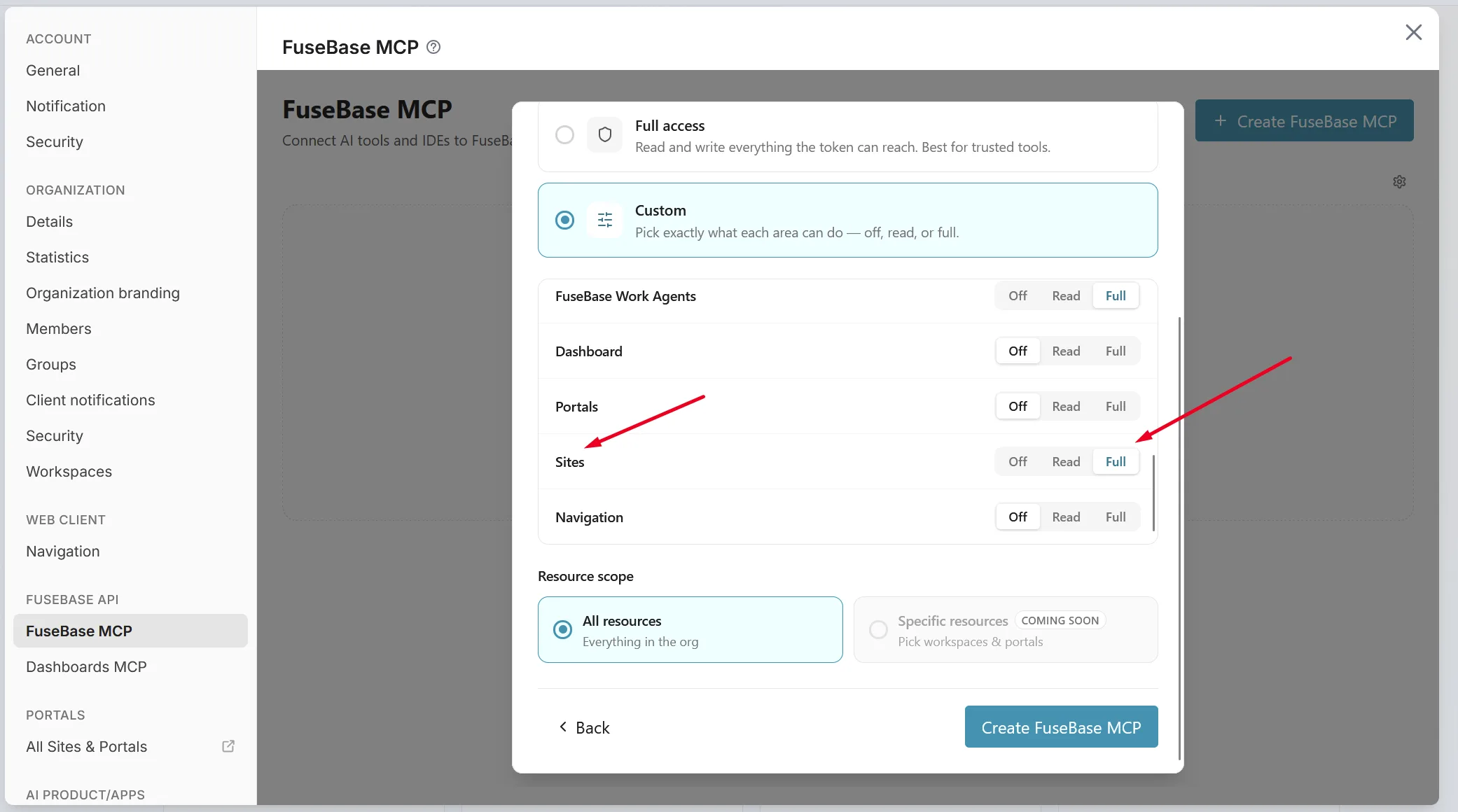
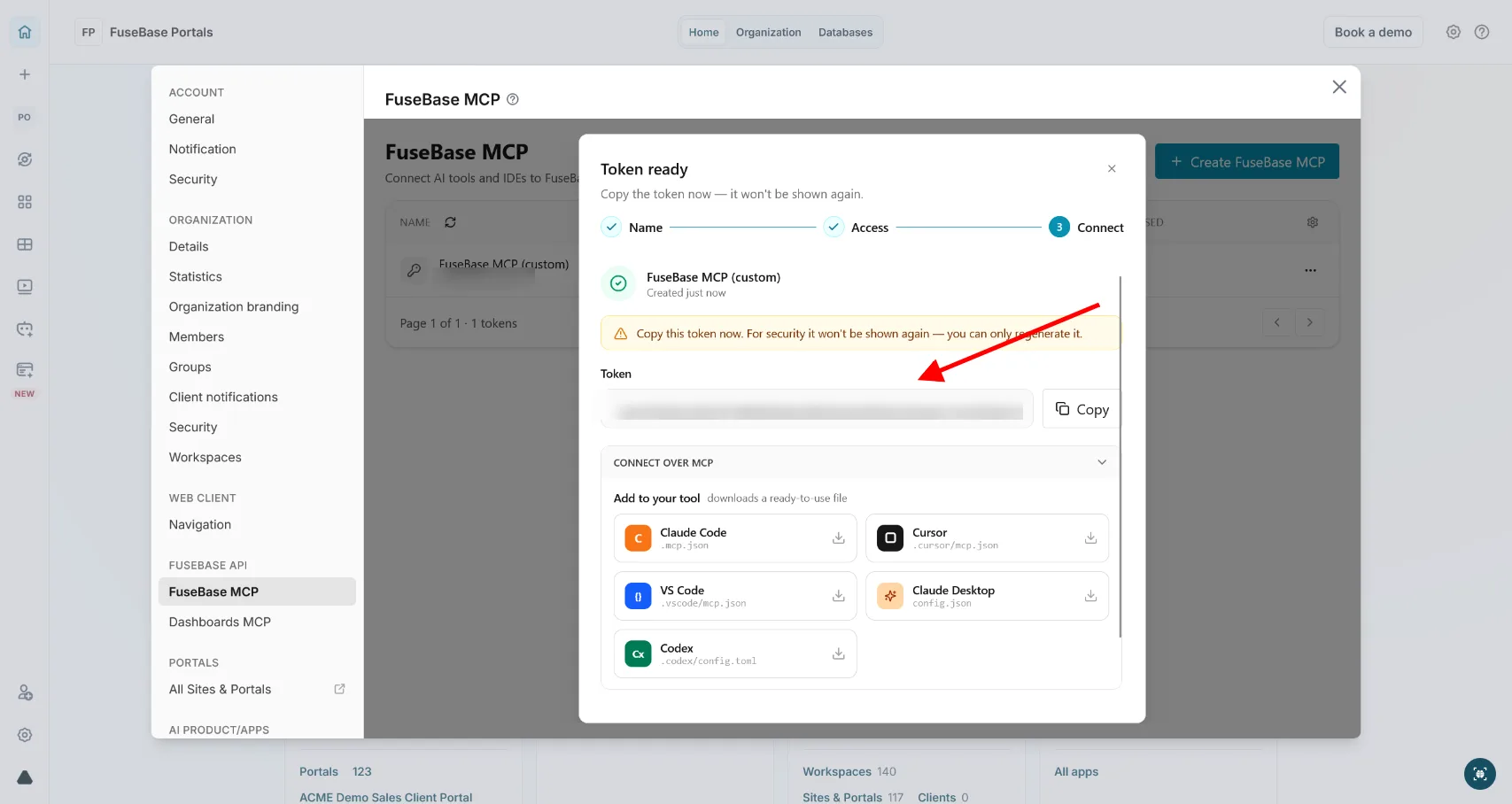
- Click Create FuseBase MCP. The next screen shows your token and the settings for adding it to an agent. Copy the token and the MCP URL, or download a ready-made configuration file for Claude Code, Codex, Cursor, VS Code or Claude Desktop.
Use the API instead of MCP
You can also call the FuseBase API directly at this endpoint:
https://app-api.thefusebase.com/v4/api/proxy/gate-service/v1
Send the token from your MCP configuration in the Authorization header:
Authorization: Bearer <TOKEN>
To skip writing the HTTP calls yourself, use the SDK: @fusebase/fusebase-gate-sdk.
What agents can do with FuseBase Sites
Create new sites
Agents can set up dedicated sites for clients, projects, partners, departments or service workflows. For example, when a new client signs up, an agent creates an onboarding site with everything they need to get started.
Duplicate existing sites
Agents can copy an existing site and adapt it for a new client or project. For example, an agent duplicates your “Client Onboarding Template” site, then updates its name, content and access permissions for the new client.
Invite clients and managers
Agents can invite external clients and assign internal team members as site managers. For example, after creating a site, an agent invites the client’s team and makes the account manager its manager.
Organize pages and folders
Agents can structure a site by creating folders and adding the right pages to each. For example, an agent creates Welcome, Documents, Requests, Reports, Approvals and Resources folders and fills each with the relevant pages.
Add and update content blocks
Agents can build and update pages with content blocks. For example, an agent creates a welcome page with an introduction, an onboarding checklist, a file uploader block and links to helpful resources.
Customize the site’s appearance
Agents can change style settings, apply brand colors and adjust layouts to get a site ready for clients. For example, an agent updates a site’s colors and layout to match the client’s branding.
Example prompts
Try prompts like these with your agent:
- “Create a new site for Acme Inc.”
- “Duplicate the Client Onboarding Template site for a new client.”
- “Invite
john@example.comto the Acme site.” - “Add Sarah from our team as the site manager.”
- “Create a Welcome page in this site.”
- “Build a Welcome page with an introduction, next steps and contact details.”
- “Update the site’s style to match this client’s brand colors.”