FuseBase Sites
Choose who can open your site and invite clients
Decide who can open your site: everyone, only people who give their email, or only people you invite. You can also invite a client to your site.
Guide details
- Published
- November 2, 2026
- Read time
- 1 min read
- Category
- FuseBase Sites
To get started, please watch this short video, where we explain this feature in more detail.
1. Open the access settings
Open your site in Studio and click Share at the top of the page.
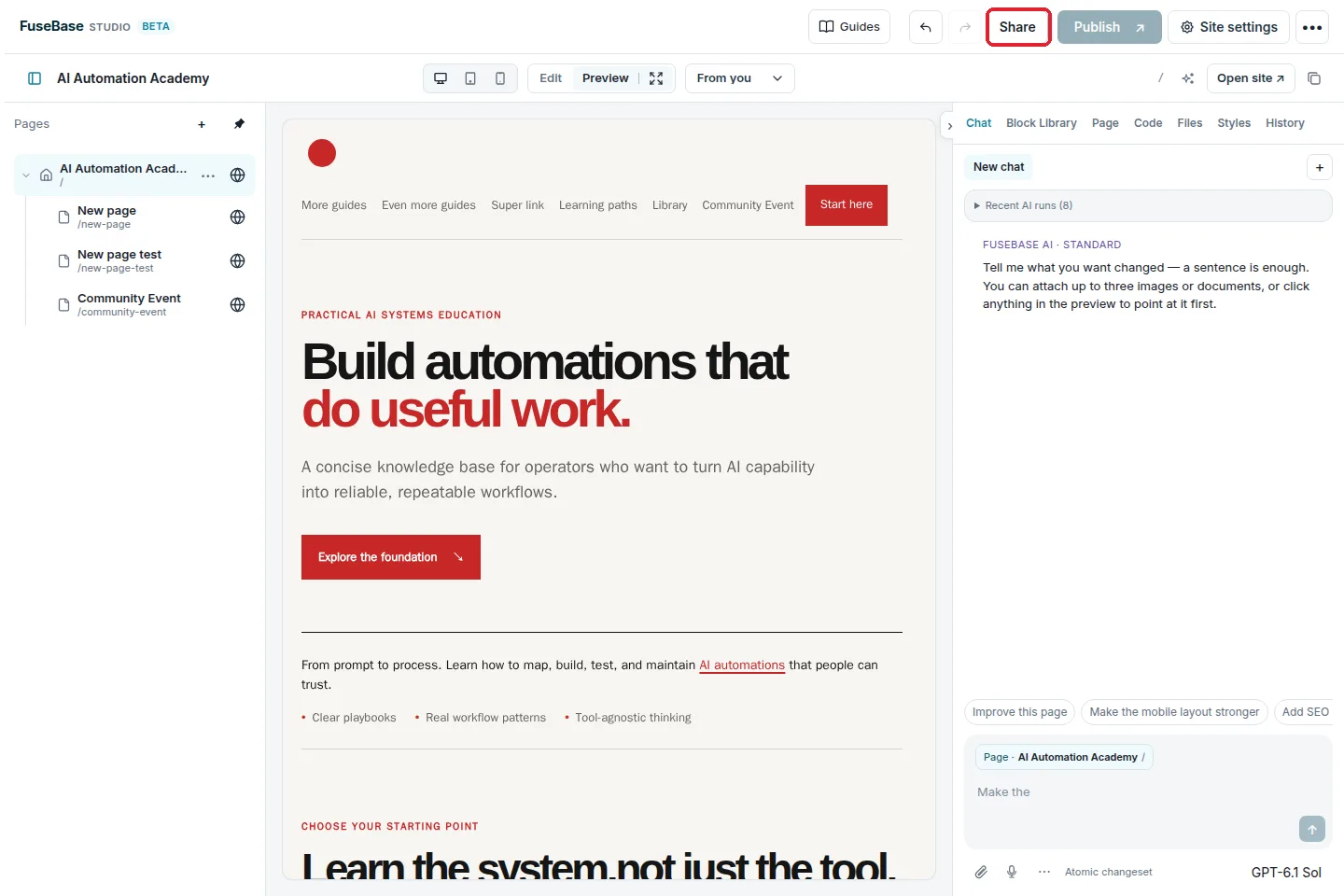
The site settings open on Site access. You see three options.
2. Choose who can open your site
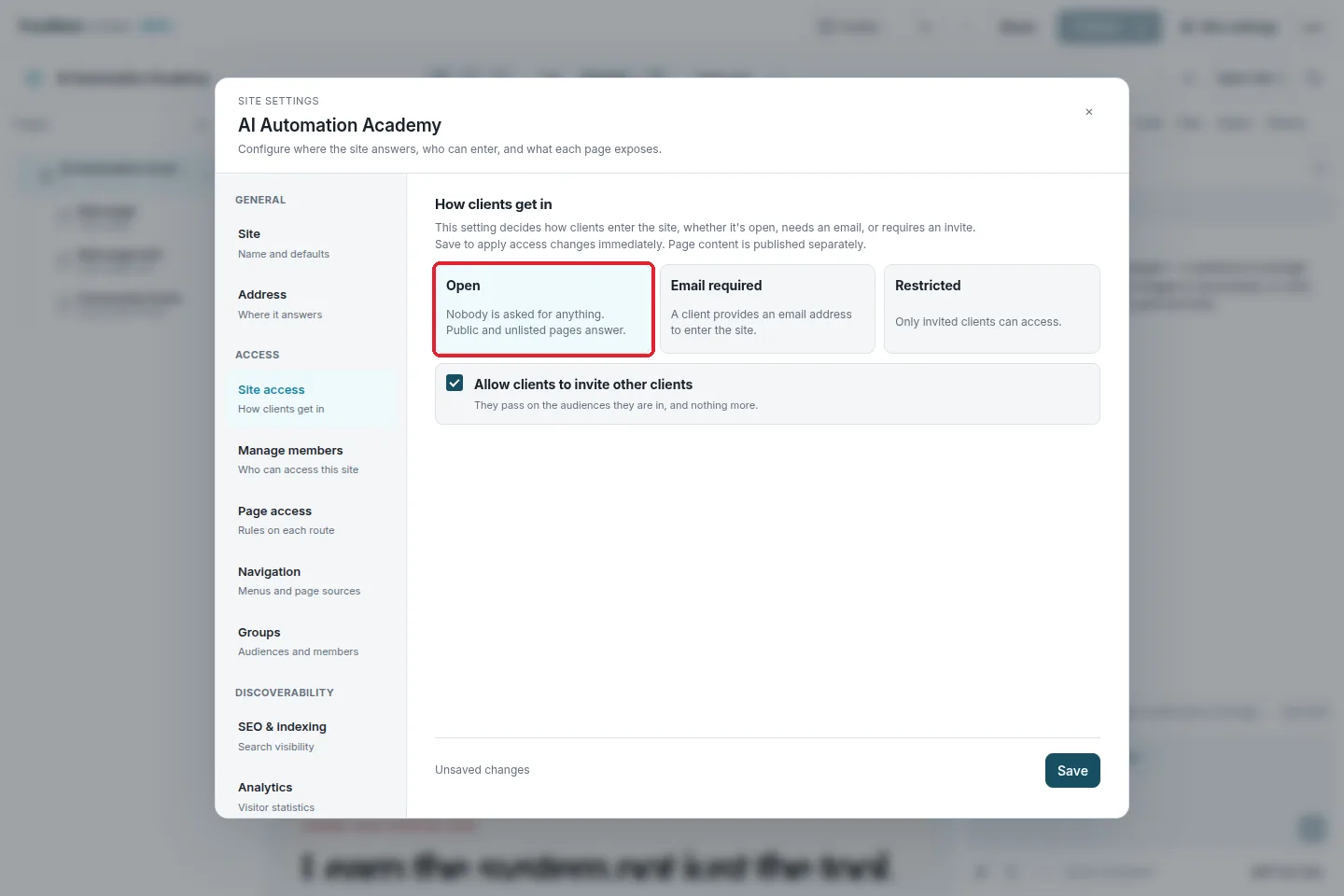
Open — anyone with the link can visit your site. Nobody is asked for anything.
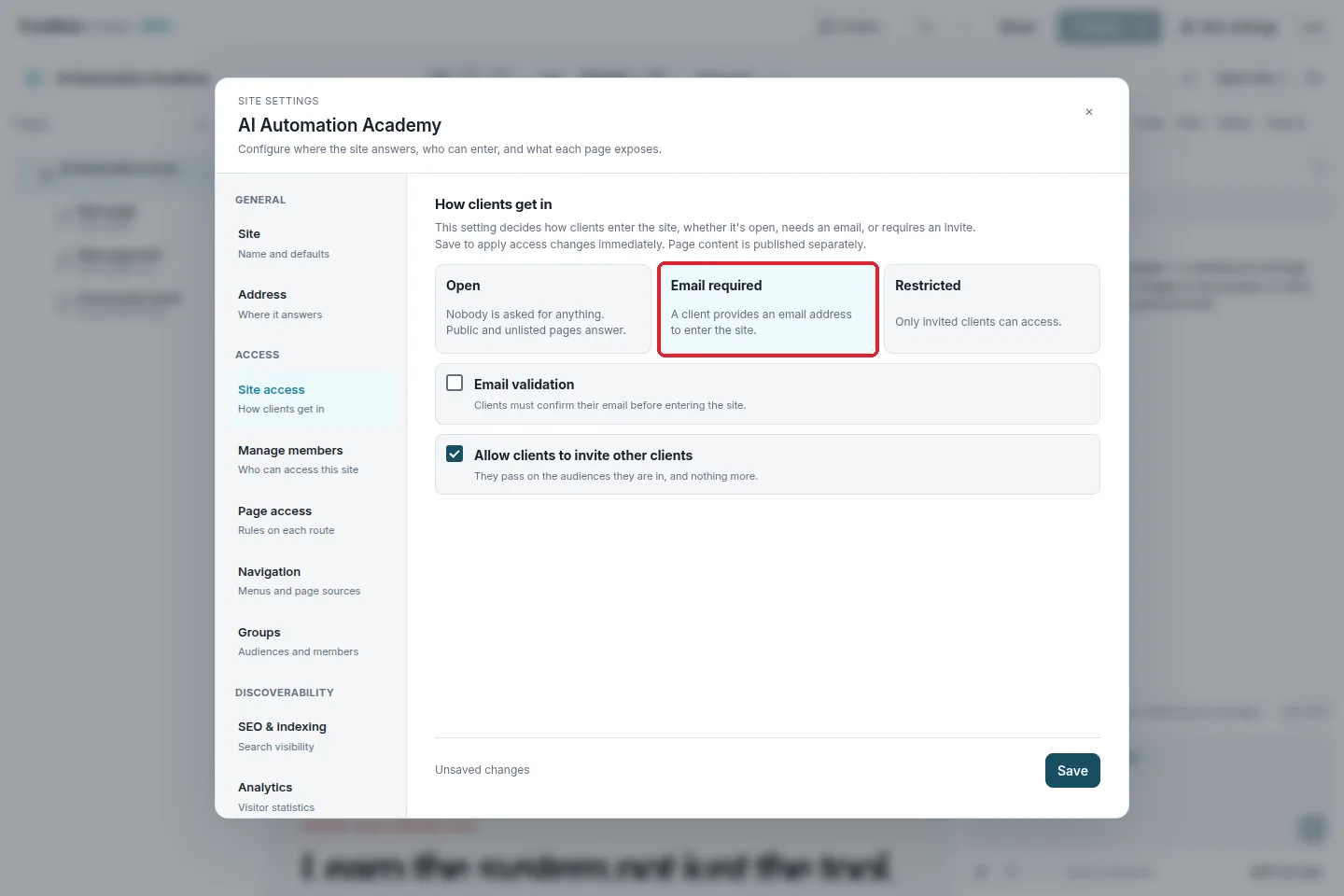
Email required — a visitor types an email address before they enter. To make visitors confirm their email first, turn on Email validation.
Restricted — only the people you invite can open your site.
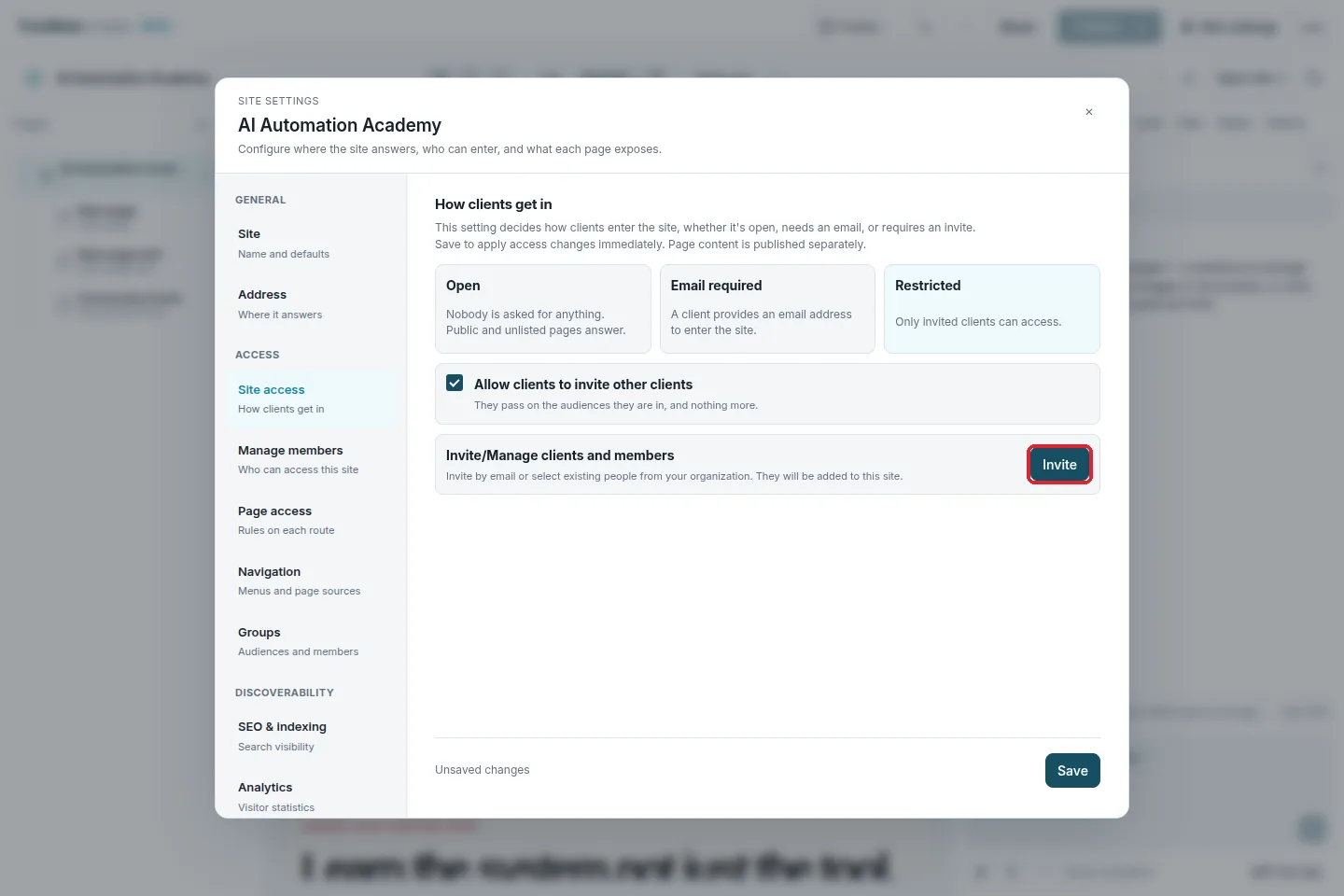
Click Save to apply your choice.
3. Invite a client
- With Restricted selected, click Invite.
- Keep the role Client.
- Type the client’s email and name.
- Click Send invitation.
To invite more people at once, click Invite more.
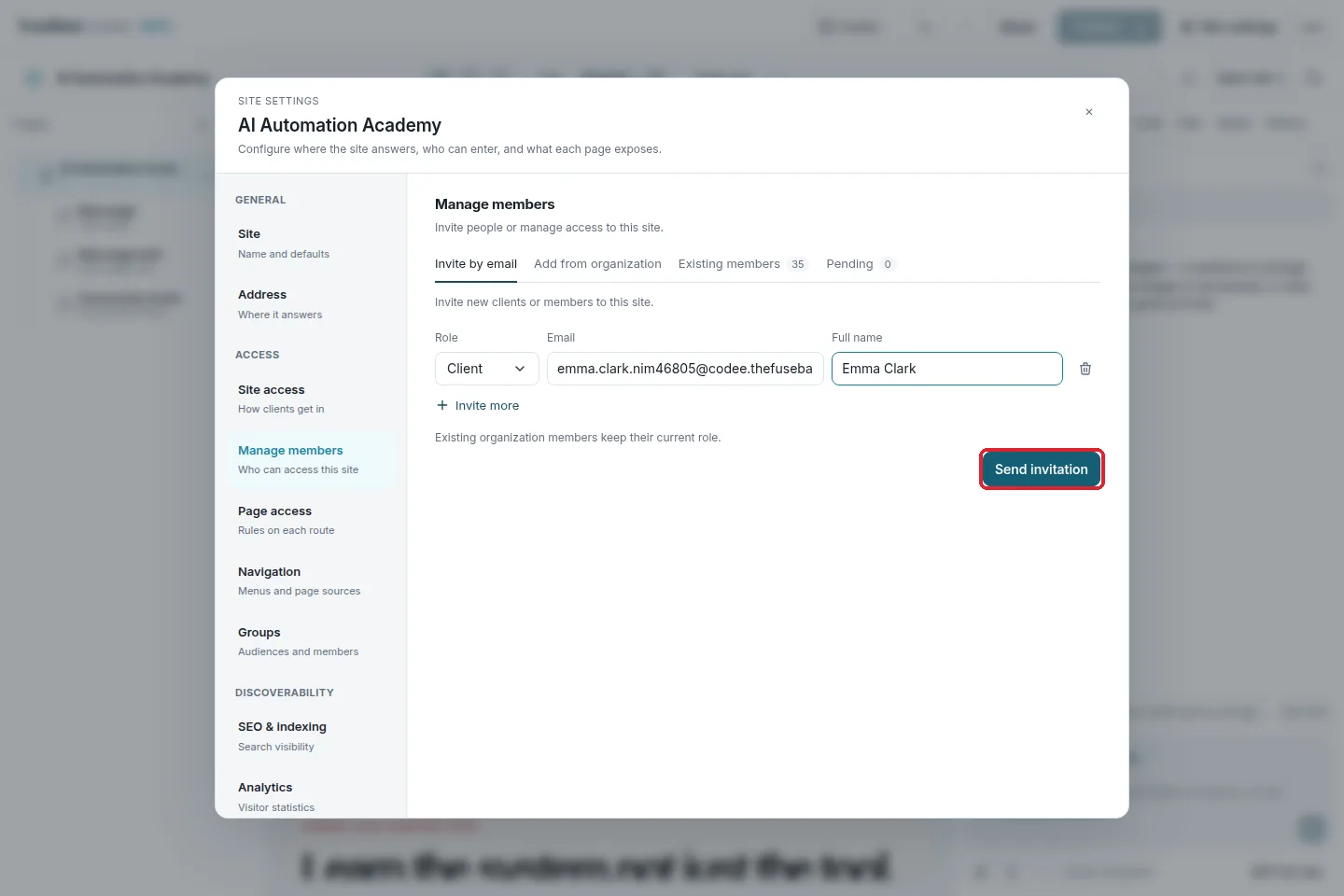
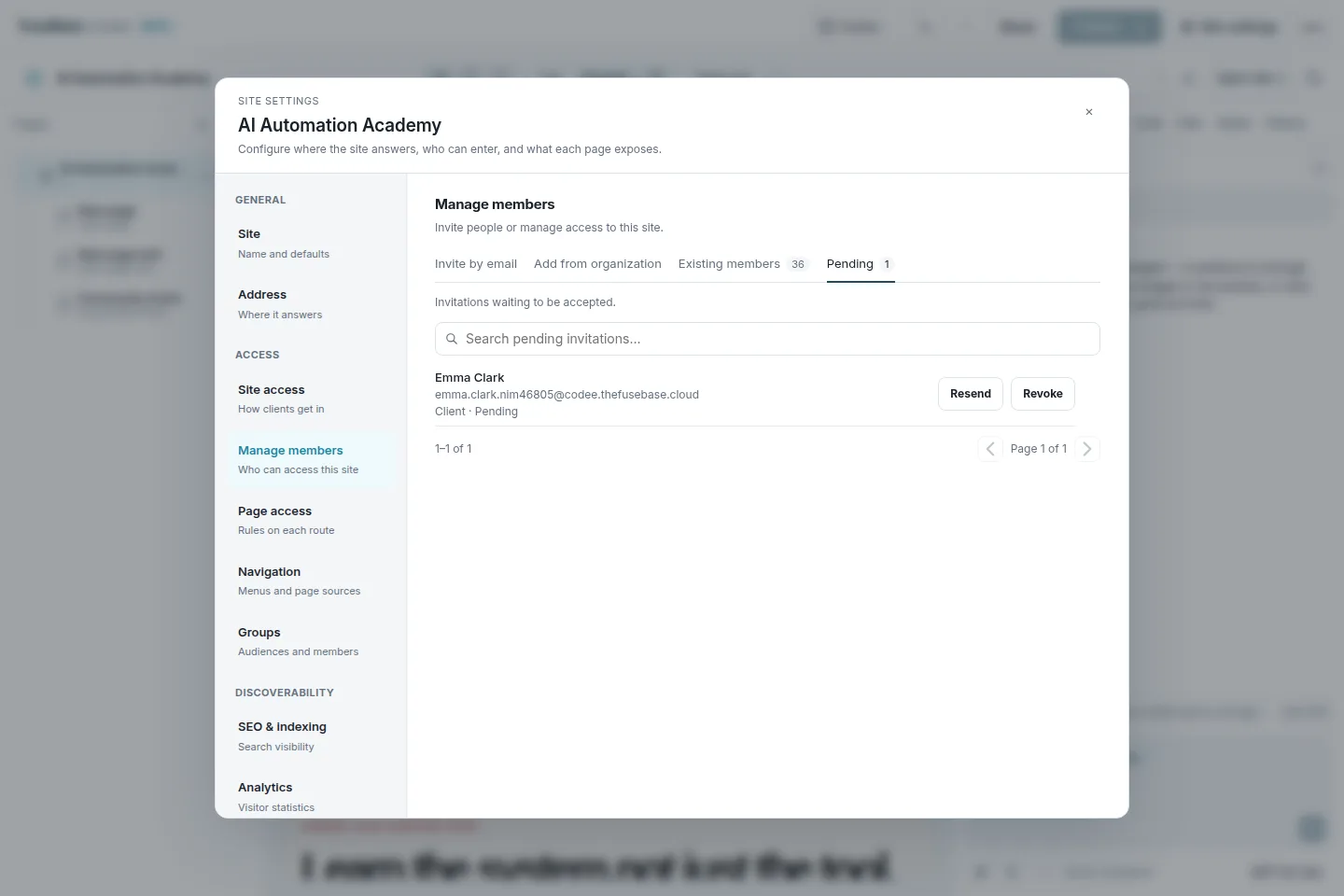
The client gets an email with a link to your site. Until the client accepts, you see the invitation on the Pending tab. There you can send it again (Resend) or cancel it (Revoke).