FuseBase Basics
Files in your workspace tree: upload, open and ask AI
Keep PDFs, images, videos and other files next to your pages in the workspace tree. Open them in one click and ask FuseBase AI about their content.
Guide details
- Published
- November 16, 2026
- Read time
- 3 min read
- Category
- FuseBase Basics
Keep your files in the workspace tree, next to your pages. A contract, a photo or a call recording stays in the same folder as the project, and your team opens it in one click. FuseBase AI can read the content of these files: the text of a PDF, the text in an image and the transcript of a video or audio file.
Video guide
Watch the 2-minute video, or read the steps below.
Why use files in the tree
- One place for a project. Pages and files of a project are in the same folder.
- Open in one click. A file opens on the right, where pages also open. You do not need to download it.
- AI knows your files. Ask the AI about a PDF, a photo of a whiteboard or a call recording.
1. Upload files
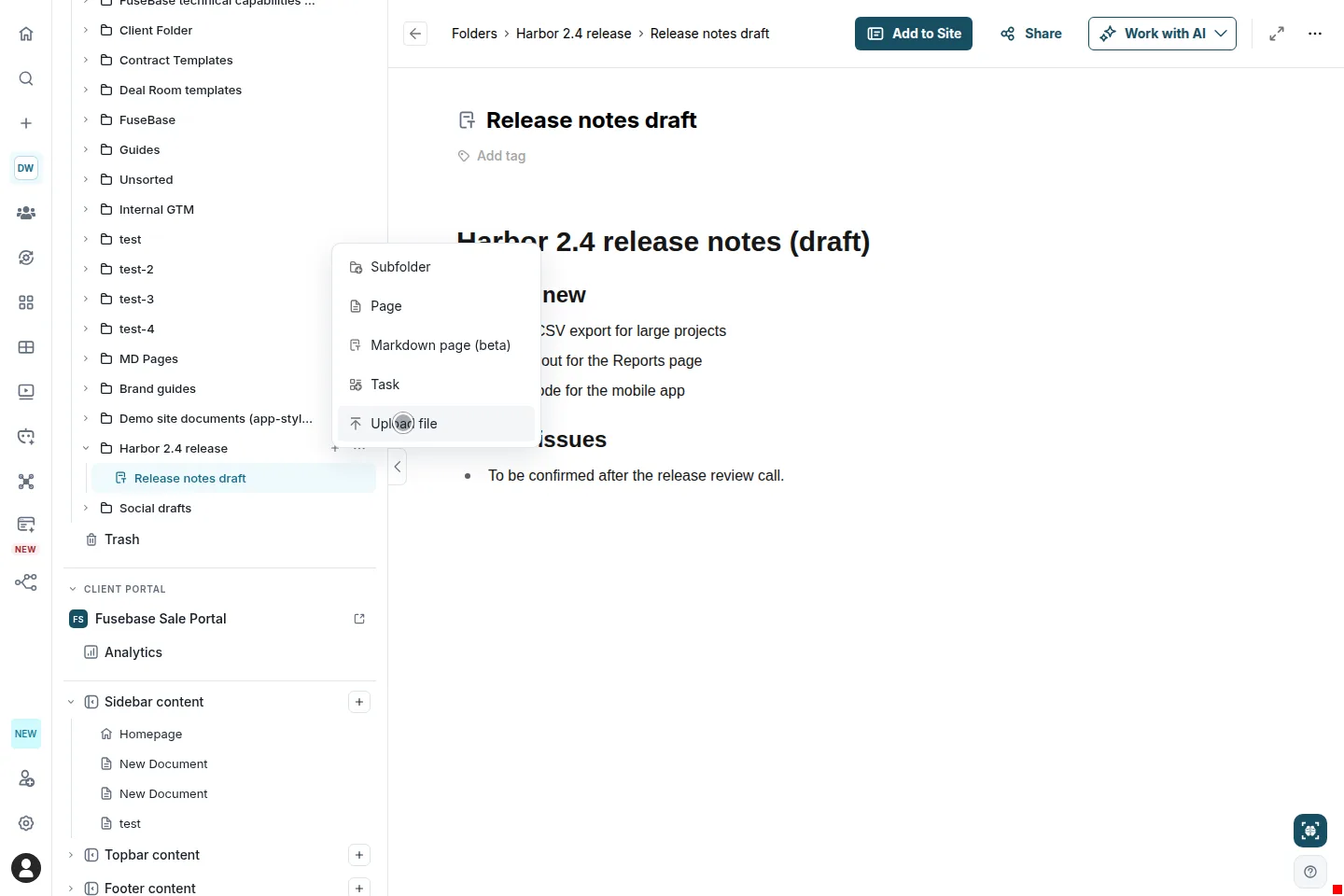
In the tree, point to a folder, click + and select Upload file. Select one or more files on your computer. You can also drag files from your computer onto a folder in the tree.
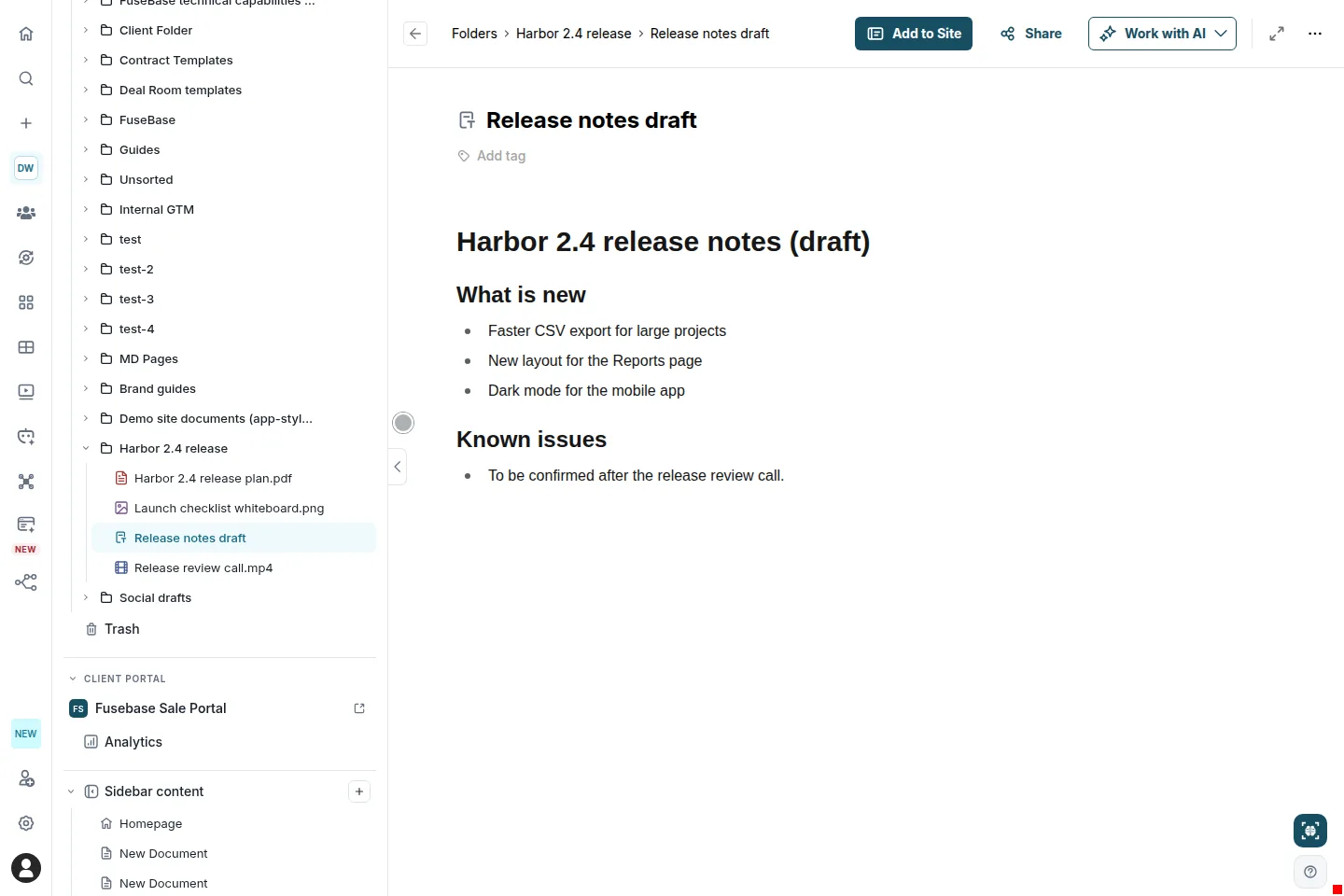
The files show in the folder, next to your pages. Each file has its own icon.
2. Open a file
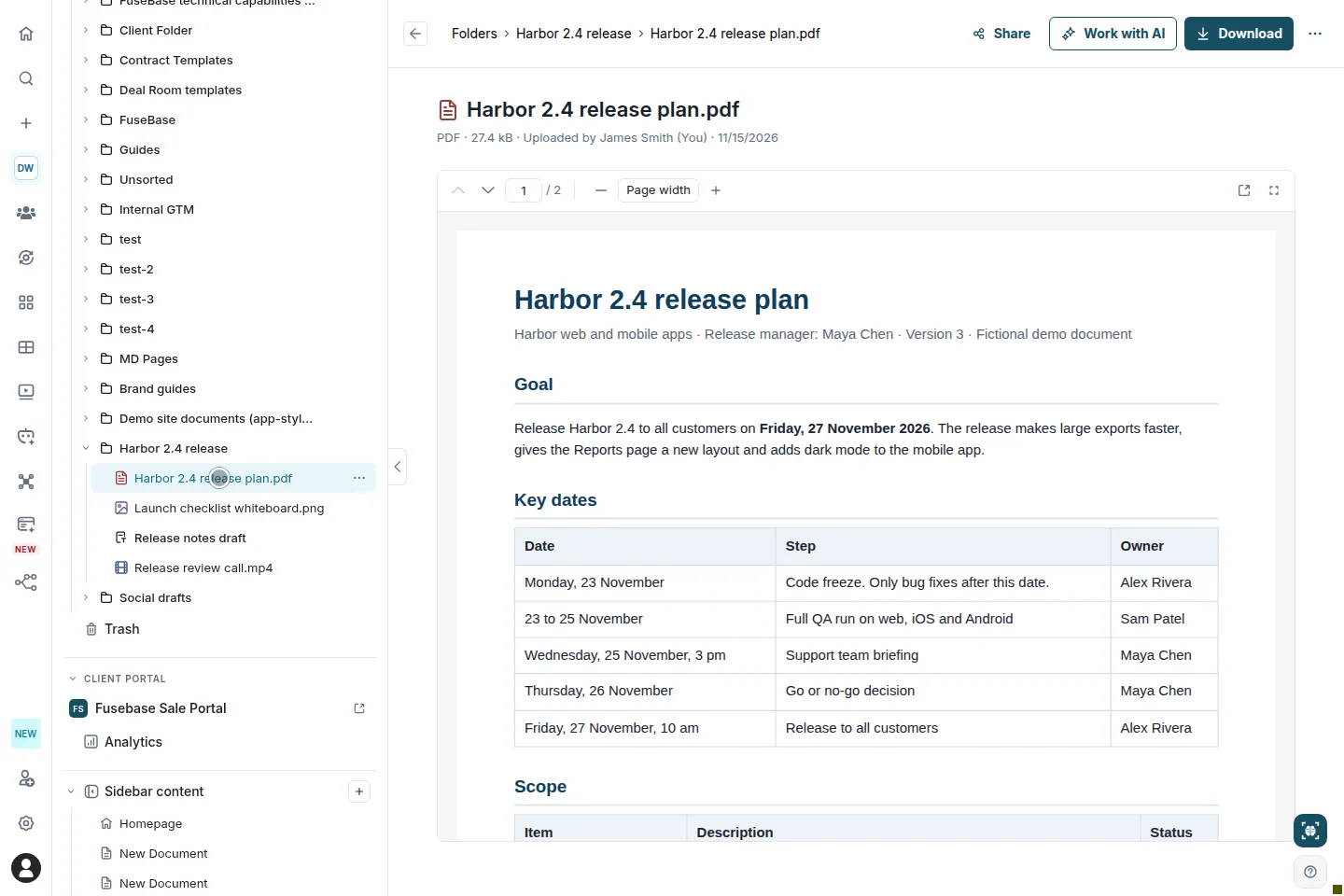
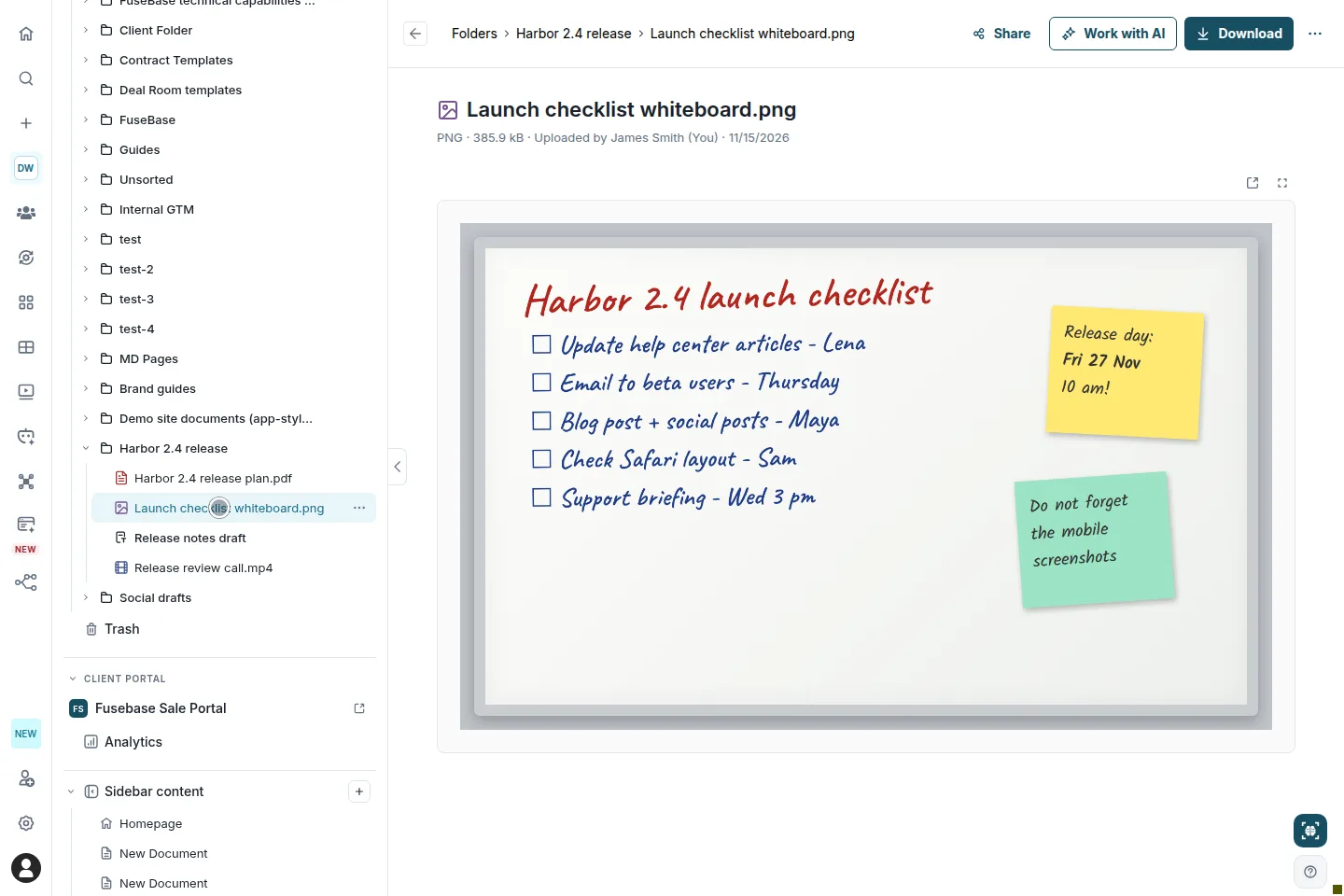
Click a file in the tree. It opens on the right. A PDF shows its pages, an image shows at full size, and a video or audio file plays in the page. Use the buttons above the file to open it in a new tab or in full screen.
3. Share, download and the file menu
Click Share to share the file with a link, or Download to get a copy. Click ⋯ at the top right to Rename, Duplicate or Move to another folder, Add to Favorites, Reupload a new version of the file, or Delete it. Delete moves the file to the Trash.
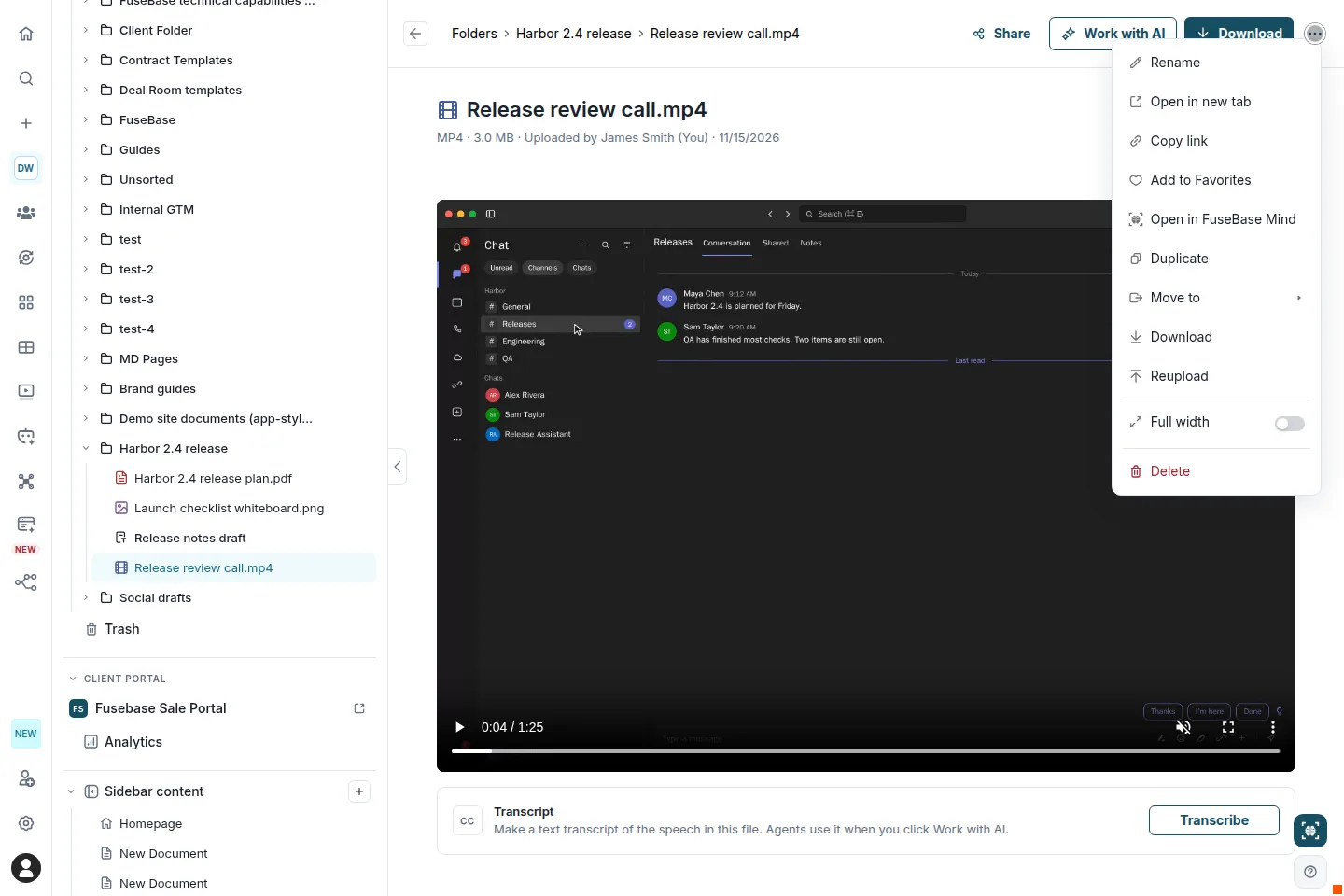
4. Ask AI about a PDF
Open the file and click Work with AI. Find an agent and click Start. The file is already in the chat.
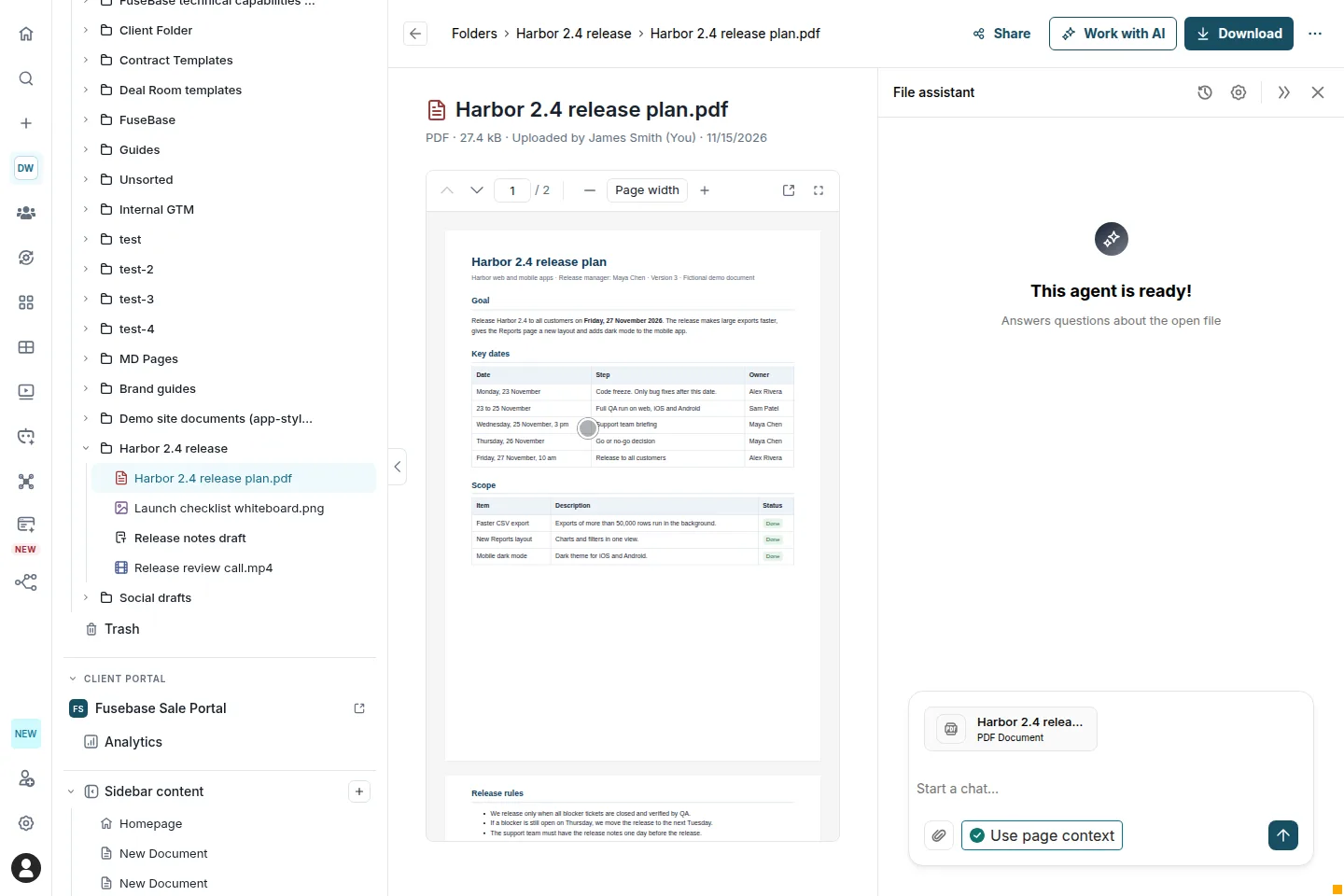
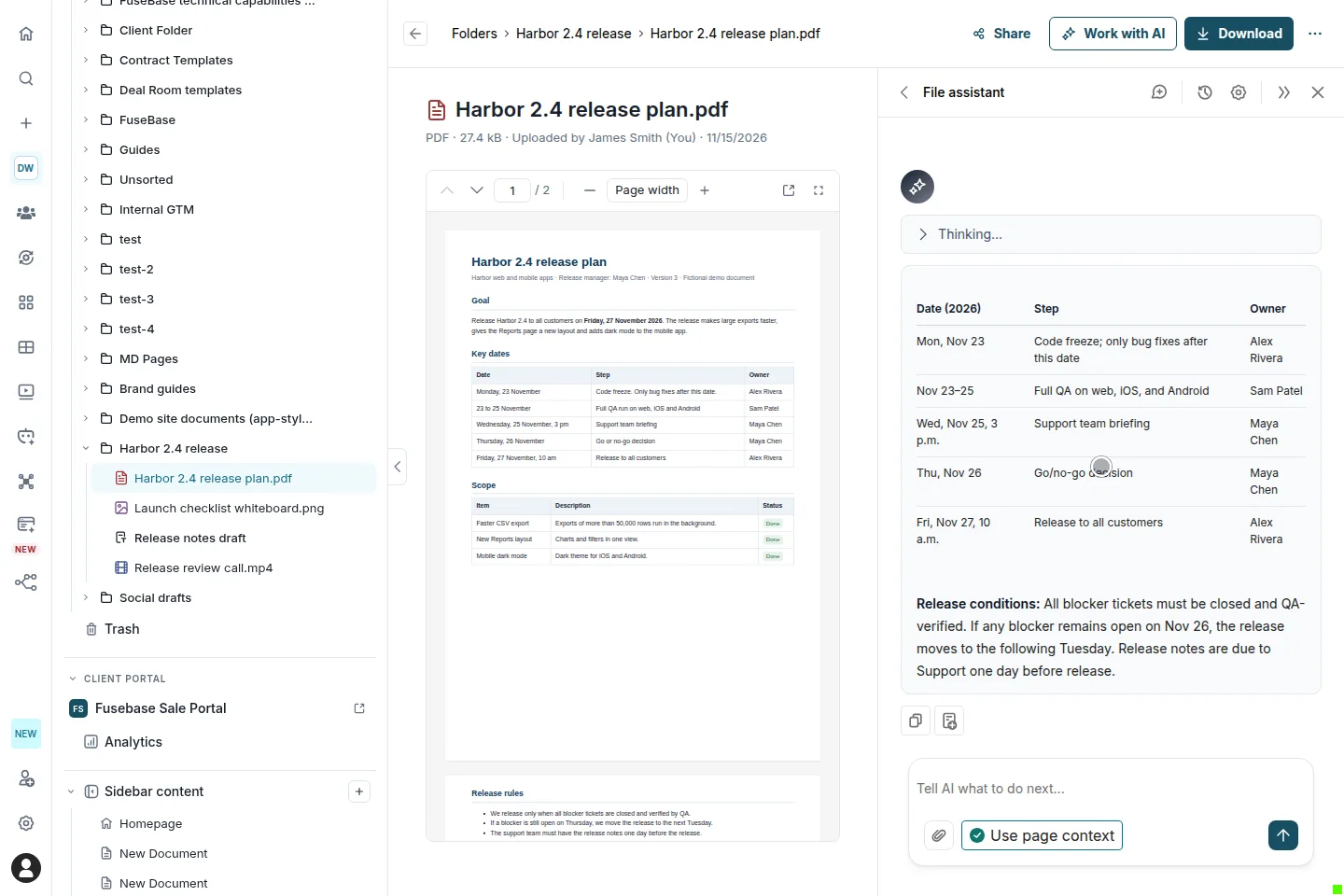
Ask a question, for example “What are the key dates, and who owns each step?”. The agent answers from the text of the PDF.
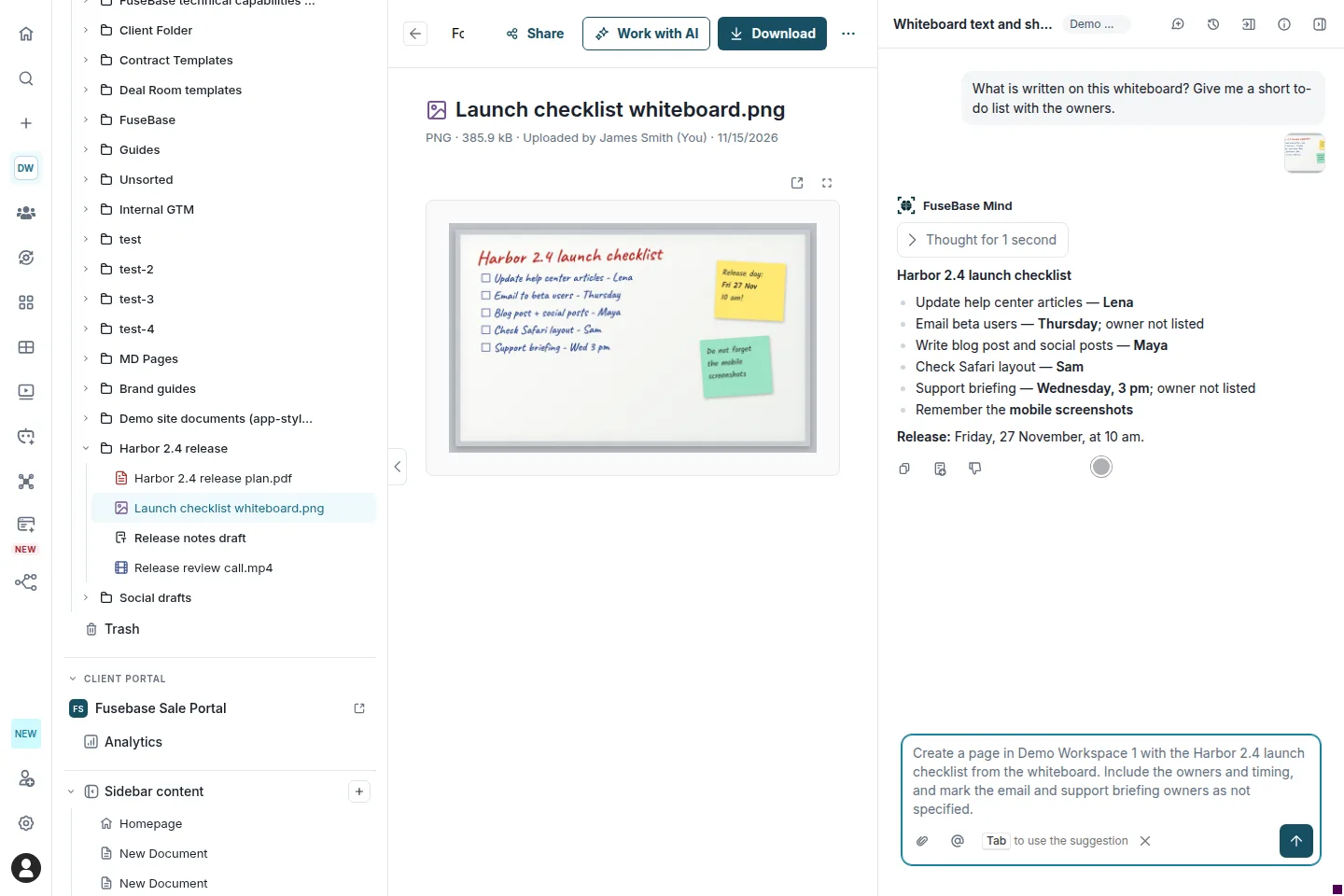
5. Read text in an image
Open an image, click ⋯ and select Open in FuseBase Mind. The image goes into the Mind chat input.
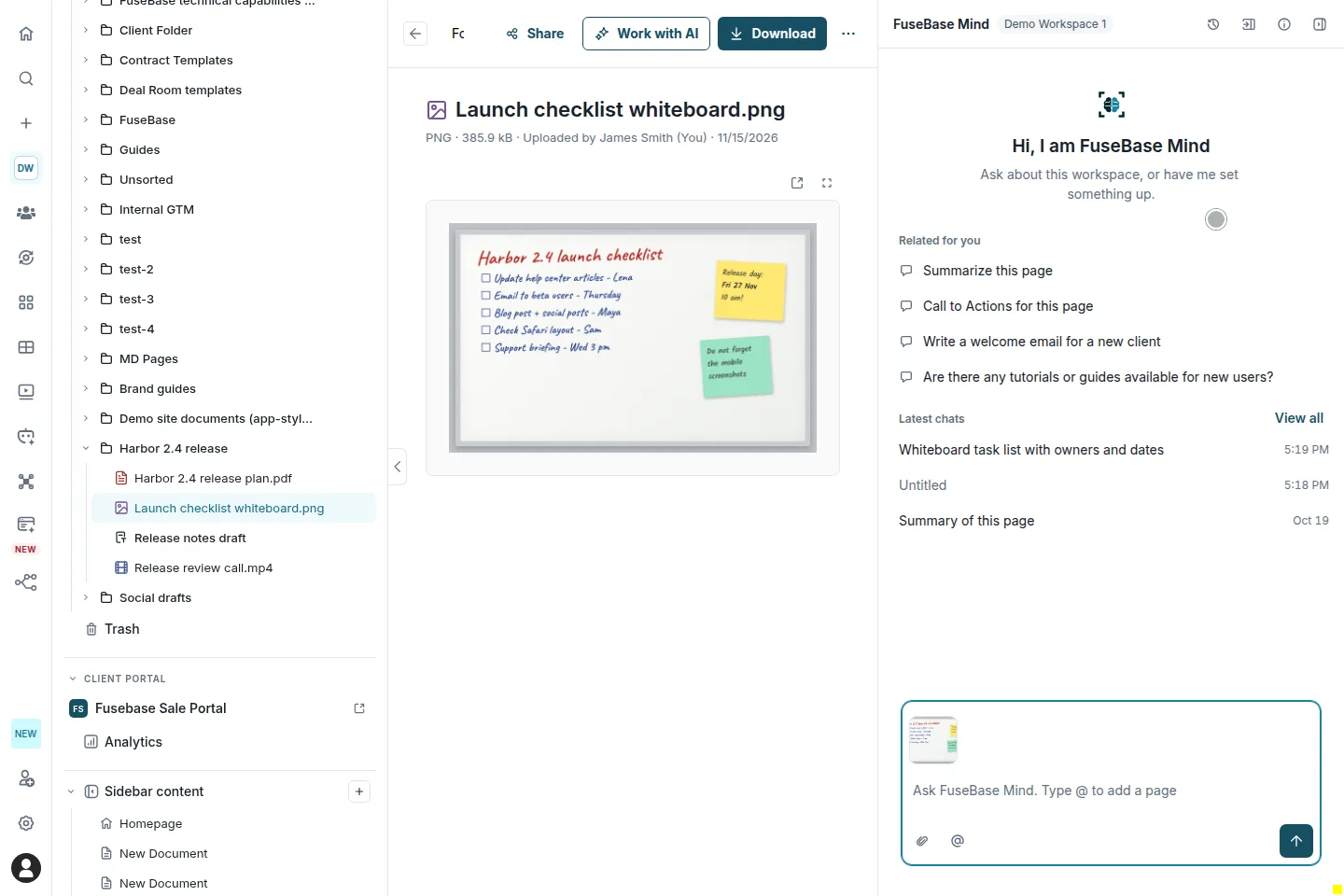
Ask a question, for example “What is written on this whiteboard? Give me a short to-do list with the owners.” Mind reads the handwritten notes and makes the list.
6. Make a transcript of a video or audio file
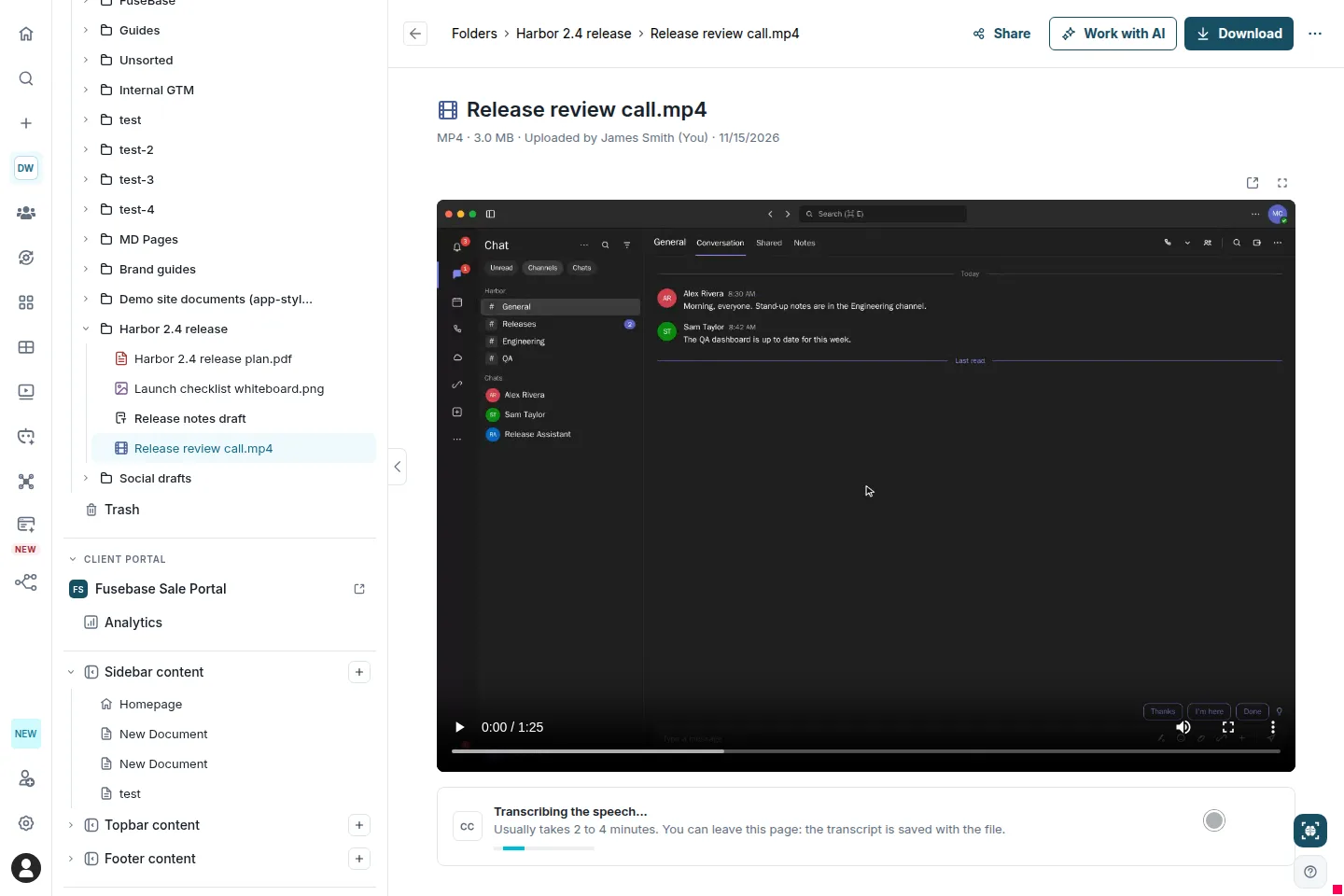
Open the file and click Transcribe on the Transcript card. This usually takes a few minutes. You can leave the page: the transcript is saved with the file.
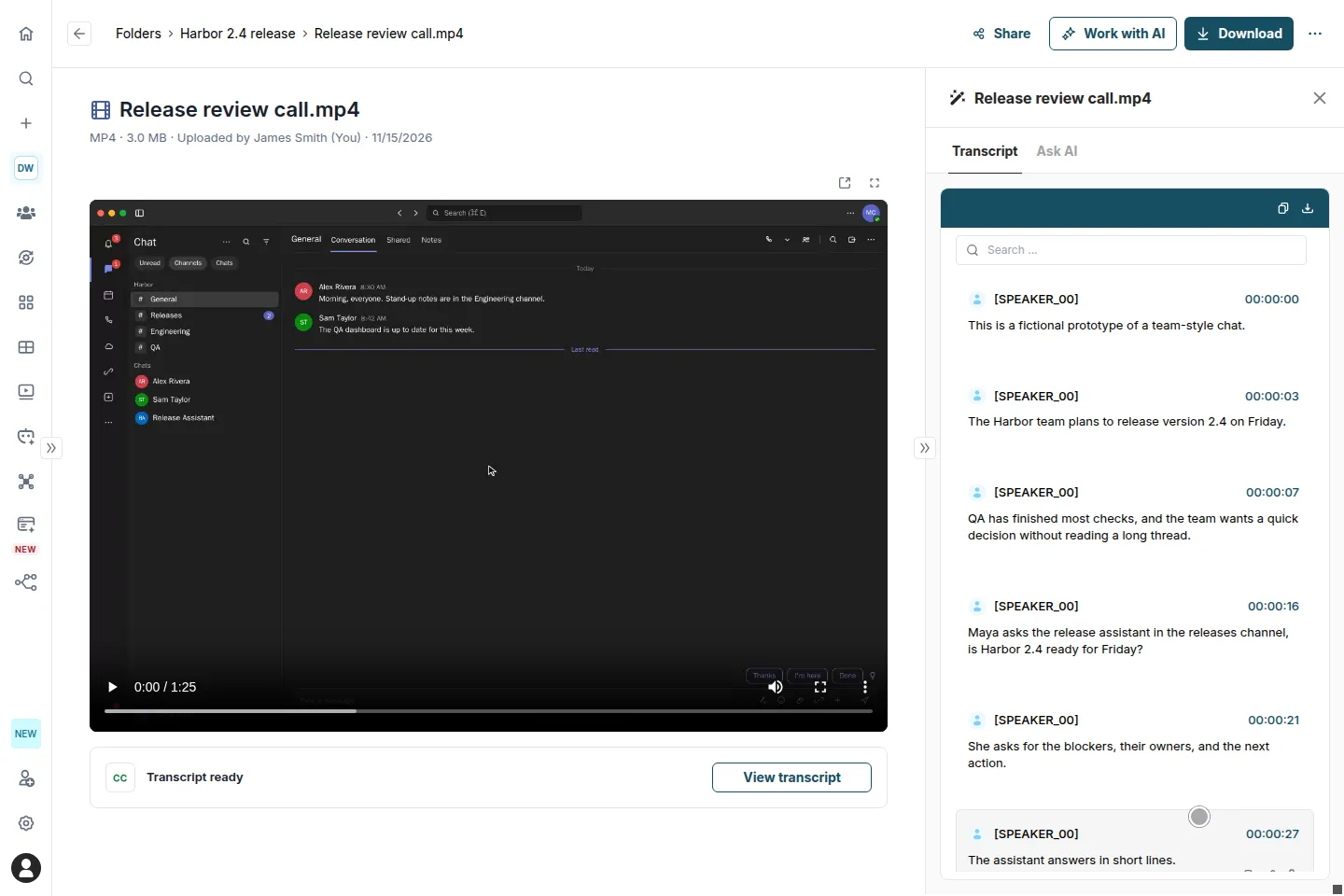
When the card shows Transcript ready, click View transcript to read it, with the time of each line.
7. Ask AI about a recording
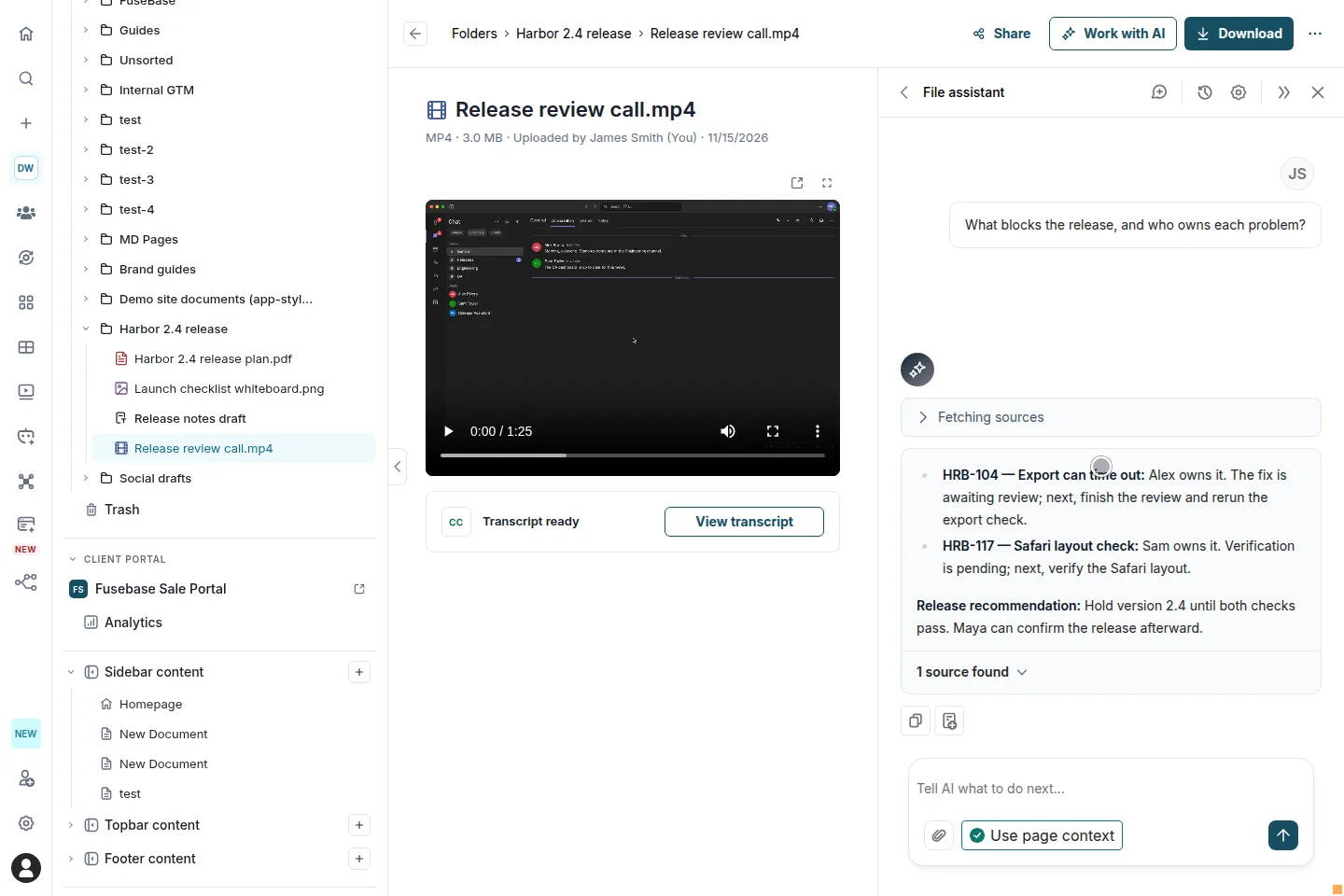
After the transcript is ready, click Work with AI and ask about the recording, for example “What blocks the release, and who owns each problem?”. The AI uses the transcript.
What the AI reads
| File | What the AI uses |
|---|---|
| PDF, Word, text and code files | The text of the file |
| Image (PNG, JPG and others) | The image itself, also the text in it |
| Video and audio | The transcript (click Transcribe first) |
Tips
- Give files clear names. The name shows in the tree, in search and in the AI answers.
- In FuseBase Mind, type @ to mention a file, the same as a page.
All names, files and tickets in this guide are fictional demo data.