Fusebase Vibe Code
Let clients install your app on their phone or computer
Turn on one app setting, and your clients can install your FuseBase app on a computer, an iPhone or an Android phone. No app store and no extra cost.
Guide details
- Published
- November 26, 2026
- Read time
- 3 min read
- Category
- Fusebase Vibe Code
Your clients can install your FuseBase app on their phone or computer. Then your app has its own icon on the home screen or in the dock, and it opens in its own window, like any other app. You turn on one setting. You do not need an app store or a developer.
Why let clients install your app
Your clients use your app again and again: they book a class, check an order, fill in a form or open their portal. A link in an old email or in a browser tab is easy to lose, so each time they must find it again.
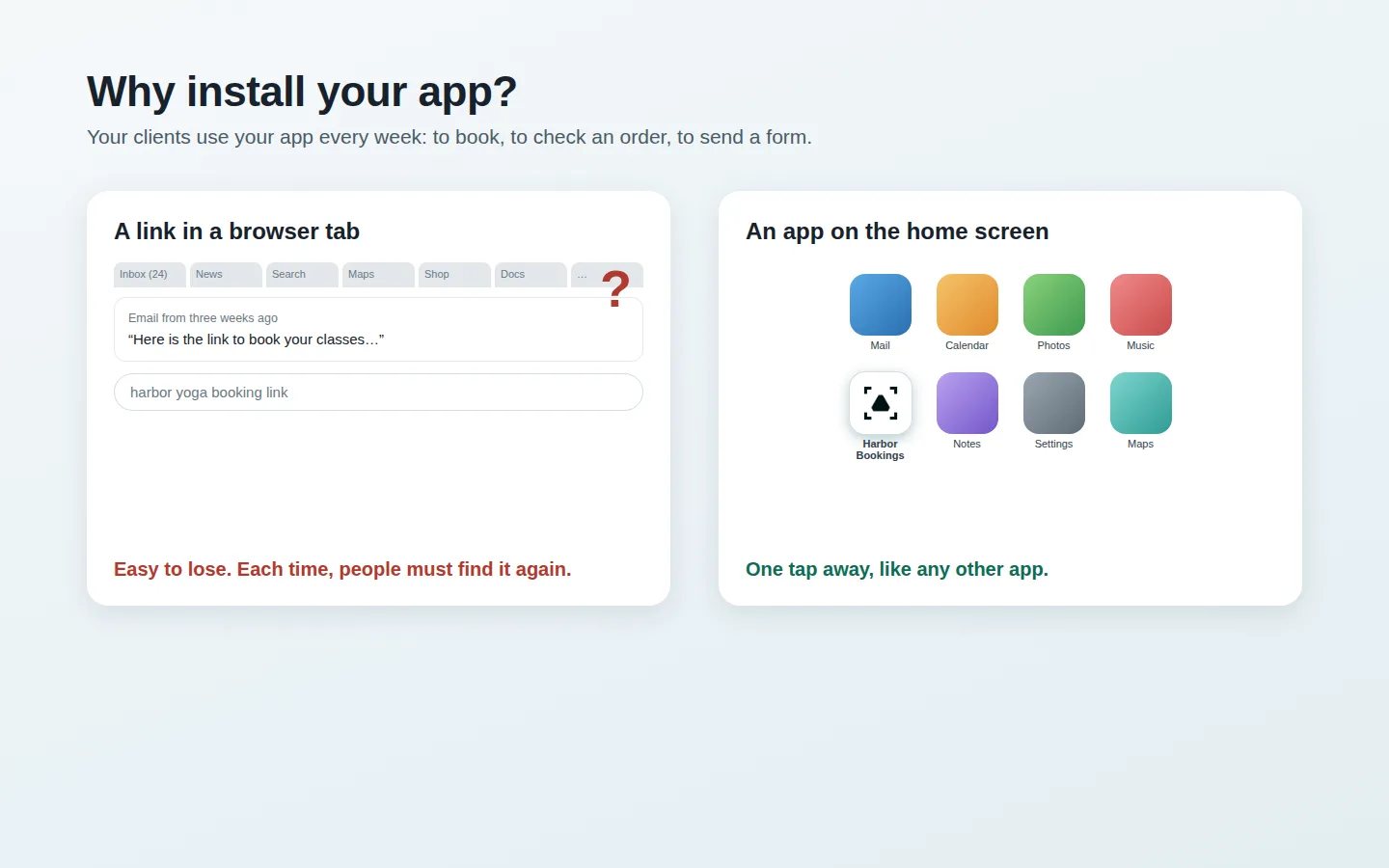
When your app is installed:
- Clients come back more often. Your app is one tap away on their home screen, in the dock or in the taskbar. They do not search for a link.
- It looks like your own product. The app opens in its own window, with the name of your app and without the browser bars.
- No app store, no extra cost. You do not build a mobile app, and there is no store review. It is the same app that you already have.
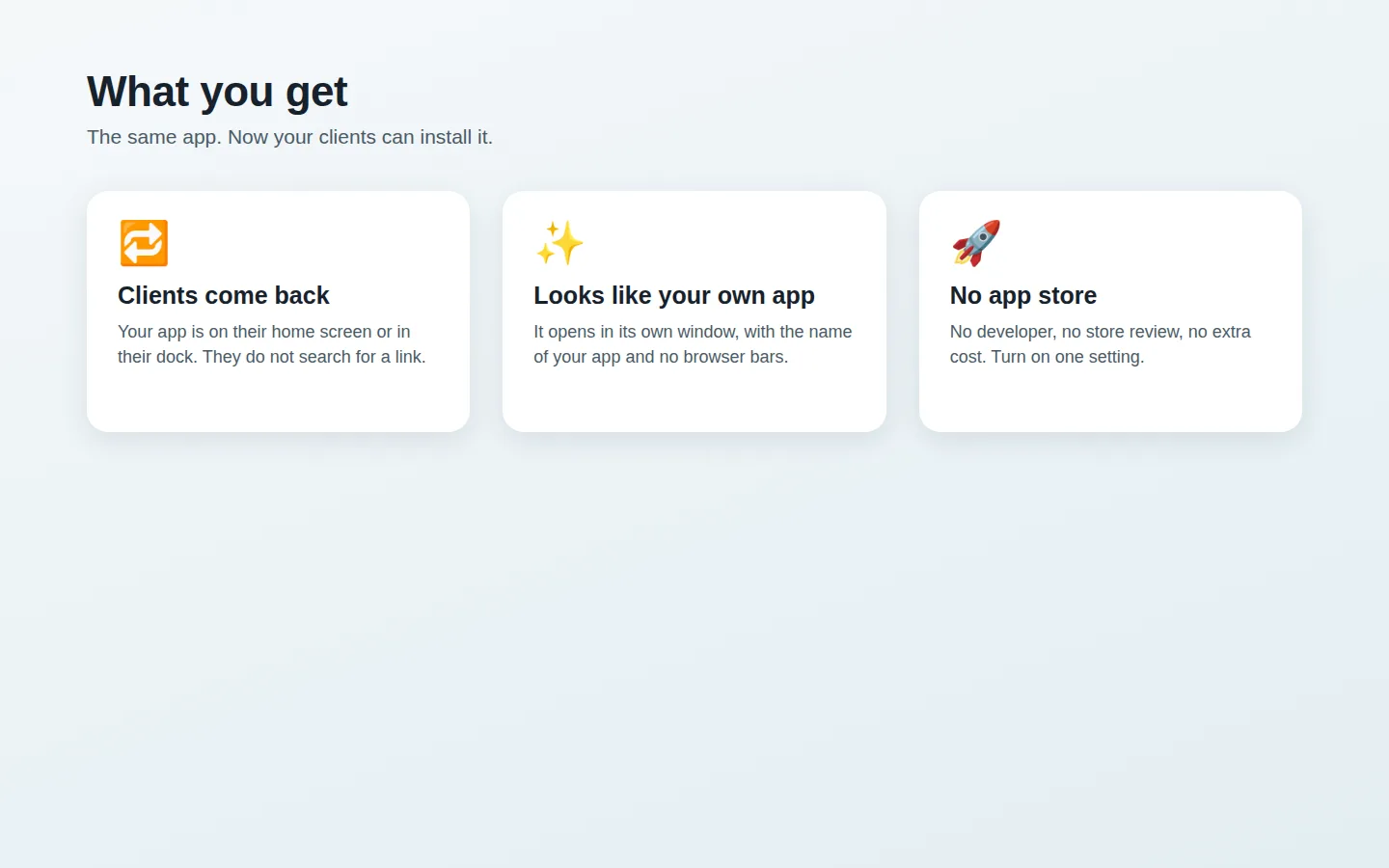
Some ideas: a booking app for your studio or salon, an order tracker for your customers, a client portal, a time sheet for your field team, a help desk form.
Before you start
- You need an app on the Apps page of your organization, and you must be able to change its settings.
- The setting works for public apps and for apps that need sign-in.
Turn on Allow install as app
- Open Apps.
- Find your app. Put the pointer on the app icon and click the … menu.
- Select Settings.
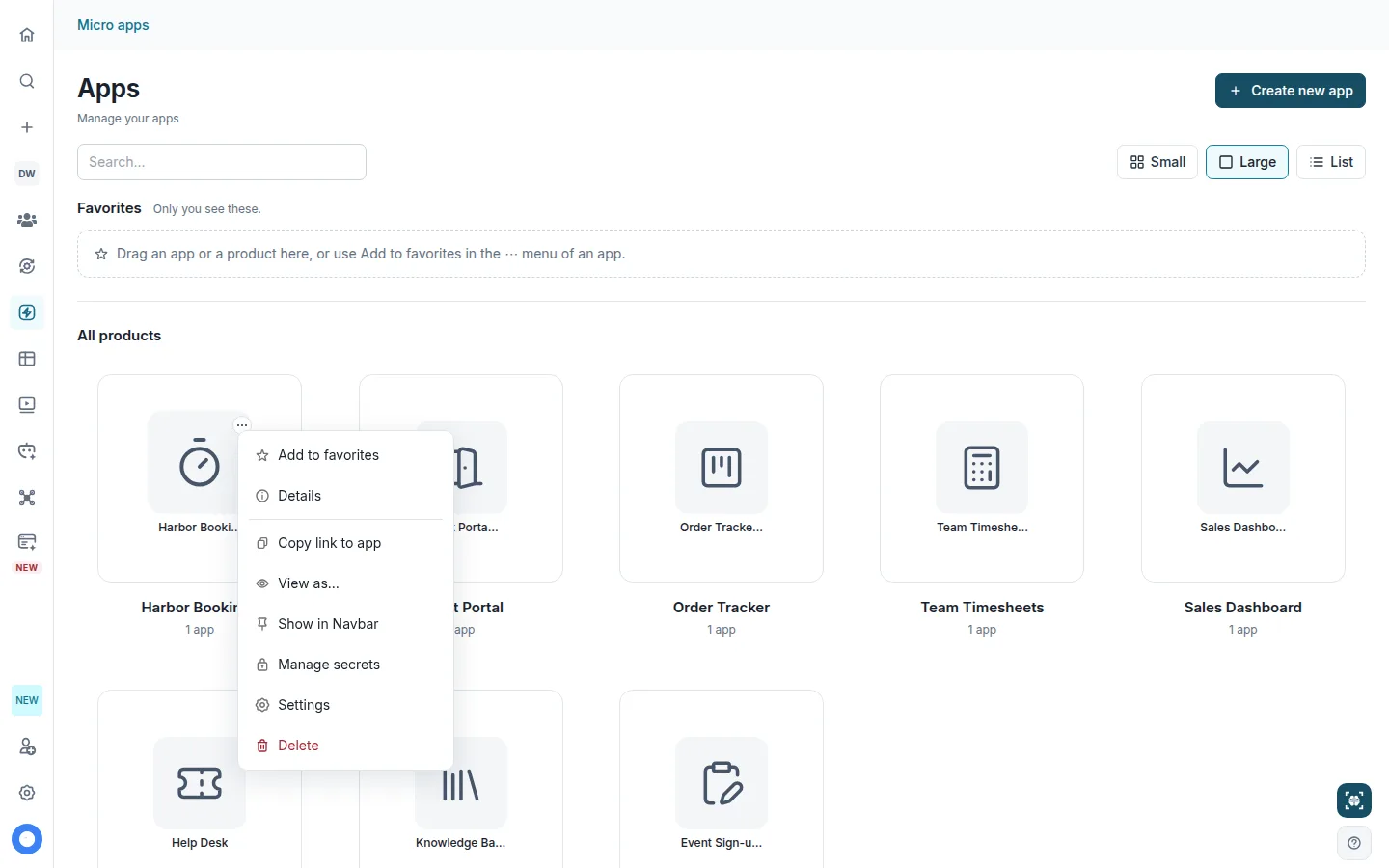
- Turn on Allow install as app.
- Click Save.
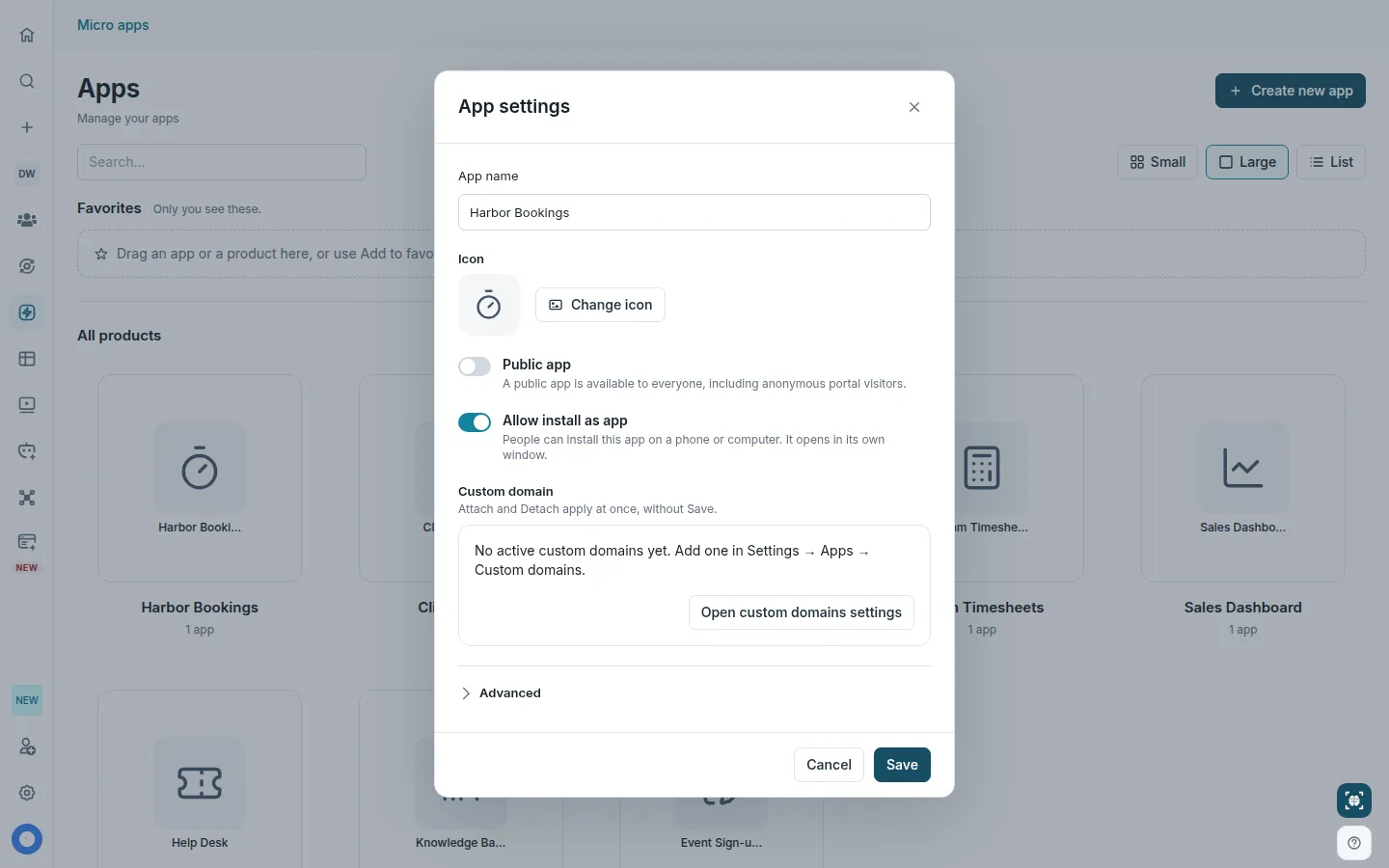
That is all. You do not deploy the app again. In about one minute, browsers can offer to install your app.
What your clients see
Send your clients the usual link of your app. They open it and install it one time.
On a computer (Chrome or Edge)
- Open the app in Chrome or Microsoft Edge.
- Click the install button at the right side of the address bar.
- Click Install.
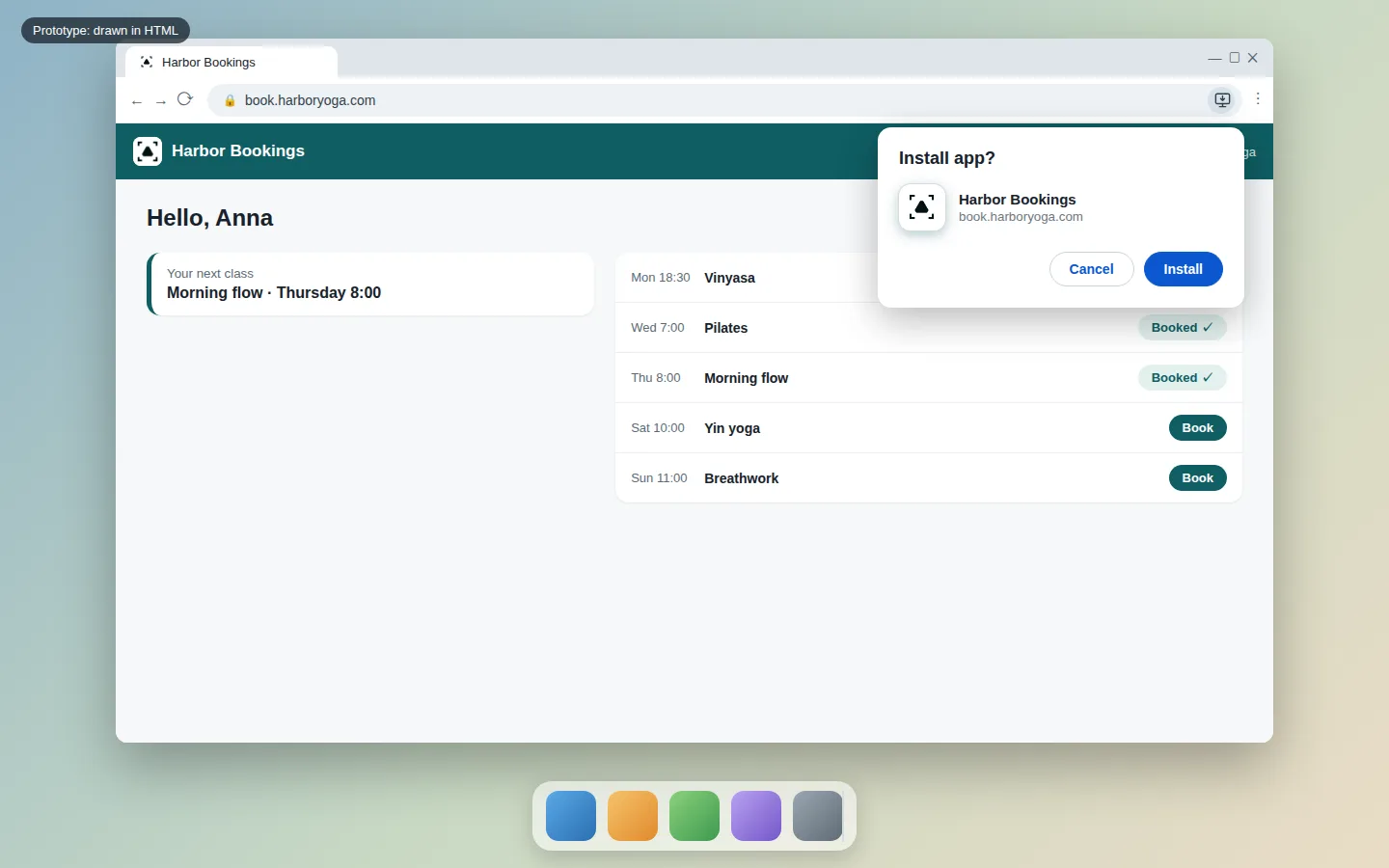
The app opens in its own window. Its icon stays in the dock or the taskbar, so next time clients open it like any other program.
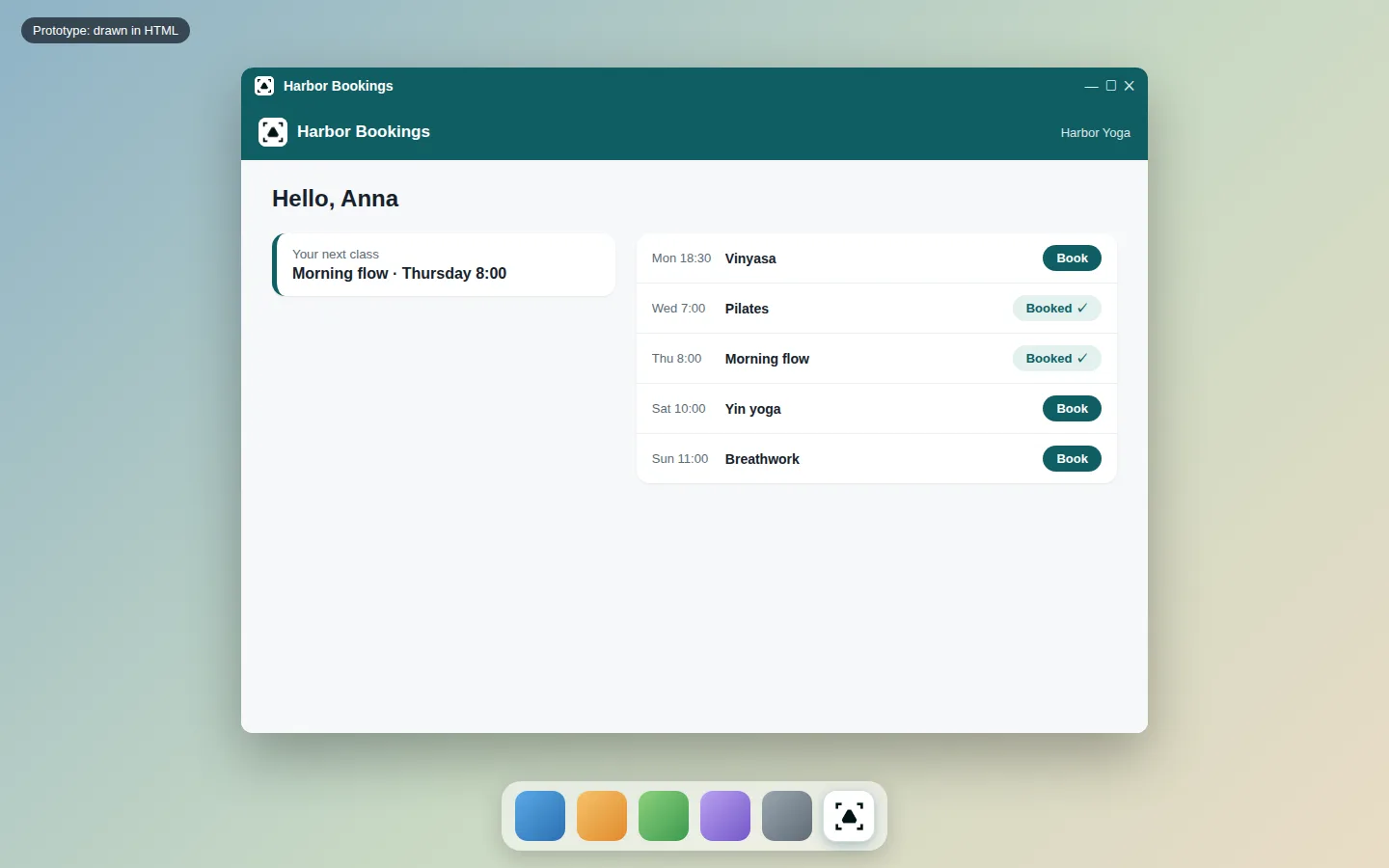
On a Mac in Safari, clients click File, then Add to Dock.
On an iPhone (Safari)
- Open the app in Safari.
- Tap Share.
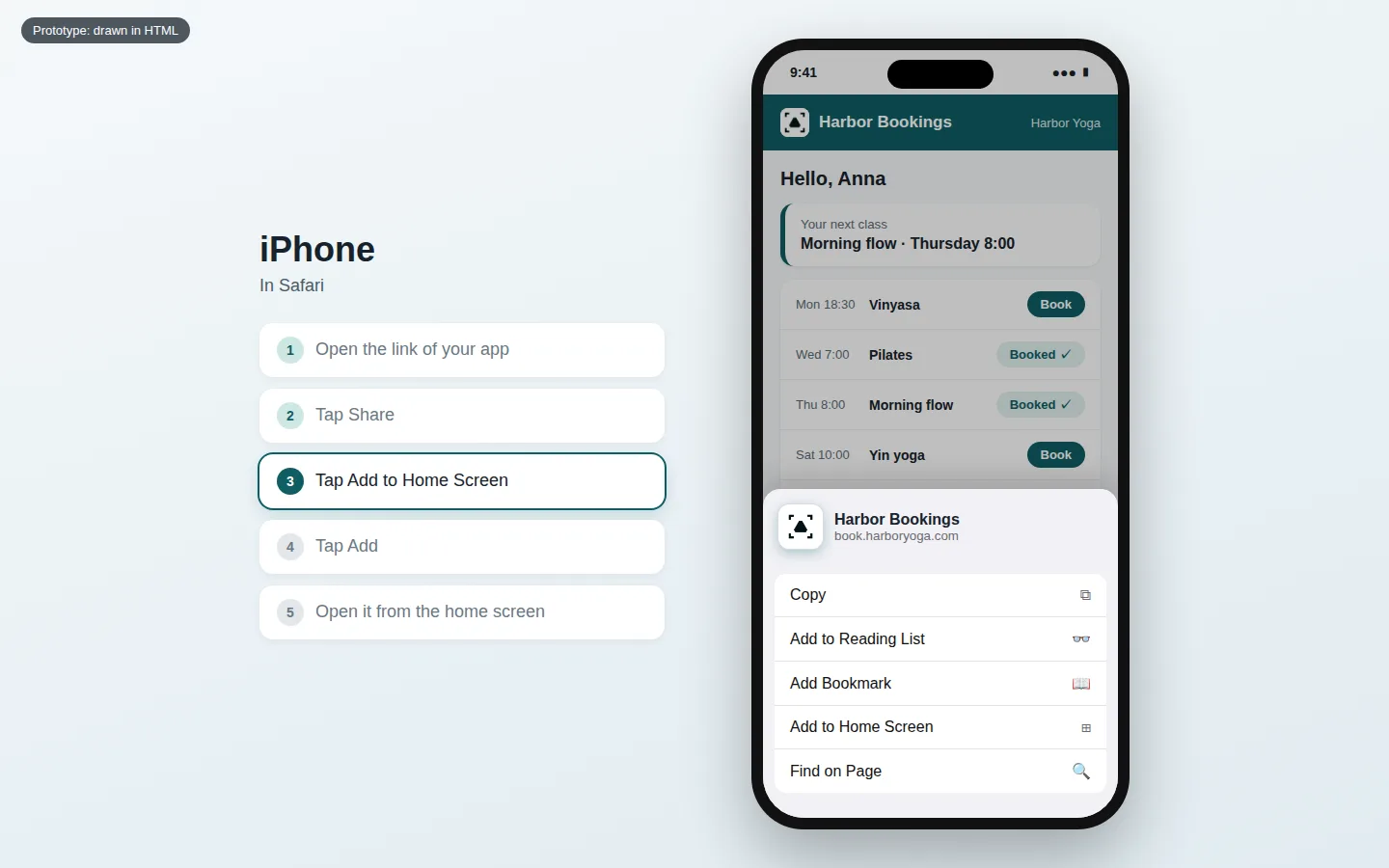
- Tap Add to Home Screen. (On some iPhones, it is under More.)
- Tap Add.
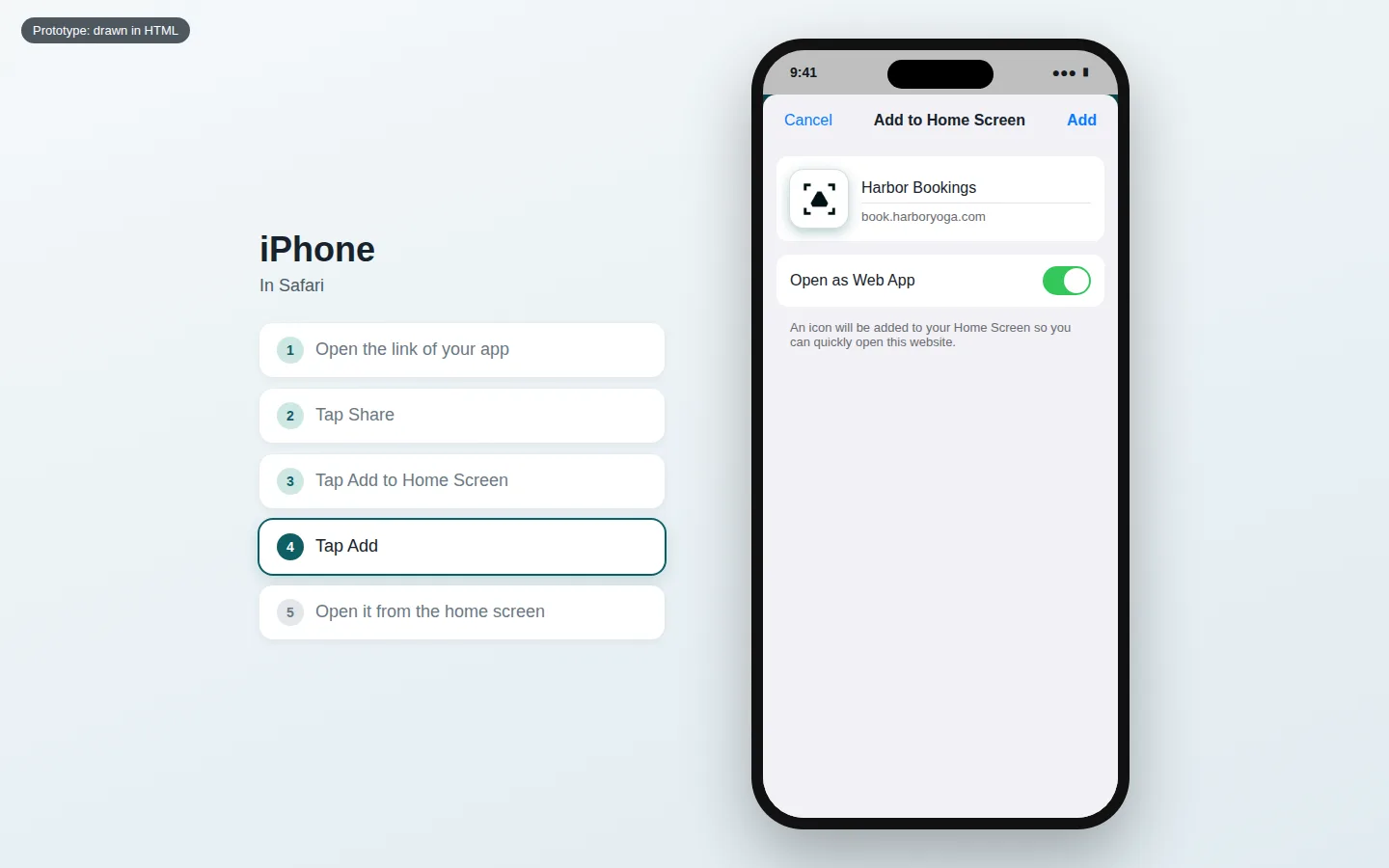
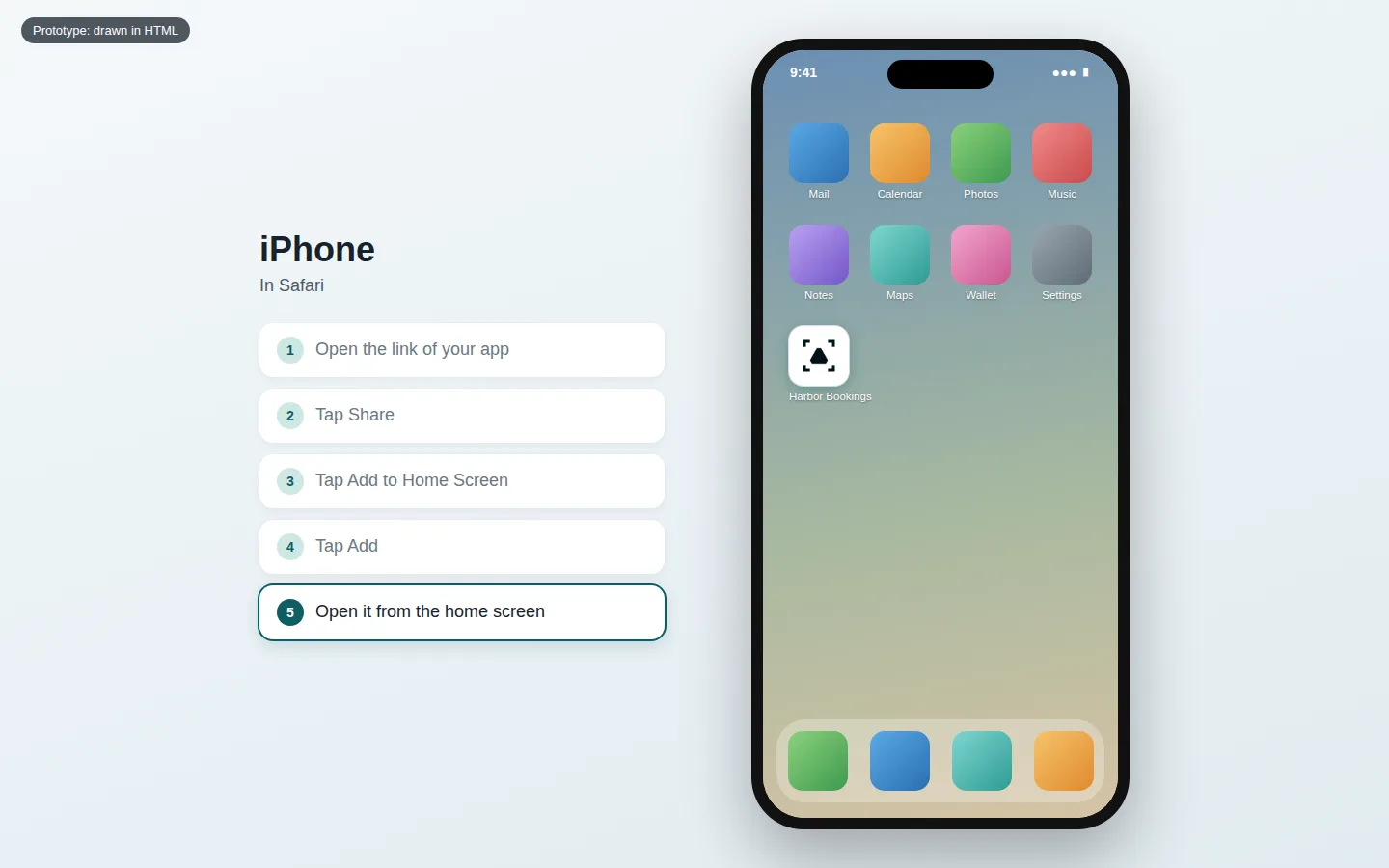
The app icon shows on the home screen. The app opens full screen, without the Safari bars.
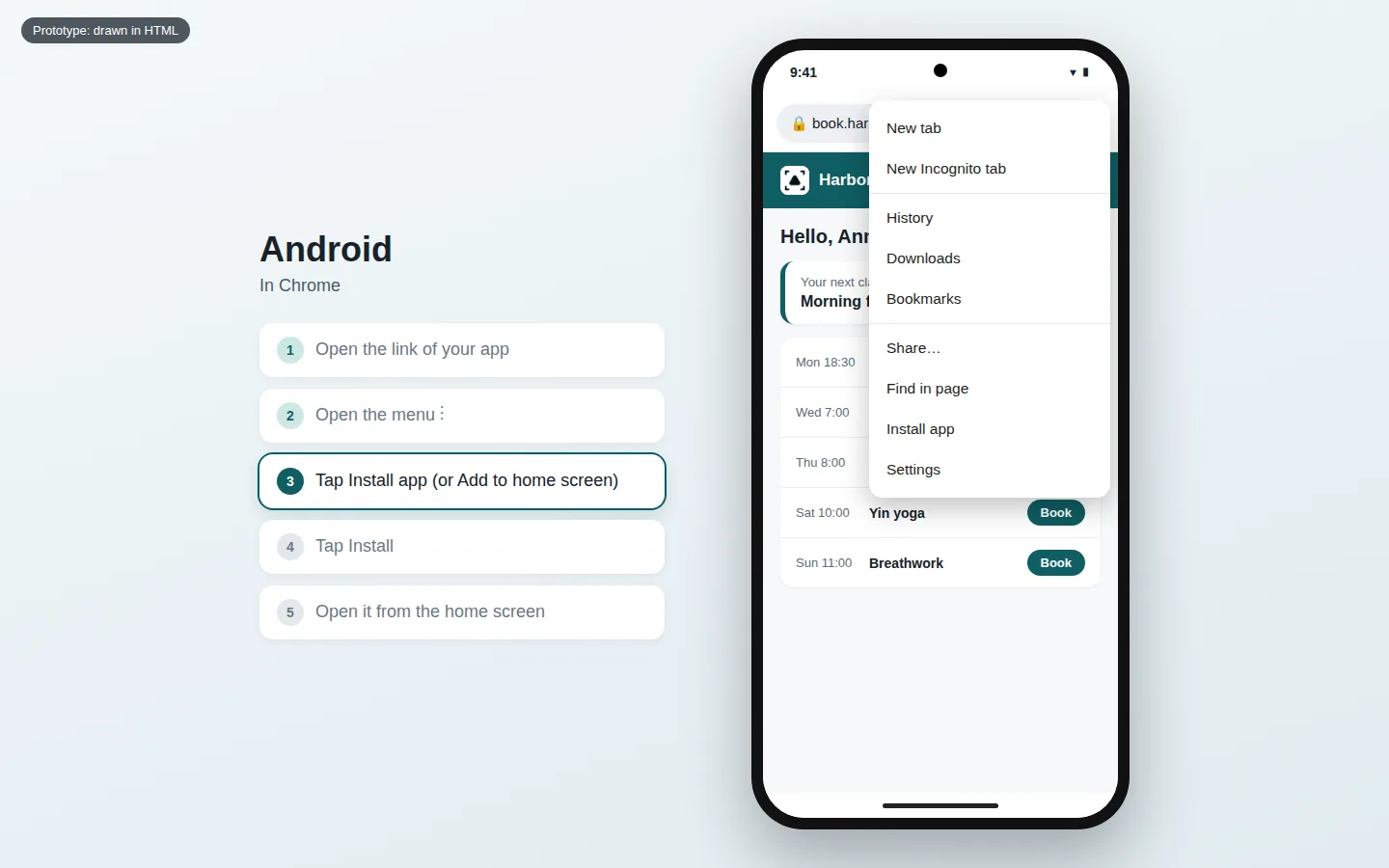
On an Android phone (Chrome)
- Open the app in Chrome.
- Tap the menu ⋮.
- Tap Install app (on some phones: Add to home screen).
- Tap Install.
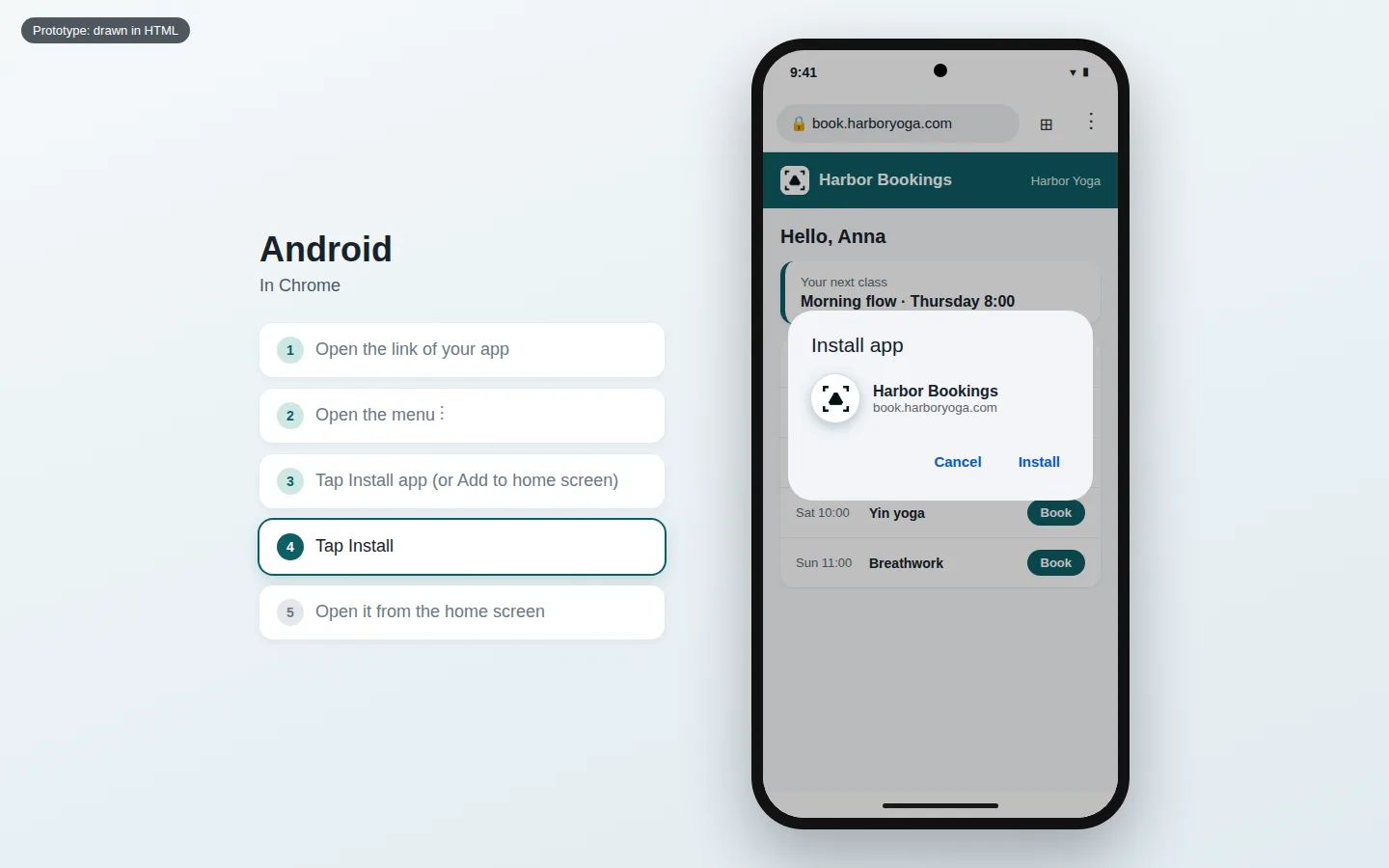
The app icon shows on the home screen, and the app opens like any other app.
Good to know
- Tell your clients. Send the link of your app and add one line, for example: “Install it on your phone or computer for quick access.”
- App name. The installed app shows the name of your app. The icon is the standard FuseBase app icon.
- Sign-in. If people must sign in to your app, they sign in the same way as in the browser. On an iPhone, the installed app can ask them to sign in one more time.
- Turn it off at any time. Turn off Allow install as app and click Save. Then browsers stop offering to install your app.