FuseBase AI
Teach your AI agent a task with a skill
Make a FuseBase page a skill, add it to your AI agents, and they do the task your way: the same steps, format and rules in every chat.
Guide details
- Published
- November 22, 2026
- Read time
- 6 min read
- Category
- FuseBase AI
A skill teaches your AI agent how to do one task your way: a weekly client report, a follow-up email, a reply to a refund request. A skill is a normal FuseBase page with instructions. You add it to one or more agents, and the agents follow it when the task comes up.
Why use skills
- The same result every time. The agent uses your steps, your format and your rules, not a new way for each chat.
- Short agent prompts. The agent reads only the name and the description of each skill in every chat. It opens the full page only when the task needs it. So an agent can know many tasks and still stay fast and focused.
- One page, many agents. Write the instructions once and add the page to all agents that need it. When you change the page, all these agents use the new text in their next chat.
- Your team edits skills like pages. Skills live in your workspace. People change them with the normal editor, without the agent settings.
How a skill works
- In every chat, the agent sees the list of its skills: the page title as the name, and the description.
- When a request matches a description, the agent opens that skill page and reads the instructions.
- The agent does the task as the page says.
This is why the description is the most important part of a skill: the agent selects skills only by it.
Step 1. Make a page a skill
- Open a page with your instructions, or make a new page. The page title is the name of the skill, for example Weekly client report.
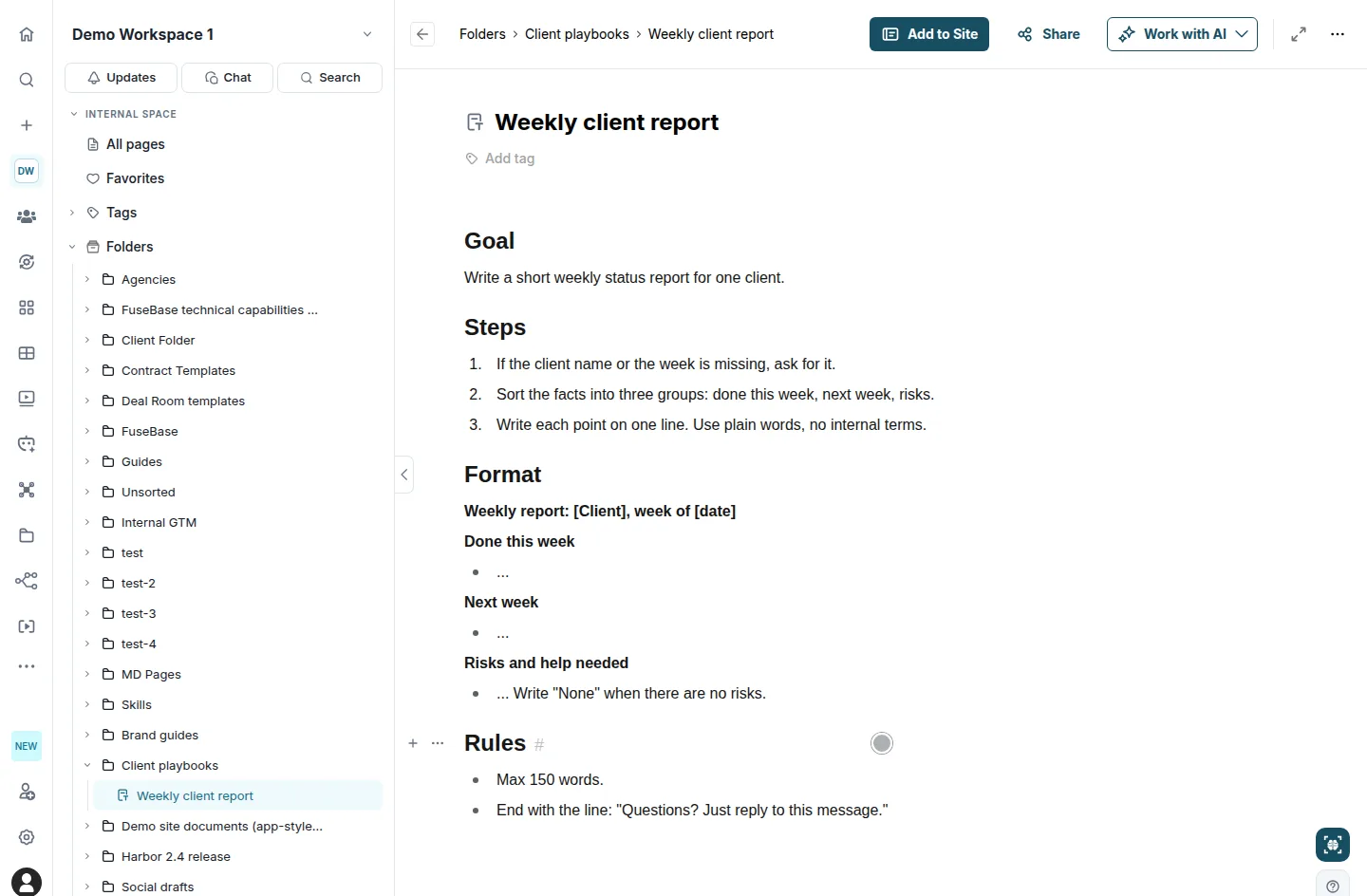
- Put the cursor on an empty line at the top of the page and type /skill. Select Skill in the menu.
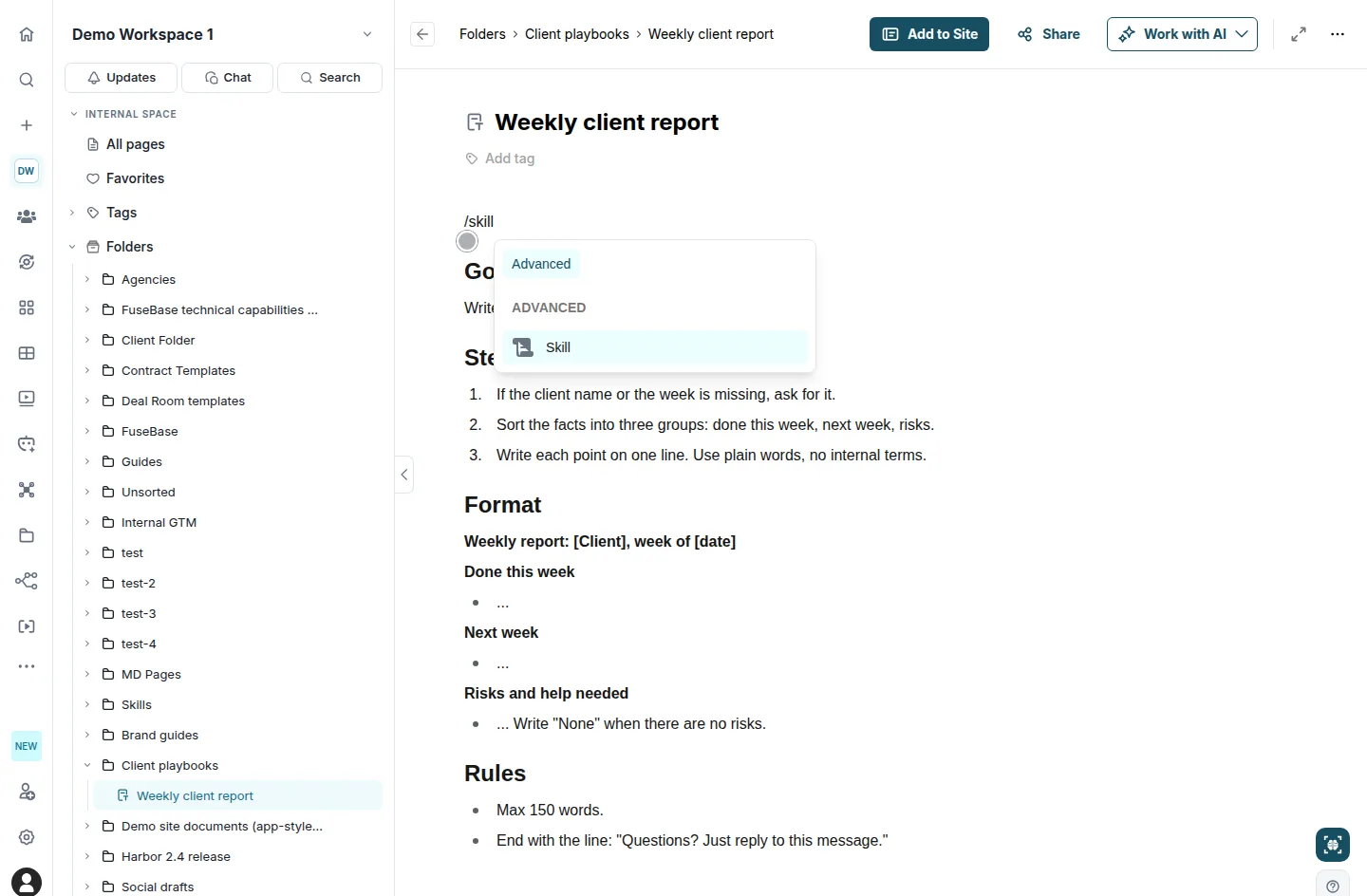
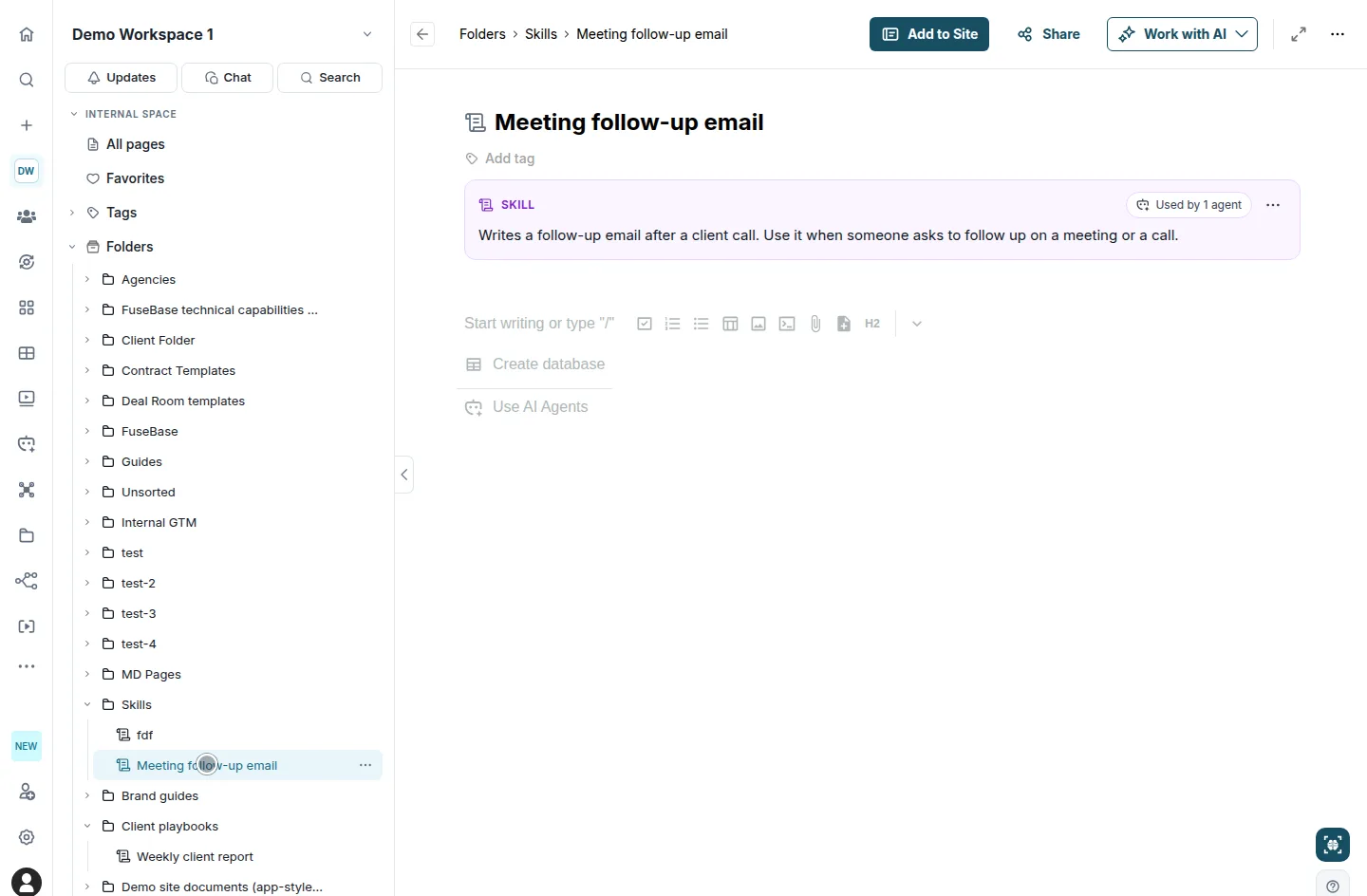
- A Skill block shows on top of the page. Until it has a description, the block says: Agents skip this skill until it has a description.
A page has only one skill block, and it is always on top. To make the page a normal page again, open the menu of the block and click Remove skill block.
Step 2. Write the description
Type the description in the skill block. Write two things:
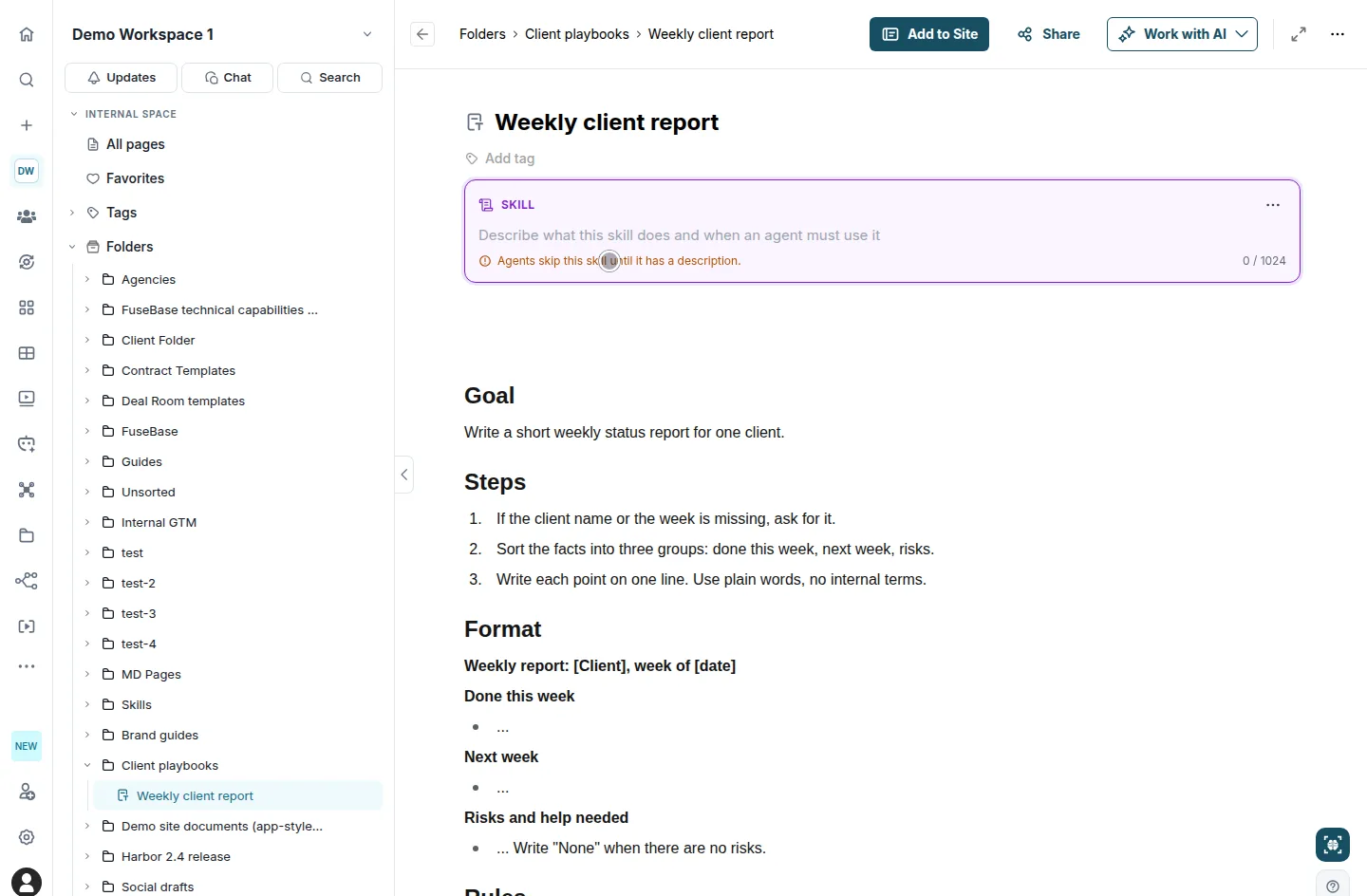
- What the skill does. For example: “Writes the weekly status report for a client.”
- When the agent must use it. For example: “Use it when someone asks for a weekly report, a status update or a client summary.”
The description can have up to 1,024 characters. One or two clear sentences are enough. Use the words that people use when they ask for this task.
When the description is saved, the page gets the skill icon in the sidebar.
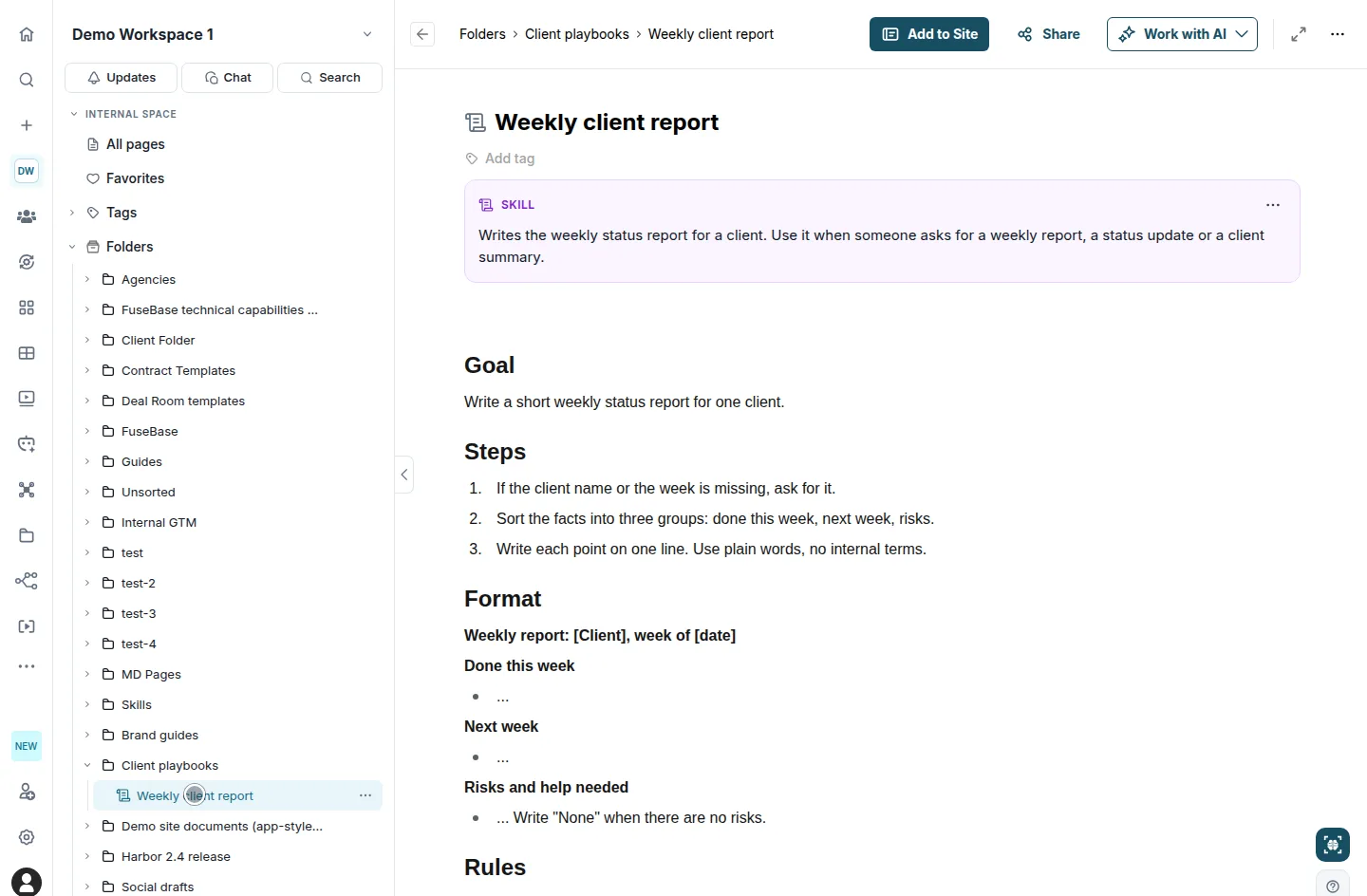
What is the skill block? The block is the front matter of the page: a short part at the top of the Markdown, between two lines with three dashes. FuseBase shows it as the block. Only the key description is used. The skill name is always the page title. If you make skill pages with the API or import Markdown files, write the front matter like this:
---
description: Writes the weekly status report for a client. Use it when someone asks for a weekly report, a status update or a client summary.
---
Step 3. Write the instructions
Under the block, write the instructions as for a new team member. A good skill page has these parts:
- Goal. One sentence: what the result is.
- Steps. A numbered list of what to do, in order. Include what to ask when information is missing.
- Format. How the answer must look: headings, groups, a template.
- Rules. Limits and musts: length, tone, words to use or not use, a fixed last line.
- Example (optional). One good result. Examples help the agent more than long explanations.
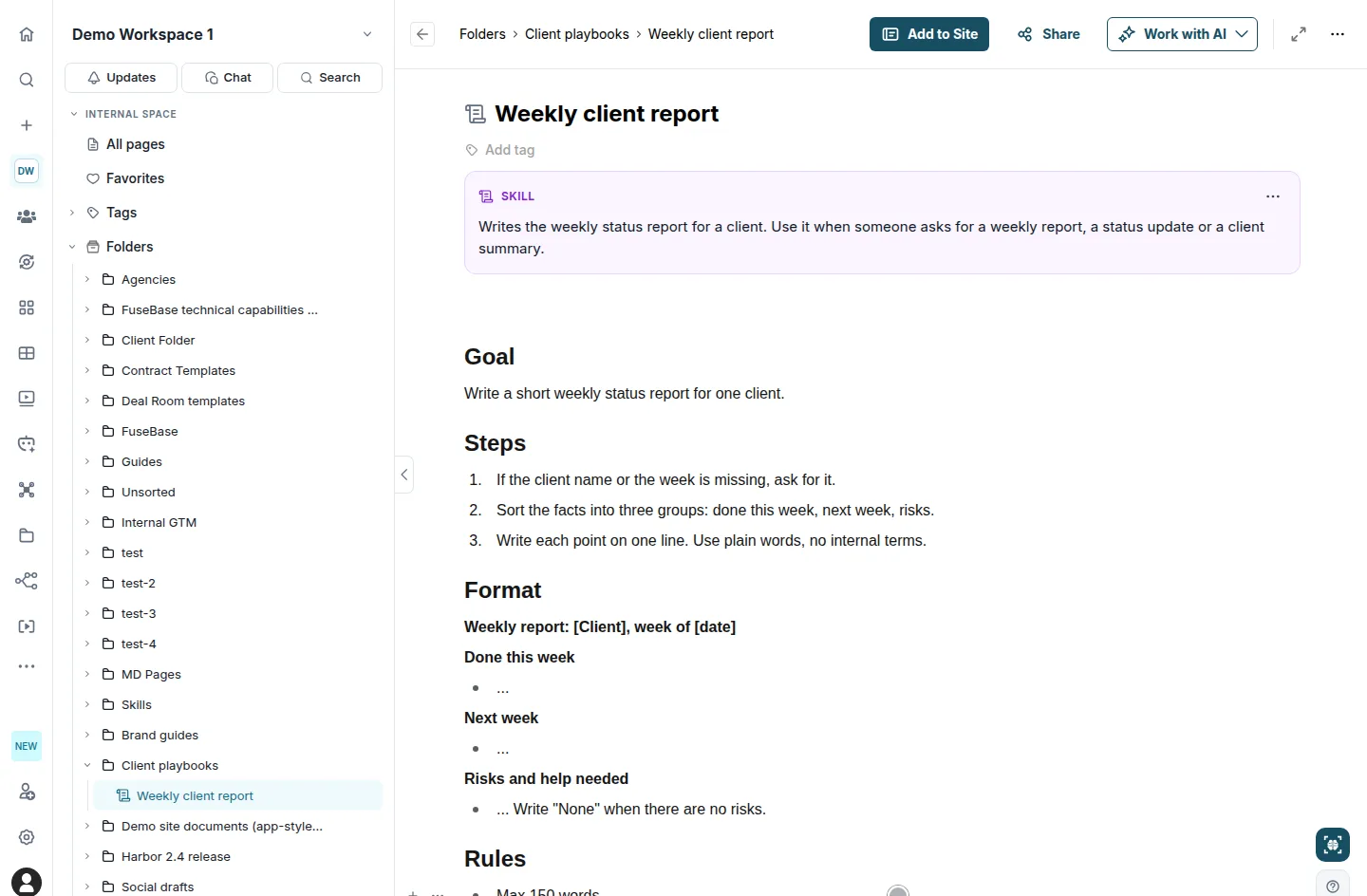
The example page in this guide:
## Goal
Write a short weekly status report for one client.

## Steps
1. If the client name or the week is missing, ask for it.
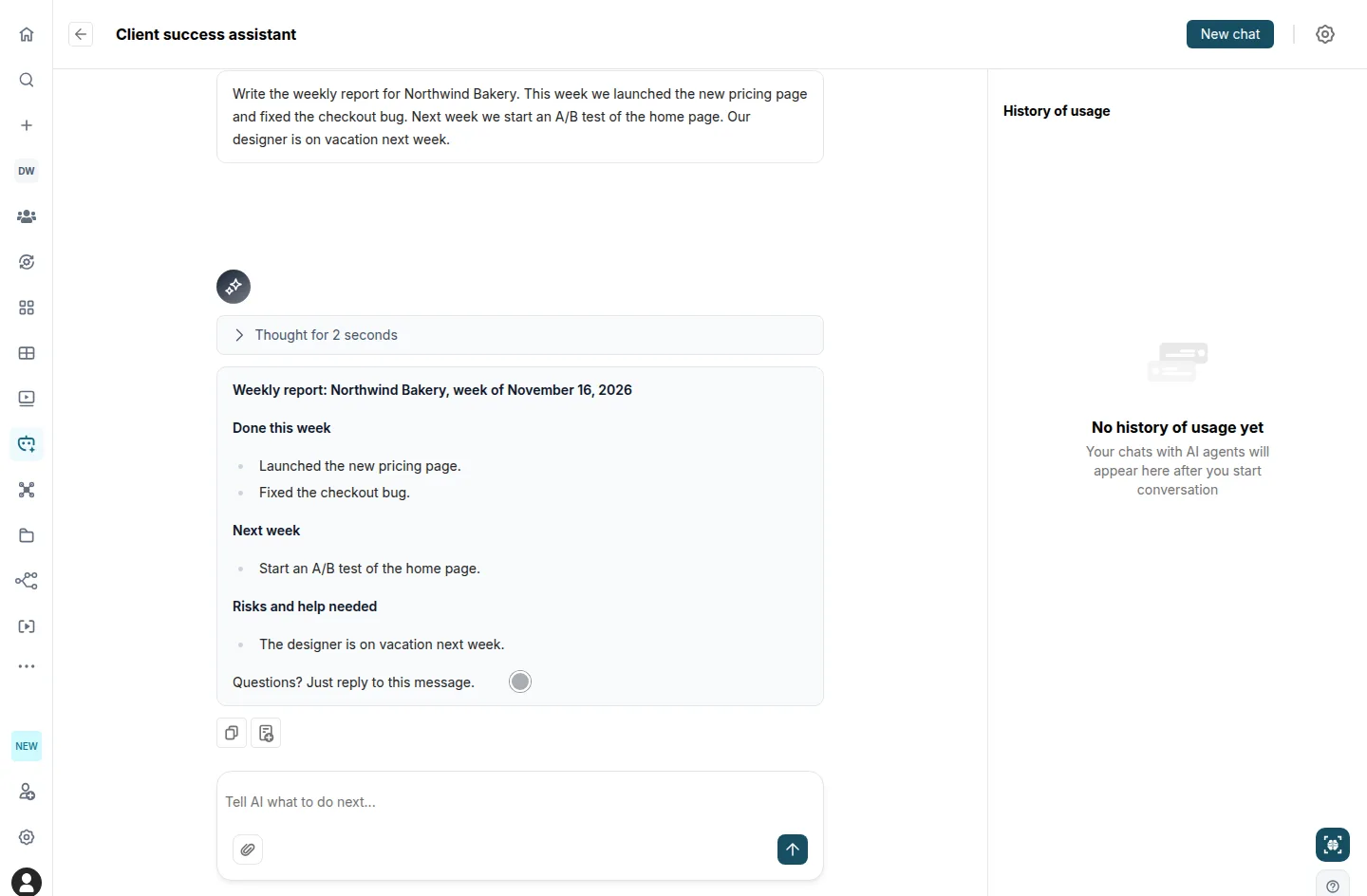
2. Sort the facts into three groups: done this week, next week, risks.
3. Write each point on one line. Use plain words, no internal terms.

## Format
Weekly report: [Client], week of [date]
Done this week / Next week / Risks and help needed
(Write "None" when there are no risks.)

## Rules
- Max 150 words.
- End with the line: "Questions? Just reply to this message."
Tips:
- One task for each skill. Make two skills for two tasks. The agent then selects the correct one more easily.
- Short headings and lists. They are easier for the agent to follow than long paragraphs.
- Keep the page short. The agent reads up to 20,000 characters of a skill page. Text after that is cut.
Step 4. Add the skill to an agent
- Open AI Agents, find your agent and click Edit.
- Select the Skills tab. It is after Sources.
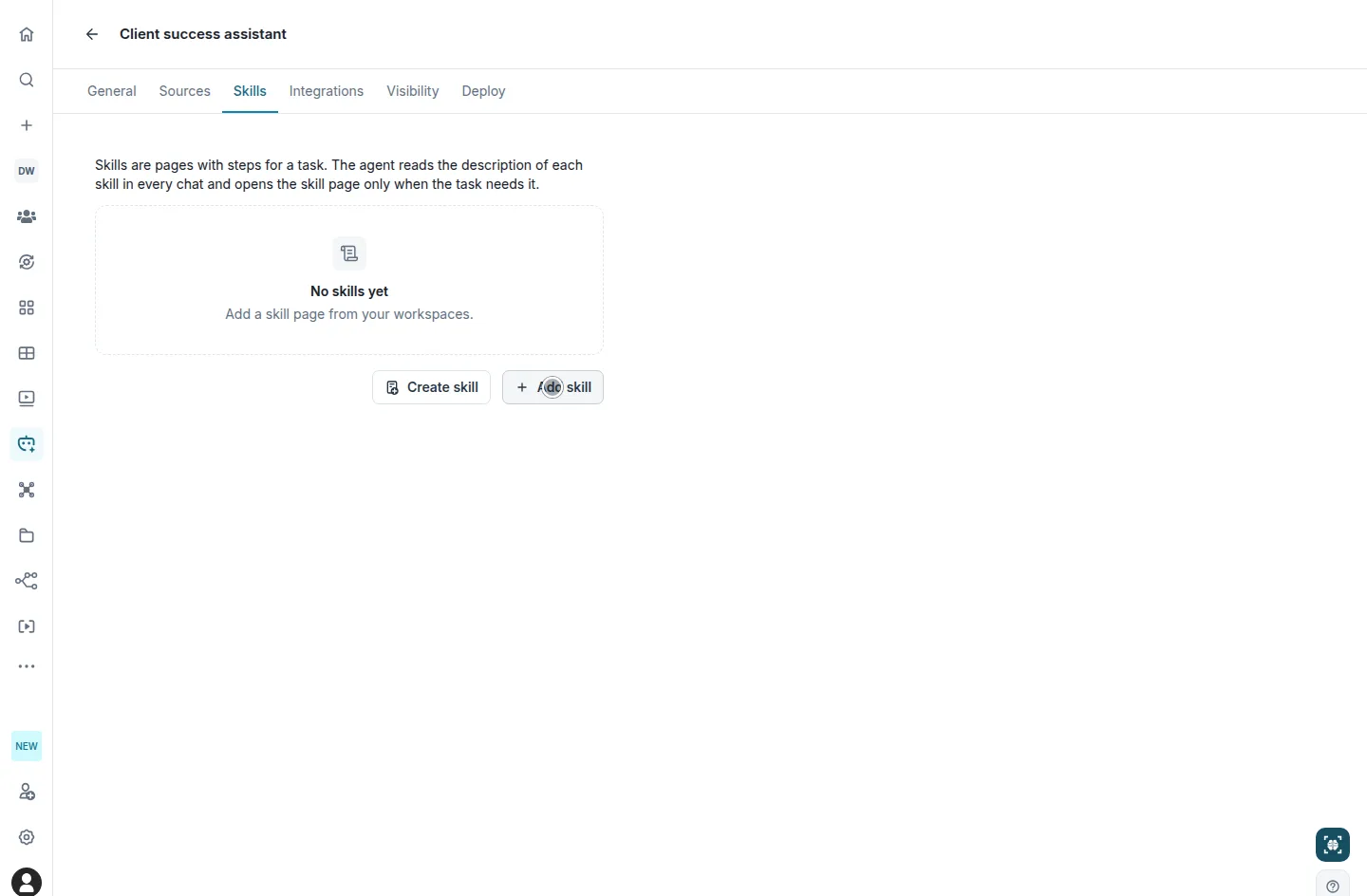
- Click Add skill. The list shows the skill pages of your organization that you can open, grouped by workspace.
- Type a part of the title or the description to find the page, then click Add.
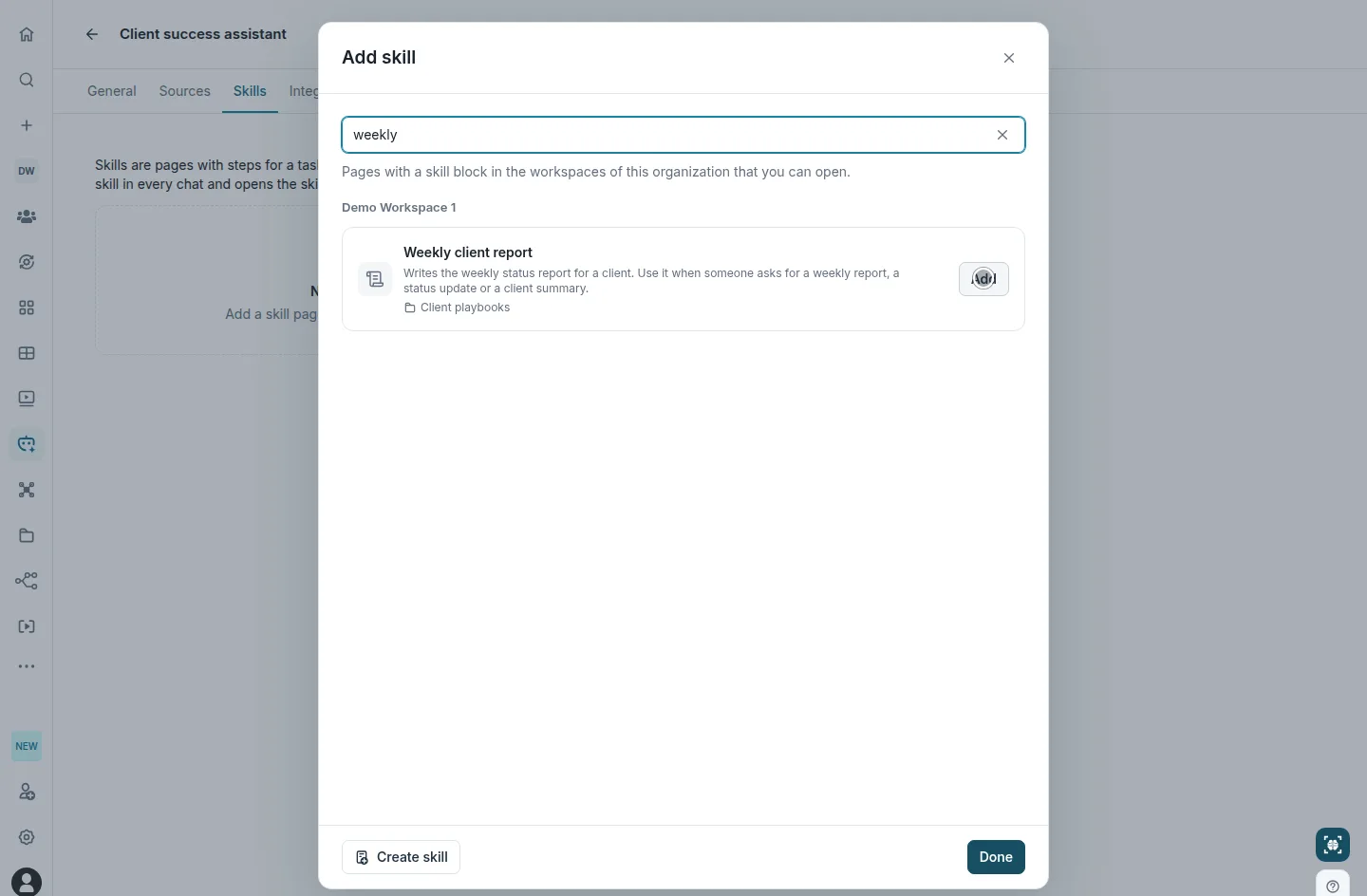
- Click Done. The change is saved at once. The Skills tab shows the skill with its description and its folder.
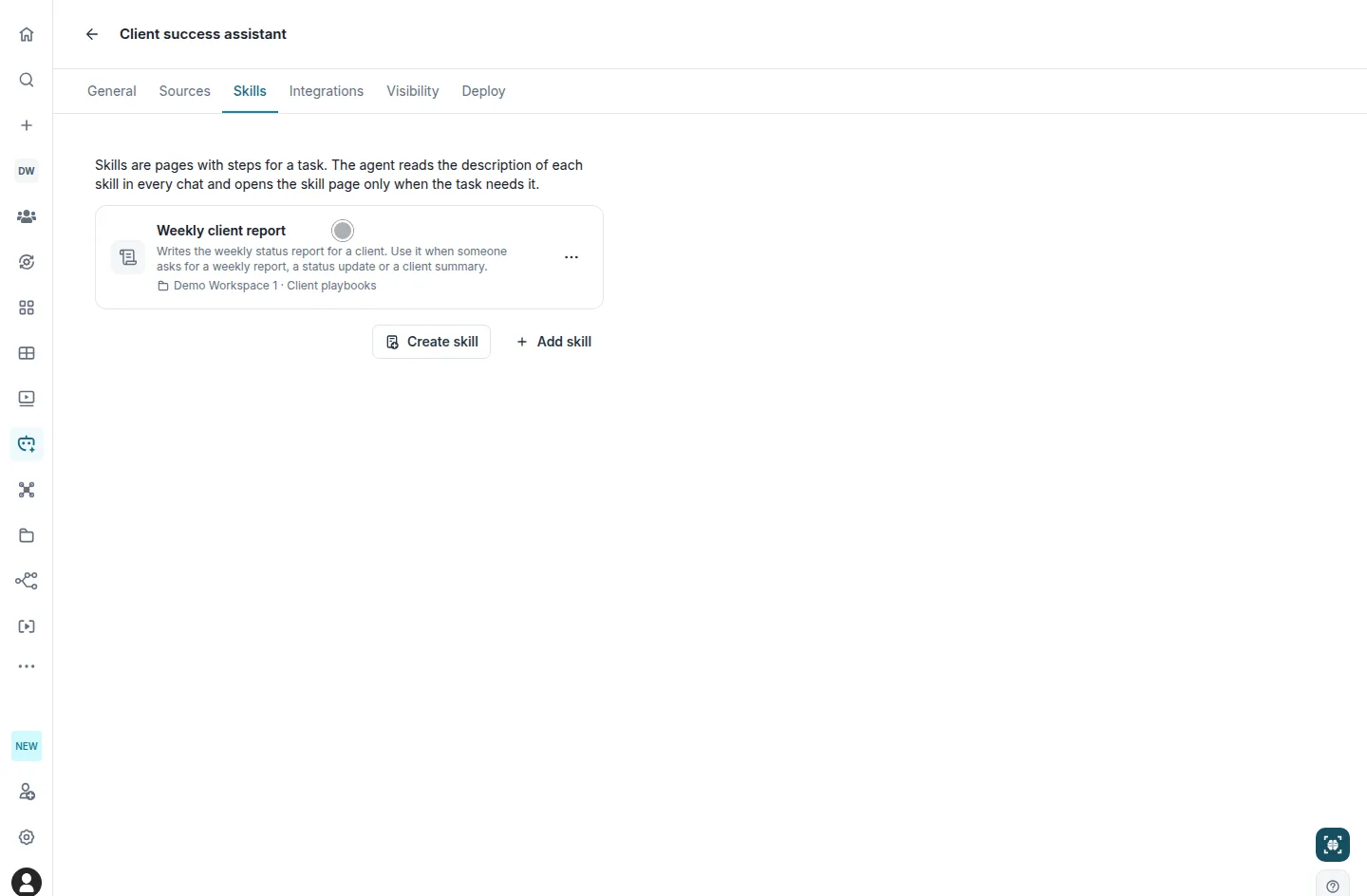
An agent can have up to 20 skills. To remove a skill from the agent, open the menu of its row and click Remove. The page itself stays.
Step 5. Or create a new skill from the agent
- On the Skills tab, click Create skill.
- Type the Title and the Description.
- Select the Workspace. The Folder is Skills by default: FuseBase makes this folder at the root of the workspace when you use it for the first time. You can select another folder.
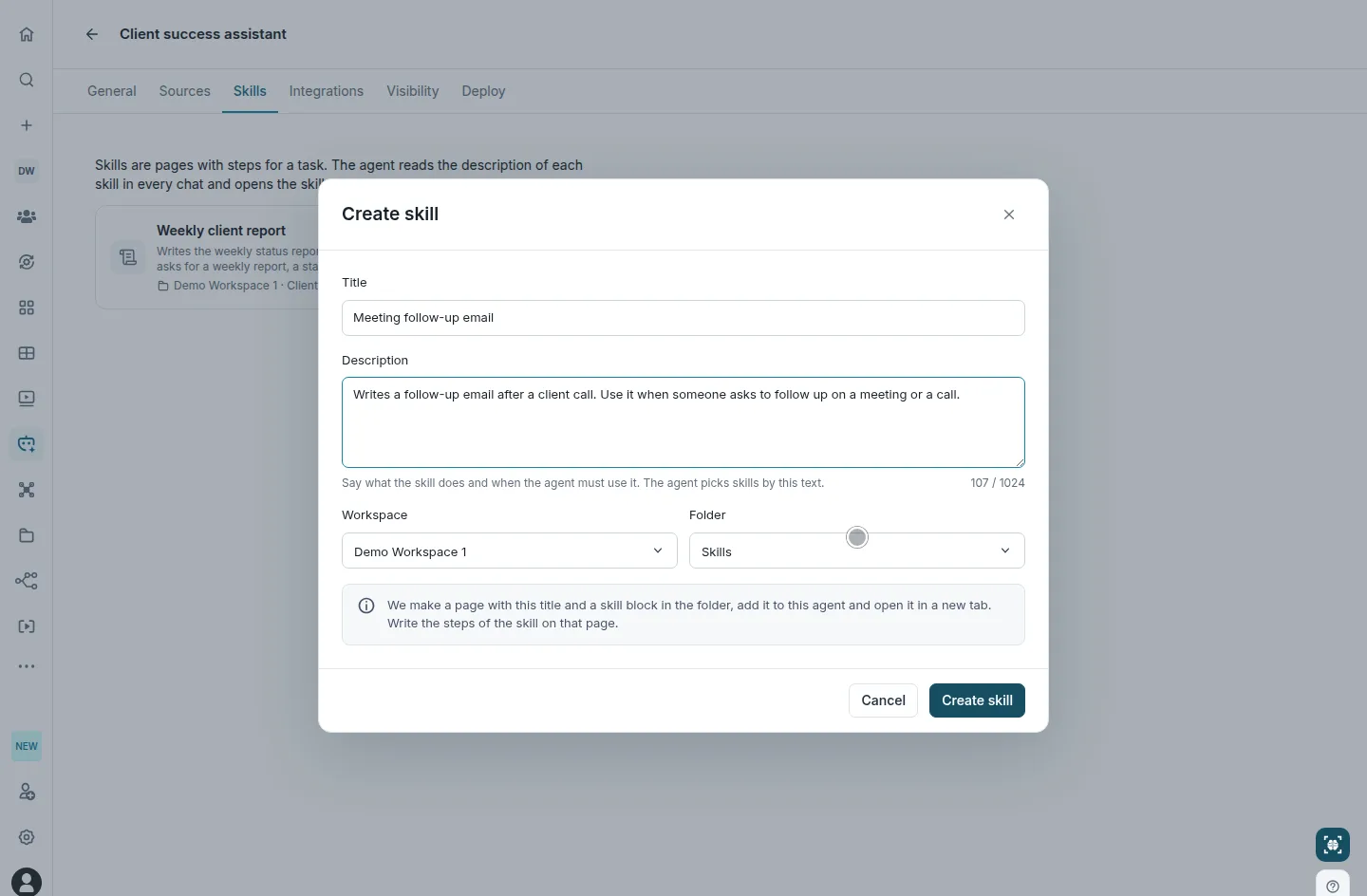
- Click Create skill. FuseBase makes the page with the skill block, adds it to the agent and opens it in a new tab. Write the instructions of the skill on that page.
Step 6. Use the agent
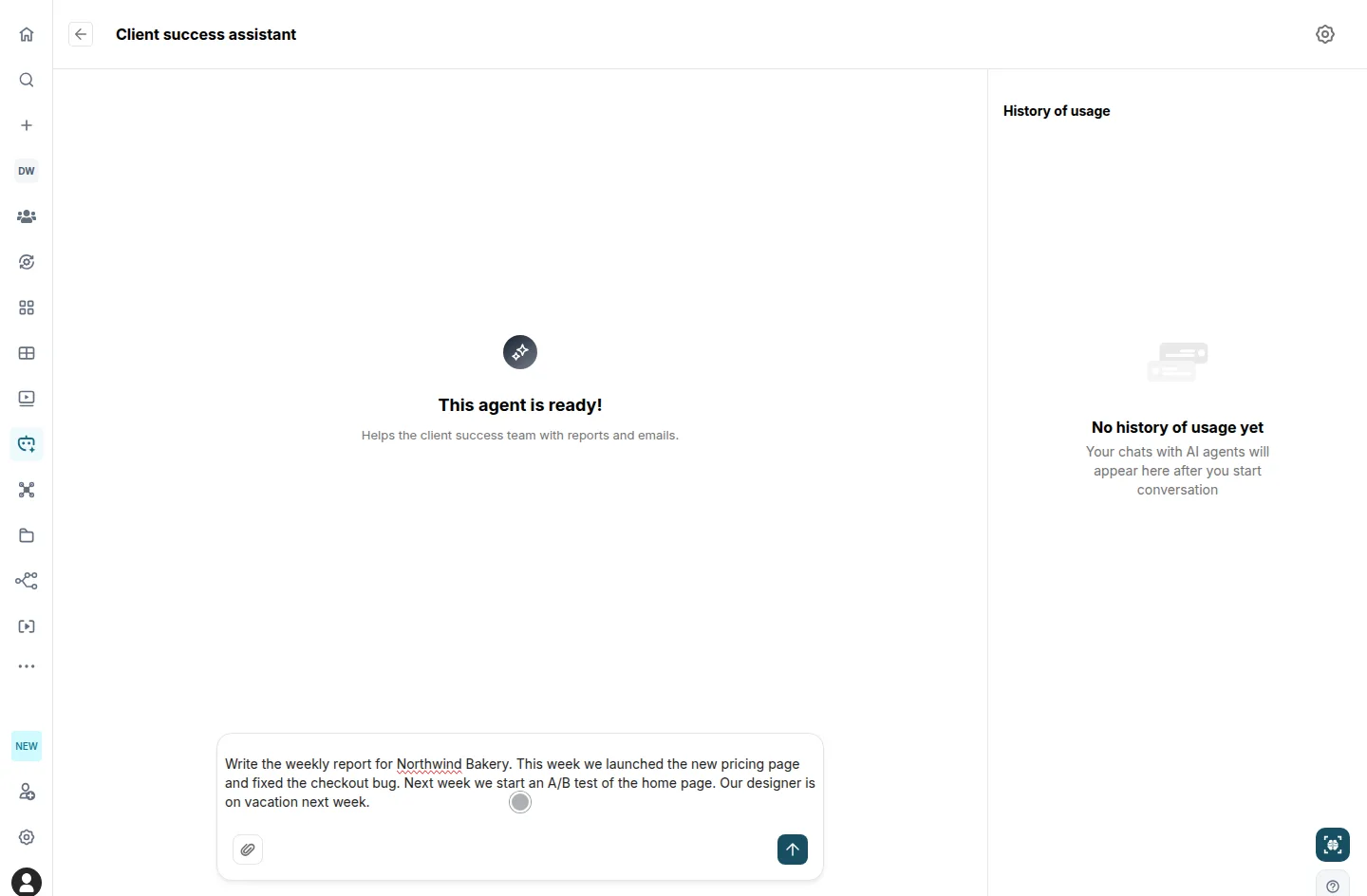
Start a chat with the agent and ask for the task. You do not need to name the skill. When the request matches the description, the agent opens the skill page and follows it.
In this example, the answer uses the three groups, the format and the last line from the skill page.
All users of the agent get its skills: members of your organization, and also visitors of your website, Telegram and Slack users if the agent is deployed there. They do not need access to the skill page.
See which agents use a skill
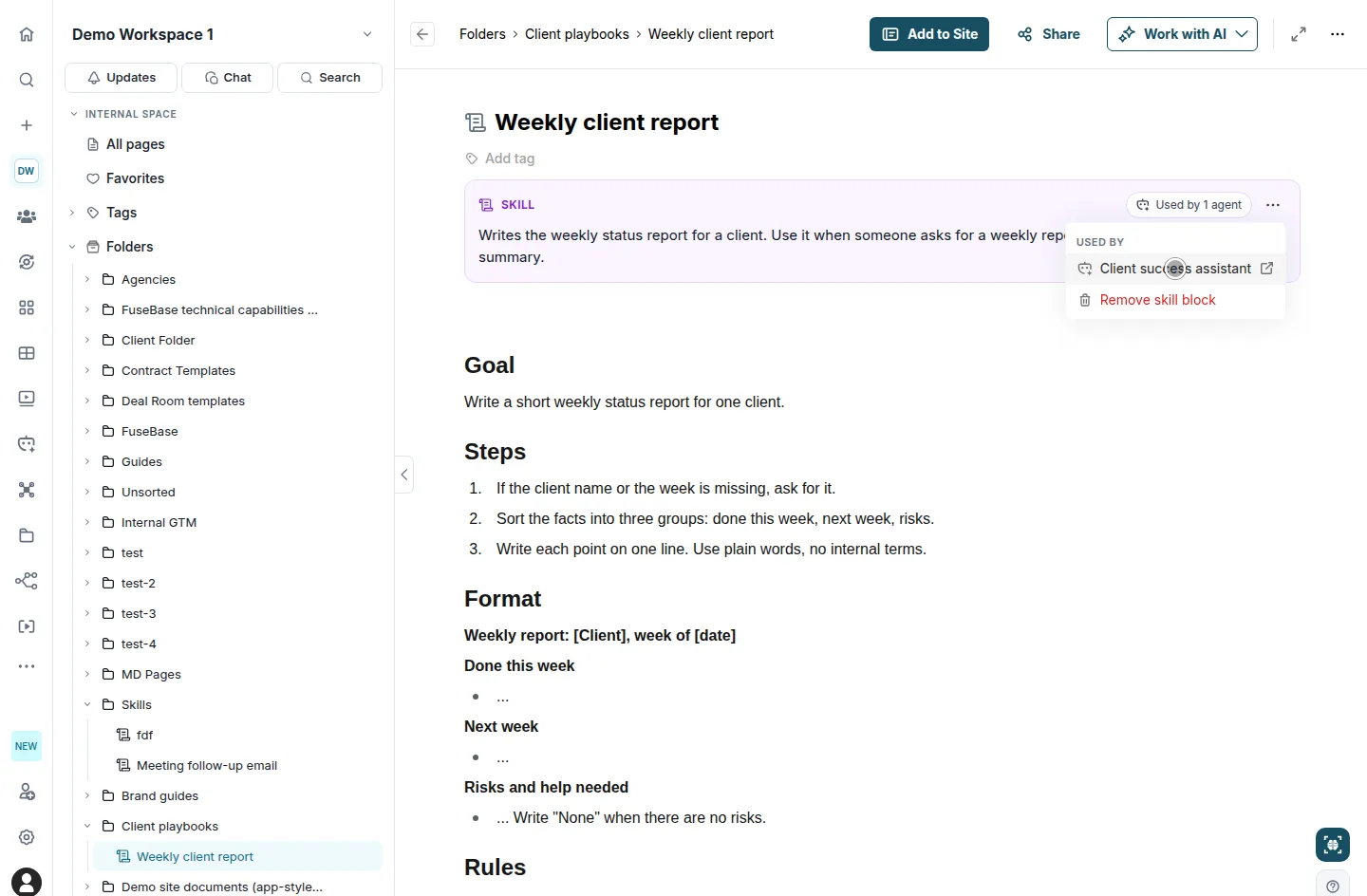
On a skill page, the block shows Used by N agents. Open the menu of the block to see these agents. Click an agent to open its settings in a new tab. You see only the agents that you can open.
Good to know
- Who can add a skill. You can add a page to an agent only when you can open the page.
- Deleted pages. If a skill page is deleted, or its skill block is removed, the agent skips it. The Skills tab shows a warning on that row. Open its menu and click Remove.
- Read-only places. On shared links, portal pages and sites, the skill block is read-only and does not show Used by.
- Mind. Skills work for AI agents. The AI assistant Mind does not use skill pages.