You can work with databases not only in the Databases section, but also directly on a page.
To do this, follow a few simple steps:
1) Go to the desired page or create a new one.
2) Click on the object menu and select Database.
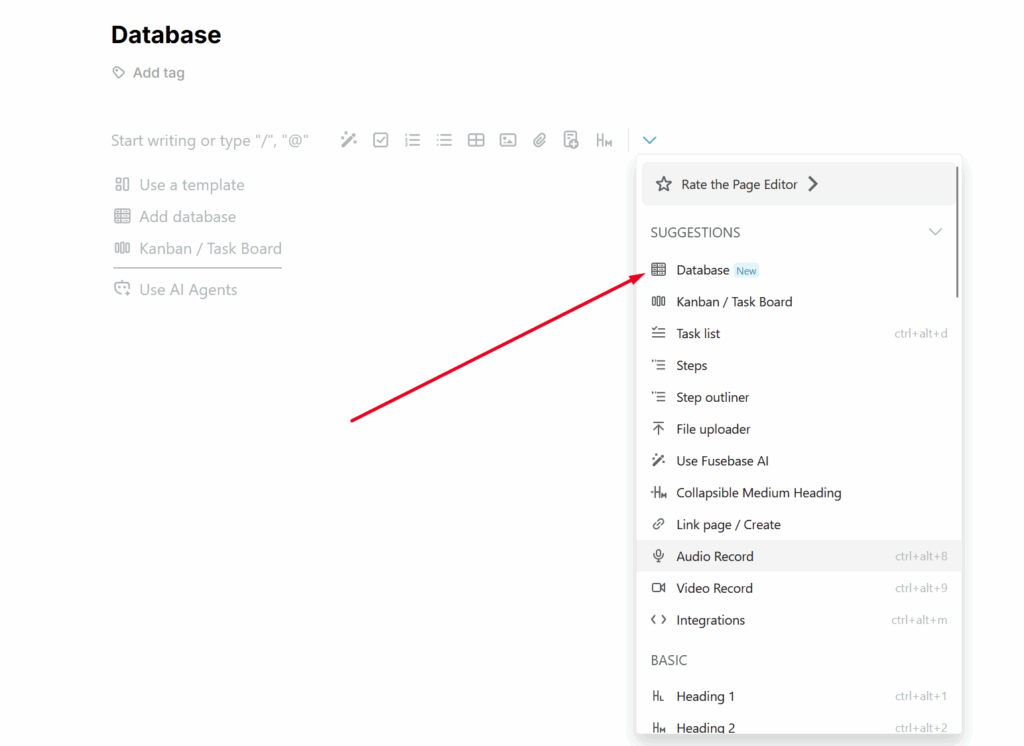
3) Next, you can create a new database or choose from existing ones. You can select an entire database, individual tables, or even a specific view.
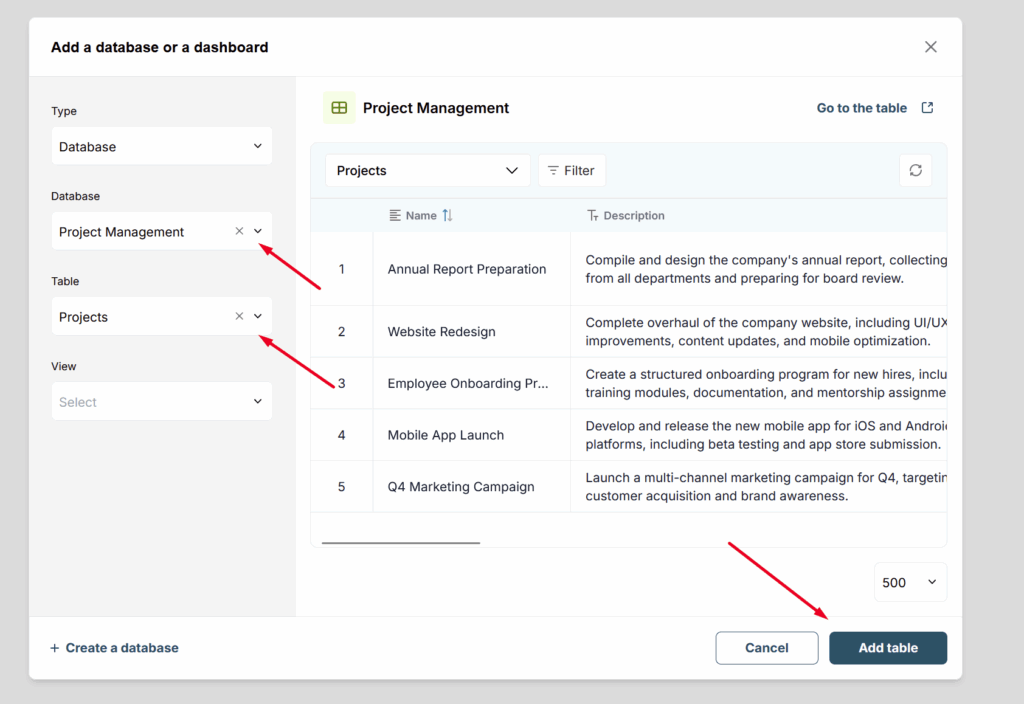
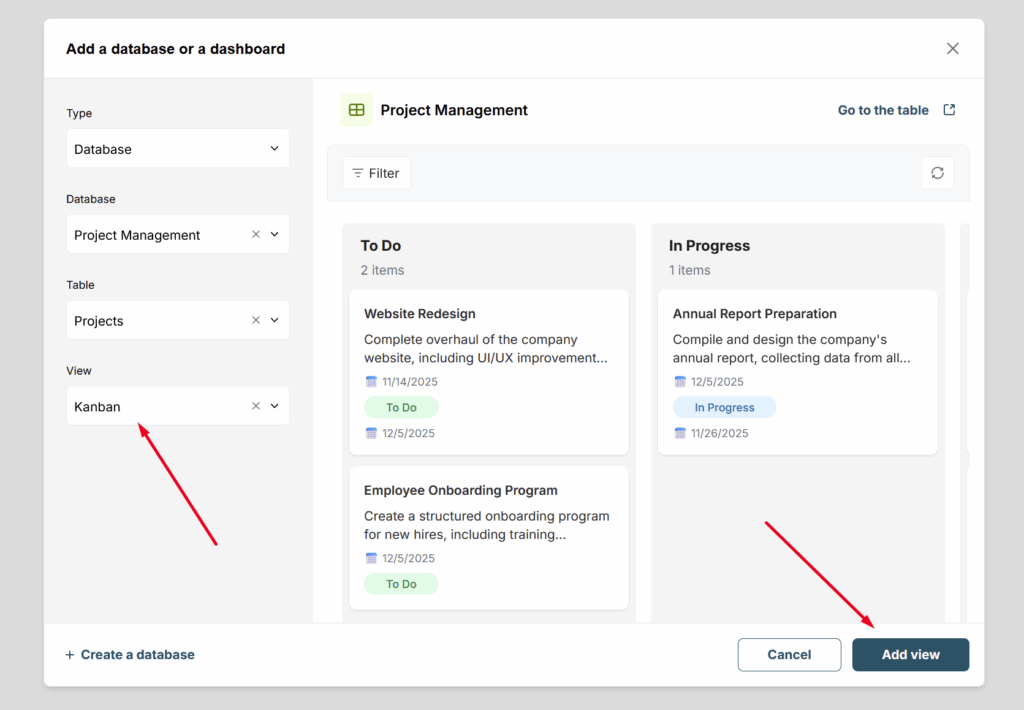
If you need to insert the entire database, select it from the Database list and click Add database. If you want to insert only a table, select the table from the list; if you need a specific view, select the desired view.
How to create a new database #
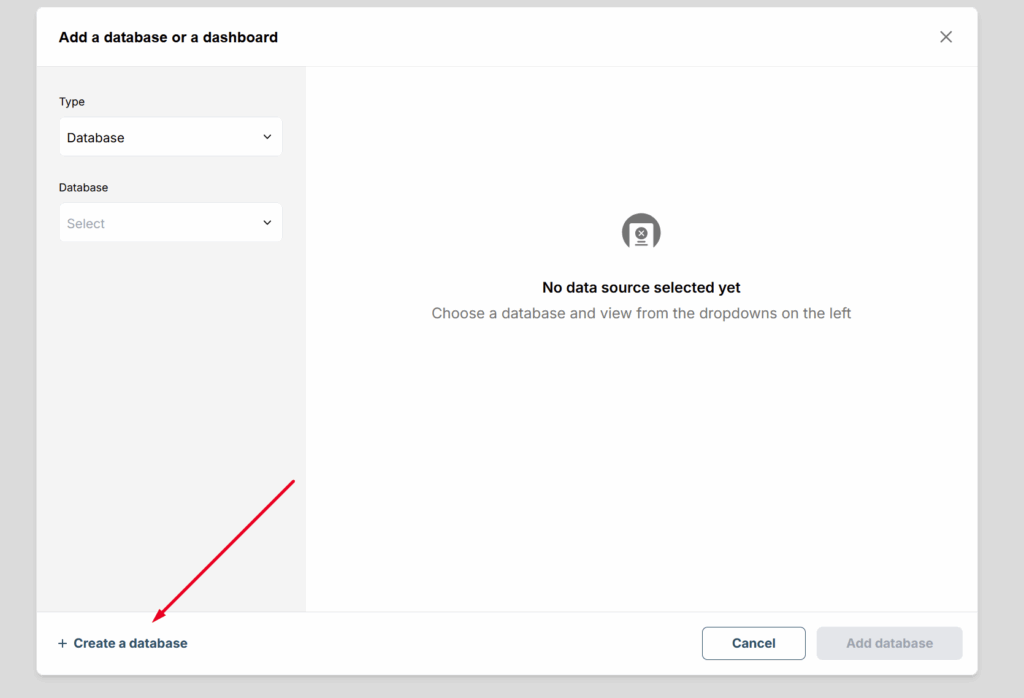
Click on the create database icon in the object menu.
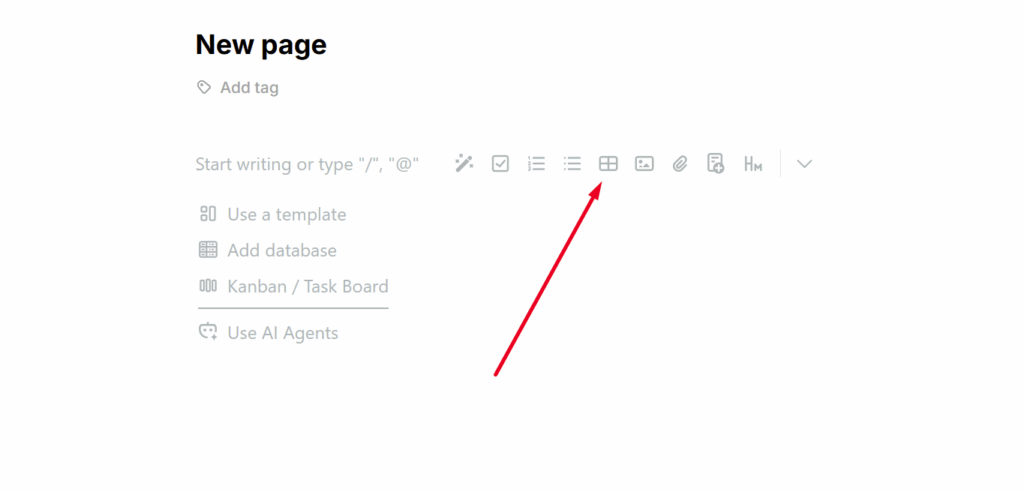
You can also select the Create new database option in the database selection window.
How to remove a table from a page #
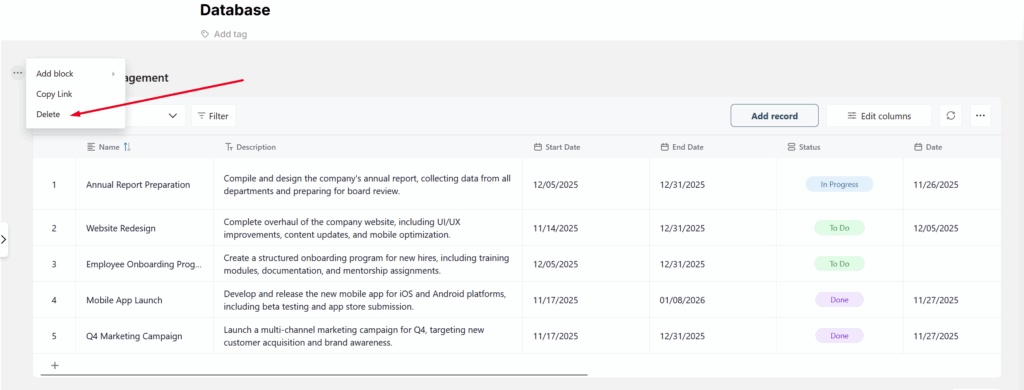
You need to click on the block menu and select Delete. Please note that the table will only be removed from the page, but will remain in the Databases section. Accordingly, if you want to delete the database completely, you need to go to Databases and delete it from there.
It is also important to note that if you delete a database, it will not be automatically removed from the page. A placeholder will be added to the page with a message indicating that the database is unavailable, and you can remove this placeholder.